
This guide is for students submitting work in Radix LMS. Parents can also use it to help students understand where to upload files, type responses, check submission status, and review teacher feedback.
Assignment submission options
Teachers can choose one or more ways for students to submit work. The options you see depend on how the teacher set up the assignment.
-
File upload: attach a document, image, PDF, video, or other file from your device.
-
Online text: type or paste your answer directly into Radix LMS.
-
Google Drive or OneDrive: choose a file from your school-connected cloud account, if your school enables this option.
-
Voice or video recording: record directly in the text editor, if this option is available.
-
Submission comments: add a short note for your teacher, if comments are enabled.
Submit an assignment
Open the assignment from your course page or dashboard. The assignment page usually shows the assignment name, instructions, due date, submission status, grading status, and any files or feedback connected to the assignment.
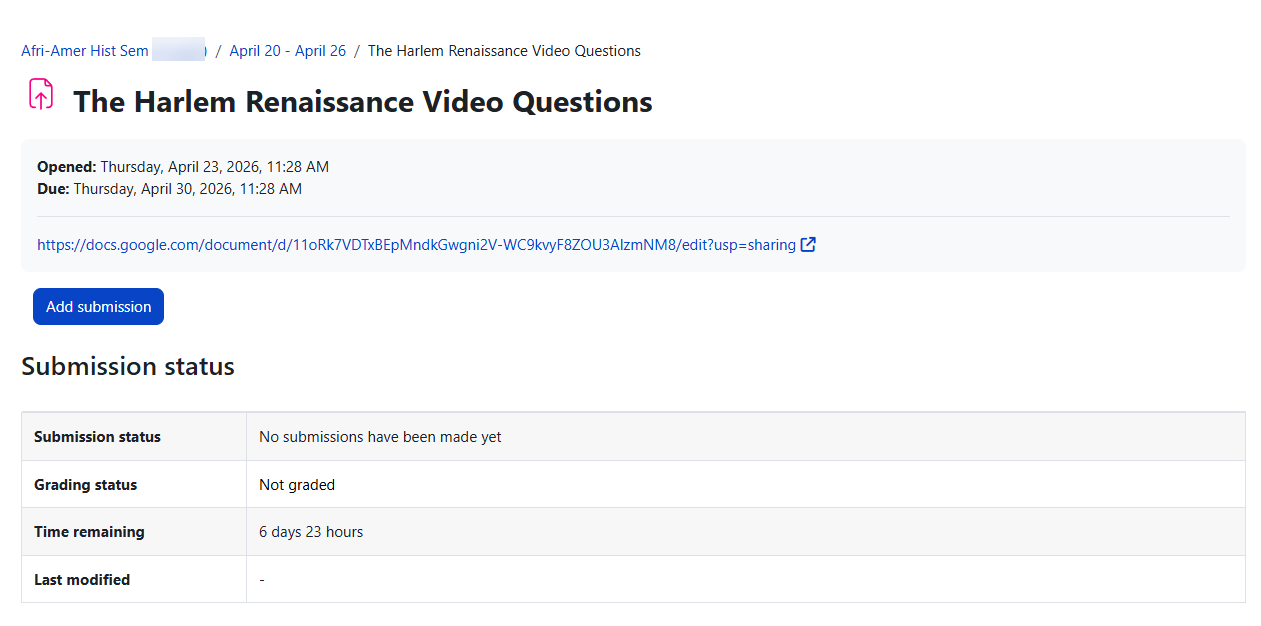
Before submitting, check the assignment instructions carefully. Your teacher may ask for a specific file type, a typed response, a photo of handwritten work, or a cloud document from Google Drive or OneDrive.
-
Select Add submission.
-
Add your work using the option your teacher enabled: upload a file, type in the online text box, choose a file from Google Drive/OneDrive, or add a recording.
-
Select Save changes.
-
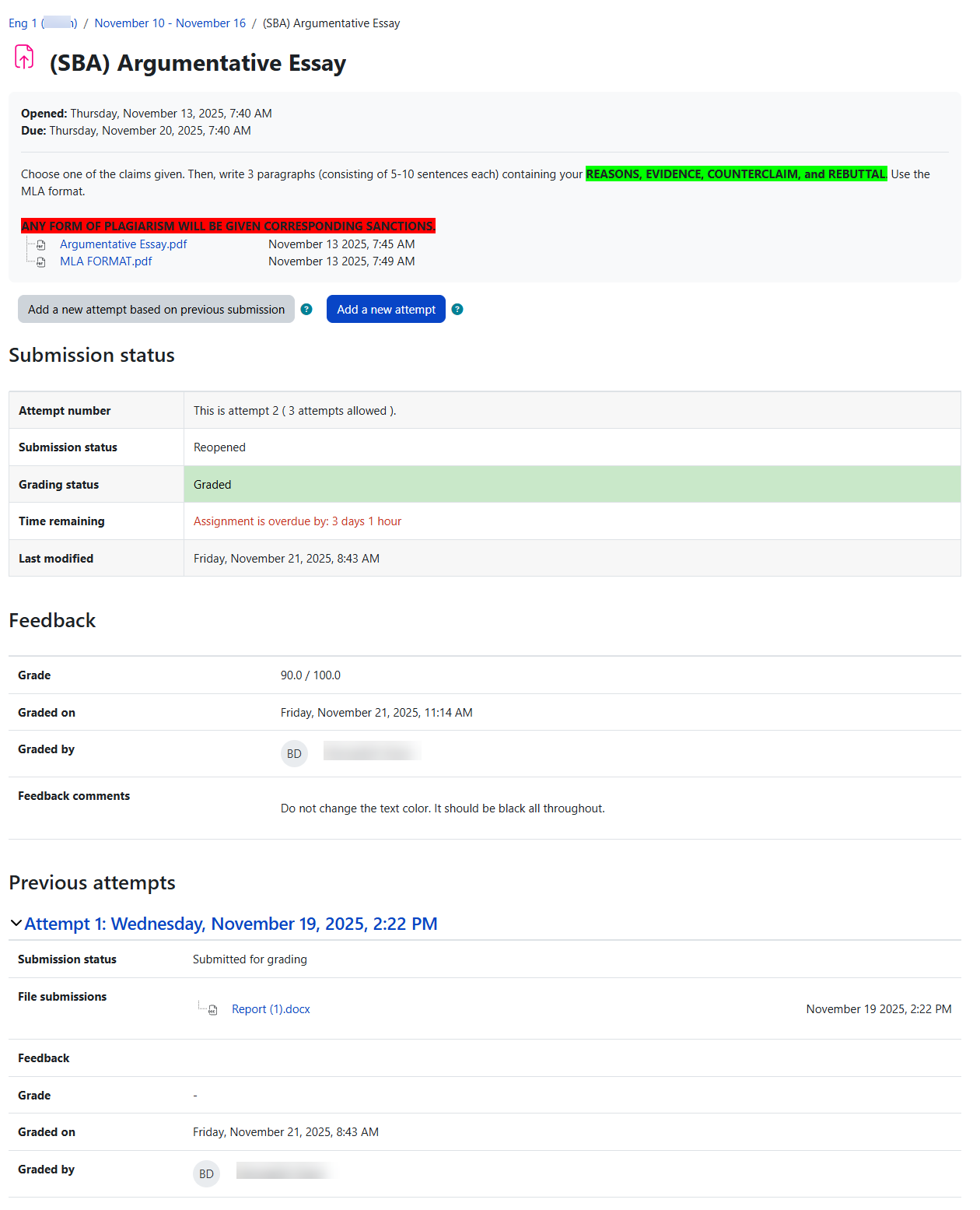
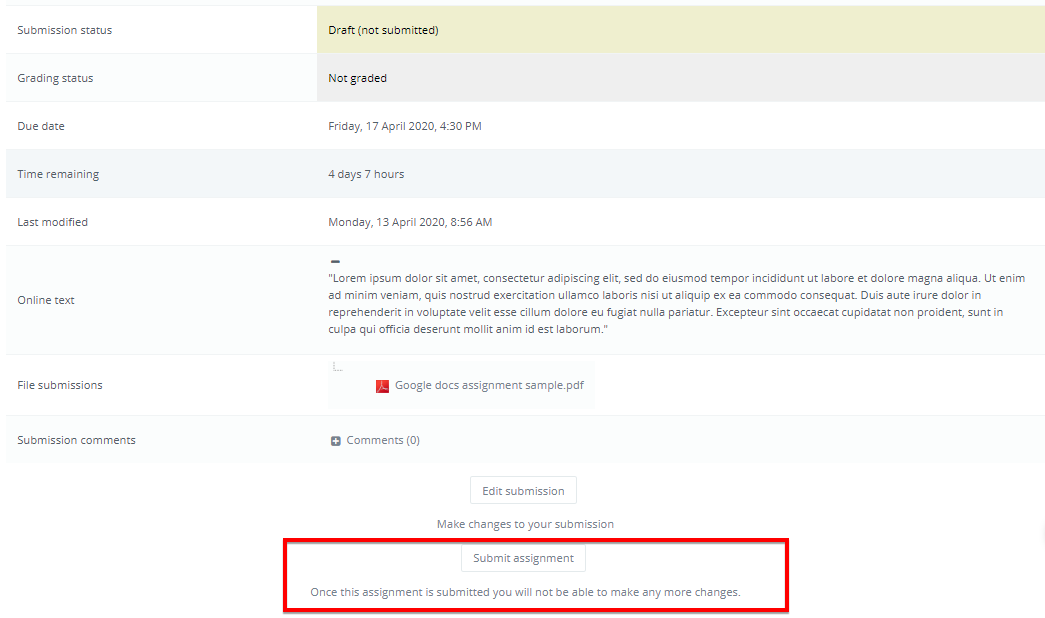
Check the status. If it says Draft (not submitted), select Submit assignment when you are ready.
-
If your teacher allows editing before the due date, use Edit my submission to make changes.
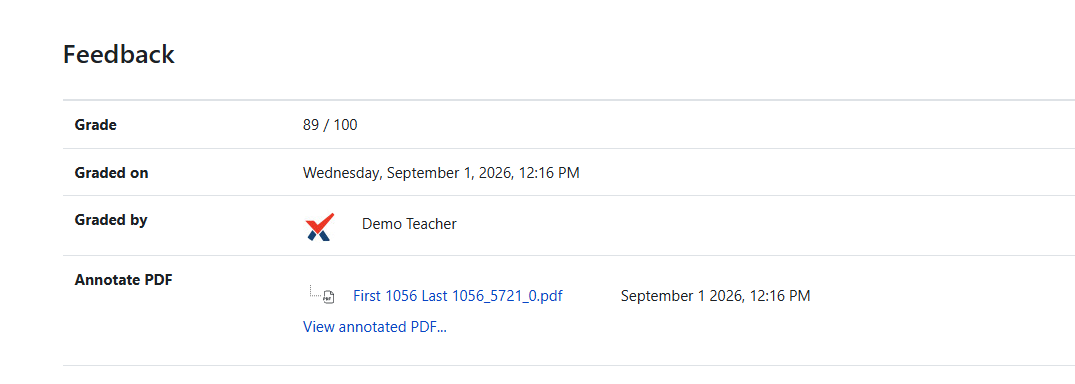
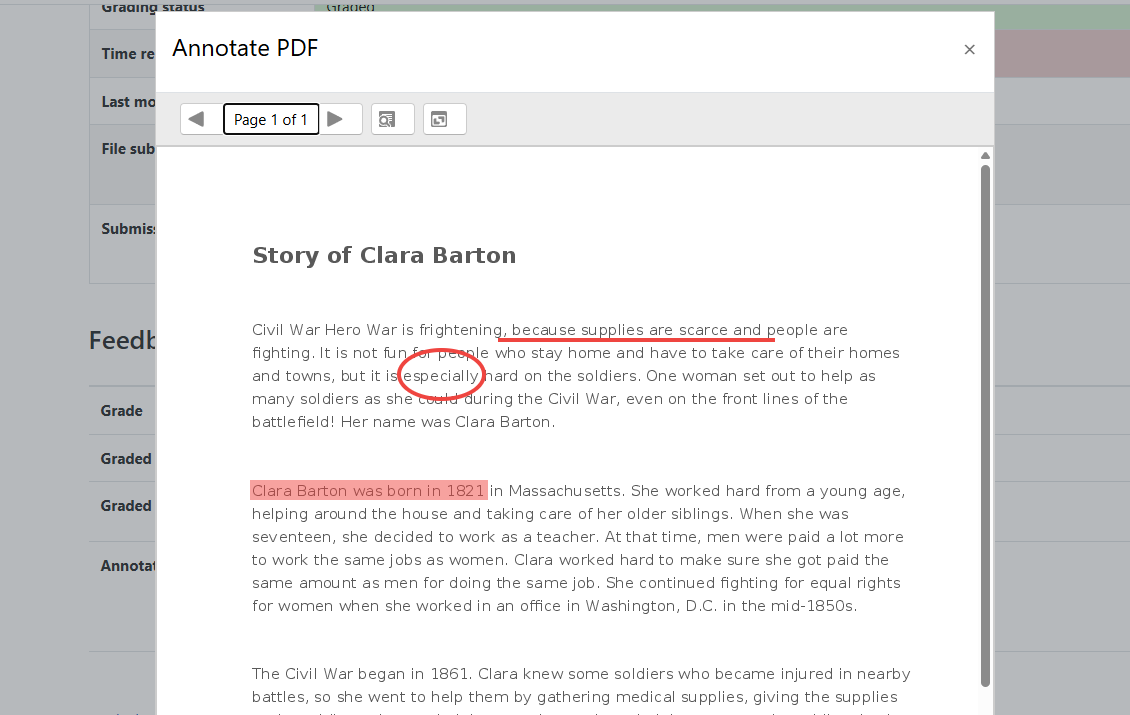
If the student uploaded a file that the teacher has annotated, this will be made available in the feedback section. The student can search through the document and filter specific comments.
|
|
Understand submission status
|
Status |
What it means |
|---|---|
|
Nothing submitted |
No work has been saved or submitted yet. |
|
Draft (not submitted) |
Your work is saved, but your teacher may not receive it for grading until you select Submit assignment. |
|
Submitted for grading |
Your work has been submitted. Depending on the assignment settings, you may not be able to change it unless your teacher reopens it. |
|
Not graded |
Your teacher has not entered a grade yet. |
|
Graded |
Your teacher has graded the assignment. Open the assignment to review the grade, comments, and any annotated files. |
Upload a file
Use file upload when your teacher asks you to attach a document, PDF, image, spreadsheet, presentation, video, or photo of your work.
-
Select Add submission.
-
Drag your file into the upload box, or select the upload area to choose a file from your device.
-
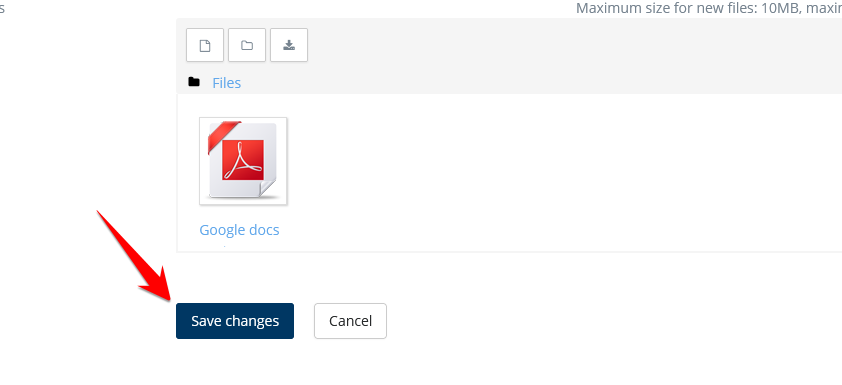
Select Save changes.
-
If the status shows Draft (not submitted), select Submit assignment when you are finished.
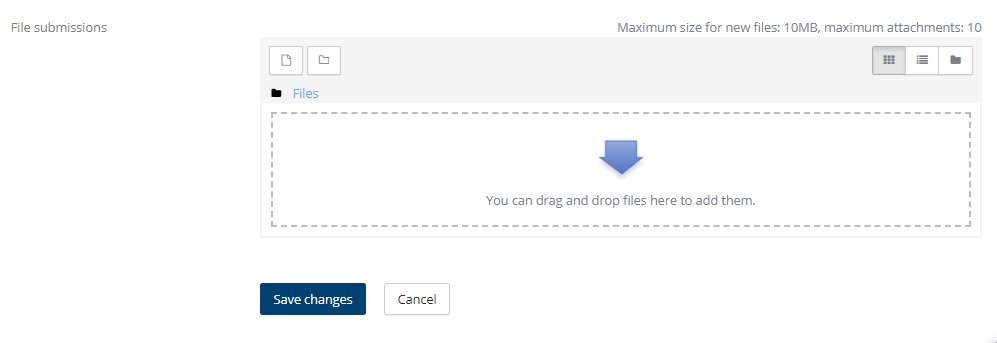
Student view when adding a submission |
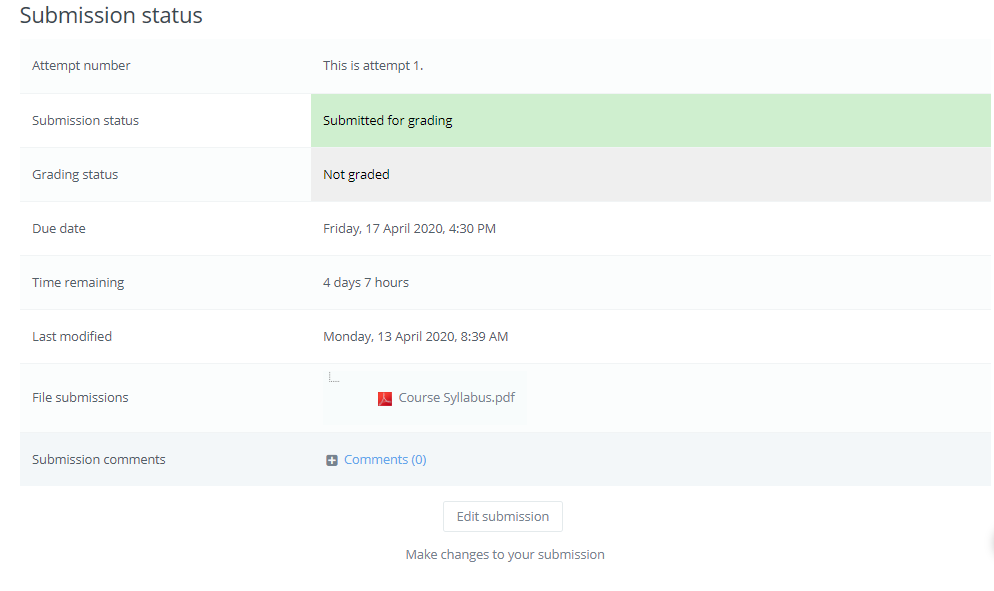
Student view once file is uploaded |
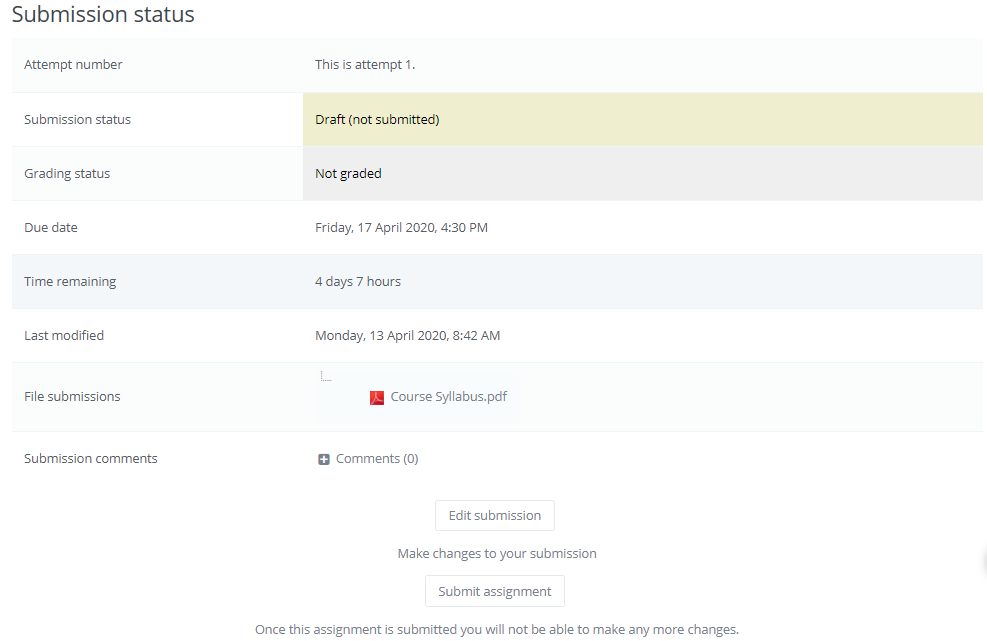
Student view when submitting assignment |
Type your answer online
Use online text when your teacher wants you to type your response directly in Radix LMS instead of uploading a separate file.
-
Select Add submission.
-
Type your answer in the online text editor. You can also paste text from another document.
-
Select Save changes.
-
Check the status. If it says Draft (not submitted), select Submit assignment when you are ready.
After saving, Radix LMS may show the last modified date and a preview of your text. If your teacher allows changes, use Edit my submission before the due date or before the assignment is locked.
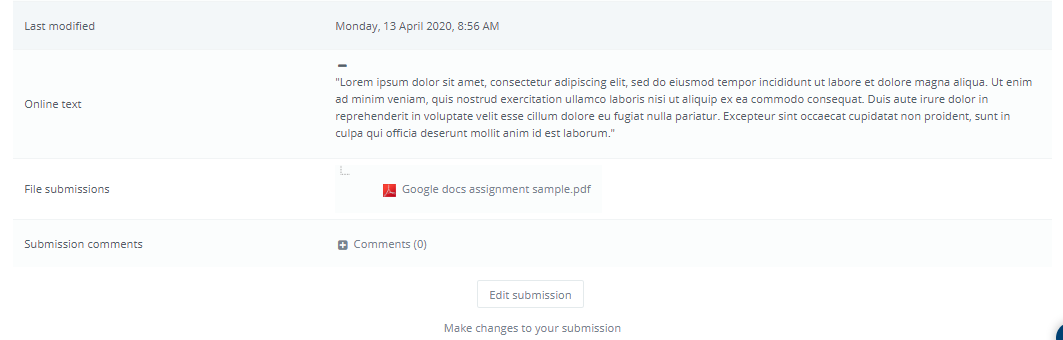
|
|
Record audio or video
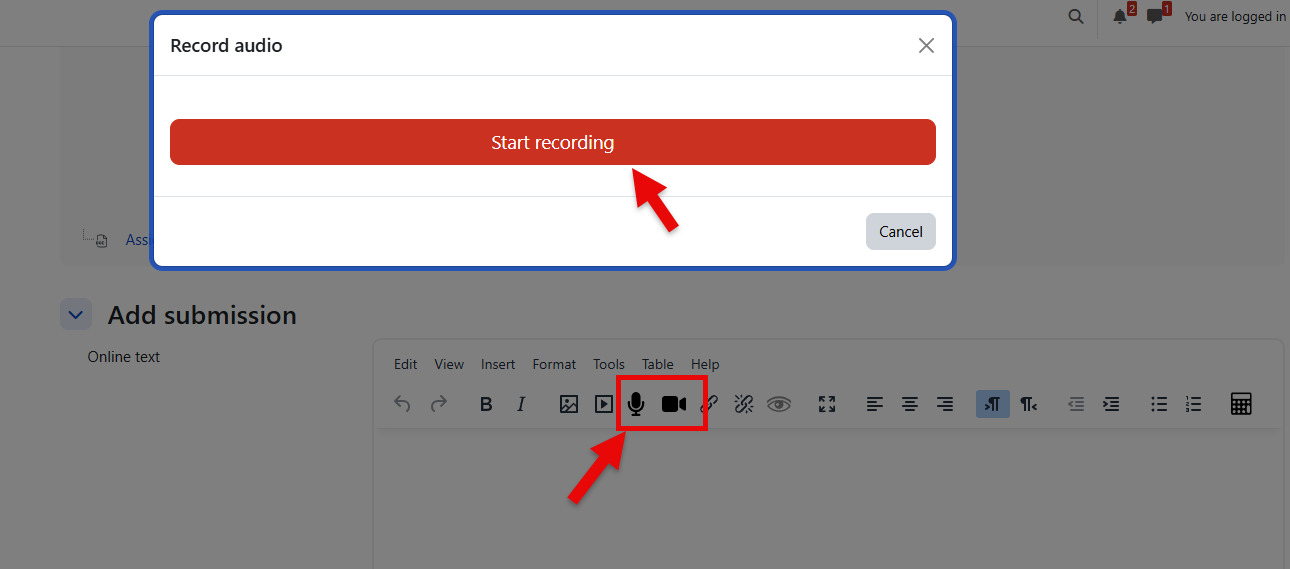
If your teacher allows recordings, you can record audio or video directly from the text editor. This is useful for speaking assignments, presentations, explanations, or short demonstrations.
-
Select Add submission.
-
Open the online text editor.
-
Select the audio or video recording icon and follow the prompts.
-
Review the recording before saving, if the editor gives you that option.
-
Select Save changes, then submit the assignment if it remains in draft status.
Recordings may have a time limit. If recording does not work, check that your browser or device has permission to use the microphone or camera.
Add a submission comment
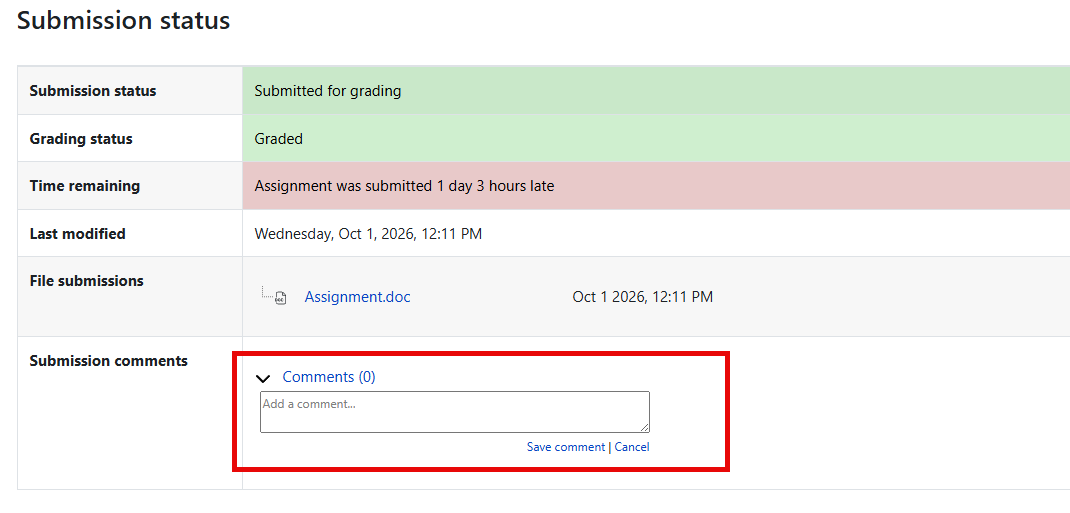
If submission comments are enabled, you can leave a short note for your teacher with your submission. Use comments for helpful context, such as which file to review, a question about the assignment, or a note about a technical issue.
Do not use submission comments instead of submitting the assignment itself. Always make sure your file, typed response, or recording is saved and submitted.
Submit from Google Drive or OneDrive
If your school connects Google Drive or OneDrive to Radix LMS, you may be able to choose a cloud file instead of uploading a file from your device.
-
If your teacher shared a Google Doc or Microsoft document, open it first and make your own copy if needed.
-
Complete your work in your school Google or Microsoft account.
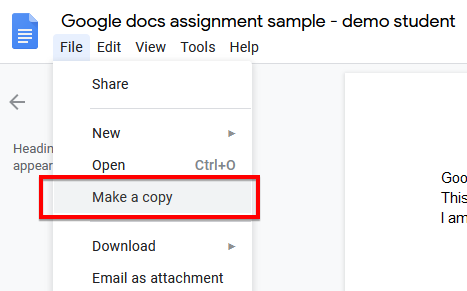
Copy Google Docs to your account |
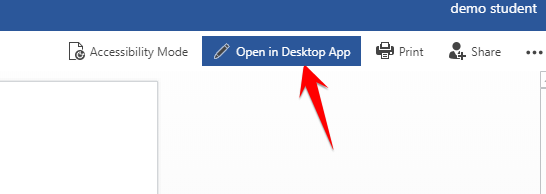
Open the shared online word document in Desktop App to edit and save back to your onedrive. |
-
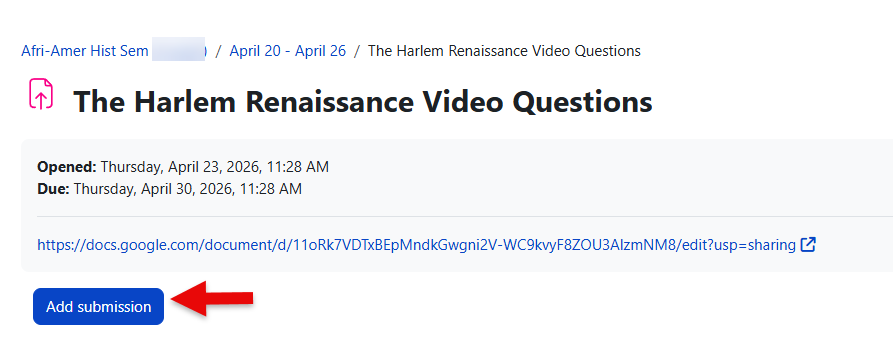
Open the assignment in Radix LMS and select Add submission.
-
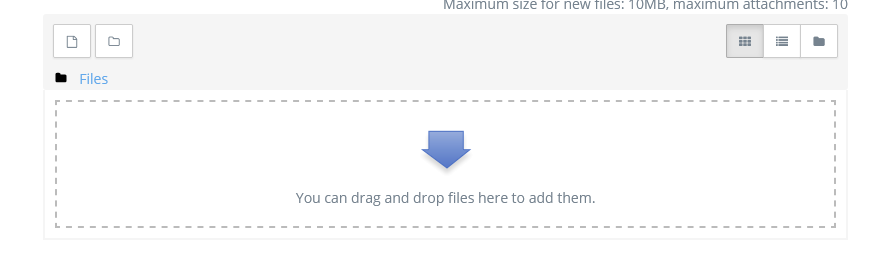
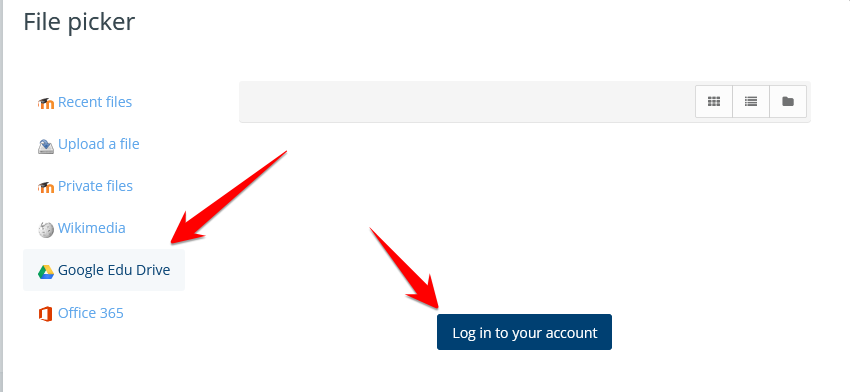
In the file upload area, open the file picker and choose Google Drive, OneDrive, or the name your school uses for cloud storage.
-
Sign in if prompted, choose your file, and follow the prompts to attach or copy it.
-
Select Save changes, then check whether you also need to select Submit assignment.
If you do not see Google Drive, OneDrive, or Office 365 in the file picker, your school may not have enabled that option for this assignment. Contact your teacher or school support team.
Submit from the mobile app
Students can submit or update assignments from the Radix Mobile app when the assignment allows mobile submissions. They can attach a file from the device, choose a file from cloud storage, or take a photo or video of their work and upload it.
-
Open the assignment in the mobile app.
-
Select the option to add or edit your submission.
-
Choose the file, photo, video, or cloud document you want to submit.
-
Save the submission and check the status.
-
If the assignment remains in draft status, submit it when you are ready for your teacher to grade it.
The videos below show examples of submitting a picture from a mobile device. Your screen may look slightly different depending on your device and app version.
Students can make/change submissions to the assignments via the mobile app. They can attach a file(s) from the device or from a drive on the cloud. They can also take a picture/video of their work and submit it to the assignment. Videos below show how to submit a picture you take to an assignment.
|
Android |
IOS |
Common questions
Why do I only see some submission options?
Your teacher chooses which submission types are available for each assignment. Some assignments may allow only file uploads, while others may allow online text, recordings, cloud files, or comments.
What if my work says Draft?
Draft means your work has been saved but may not be ready for grading yet. Select Submit assignment if that button appears and you are ready for your teacher to review the work.
Can I change my submission after saving?
Sometimes. This depends on the assignment settings, due date, and whether your teacher allows edits. If you do not see an edit option, contact your teacher.
What should I do if a file will not upload?
Check your internet connection, file size, and file type. If possible, try again from another browser or device. If it still does not work, contact your teacher or school support team and explain what you tried.
Where do I see teacher feedback?
Open the assignment after it is graded. Feedback may include a grade, written comments, annotated files, or other notes from your teacher.