
When to use this page
Your school may use RadixWebCast for occasional live virtual sessions, office hours, makeup lessons, tutoring, or special announcements. This guide explains how to join a session and find recordings when your teacher makes them available.
Join a virtual classroom session
When your teacher creates a virtual classroom activity, open the activity from your course page. The activity page shows the join button and, if enabled by the teacher, links to previous recordings.
-
Use Chrome or Firefox when possible for the best experience.
-
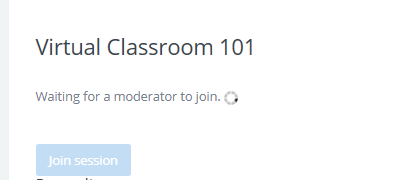
If the join button is gray, wait for the teacher or moderator to start the session.
-
After the session starts, select the join button and follow the browser prompts for audio or microphone access.
Find recordings
If the teacher records a session and makes it available, the recording will appear on the virtual classroom activity page under Recordings. Not every session is recorded, and availability depends on your school or teacher settings.

Before joining
Make sure your device has a working speaker or headphones. If your teacher asks you to speak, allow microphone access when your browser asks for permission.