
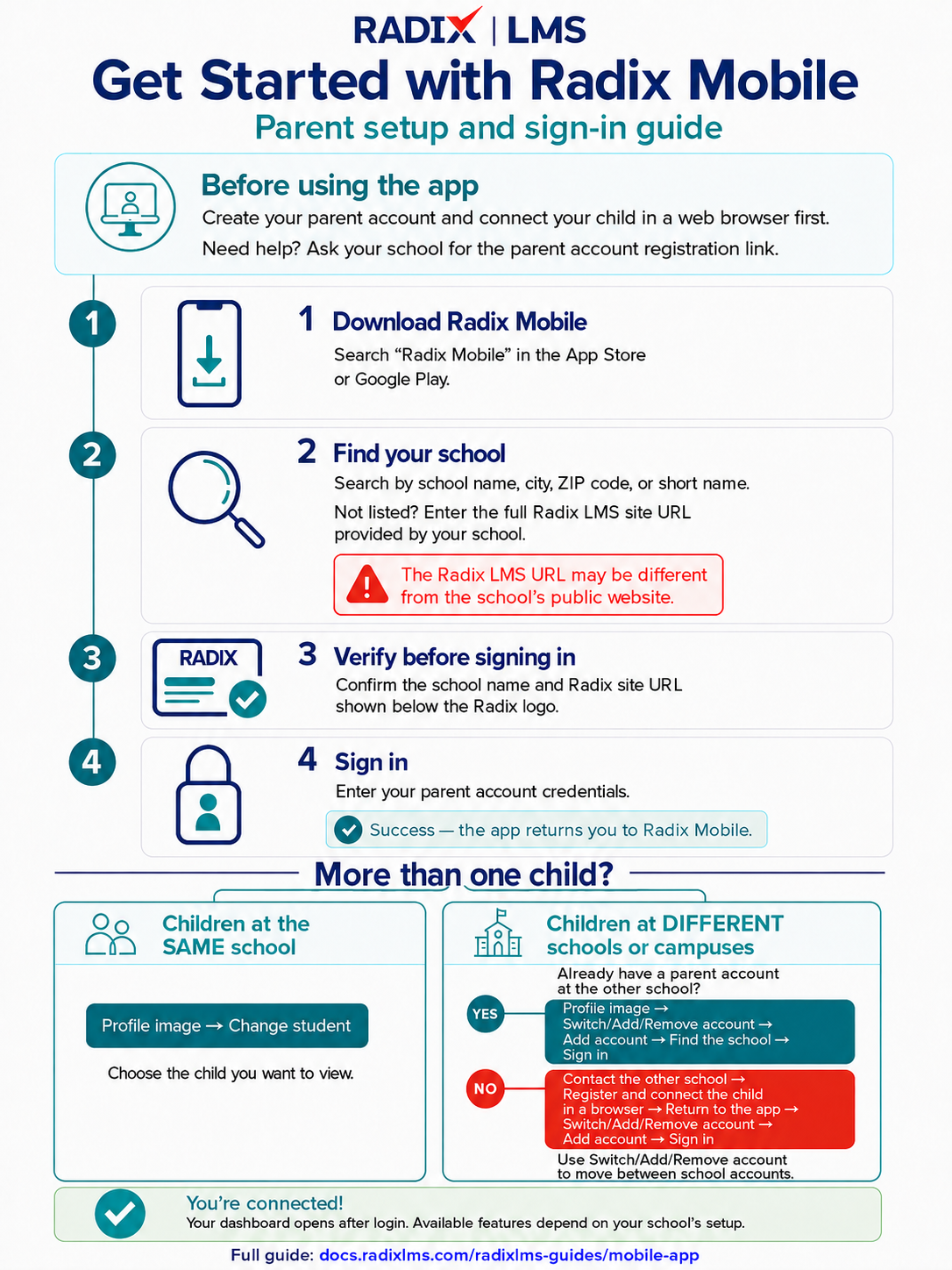
Parents: if you have not created your parent account or connected your student yet, complete that setup in a web browser first. Contact your school if you need the signup link or help connecting your child to your account. For more information visit Parent Quick Guide
Use the Radix Mobile app to check important school information from your phone or tablet. Parents and students can view assignment updates, course grades, attendance information, behavior summary numbers, messages, notifications, and available report cards/progress reports. Students can also use the app for supported course activities such as submitting assignments, joining discussions, taking quizzes, and uploading files when these features are enabled by the school.
To download the Radix LMS Mobile app, search for Radix Mobile in the App Store or Google Play Store, or go to our website and choose your device. You may also see a banner to download the app when you open your school’s Radix site on a mobile browser.
Some features depend on your school’s Radix setup. If you do not see a menu item, notification, attendance detail, behavior detail, or report, your school may not be using that feature in the mobile app.
Login to the Radix Mobile App
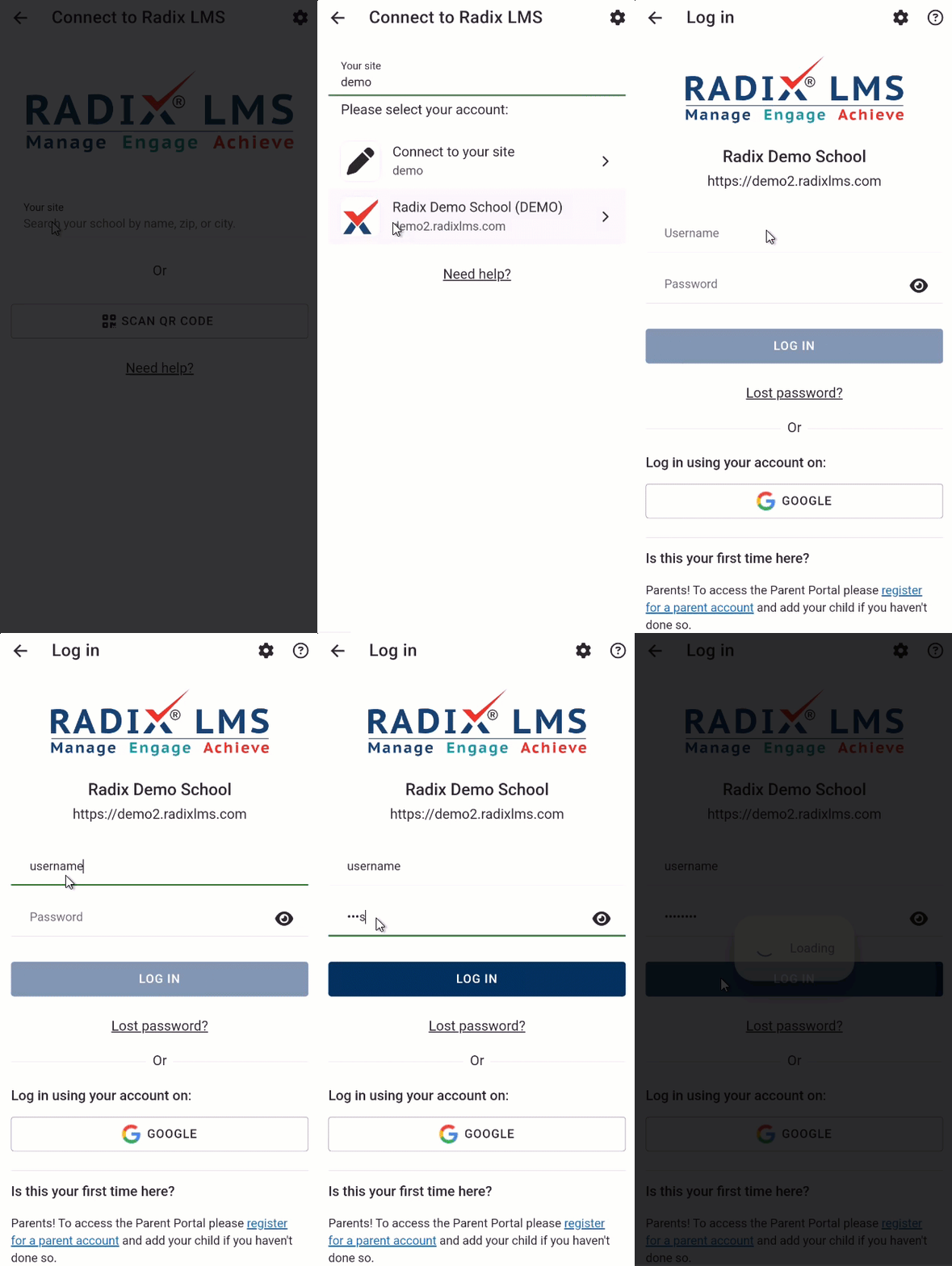
After you download and open the app, first find your school or enter your school’s Radix LMS site URL. This connects the app to the correct school before you sign in.
|
|
Use the site search screen to search for your school by name, city, ZIP code, or short name. Once your school appears, tap the school name to continue to the login screen. If you cannot find your school with search, enter the full Radix LMS site URL provided by your school. Remember: the Radix LMS URL may be different from your school’s public website address. |
|
|
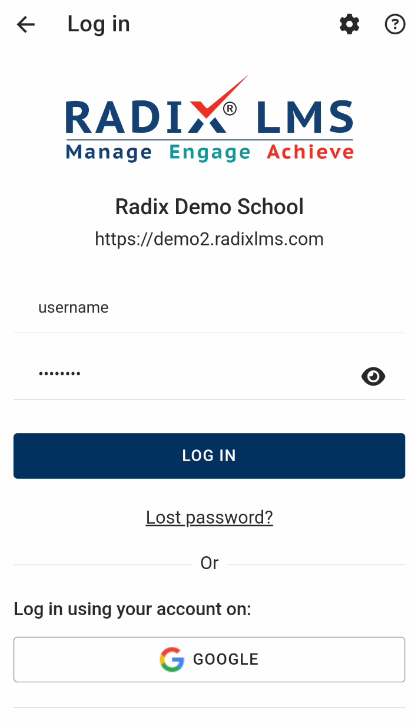
After your site address is verified, you should see your school’s name and Radix site URL below the Radix logo. Make sure this is your school before entering your login information. Students can sign in with the username and password provided by the school. If your school uses another sign-in option, such as Google or Microsoft, tap that option and complete the login in the browser window. After a successful login, the app should return you to Radix Mobile. Parents who do not yet have an account should complete the parent registration and connect their student using the school’s signup process. Parents who already have an account at another school or site do not need to create a new account; they can add it in the app through Switch Account. |
Navigating the app
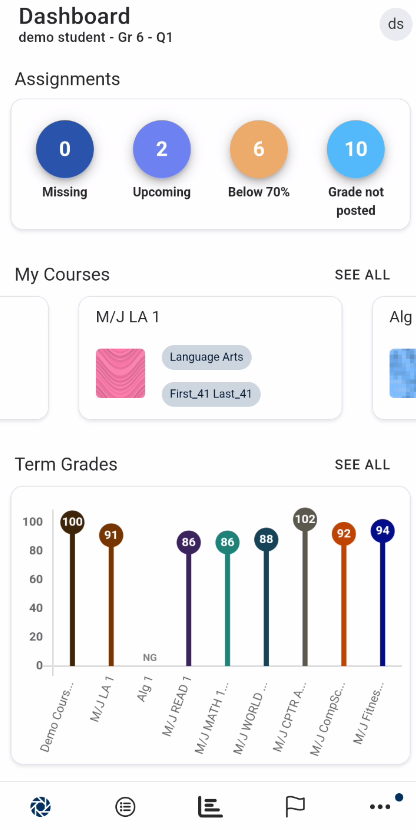
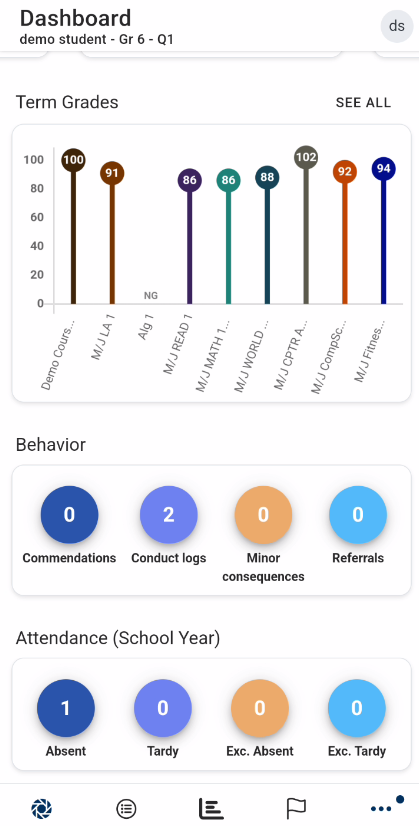
After logging in, the dashboard gives you a quick snapshot of the student’s information, including assignment status, course term averages, attendance, and behavior summary numbers when those features are enabled by the school. Tapping a number, circle, or course on the dashboard opens the related details.
Tap your profile image to open the user menu. Parents with more than one student can switch between students from this menu. If you use Radix for more than one school, you can also switch between schools or accounts here.
If you do not see attendance on the dashboard, your school may not be using Radix LMS to publish attendance in the mobile app. Contact your school for official attendance records.
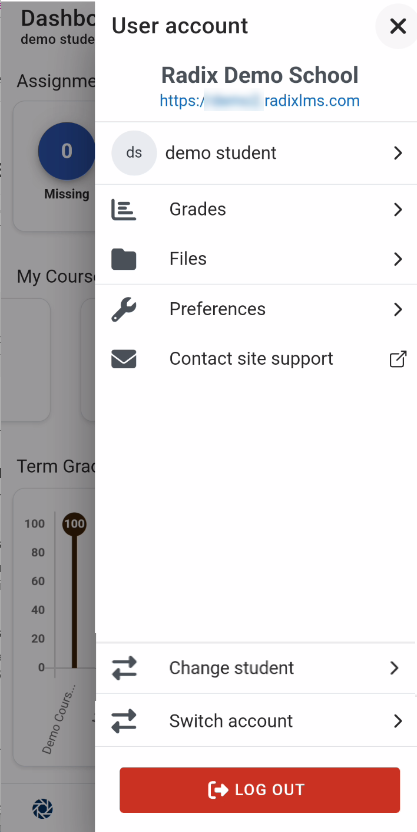
Adding a student from another school or site
Parents can use the Radix Mobile app to access students who attend different schools or sites. The steps depend on whether you already have a parent account at the other school.
If you already have a parent account at the other school or site
You do not need to create another parent account. Add the other account through the app:
-
Tap your profile image to open the user menu.
-
Tap Switch Account.
-
Follow the login steps for the new school or site. Search for the school or enter its Radix site URL, then sign in with the parent account credentials for that site.
-
After you sign in, the new student and school will be available in the app.
Use Switch Account whenever you want to move between students who attend different schools or sites.
If you do not have a parent account at the other school or site
First, contact the other school or site and ask for the parent registration link or invitation. Complete the parent account setup and connect the new student using a web browser. After your account is created, return to the app and add the new account:
-
Tap your profile image to open the user menu.
-
Tap Switch Account.
-
Follow the login steps for the new school or site, using the parent account you just created.
-
After you sign in, the new student and school will be available in the app.
Switch Account vs. Change Students: Use Switch Account to switch between students who attend different schools or sites. Use Change Students when you have multiple students at the same school or site.
App Menu
|
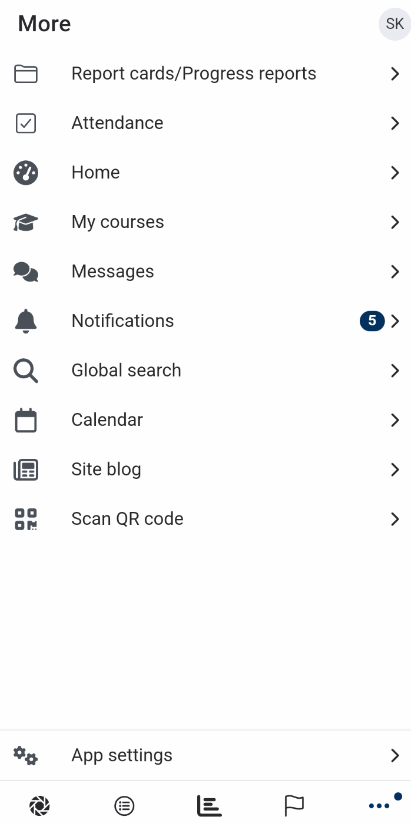
The main navigation icons are at the bottom of the screen. Tap the hamburger menu icon in the bottom-right corner to open the full app menu and access additional items such as report cards/progress reports, messages, notifications, attendance, or behavior when available. |
|
Attendance & Behavior
If used by your school, attendance and behavior snapshots appear on the student and parent dashboard in the app. Tap the attendance numbers to see attendance details. Tap the behavior summary numbers or the behavior icon to see behavior logs, including recognitions, rewards, and consequences when your school publishes them.
Report cards/ Progress reports
|
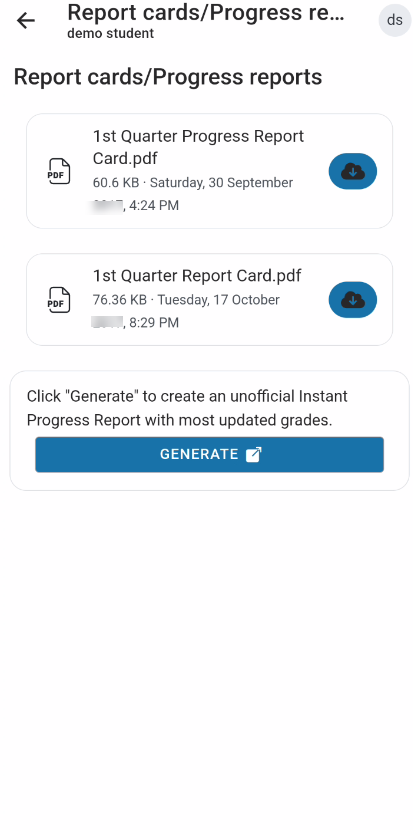
Report cards and progress reports are not shown as dashboard cards. To access available reports in the mobile app:
|
|
Messaging
If your school allows messaging, parents and students can send and receive messages in the Radix Mobile app. To message a teacher, open Grades, then tap the message icon next to the teacher’s name. You can return to previous conversations from the Messages area in the app menu.
Notifications
The Radix Mobile app can send push notifications when your school posts updates for your account or your student. Notifications may include assignment feedback, messages, attendance or behavior updates, and minor or major consequence notices when your school enables those alerts.
For parents with more than one student, notifications may include the student’s name so you know which child the update is about. Tapping a notification usually opens the related page in the app, such as the message, assignment feedback, or notification details.
To receive notifications, allow notifications when your phone asks for permission. You can also check your phone settings later and make sure notifications are enabled for Radix Mobile.
If you are signed in with more than one account or school, open the user menu and make sure you are viewing the correct student, account, or school after tapping a notification.