
Parent Portal helps parents and guardians stay connected with their student's school progress in one place. After creating a parent account, you can view your student's grades, assignments, attendance, behavior, messages, notifications, and standards-based assessments without using a separate student login.
Registering a new parent account and adding students
As a parent or guardian, you can use Radix LMS to follow your child's academic progress, attendance, behavior, upcoming events, and school communication. To get started, your school will send an invitation email to the email address they have on file for you. Once you verify one student, any other students connected to the same parent account should appear automatically.
Here's how to create your account:
-
Find the invitation email from your school. If you do not see it, check your spam or junk folder. If you still cannot find it, contact your school and ask them to resend the parent portal invitation.
-
Open the email and click the registration link. This will take you to the parent account setup page.
-
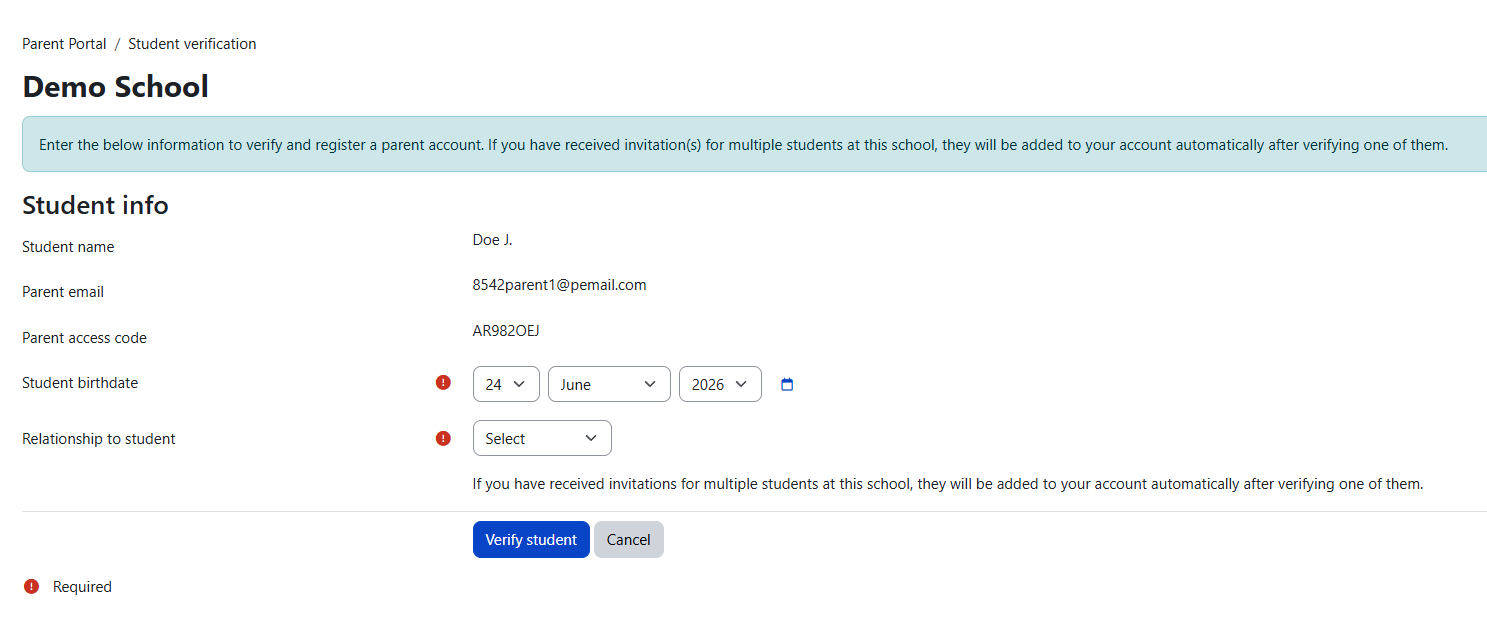
Verify your student. You may be asked to enter your student's date of birth, your relationship to the student, and a Student ID if your school requires it.
-
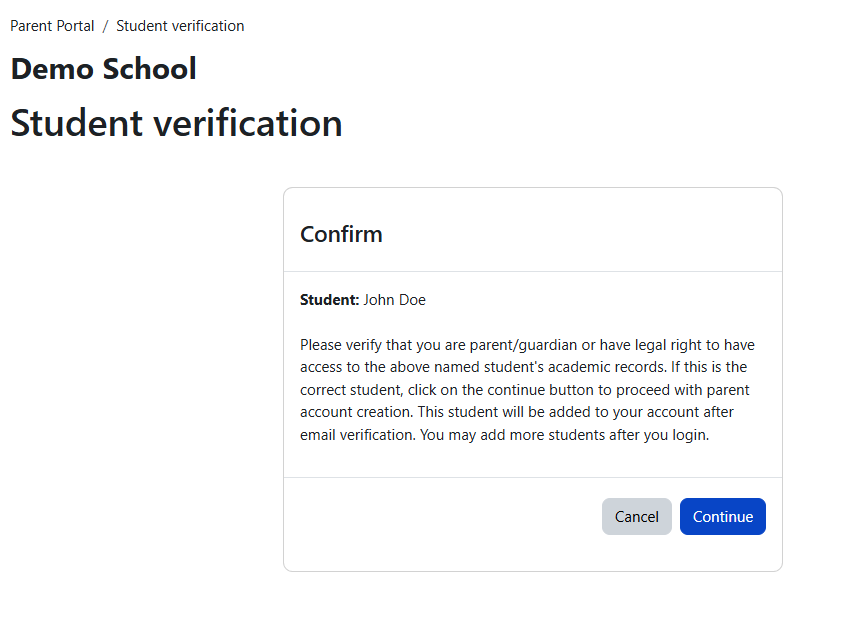
Confirm the student information. If the student's name shown is correct, continue. If the information is not correct, cancel and contact your school for help.
-
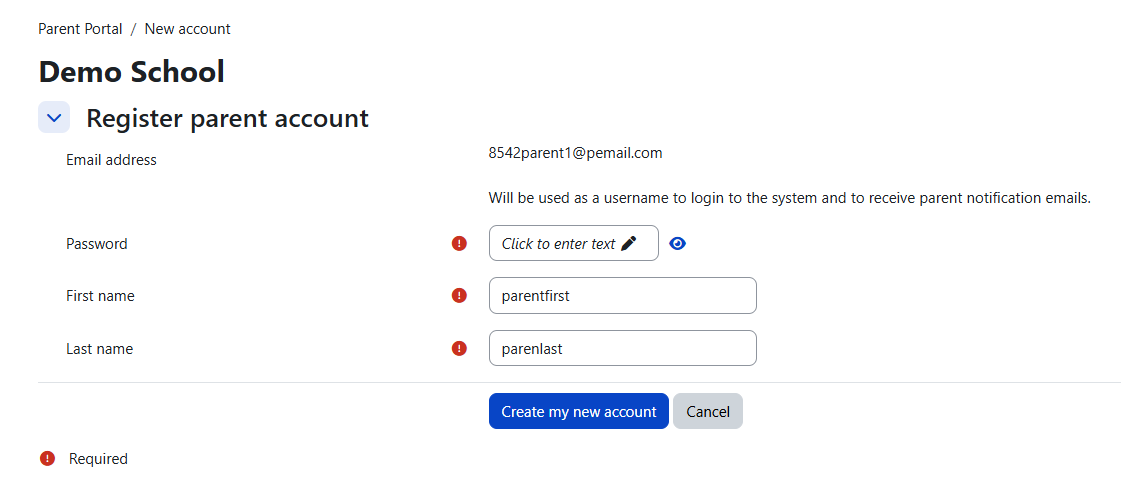
Create your password. The email address that received the invitation will be used as your username. Choose a password and click Create my new account.
-
Check your email for the confirmation message. Click the confirmation link to activate your account. After your account is confirmed, you can log in and use the parent portal.
After successful registration, all students connected to your parent account should appear automatically. Registered parents can also receive school communication through Radix LMS, such as progress updates, behavior notifications, and messages from teachers.
Password reset and account help
If you forget your password, you can reset it from the login page.
-
Go to your school's Radix LMS login page.
-
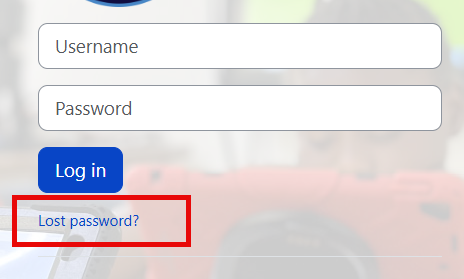
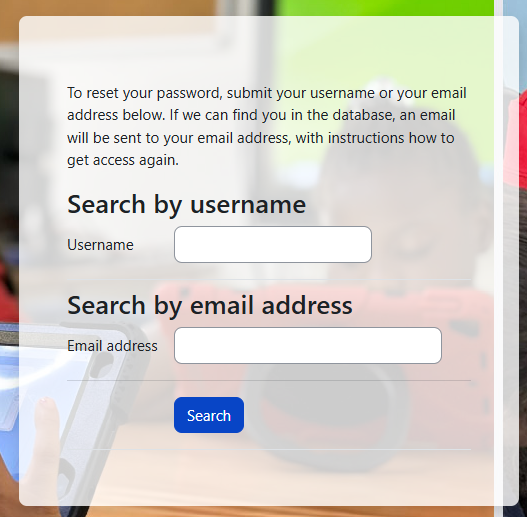
Click Forgot your password? or Lost password?
-
Search for your account by entering either your username or your email address. For parent accounts, this is usually the email address where you received the parent portal invitation.
-
Click Search.
-
Check your email for the password reset message and follow the link in that email.
-
Create a new password and return to the login page to sign in.
If you do not receive the email, check your spam or junk folder. If you still cannot find it, contact your school and ask them to confirm that your email address is correct on your parent account.
Note: Some schools use Google, Microsoft, or another sign-in option. If your school asks you to sign in that way, use your school's normal password reset process or contact the school for help.
Take note: You can also access the parent portal through the Radix Mobile App, available for both iOS and Android devices. Visit your device's app store, search for "Radix Mobile", and install the app. This enables you to monitor your child's school performance on the go. Should you encounter any difficulties or have any questions, please don't hesitate to contact your school for assistance.
By accepting this invitation, you are enhancing your connection with your child's educational journey. Welcome to the family of engaged parents!
Frequently asked questions for parents and students
This page answers common questions about parent and student accounts, the dashboard, assignments, attendance, behavior, notifications, messaging, report cards, and the Radix Mobile app. For account-specific issues, missing student records, grades, attendance, or behavior details, contact your school directly.
Account and login
Questions about signing in, creating accounts, passwords, and connecting students to parent accounts.
I logged in with my parent account successfully, but I don't see my student(s)
Contact your school. The school may need to check your contact information or send you a new parent access invitation. Open the invitation link in a web browser and follow the steps to connect the student to your parent account.
I registered a new account but can't log in to the site
Confirm your email first. Open the confirmation email from Radix LMS and select the confirmation link before trying to log in. If you do not see the email, check your spam or junk folder and add radixlms.com to your safe sender list. If the email still does not arrive, contact your school for help.
I didn't receive a confirmation email after I registered a new account
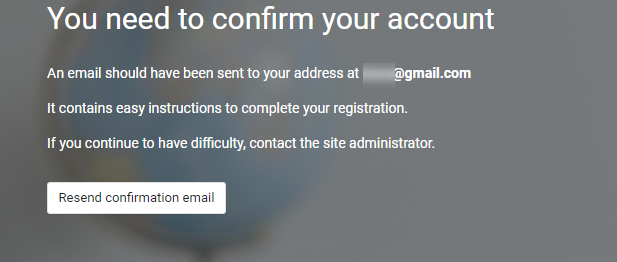
Check your spam or junk folder first. The confirmation email may take a few minutes to arrive. If the confirmation link expired or the email never arrived, you can request another confirmation email from the login page.
Go to your school's Radix LMS login page and try to log in with the email and password you used when creating the account. If the account exists but is not confirmed, you should see a message with a resend confirmation email button. Select that button to send another confirmation message.
Why can't I add a student from my parent dashboard?
Parent access starts with a school invitation. Parents cannot add students directly from the dashboard using an access code. Your school must send a parent access invitation. Open the invitation link in a web browser and follow the steps to connect the student to your parent account. If you need access to another student, contact your school.
My student disappeared from my parent dashboard. What should I do?
Contact your school. Student access is controlled by the school's parent-student records. If your access changed or the student is no longer connected to your parent account, the school can review the record and make corrections if needed.
I changed my email address and now I can't log in. What should I do?
Confirm the new email address. If your email address was changed, you may need to confirm the new email before logging in again. Check the new email inbox for a confirmation message from Radix LMS. If you do not receive it or cannot access the account, contact your school.
I confirmed one student, but my other children appeared automatically. Is that normal?
Yes. If the school has connected more than one student to the same parent contact, those students may appear automatically after your parent account is confirmed. You do not need to add each sibling one at a time.
How do I change my password?
Parents: Follow the password reset or password change instructions on the school’s Radix LMS login page.
Students: Students cannot change their own passwords in Radix LMS. If a student has trouble logging in, the student or family should contact the school for help.
Can students sign in with Google or Microsoft?
Yes, if your school has enabled Google or Microsoft sign-in. On the login page, choose the Google or Microsoft option and complete the sign-in using the student's school account. If the option is not available, use the username and password provided by the school.
Dashboard and grades
Questions about what you see after logging in, switching students, and finding grades and reports.
Why does my dashboard look different from another parent's dashboard?
Schools can choose which dashboard sections are visible. Your dashboard may look different depending on the student's grade level, school settings, enrolled courses, and which tools the school uses in Radix LMS.
How do I switch between students?
If you have more than one student at the same school, use the student dropdown at the top of the dashboard. The assignments, grades, attendance, behavior, and report cards will update for the selected student. If your students attend different schools, switch schools from your user menu.
Why can't I see grades, attendance, or behavior?
These sections depend on school settings and available records. A school may choose not to show a section, may not use that feature in Radix LMS, or may not have published records yet. Contact the school if information appears missing or incorrect.
What do the assignment count numbers mean?
The assignment cards summarize work that may need attention, such as missing assignments, upcoming assignments, assignments below the school's grade threshold, and past due work that has not been graded yet. Select a number to open the full list with details.
Where do I find report cards or progress reports?
Open the Report Cards link from the dashboard. You may see official report cards, external reports, MAP progress reports, or an instant progress report option. Only reports that your school has published for parent/student viewing will appear.
What is the difference between a report card and a progress report?
Report cards are official reports published by the school for a grading period. Progress reports are usually current grade snapshots that may be available before final grades are posted. Your school decides which reports are available and when parents and students can view them.
Assignments
Questions about submitting work, checking assignment status, and finding teacher feedback.
Can parents submit assignments for students?
Assignments are intended to be submitted by students from the student account. Parents can help students understand the instructions, but students should submit their own work unless the school gives different directions.
My student needs to submit from Google Drive or OneDrive, but the option is not available. What should we do?
Google Drive and OneDrive options depend on school settings. If the student does not see the option in the file picker, the school may not have enabled it. The student should use another submission method allowed by the teacher or contact the school for help.
What are the checkmarks next to activities in a course?
Checkmarks usually show activity completion. Some activities are marked complete automatically, such as after the student views a page, submits work, or receives a grade. Other activities may let the student manually mark the item as done. Teachers and schools decide how completion is used in each course.
My student saved work, but it still says Draft. What does that mean?
Draft means the work has been saved but may not be ready for grading yet. If a Submit assignment button appears, the student should select it when the work is ready for the teacher to review.
Where can students see teacher feedback?
Open the assignment after it has been graded. Feedback may include a grade, written comments, annotated files, or other notes from the teacher.
Attendance and behavior
Questions about attendance counts, behavior records, and related notifications.
What do attendance counts mean?
Attendance counts show how many periods the student has been marked with a specific attendance code, such as Absent or Tardy, since the beginning of the school year. Select a count to see the detailed attendance list.
Why does attendance not match what I expected?
The dashboard shows attendance recorded or published in Radix LMS. If your school syncs attendance from another system, there may be a delay. Contact the school for clarification about specific attendance records.
I received a behavior notification. Where can I see the details?
Open the Behavior area from the dashboard. You may see minor violations, major violations, recognitions, rewards, or consequences depending on school settings. If you have questions about a specific entry, contact the school.
Notifications and messaging
Questions about alerts, notification settings, and contacting teachers or school staff.
How do I turn notifications on or off?
Select the notification bell in the top navigation bar, then open notification preferences. You can choose how you receive available notifications, such as web, email, or mobile app notifications, depending on school settings.
Why am I not receiving notifications?
Check your notification preferences, email spam or junk folder, and mobile device notification settings. Some notifications are also controlled by school settings, so contact the school if you expected an alert but did not receive one.
I can't find a teacher in my message contacts. How do I start a conversation?
The message list may only show people you have already messaged. Use the search box in messaging to search for the teacher or staff member by name. If you still cannot find the person, messaging may not be enabled for that contact or account, so contact your school.
I received an email from the school through Radix LMS, but I can't reply to it. What should I do?
Some school emails sent through Radix LMS are one-way messages. If replying to the email does not work, open Radix LMS and use the messaging feature to contact the teacher or school staff member directly.
Mobile app
Questions about using the Radix Mobile app on phones and tablets.
Can parents create a new account from the mobile app?
No. New parent account registration must be completed from your school’s Radix LMS website in a web browser. After your account is created, confirmed by email, and connected to your student, you can use the same login information in the Radix Mobile app.
The app asks for a site address. What should I enter?
You do not need to know the full website address. In the site address search box, type your school name, city, or zip code. The app will search for matching schools. Select your school from the results, then continue to log in.
Can I sign in with Google or Microsoft in the mobile app?
Yes, if your school uses Google or Microsoft sign-in. Select the Google or Microsoft option in the app, then complete the login in the browser window that opens. Use the same school account you use when signing in from a browser.
Do I need to log in every time I open the mobile app?
No. The Radix Mobile app usually keeps you signed in, so you do not need to enter your password every time you open it. If your session expires, the app may ask you to enter your password again. This may happen once or twice a year, or it may not happen at all, depending on your school’s session configurations and device.
Can parents use the mobile app for everything?
The mobile app is helpful for checking common information such as assignments, grades, attendance, behavior summary numbers, messages, notifications, and available reports. Some account setup steps, detailed forms, or school-specific tasks may still need to be completed from the Radix LMS website in a browser.
Why do I not see all of my students in the mobile app?
The app shows students connected to the parent account you used to log in. If a student is missing, first confirm that you are signed in with the correct parent account and school site. If the student still does not appear, contact your school so they can check the parent-student connection.
I only see a blank screen or infinite spin when I open the Radix Mobile App
If the Radix Mobile app opens to a blank screen or keeps spinning, reset the app's local data. This will not delete student records or school information from Radix LMS; it only clears temporary data stored on your phone or tablet.
iPhone or iPad: Delete the Radix Mobile app and reinstall it from the App Store. Then open the app, add your school site, and log in again.
Android: Open your device Settings, go to Apps, choose Radix Mobile, then clear the app data or storage. On some Android devices, you may need to select Storage first before you see Clear data. Reopen the app, search for your school, and log in again.