
The dashboard is your main screen after logging in to Radix LMS. It shows a summary of your student's assignments, behavior, attendance, grades, and report cards — all in one place.
Parents with more than one student: Use the student dropdown at the top of the dashboard to switch between students. Everything on the dashboard updates to show the selected student's information. If your students attend different schools, you can switch schools from your user menu.
If you do not see a student on your dashboard: You need a parent access email invitation from the school. Contact the school and request one. The email will contain a secure link — open it in a web browser to confirm the student's information.
Dashboard Tabs
The dashboard has four tabs across the top. The first tab (Assignments) is always visible. Behavior and Attendance tabs may or may not appear depending on your school's settings.
Assignments
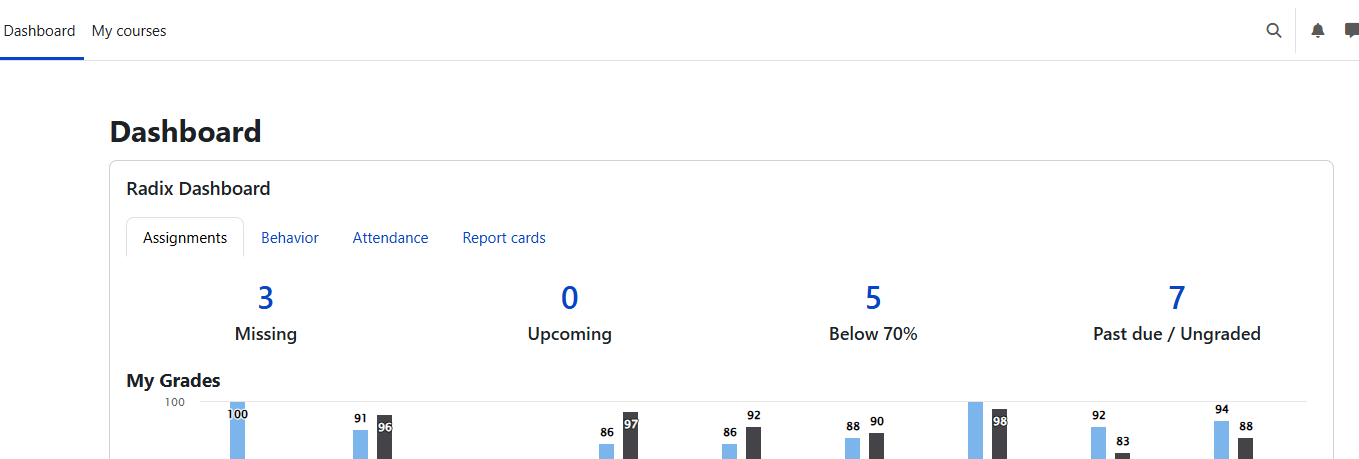
The Assignments tab is the first thing you see on the dashboard. It shows four number cards:
|
Card |
What it means |
|---|---|
|
Missing |
Assignments the student has not submitted past the due date |
|
Upcoming |
Assignments coming up that are not yet due |
|
Below [X]% |
Graded assignments below the school's grade threshold (usually 70%) |
|
Past Due / Ungraded |
Assignments that are past due and have not yet been graded by the teacher |
Tap any number to see the full list of those assignments with details like course name, assignment name, due date, and grade.
Tip: The Missing and Below threshold cards are good places to check first when you want to know whether a student needs support or has work to follow up on.
Assignment detail pages
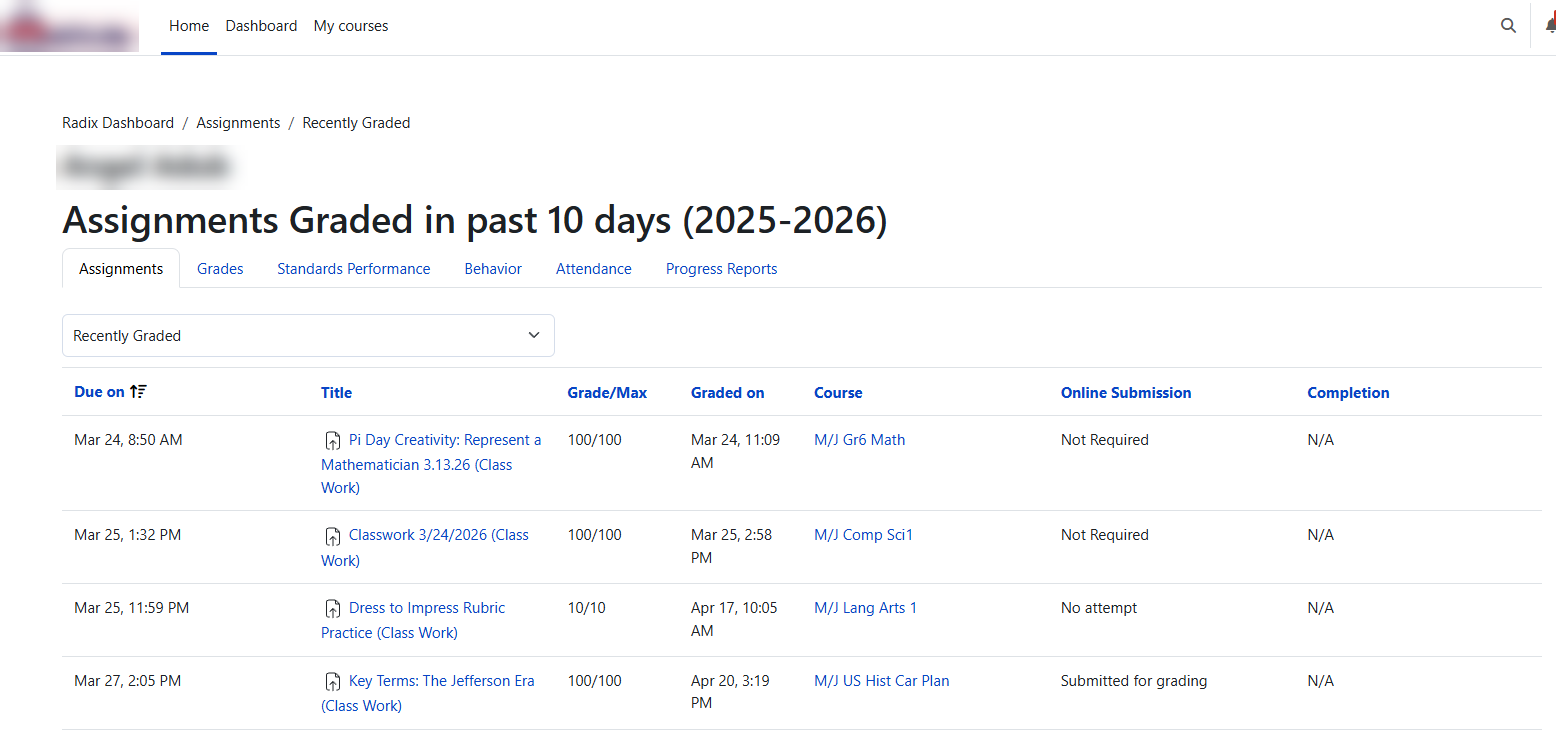
When you tap an assignment number, Radix opens a detail page for the selected student. These pages usually include a selector at the top so you can switch between assignment views without going back to the dashboard.
|
View |
What families can check |
|---|---|
|
Missing |
Assignments that are past the due date and have not been submitted. |
|
Upcoming |
Assignments that are coming up and are not yet due. |
|
Below [X]% |
Graded assignments below the school's low-grade threshold. |
|
Recently Graded |
Assignments that were recently graded. This is helpful for quickly seeing new scores and feedback. |
|
Past Due / Ungraded |
Assignments that are past due but have not yet been graded by the teacher. |
Assignment lists may show details such as the course, assignment name, type, due date, date graded, grade, and teacher feedback. The columns can be sorted, so you can organize the list by due date, grade, course, or another available column.
Tip: Recently Graded is useful even though it does not have its own count card on the main dashboard. Use it to review new grades and feedback without opening each course one by one.
Behavior
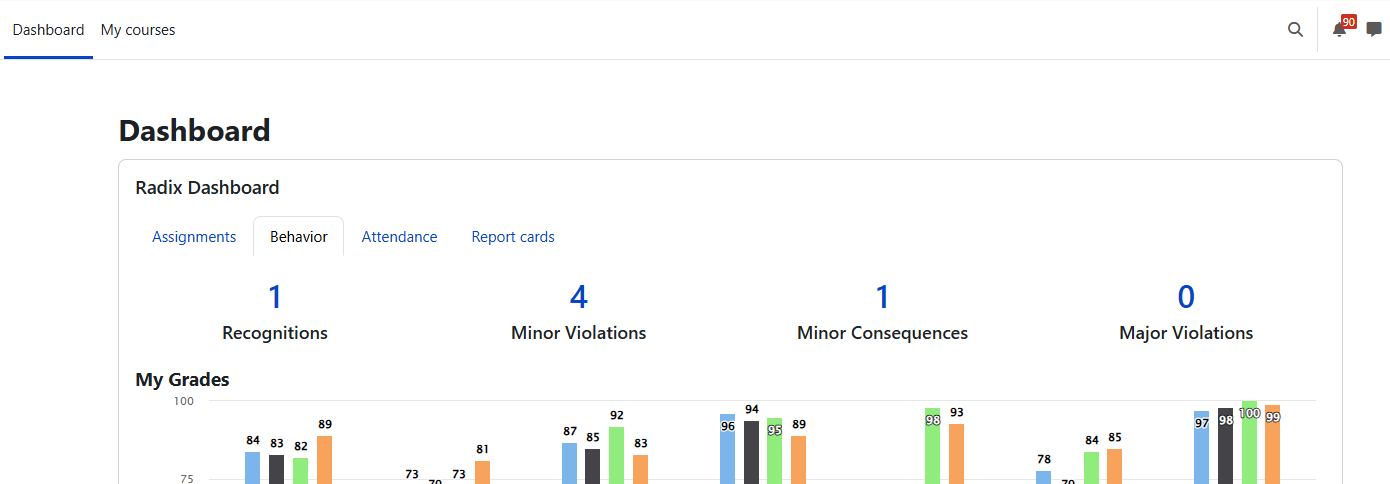
The Behavior tab shows a summary of behavior entries for the school year:
|
Card |
What it means |
|---|---|
|
Recognitions |
Positive behavior entries such as helpfulness, leadership, or academic effort. Tap to see the list with dates and types. |
|
Minor Violations |
Lower-level behavior entries such as dress code or classroom disruptions. This count includes deactivated entries. Tap to see the full list. |
|
Minor Consequences |
Consequences assigned from minor violations. This section may not be visible at all schools. |
|
Major Violations |
Referral-level incidents reviewed by administration. Tap to see the list with dates, incident types, and decisions. |
For more details, see Student & Parent Behavior Dashboard.
Note: Minor Consequences may not appear on every school's dashboard. Schools can choose whether this section is shown.
Attendance
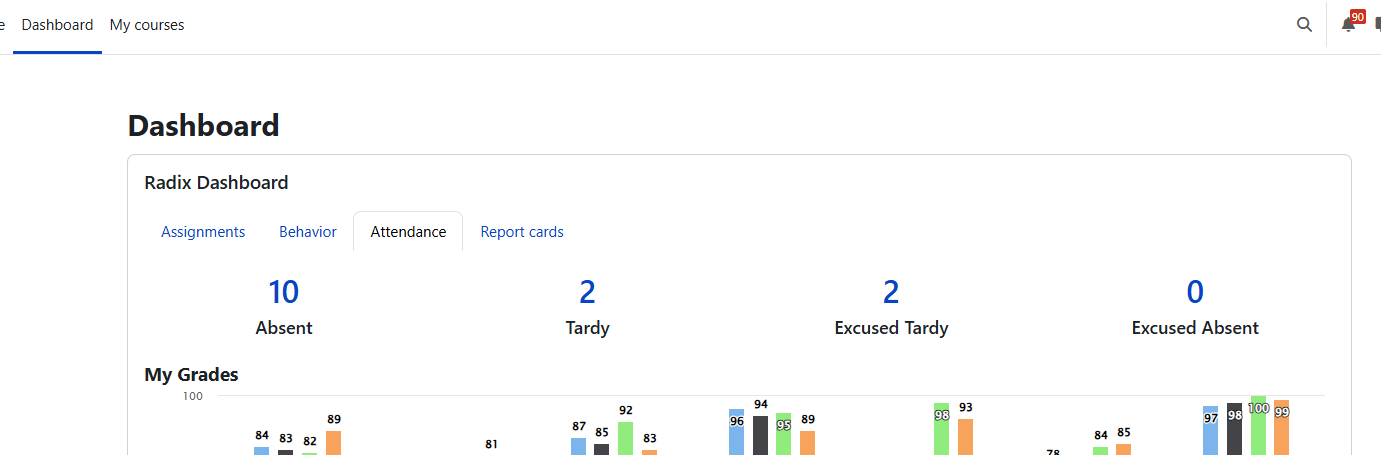
The Attendance tab shows up to four attendance count numbers. Each number represents how many periods the student has been marked with that attendance code since the beginning of the school year.
Common labels include Absent, Tardy, Excused Absence, and Excused Tardy, but your school may use different names.
Tap any count number to open the detailed attendance view, which includes:
-
List view — one row per attendance record showing the date, course, and period-by-period status codes
-
Year view — a school-year overview of attendance for spotting patterns
If all counts show 0, it means the student has no records for those specific codes — it does not necessarily mean perfect attendance in all categories.
Note: A zero count means there are no records for that specific attendance code. Your school may use additional attendance codes or labels.
For more details, see Attendance on Student & Parent Dashboard.
Report Cards
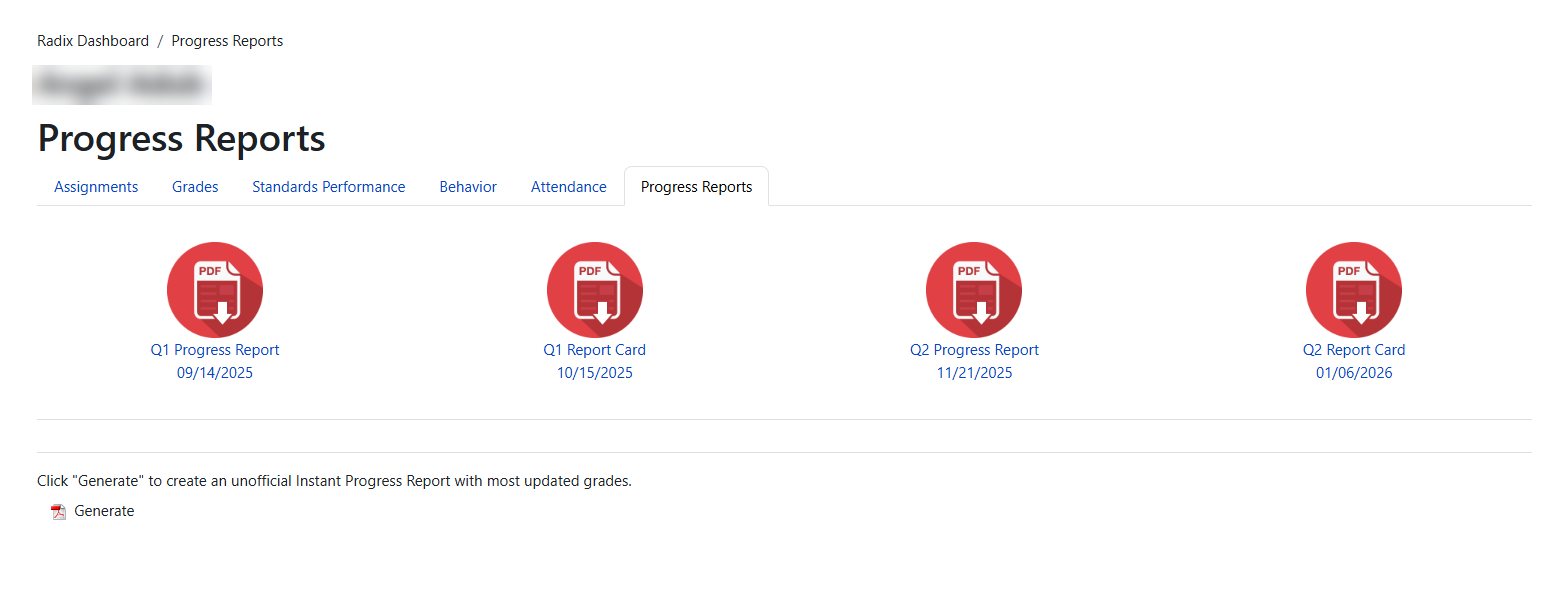
The Report Cards link in the tab bar takes you to a separate page where you can view and download report cards and progress reports.
On that page you will see:
-
Report cards — official PDF reports generated by the school, usually at the end of a grading period (quarter or semester). Each report appears as a PDF icon with its name and date. Tap to download.
-
External reports — PDF reports uploaded by the school from outside sources (such as state assessment reports). These appear in a separate section.
-
MAP progress reports — if the school uses MAP testing, these reports appear in their own section.
-
Instant progress report — tap the Generate button to create an unofficial progress report with the most current grades. This report reflects data at the moment you generate it, so it may differ from an official report card.
Only reports that your school has enabled for parent/student viewing will appear here. If you do not see any reports, the school may not have published them yet.
Tip: Use the Instant progress report when you want a current snapshot of grades before the next official report card is published.
Grades
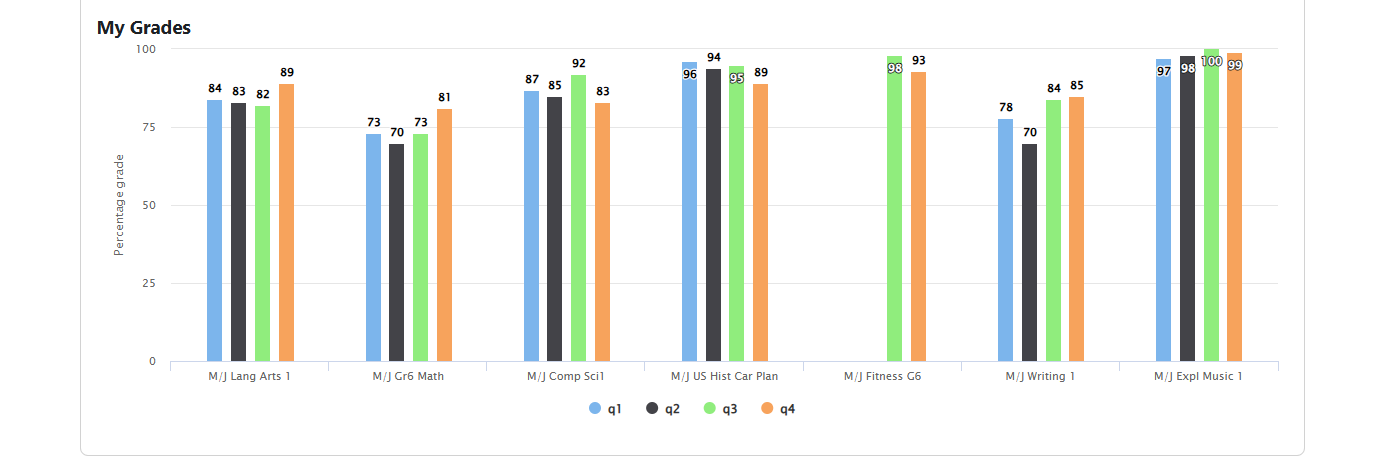
Below the dashboard tabs, you will see a grades section with the heading "[Student's first name]'s Grades" (for parents) or "My Grades" (for students).
This area shows a chart of the student's term averages across all courses. It gives you a quick visual snapshot of how grades are trending.
To see the full grade details for all terms with course-level information, tap any of the bars on the chart.
Grades Summary
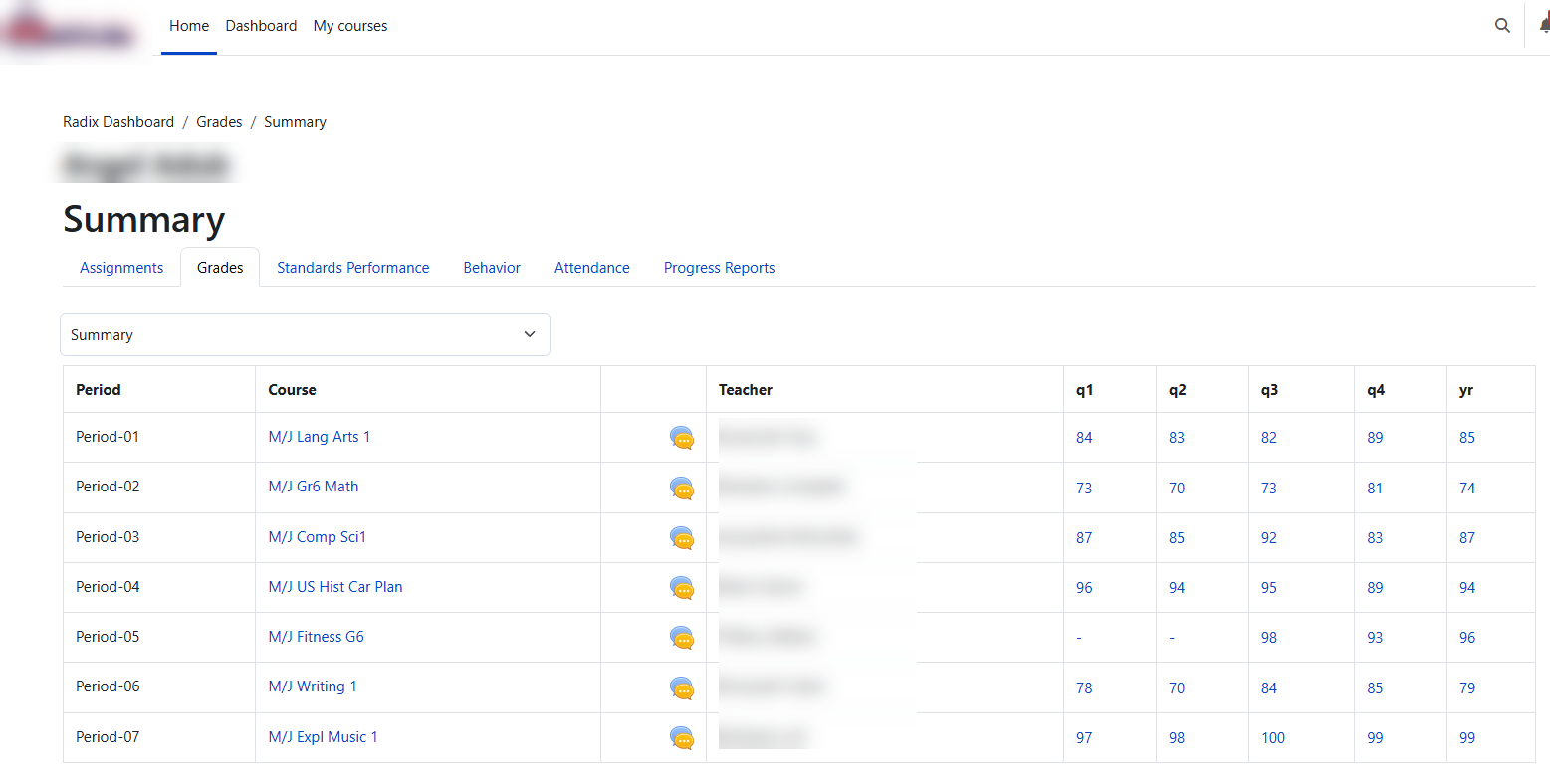
The Grades Summary page gives a course-by-course view of the selected student's grades. It may show the class period, course name, teacher, and the term grade columns selected by the school, such as quarter, semester, or course average columns.
Parents and students can use this page to compare grades across courses in one place. If messaging is enabled, a message icon may appear so families can contact the teacher directly from the summary page.
Note: The grade columns can look different by school. Some schools show quarter grades, semester grades, course averages, letter grades, or a combination of these.
Course Grades
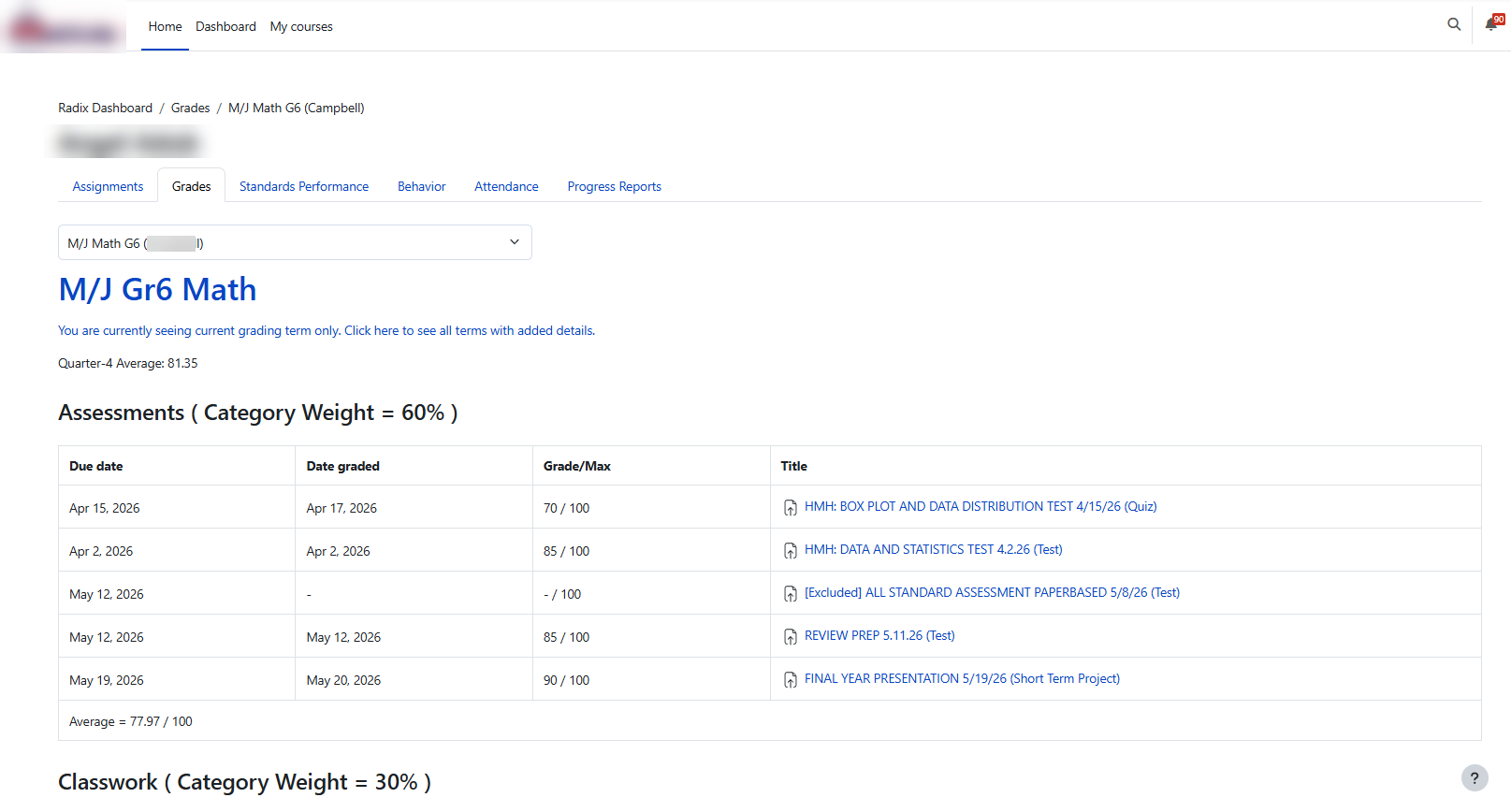
Clicking a course from the Grades Summary opens a more detailed course grades page. This page is helpful when you want to understand what is making up the current course average.
Depending on the course setup, the course grades page may show:
-
The current term average for the course
-
Grading categories, such as homework, classwork, quizzes, tests, projects, or other categories used by the teacher
-
Category weights, if the course uses weighted grading
-
Individual assignments with due dates, grades, possible points, date graded, and teacher feedback
-
Extra credit items marked with [EC]
Tip: If a grade looks different than expected, open the course grades page before contacting the teacher. The category weights, individual assignment grades, and teacher feedback often explain how the course average was calculated.
Standards Performance
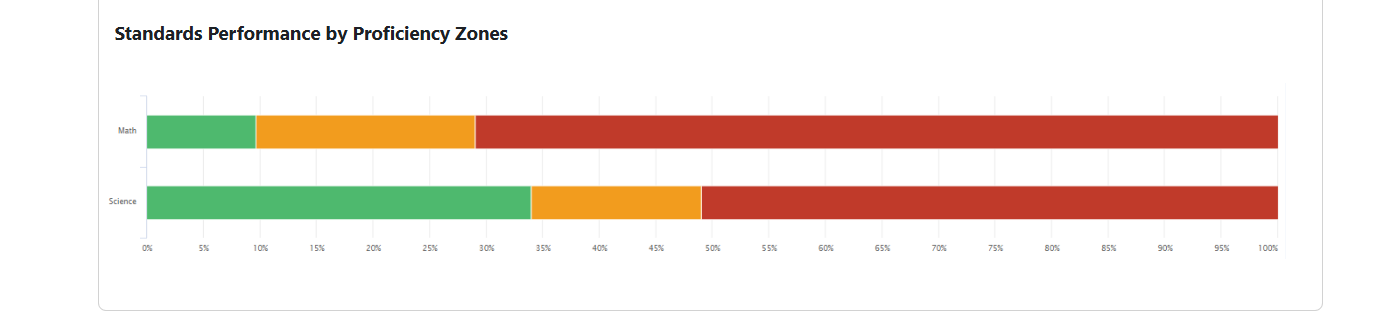
Some schools display a Standards Performance by Proficiency Zones section below the grades chart. This section appears only if the school has enabled it for the student's grade level.
The chart shows what percentage of academic standards the student falls into each proficiency zone based on cumulative benchmark test results:
|
Zone |
Score range |
What it means |
|---|---|---|
|
Green (Satisfactory) |
60% and above |
The student has demonstrated proficiency |
|
Yellow (Needs Improvement) |
35% to 59% |
The student is approaching proficiency but needs more practice |
|
Red (Unsatisfactory) |
Below 35% |
The student has not yet demonstrated proficiency |
The goal is to see more standards in the green zone over time. Results update each time a new benchmark test is completed.
If you do not see this section, it may not be enabled for your student's grade level or your school may not use benchmark assessments.
Note: Standards Performance is optional. If you do not see it, your school may not use benchmark assessments or may not show this section for the student's grade level.
Calendar
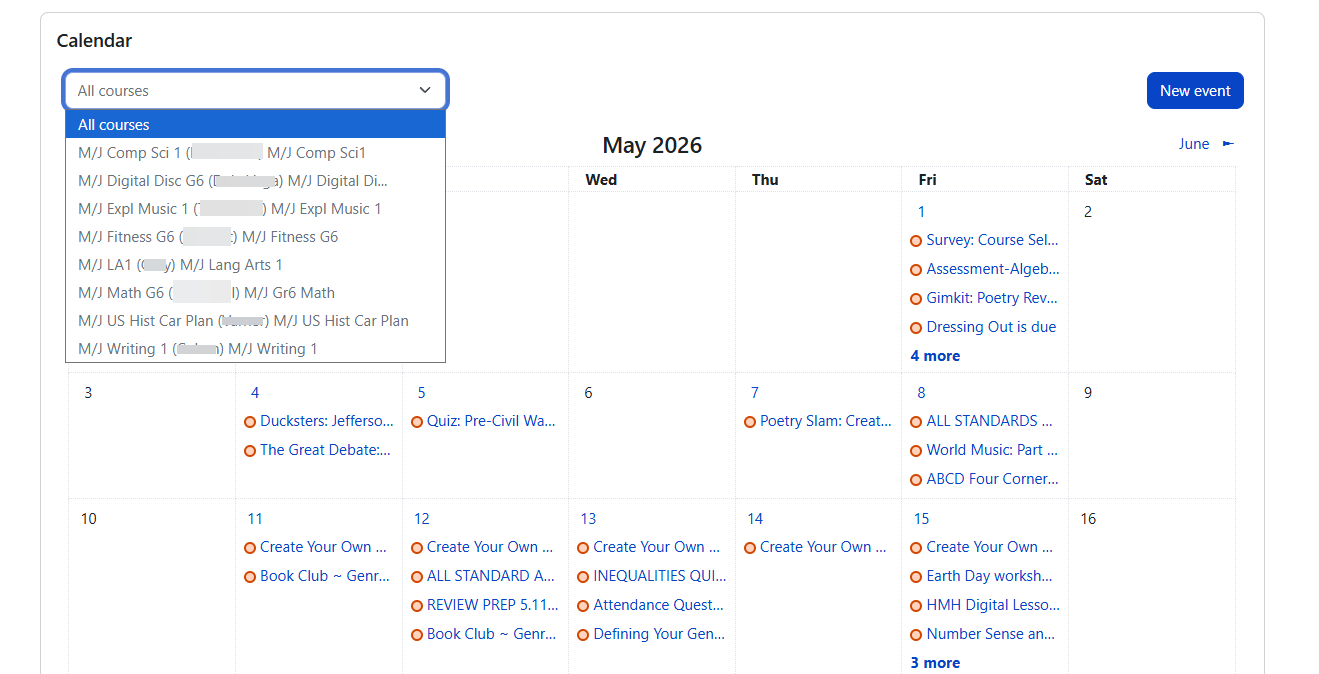
After the grades and standards performance sections, the dashboard displays a calendar. The calendar shows:
-
Site events — school-wide events such as holidays, early dismissals, or school activities
-
Course events — events specific to courses the student is enrolled in
-
Dated activities — assignments, quizzes, and other activities with due dates from the student's courses
You can filter the calendar by course to focus on one class at a time. Tap any event or activity on the calendar to open it directly.
Use the calendar to stay on top of upcoming due dates and school events without having to check each course individually.
Tip: Filter the calendar by course when you want to focus on one class. Clicking an activity from the calendar can take you directly to that assignment, quiz, or event.
Messages
The messaging icon appears in the top navigation bar. A number badge on the icon shows how many people have sent unread messages — this is the number of conversations with new messages, not the total number of individual messages.
Tap the messaging icon to:
-
Read new messages from teachers or school staff
-
Send a message to a contact
-
Search messages or contacts
-
Change your messaging preferences
Messages can also be received via email or mobile app notifications, depending on your settings and the school's configuration.
For more details, see Instant Messaging.
Notifications
The notification bell icon appears in the top navigation bar next to the messaging icon. A number badge shows how many unread notifications you have.
Notifications alert you about events such as:
-
New assignments posted
-
Grades and feedback received
-
Behavior entries or recognitions recorded
-
Report cards available for download
Tap the bell to view notifications. From there you can mark all as read and go to notification preferences to choose how you receive notifications (web, email, or mobile app).
For more details, see Notifications.
Re-Enrollment
Some schools offer online re-enrollment through the parent dashboard. When re-enrollment is open, you will see a re-enrollment option where you can complete the form for each of your students.
This feature is school-dependent — not all schools use online re-enrollment. Contact your school for information about their re-enrollment process and timeline.
Note: Re-Enrollment is school-dependent. If your school uses it, follow the instructions and timeline provided by the school.
Quick Tips
-
Check the Assignments tab regularly — the Missing and Below threshold counts help you stay on top of work that needs attention.
-
Use the calendar — filter by course to see just one class's due dates and events.
-
Generate an instant progress report — if you want to see current grades without waiting for an official report card, use the Generate button on the Report Cards page.
-
Set up notifications — configure your notification preferences so you receive alerts the way you prefer.
-
Switch students easily — if you have more than one student, use the dropdown at the top of the dashboard rather than logging out and back in.
Related Guides
-
Parent Quick Guide — account registration and password help
-
Student Quick Guide — logging in, navigating courses, and getting started
-
Assignment Submission — how to submit assignments
-
Mobile App — using Radix LMS on your phone or tablet