
This page explains what students and parents see in the Attendance area of the Radix Dashboard, how attendance counts are configured, and how attendance appears in progress emails. School staff and administrators can also use this page when answering family questions or configuring dashboard attendance settings.
For attendance setup, status codes, SIS sync, and admin tools, see Attendance Setup & Configuration. For cumulative, daily, class monitor, and student monitor reports, see Attendance Reports. For alert configuration, see Attendance Alerts.
How to access attendance
-
Students: Log in to Radix LMS and open the Attendance tab on the dashboard.
-
Parents: Log in to Radix LMS, select the student if needed using the student dropdown, and open the Attendance tab.
-
Mobile app: Open the Radix Mobile app. If the school uses Radix LMS attendance, the attendance summary appears on the dashboard.
-
School staff: Use this page when supporting families or explaining how attendance appears from the student/parent perspective.
What families see
|
View |
What it shows |
|---|---|
|
Attendance count summary |
Total counts for up to four selected attendance codes since the beginning of the school year. |
|
List view |
A detailed per-record attendance list showing attendance entries by date, course, period, and status. |
|
Year view |
A year-based attendance view for reviewing attendance across the school year. |
Attendance count summary
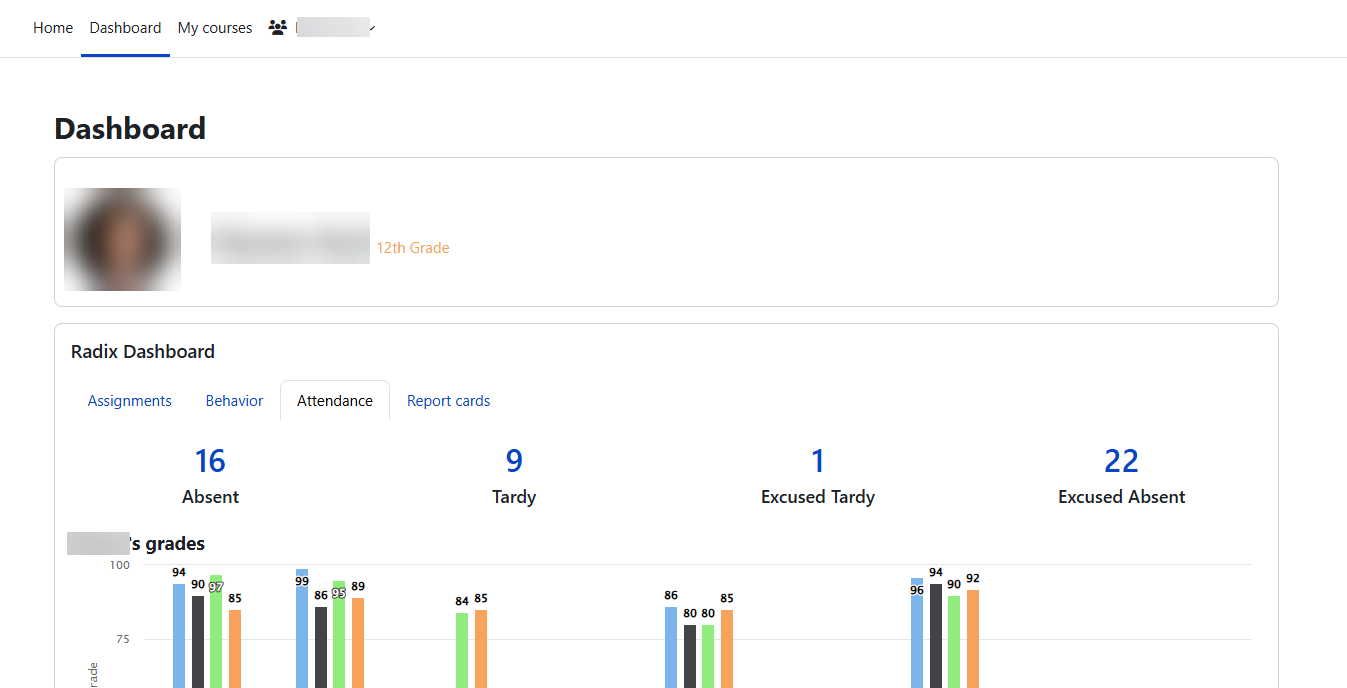
When families open the Attendance tab, they see up to four attendance count numbers. Each number represents the total number of periods in which the student has been marked with that attendance code since the beginning of the school year.
What the counts mean
-
Each count reflects the number of attendance session records, or periods, where the student received that specific code.
-
The codes and labels shown depend on what the school administrator has configured.
-
Common defaults include Absent, Tardy, Excused Absence, and Excused Tardy, but schools can select any attendance codes from their default status set and rename the labels.
When there is no counted attendance
If the student does not have records for the selected count codes, the count cards display 0. The dashboard does not show an “all present” congratulations message.
If none of the student’s courses have attendance sessions, the dashboard may show No attendance record found.
Tapping an attendance count opens the detailed attendance list for that student.
Attendance detail views
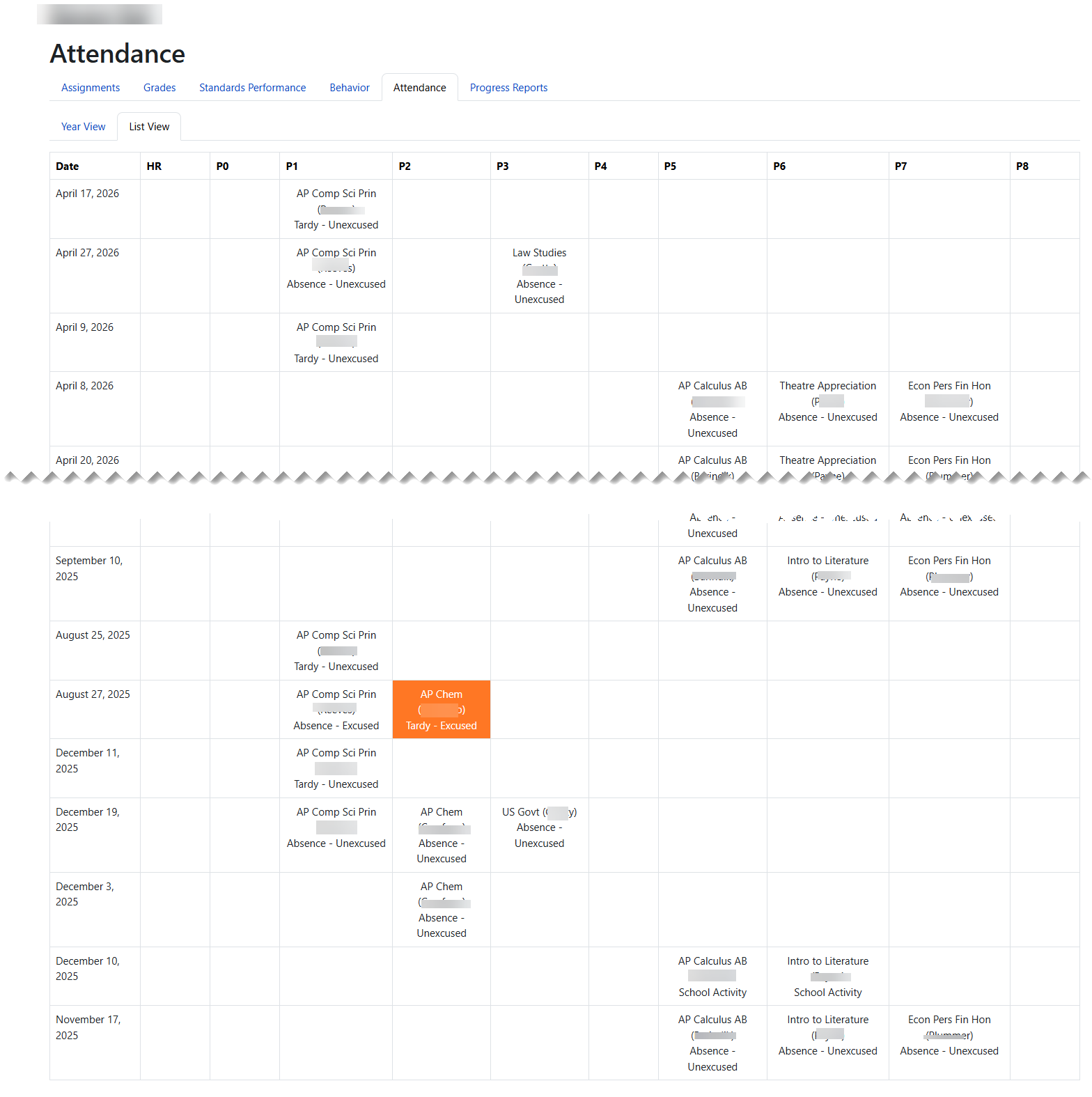
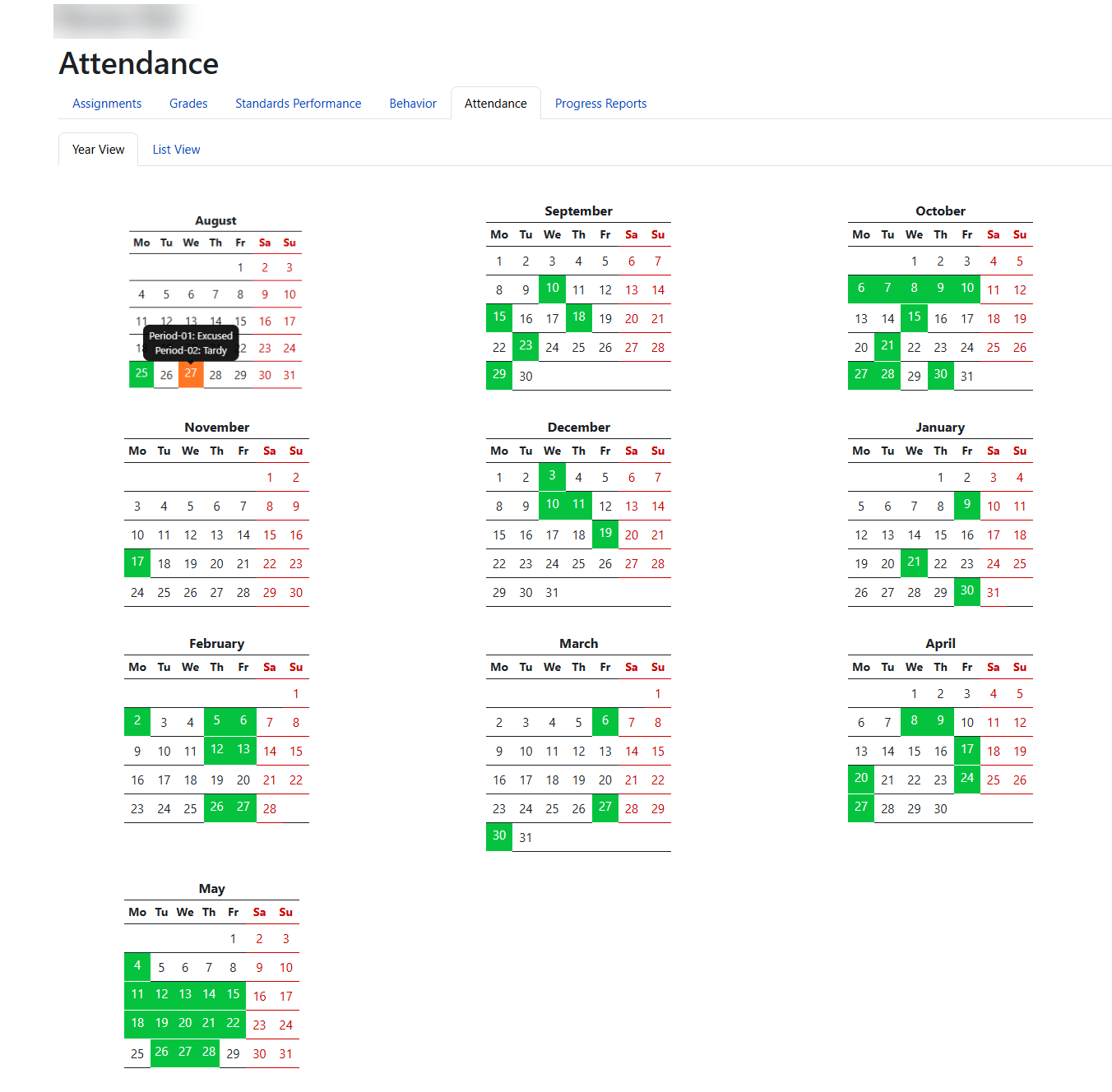
The dashboard attendance details include both a list view and a year view. Families can open the details from the dashboard by tapping an attendance count, then use the available views to review individual records or attendance across the year.
List view
-
One row per attendance record
-
Period columns including HR, 00, and periods 01 through 10
-
Attendance status code for each period
-
Course information
-
Date of the attendance record
The list uses the school's default attendance status set, so the codes shown match the codes teachers use when taking attendance.
Year view
The year view provides a school-year view of the student’s attendance so families can review attendance patterns beyond the individual list entries.
Attendance in progress emails
When progress emails are enabled, the weekly progress email sent to families includes an Attendance section.
What the progress email shows
-
An attendance table showing records since the last progress email, not a cumulative year-to-date total
-
Period columns including HR and 00
-
Attendance code labels matching the names configured in the Radix Dashboard block settings
-
A note that the section only shows attendance reported since the last progress email
-
A link to open the full attendance report on the student/parent dashboard
For parents with multiple students
Parents who have multiple students at the same school can switch between students using the student dropdown at the top of the dashboard. The attendance counts and detail list refresh to show the selected student.
Parents who have students at different schools can switch schools from the profile or user menu.
If attendance is not visible
|
Symptom |
Likely cause |
|---|---|
|
No Attendance tab on the dashboard |
The Attendance tab has not been enabled in the Radix Dashboard block settings. |
|
Attendance tab shows all zeros |
The configured attendance codes may not match the codes teachers use, or attendance may not have been taken yet. |
|
No attendance record found |
None of the student's courses have attendance sessions created. |
|
Attendance is not visible on the mobile app |
The school may not be using Radix LMS for attendance. Contact the school for attendance records. |
|
Progress email does not include attendance |
Progress emails may not be enabled, or no attendance has been recorded since the last progress email. |
Frequently asked questions
What do the attendance count numbers mean?
Each number shows the total count of periods where the student was marked with that specific attendance code since the beginning of the school year. For example, if Absent shows 3, the student has been marked absent in three periods total.
Why do the labels look different from what I expected?
School administrators can customize the labels displayed on the dashboard. For example, the code A might be labeled Absent or Absence depending on the school's configuration.
Can families see which courses or dates the absences are from?
Yes. Tap an attendance count number to open the detailed attendance list, which shows dates, periods, courses, and attendance codes.
Why does dashboard attendance not match what the school reported?
The dashboard shows attendance as recorded in Radix LMS. If the school syncs attendance from an SIS, there may be a delay. If codes do not match between systems, some records may not display as expected. Contact the school for clarification.
Can families see previous school years?
What is visible depends on school configuration and available attendance records. Contact the school directly for older records.