Attendance Alerts
This page explains the attendance alert tools in Radix LMS. Attendance alerts help administrators monitor attendance patterns, identify incomplete attendance entry, and notify families when students are marked with selected attendance codes. Alerts are configured by attendance code, grade level, period, recipient group, schedule, and notification template.
Use this page for alert configuration and review. Attendance setup, status codes, SIS synchronization, and bulk attendance tools are documented separately on the Attendance Setup & Configuration page.
At a glance
|
Alert type |
Primary purpose |
Typical recipients |
Common use |
|---|---|---|---|
|
Habitual absence/tardy alert |
Find students who reach configured absence or tardy thresholds. |
Attendance administrators, deans, counselors, selected staff, and optionally parents/students. |
Escalation lists for repeated absences, tardies, or other selected codes. |
|
Incomplete attendance alert |
Find sessions or periods where attendance has not been submitted. |
Teachers of incomplete sessions and selected staff. |
End-of-period or end-of-day follow-up before reports are finalized. |
|
Parent/student attendance alert |
Notify families when a student is marked with selected attendance codes. |
Parents and, when enabled, students. |
Daily absent/tardy notifications with date, period, and status details. |
Accessing attendance alerts
To open the alerts page, navigate to School > Attendance > Attendance alerts.
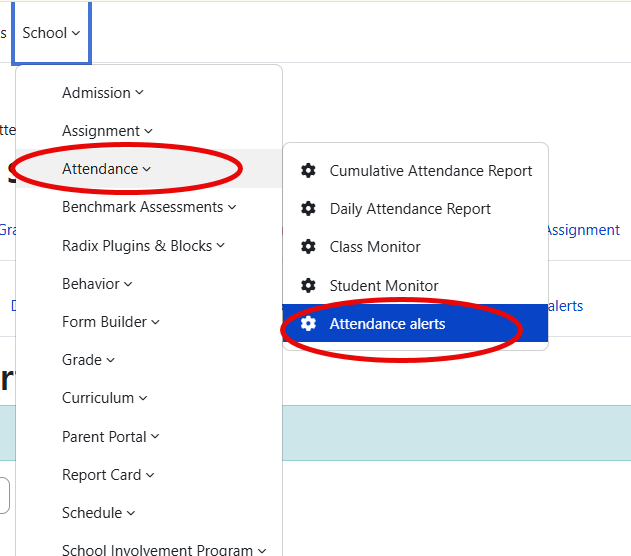
On this page, administrators can view existing alerts, add new alerts, edit alert settings, enable or disable alerts, review alert logs, and open the latest generated report. If an alert has not generated a report yet, the latest report icon will not appear.
Scheduling note: Attendance alerts do not send notifications during weekends or configured school holidays. Schools can create multiple alerts for different attendance codes, grade levels, periods, recipients, alert levels, and alert times.
The alert list shows alerts that have already been created. Use this list to confirm which alerts are active, review each alert's schedule, and access reports or logs.
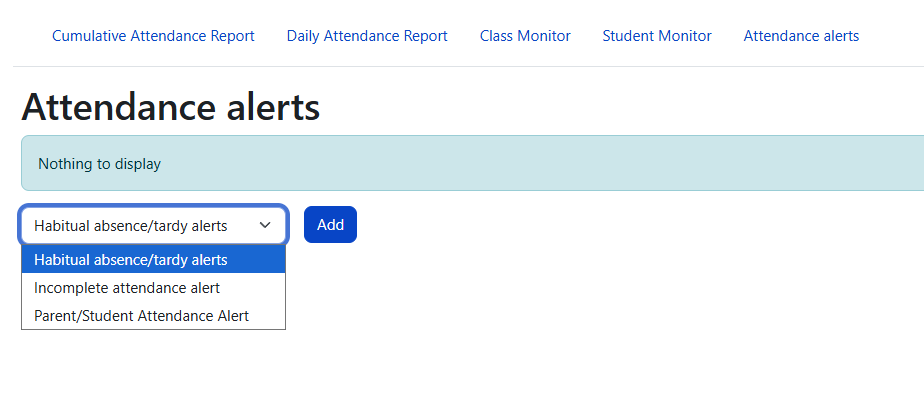
To create a new alert, select the alert type from the drop-down menu and click Add. The setup form changes based on the selected alert type.
Before you create alerts
Before creating attendance alerts, confirm that the attendance setup is complete and that the alert will run after the relevant attendance sessions are finished.
-
Attendance status codes should already be configured. The available alert codes come from the school’s attendance status set.
-
Grade levels and periods should match the groups, periods, and bell schedule used by the school.
-
Parent and student accounts should be linked correctly before enabling family notifications.
-
School holidays should be configured so alerts do not run on non-school days.
-
Permissions should be assigned to the users who manage alerts and view alert reports.
Permissions: Users need permission to manage attendance alerts in order to create, edit, enable, disable, or delete alerts. Users also need report access permission to open generated alert reports.
Creating an alert
To create an alert, select the alert type from the drop-down menu and click Add. The setup form changes based on the alert type selected.
All alert types share the same general workflow:
-
Select the alert type.
-
Choose the attendance codes, grade levels, periods, recipients, and schedule.
-
Review the notification subject and body. Keep variables in double brackets, such as
[[studentname]], unchanged because they are replaced dynamically when notifications are generated. -
Enable the alert when it is ready to run.
-
After the alert runs, review the generated report and log entries.
Habitual absence/tardy alert
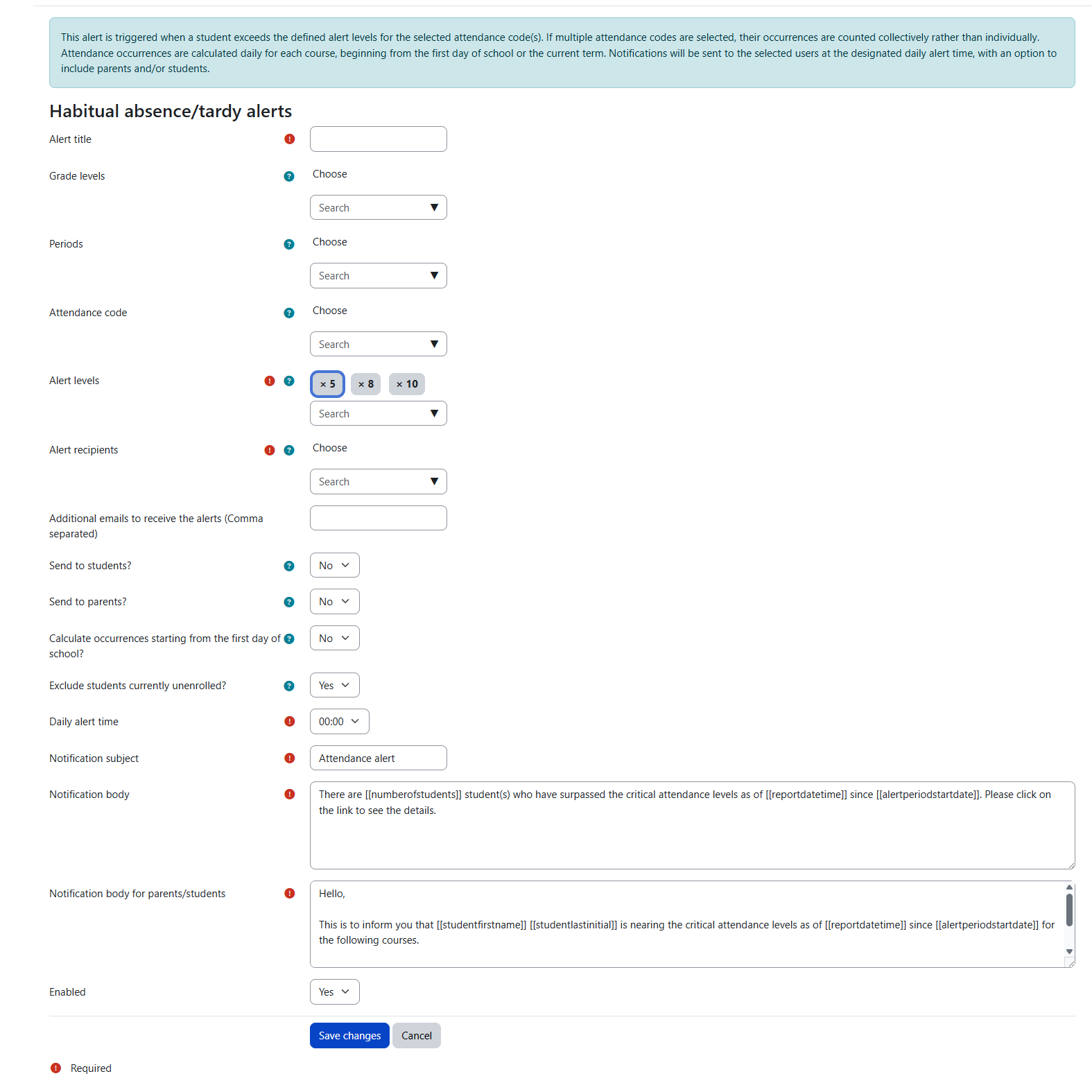
Use a habitual absence/tardy alert to notify staff when students reach or exceed configured attendance thresholds. This alert can be used for absences, tardies, or other attendance codes selected by the school.
Attendance code: Select one or more attendance codes to count toward the alert. For example, select Absent for unexcused absence tracking, or Tardy for tardy tracking. Multiple selected codes are counted together.
Alert levels: Enter the occurrence levels that should trigger the alert. For example, levels of 5, 8, and 10 notify staff when students move into those alert brackets. Current alert logic is intended to catch students who meet or exceed a configured level, while avoiding duplicate alerts for the same bracket.
Recipients: Select the users who should receive the staff notification. Additional email addresses can also be entered when needed. Recipients receive an email and a Radix LMS notification with a link to the alert report. Only users with the required attendance permissions are available in the recipient list.
Parent/student notifications: When enabled for the alert type, alerts can also send a separate notification to parents and/or students with a link to the student attendance report.
Separate parent and student delivery options: Parent notifications and student notifications are controlled separately. Enable the options that match the school’s communication policy.
Parent/student notification body: Habitual alerts use a separate message template for parent/student notifications. This allows the staff report message and the family-facing message to be written differently while still using dynamic variables such as the attendance report link.
Exclude currently unenrolled students: Use this option to exclude students who are no longer actively enrolled from the habitual alert calculation. This helps prevent transferred or withdrawn students from being included in alert results.
Start date: Choose whether the alert should count attendance occurrences from the beginning of the school year or from the beginning of the current grading term.
Grade levels and periods: Use grade level and period filters to narrow the alert to the students and sessions that should be included.
Daily alert time: Select the time of day when the alert should run and notifications should be sent. Choose a time after all relevant sessions or periods are complete.
Subject and notification body: You can also change the subject of the notification and the message. Please do not alter the variables in double brackets "[[ ]]" as they are dynamic values of the alerts.
Enable/disable: if you no longer want to use this alert, you can simply disable it. That way you can keep the reports generated by this alert.
Incomplete attendance alert
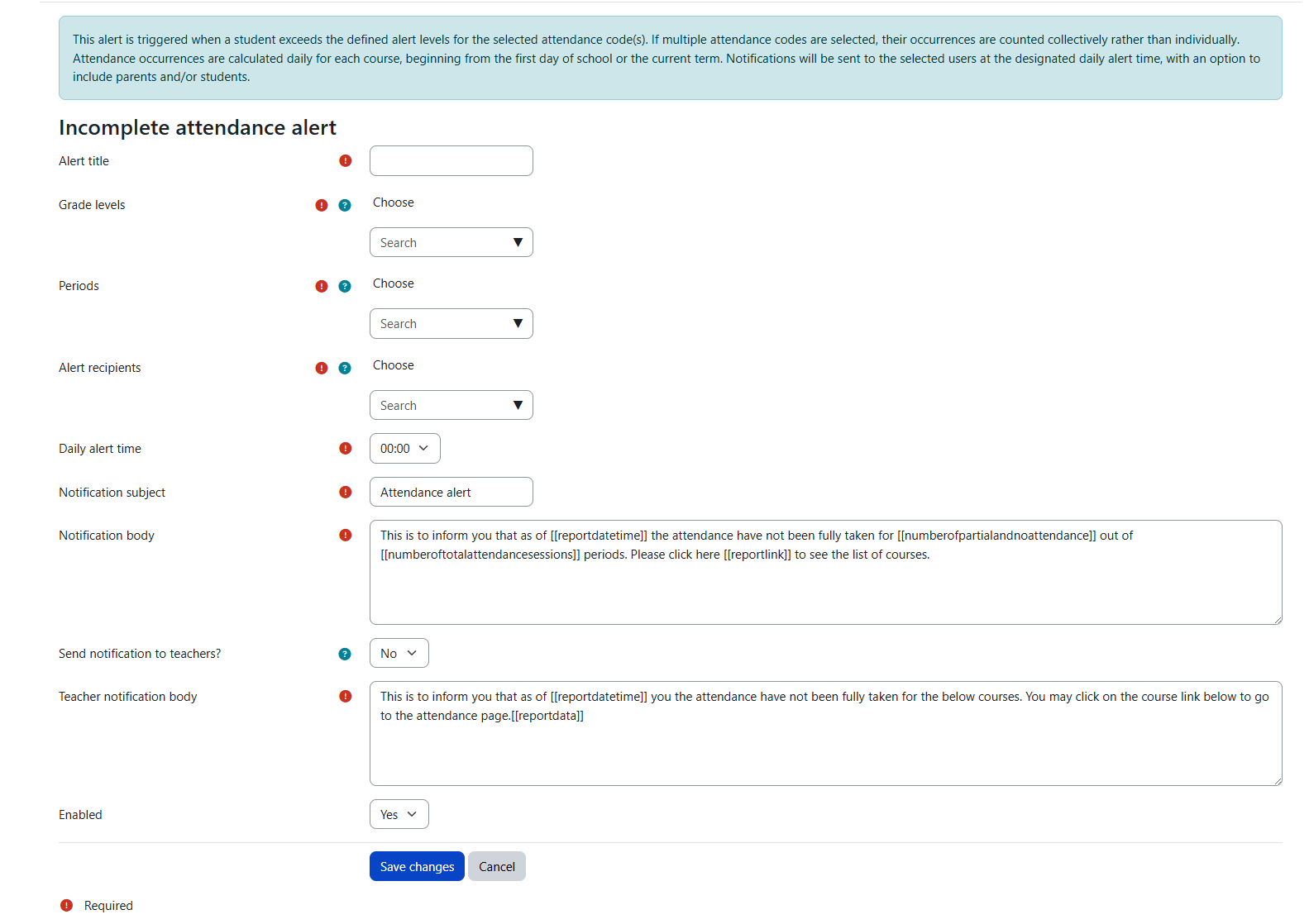
Use an incomplete attendance alert to follow up when attendance has not been submitted for one or more sessions. This is typically used after a period ends or near the end of the school day so office staff can confirm that attendance is complete before reports, dashboards, or family communications are reviewed.
Alert title: Enter a clear title so staff can identify the alert in the alert list, logs, reports, and notifications.
Teachers of incomplete courses: The alert can notify the teachers connected to the courses or sessions where attendance is incomplete.
Staff recipients: Select the administrators, office staff, or attendance staff who should receive the summary notification.
Grade levels and periods: Use these filters to limit the check to the grades and periods that should be monitored. This is useful when some grades or periods follow different attendance workflows.
Daily alert time: Choose a time after the relevant period or school day has ended. If the alert runs too early, it may report sessions that teachers have not had time to complete.
Subject and notification body: The staff notification has a customizable subject and body. Keep variables in double brackets unchanged so the alert can insert report information automatically.
Teacher notification body: If teacher notifications are enabled, the teacher message has its own template. Use it to give teachers clear instructions for completing attendance.
Enable/disable: Disable the alert when it should stop running but you want to keep its previous logs and reports.
Parent/student attendance alert
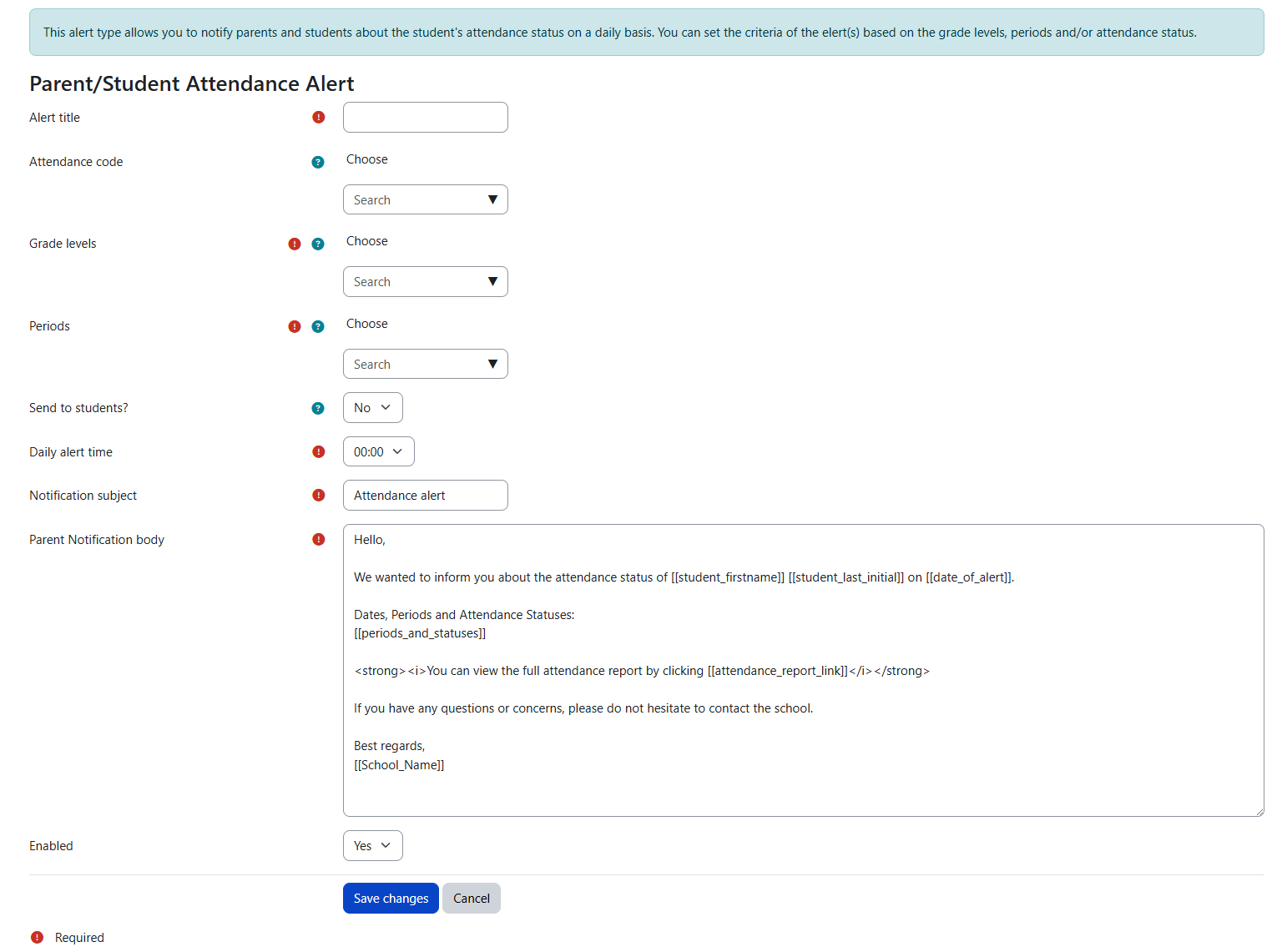
Use a parent/student attendance alert to notify families when a student is marked with selected attendance codes, such as absent or tardy. This alert is designed for daily family communication rather than internal threshold monitoring.
Alert title: Enter a clear title so administrators can identify the alert in the alert list, logs, reports, and notifications.
Attendance codes: Select the codes that should trigger a family notification. Schools commonly use this for absent and tardy codes, but the available options depend on the attendance status codes configured for the school.
Recipients: Parent notifications are sent to the student's linked parent or guardian accounts. Student notifications can also be enabled when the school wants students to receive the same type of attendance notice.
Grade levels and periods: Use filters when the alert should apply only to specific grade levels or periods.
Daily alert time: Select the time of day when the family notification should be generated. Choose a time after the monitored periods are complete.
Subject and notification body: The family notification subject and body can be customized. Keep variables in double brackets unchanged so the alert can insert student, date, period, status, school, and attendance report information automatically.
Enable/disable: Disable the alert when it should stop running but you want to preserve its previous logs and reports.
Consolidated notifications: Radix LMS consolidates parent/student attendance notifications by student. Families receive one notification per student for the alert run instead of a separate notification for every period.
Notification details: Notifications include attendance information such as the date, period, and attendance status so families can understand which record triggered the alert.
Managing alerts
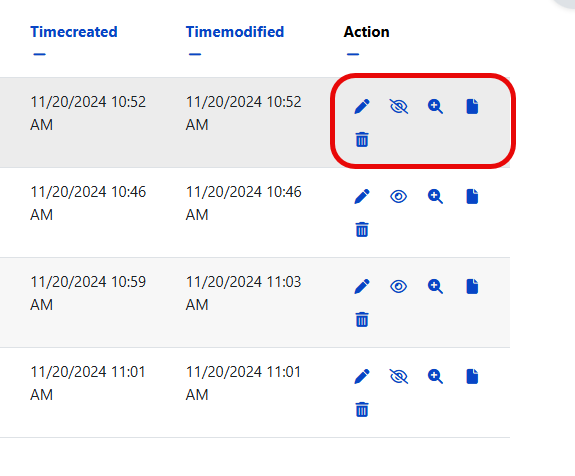
After an alert is created, use the action icons in the alert list to maintain it. The icons allow administrators to edit the alert, enable or disable it, view alert logs, open the latest generated report, or delete the alert. If the latest report icon is not visible, the alert has not generated a report yet.
Alert reports
When an alert generates a notification, the message includes a link to the alert report. Administrators can also open the same report from the latest report icon in the alert list. Alert reports can be downloaded as CSV files for review or follow-up.
Each alert type produces a report that matches its purpose:
-
Habitual absence/tardy reports show students who reached a configured alert level during that alert run. Columns include student information, grade, course or period context, alert name, alert time, start date, and number of occurrences. Click a student name to open the student’s detailed attendance report.
-
Incomplete attendance reports show sessions where attendance is missing or partially complete. Columns include teacher, course, period, status, student numbers, and alert time. Click a course name to open the attendance screen for that session or period.
-
Parent/student attendance reports show which students triggered a family notification. Columns include student information, grade, course, status, period, date, recipients, alert name, and alert time.
Please note that you will only receive an alert if there are new students reached to any of the alert levels or the alert level of a student has changed. The reports will not show a cumulative list of students, it will only show those students who reached the levels on the day of an alert.
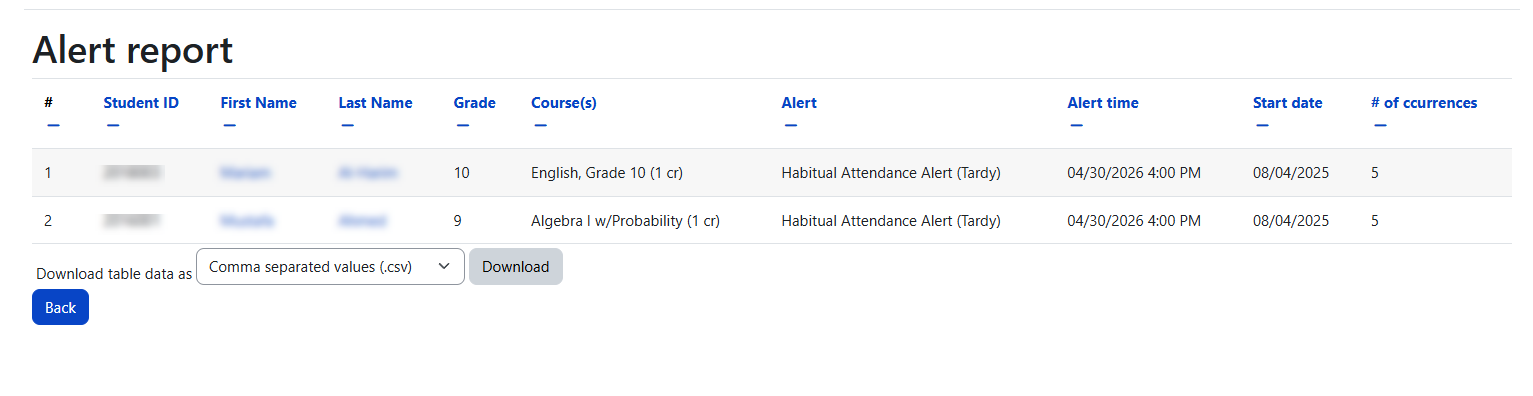
Click on a student name to see the detailed attendance report. |
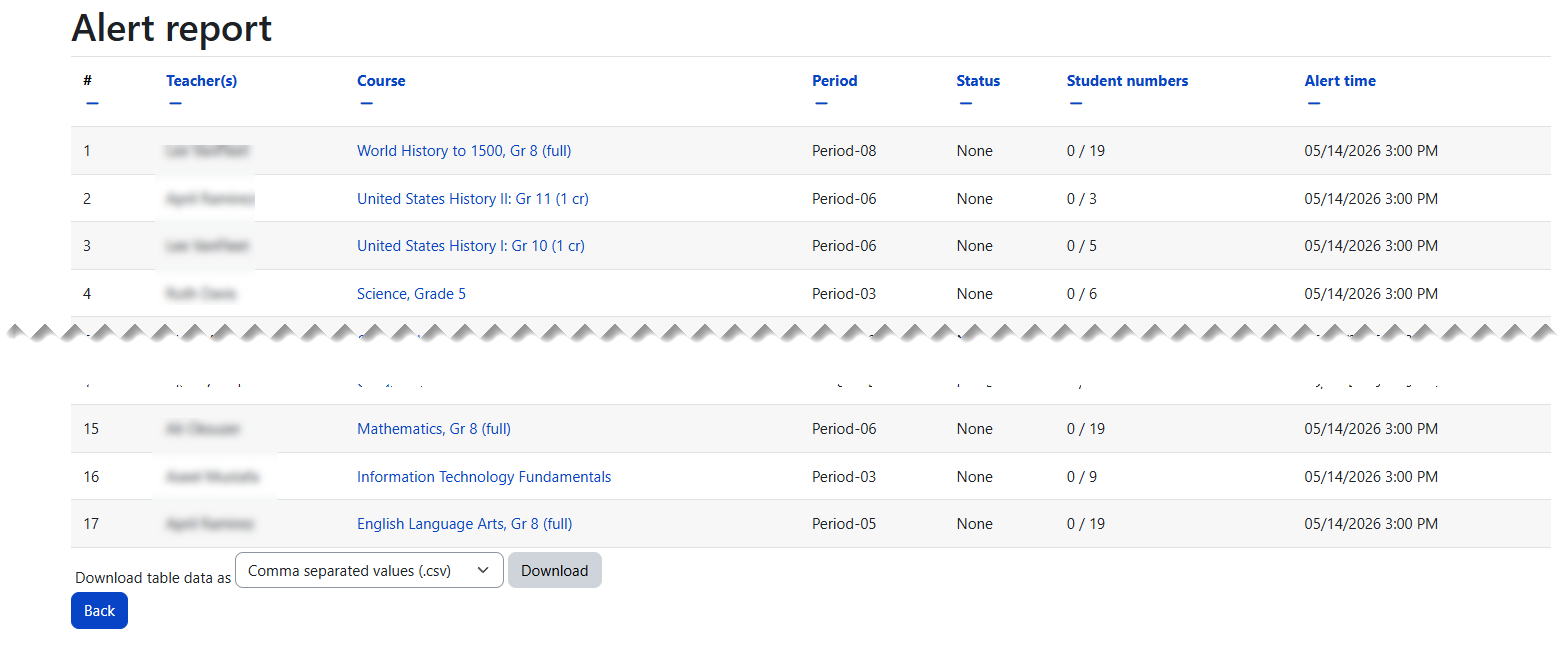
Clicking on a course name on this report will take you to the attendance screen of that period. |
Alert logs
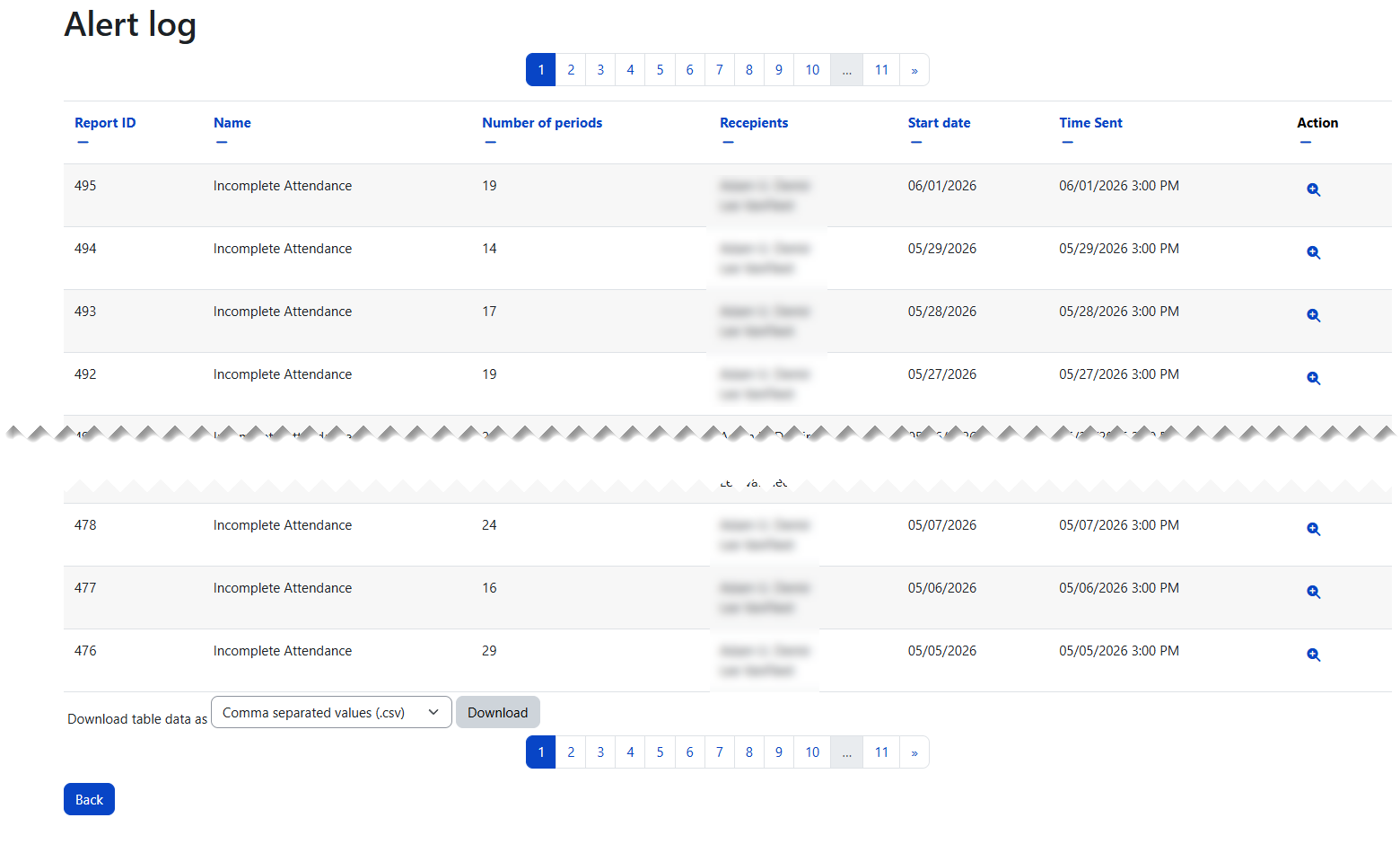
Alert logs provide a history of generated alert runs. Use the log icon to review past runs, confirm when an alert was generated, see summary counts, and reopen historical reports.
The log summary can show different counts depending on the alert type, including number of students, number of courses, number of periods, recipients, and alert levels reached. For incomplete attendance alerts, logs and reports help staff identify courses or sessions that still require attendance entry.
You can also see the summary of the report on the logs page by clicking on the alert log icon. This will show the number of students in the report and the alert levels reached by these students. Click on the list icon to access the report for any of the logs.