
Mentors-Mentees Block User Guide
What the Mentors-Mentees block does
The Mentors-Mentees block lets admins connect mentors with students. After students are assigned, mentors can open an easy-to-read progress page for each mentee and review key information in one place.
Depending on your school settings and permissions, the progress page may show:
-
Student profile information and last access
-
Courses, sorted by period when period information is available
-
Current-term progress and grade information
-
Passing, failing, missing, and waiting-for-grade activity counts
-
Attendance summary and a link to attendance details when records exist
-
Student contacts, if enabled by an admin
-
Discipline summary for the latest records
-
High school transcript link for eligible students, if enabled by an admin
Before you start
-
The Mentors-Mentees block must be enabled on the site.
-
The block must be added to the dashboard or another page where users can see blocks.
-
Staff who should act as mentors must have the mentor role.
-
Admins need permission to assign mentors and manage notifications.
Tip: If you do not see the block, check whether the blocks drawer or side area is hidden. Open the blocks area first, then look for the Mentors-Mentees block.
Open mentor management
-
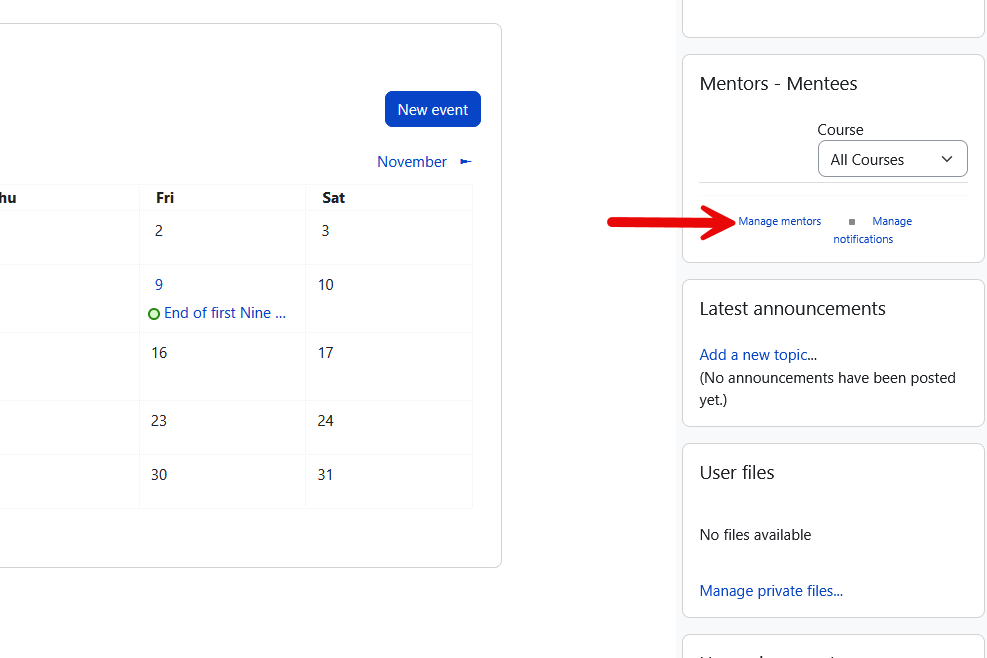
Go to the page where the Mentors-Mentees block is displayed.
-
Select Manage mentors.
-
The mentor assignment page opens.
Assign students to a mentor
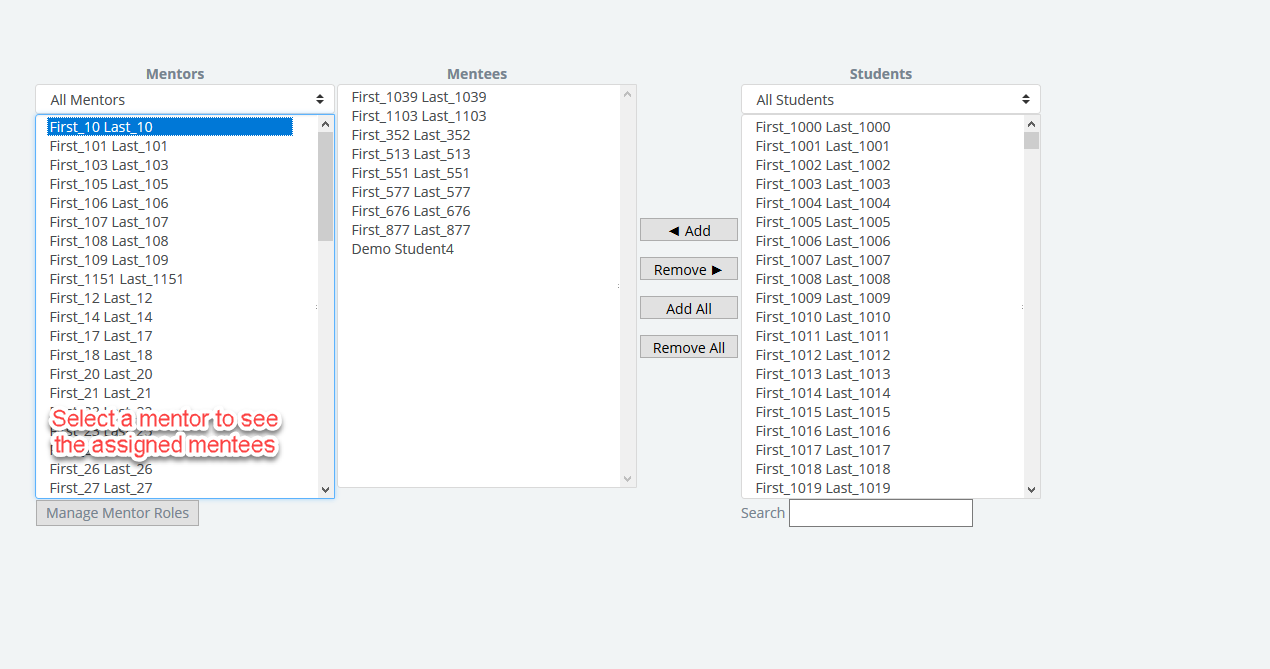
On the assignment page, you will see mentor and student lists. If the mentor list is empty, no staff member has been assigned the mentor role yet. Assign the mentor role first, then return to this page. Radix User Management | How to add/edit staff
-
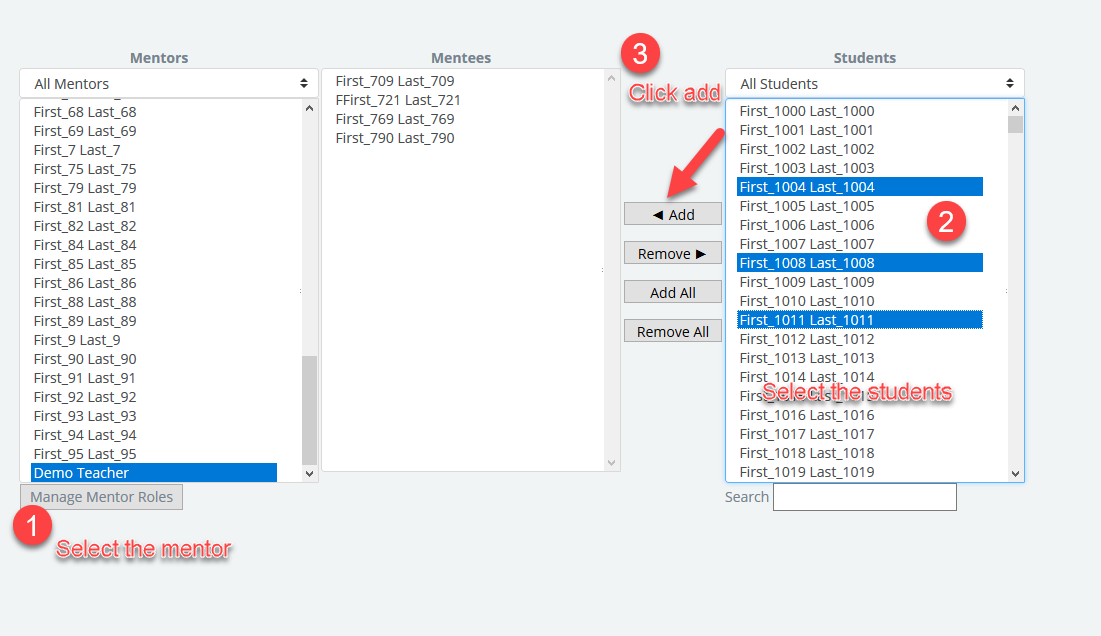
Select a mentor from the mentor list.
-
Review the students already assigned to that mentor in the middle list.
-
Find the student in the available students list.
-
Select the student and choose Add.
-
To remove a student from a mentor, select the student in the assigned list and choose Remove.
You can select more than one student at a time by holding Ctrl on Windows or Command on Mac while selecting names. If available, use the searchable student list to find students faster.
What mentors see
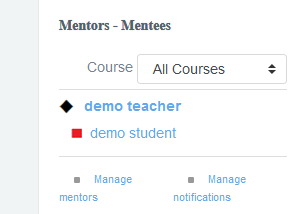
After mentees are assigned, mentors see their mentees in the block. Selecting a student name opens that student’s progress page.
Review a student progress page
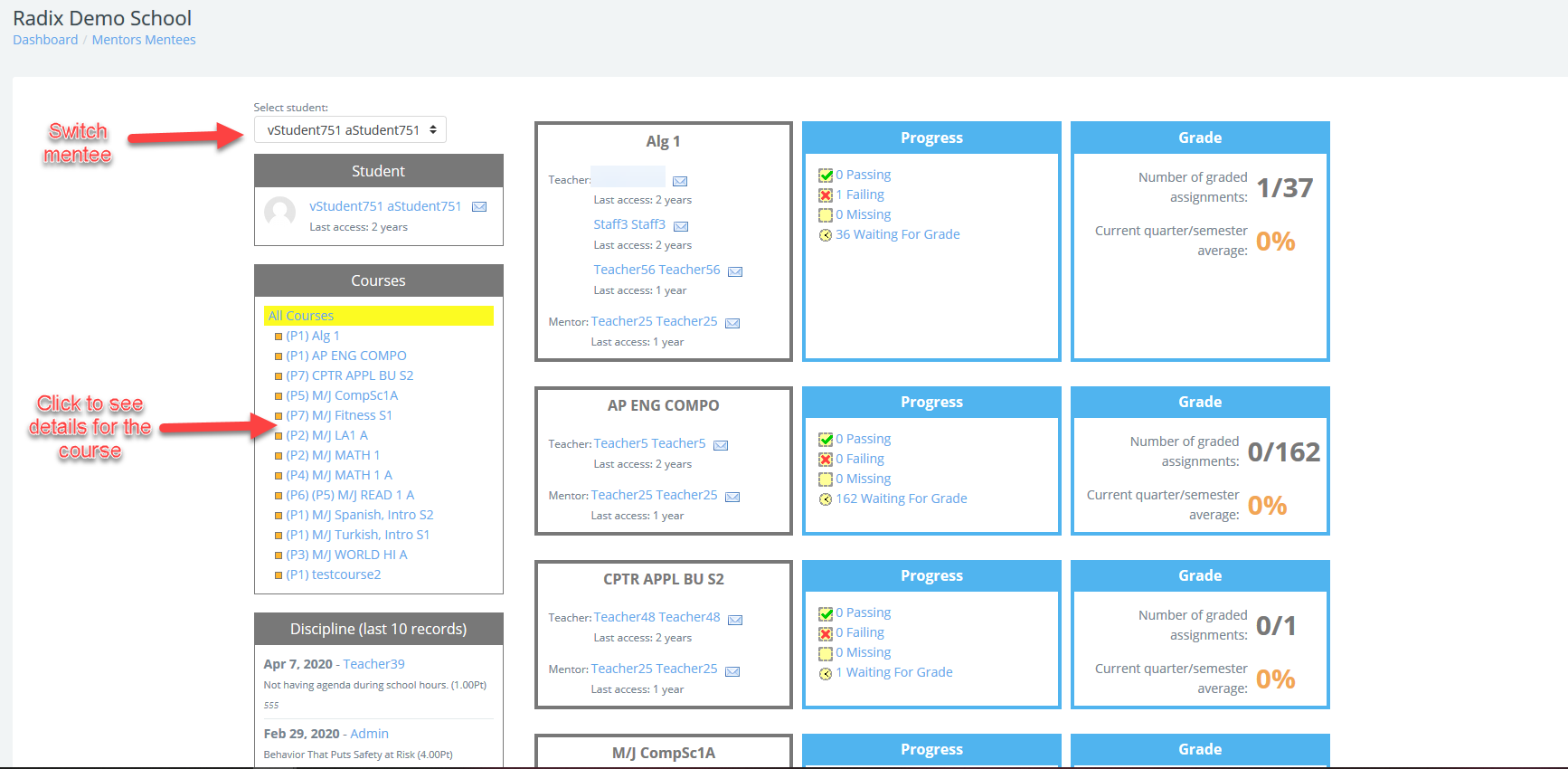
The progress page gives mentors a quick view of the selected student. Mentors can switch between their mentees from this page.
The course area shows academic progress by course. Selecting a course opens the detailed course progress page for that student.
Progress and grades
-
Progress focuses on the current term, such as the current quarter or semester.
-
Grade shows current-term grade information and graded assignment counts.
-
Activity links may show passing, failing, missing, and waiting-for-grade items.
-
If a grade is not available, the system may show NG instead of treating the grade as 0%.
Attendance
The attendance summary shows absence or tardy counts by attendance code. If the student has no absences or tardies, the page displays a positive message. If attendance records are available, mentors can open the attendance details link to review the full list.
Student contacts
If enabled by an admin, the progress page shows student contact information. This may include the student address and related contacts used by the school.
High school transcript
If enabled by an admin, eligible students in grade 9 or above may have a High school transcript link on the progress page.
Manage notification rules
Admins with permission can create notification rules from the block by selecting Manage notifications. Notifications can be sent by email based on selected conditions, such as course grade thresholds or no login/no activity for a set number of days.
-
Open Manage notifications.
-
Create or edit a rule.
-
Choose when the rule should send.
-
Choose who should receive the email, such as mentors, students, or teachers.
-
Choose how often the rule should run.
-
Add an optional message if needed.
-
Save the rule.
Important: SMS options may appear in older screens or labels, but SMS notification sending is disabled. Use email notifications unless your school has confirmed otherwise.
Admin settings to review
Admins can review Mentors-Mentees settings from the site administration area. Common settings include:
-
Block name and display wording for mentor/mentee labels
-
Student, teacher, mentor system, and mentor user roles
-
Maximum number of mentees shown before the block switches to summary links
-
Passing percentage
-
Whether mentors can see student contacts
-
Whether mentors can download high school transcripts for eligible students
Troubleshooting
|
Issue |
What to check |
|---|---|
|
The block is not visible. |
Make sure the block is enabled, added to the page, and the blocks area is not hidden. |
|
The mentor list is empty. |
Confirm that staff have the mentor role assigned. |
|
A mentor cannot see a student. |
Confirm the student is assigned to that mentor and the mentor has the correct role. |
|
Student contacts do not show. |
Check the admin setting that allows mentors to see student contacts. |
|
The transcript link does not show. |
Check that transcript access is enabled, the student is eligible, and the student is in grade 9 or above. |
|
Attendance details do not show. |
Confirm the student has attendance records. If there are no records, the page shows a no-records message. |