
Grade panelties
Grade penalties allow admins to set late submissions penalties which teachers can then apply to assignments in their courses.
Late submission penalties
To set up late submission penalties
-
Go to Site administration > Grades > Manage penalty plugins.
-
Click the toggle to enable late submission penalties.
-
Follow the Settings link then click the Edit button.
-
Enter a late submission penalty as a percentage and save changes. For example, enter 10 to penalize late submissions by reducing the grade by 10%.
-
If required, add rules to penalize late submissions that are overdue by a specified time.
-
Go to Site administration > Grades > Manage supported activities.
-
Select Assignment in Enabled activities, then save changes.
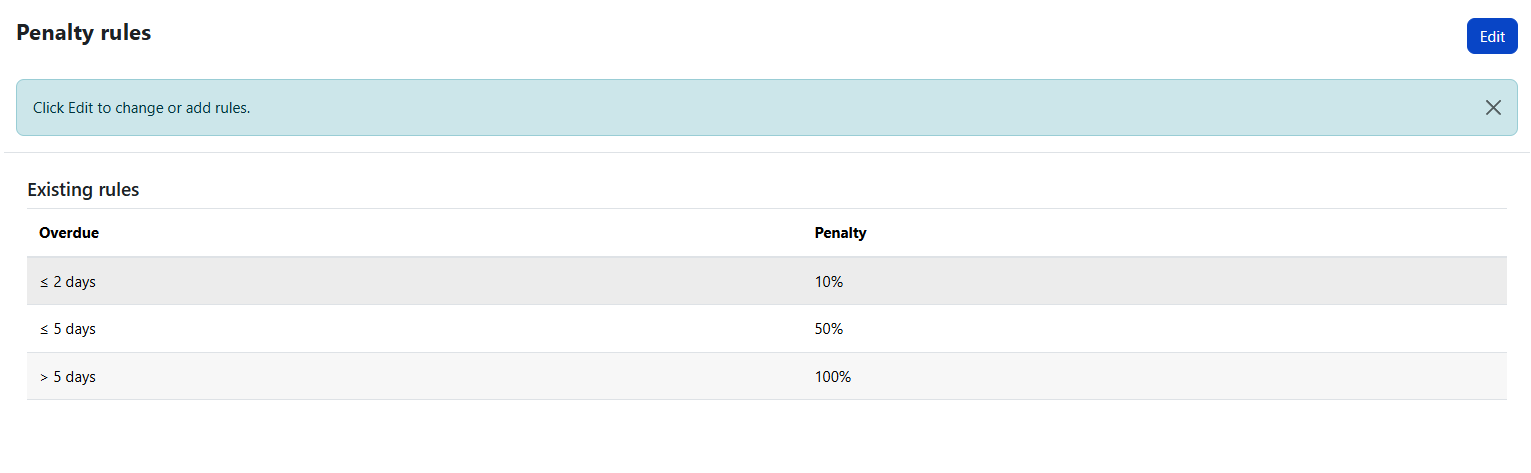
To apply late submission penalties to an assignment, the teachers will need to
-
Go to the assignment settings.
-
In the Grade section, set Grade penalties to Yes.
Grade which have a penalty applied are shown on the assignment submissions page and in the user and grader reports by a red triangle icon, with a tool-tip showing the penalty.
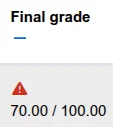
Note that teachers can only set whether a grade penalty is applied to an assignment or not; they can't edit the penalty amount.
Radix Grade Settings
The Radix Grade Settings control how grades are interpreted, displayed, and surfaced in alerts and reports across your Radix site. This page explains each option, what it does, and how to choose appropriate values.
Who can use this page?
Typically site administrators or users with the appropriate Radix administration permissions. to access the Radix grade settings; navigate to School > Grade > Radix Grade Settings
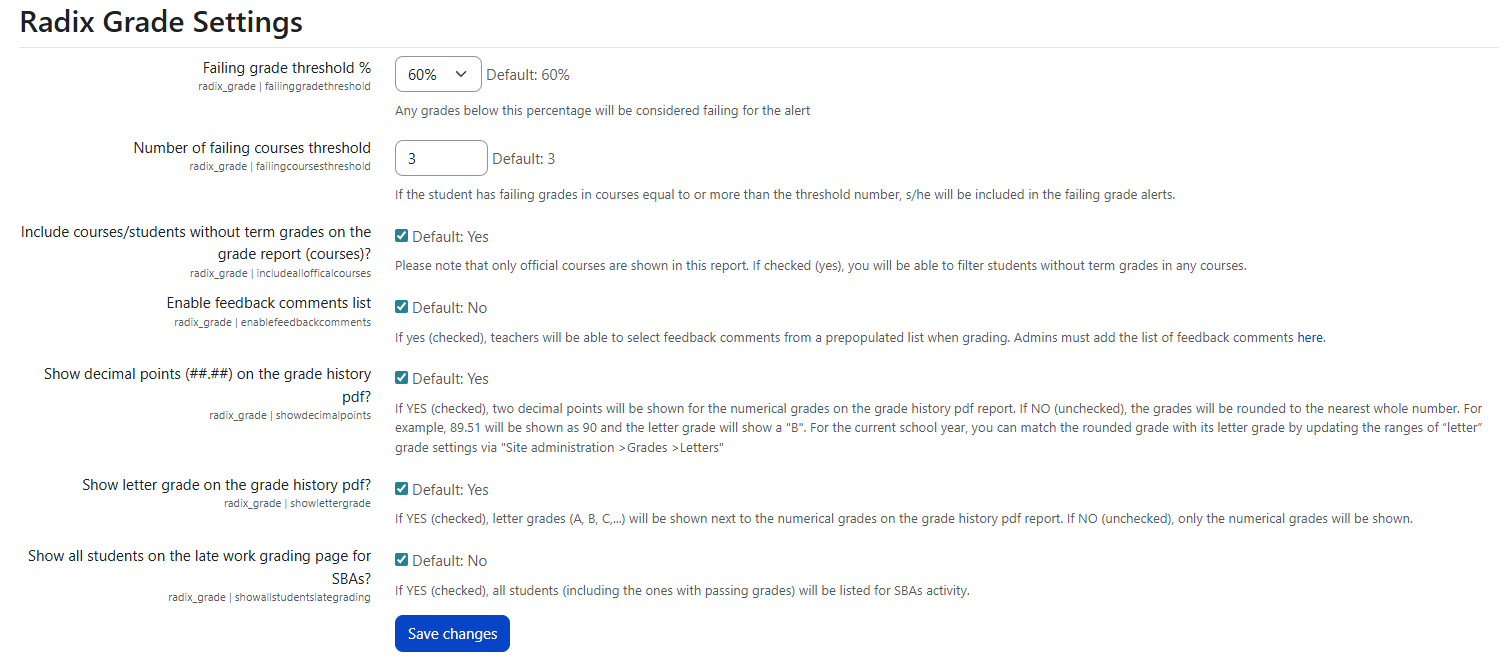
Failing grade threshold %
This setting defines the minimum passing percentage. Any grade below this value is treated as failing for the purposes of Radix alerts and reporting.
Number of failing courses threshold
This setting defines how many simultaneously failing courses a student must have before they are flagged in failing grade alerts.
Include courses/students without term grades on the grade report (courses)?
When enabled, this setting ensures that all official courses appear on the course grade report, even if no term grade has been entered yet for some students.
-
Yes: Show all official courses, including students who don’t yet have a term grade, so you can see where grades are missing.
-
No: Show only courses and students that already have term grades.
Enable feedback comments list
This setting controls whether teachers can select feedback from a pre‑defined comments list while grading. To manage the feedback comments list, an administrator must add or edit comments via the School > Grade > Feedback Comments interface.
-
Yes: Teachers can choose feedback from a predefined comments list when grading (admins must set up the list).
-
No: Teachers type all feedback manually, no list is shown.
Show decimal points (##.##) on the grade history PDF?
This setting controls whether the Grade History PDF displays two decimal places for numeric grades, or whole numbers only.4444444444
-
Yes: Show grades with two decimal places (e.g., 89.51).
-
No: Show rounded whole numbers (e.g., 90 instead of 89.51).
Show letter grade on the grade history PDF?
This setting controls whether letter grades (e.g., A, B, C…) appear alongside numeric grades on the Grade History PDF.
-
Yes: Show both numeric and letter grades (e.g., 89.51 – B).
-
No: Show numeric grades only.
Show all students on the late work grading page for SBAs?
This setting controls which students appear on the late work grading page for SBA (Standards-Based Assessment) activities.
-
Yes: Show all students on the late work grading page, even if they’re passing.
-
No: Show only students who need late work grading (e.g., missing or late work).
After making changes, click Save changes at the bottom of the page.