
This article guides you through creating an assignment activity, collecting submissions (file or text entry), annotating and grading the submissions without having to download or print them.
Adding an assignment
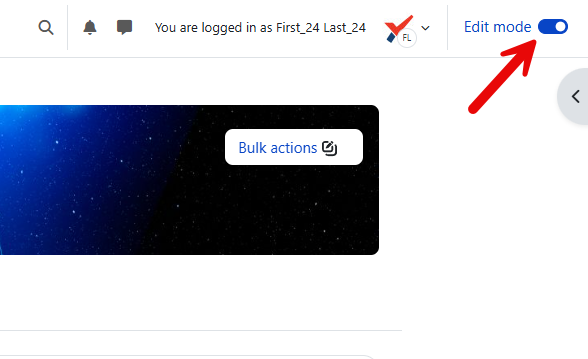
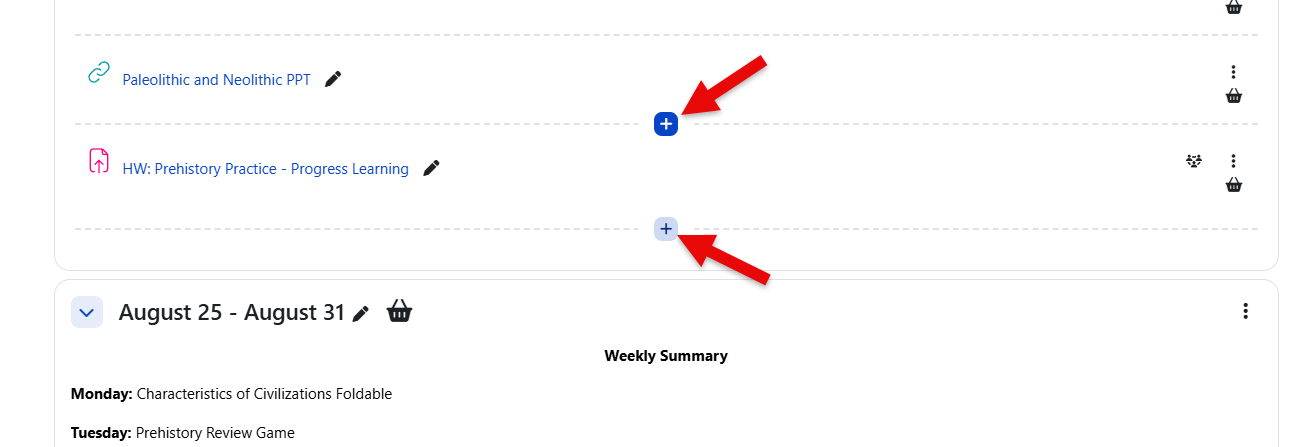
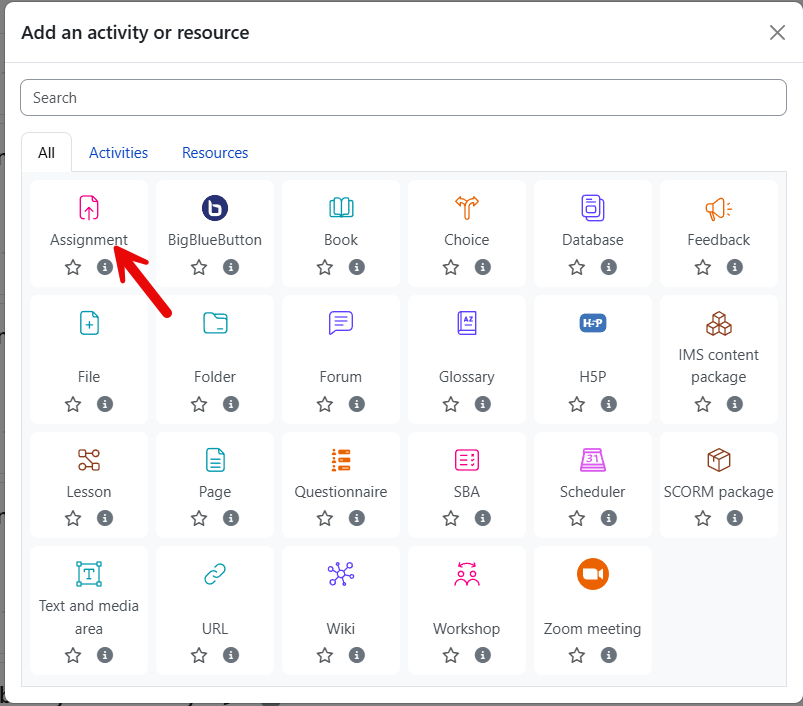
Turn the editing "on" in your course, click on "Add activity or resource" link, and select "Assignment" from the activity picker.
|
|
|
General settings
AI tools for students
Student-facing AI tools can be controlled for each assignment when your school has enabled AI features. Use these settings to decide whether students can use available AI tools, such as help with writing, summaries, explanations, or image generation, while working in this assignment.
These controls affect what students can access in the assignment activity. They are separate from the teacher-facing AI options that may appear in the text editor while you create directions or content.
If you do not see student AI tool settings, they may be turned off at the course or school level. For more details, see Radix LMS AI Tools.
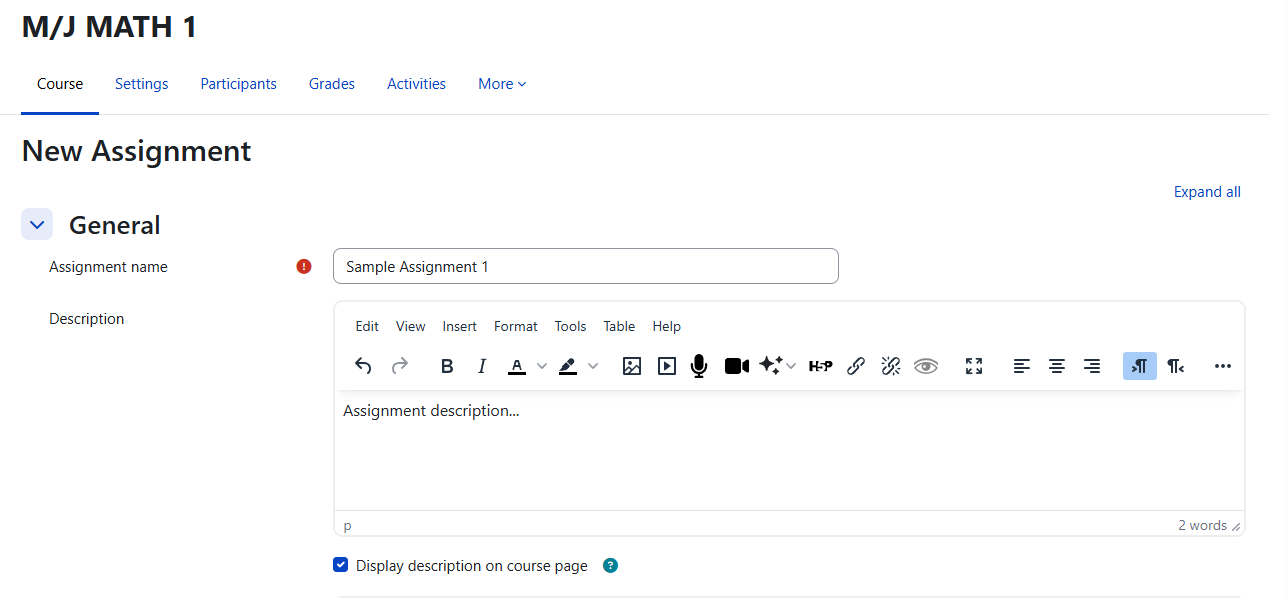
Enter the assignment name, description, and activity instructions. Keep the directions clear for students: what they need to submit, where to submit it, and any important due-date expectations. You can also add images, videos, links, examples, templates, or other files students may need.
Additional files: Here you can add files that may be of help to the students as they do their assignments, such as, example submissions or answer templates.
When AI tools are enabled for the course or activity, teachers may see AI options in the text editor. These tools can help draft or improve assignment directions, summarize content, explain content, or create images. Student-facing AI tools are controlled separately at the course and activity level, so teachers can decide whether students may use AI tools for a specific assignment. See Radix LMS AI Tools for details.
Availability
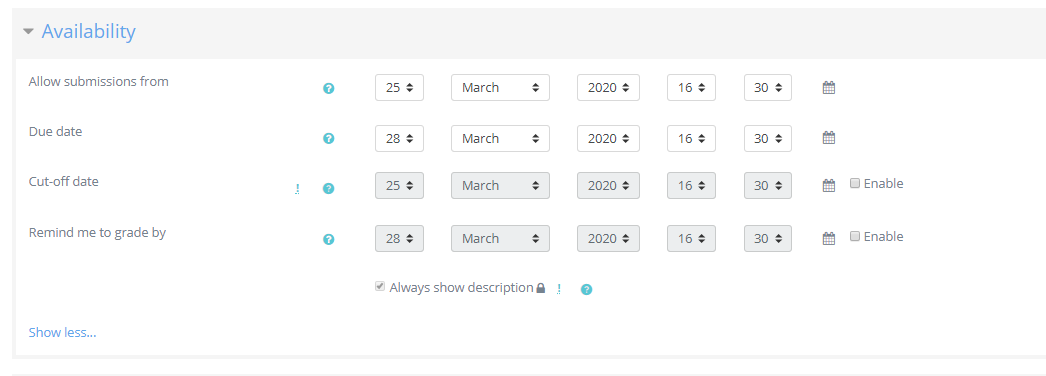
Availability controls when students can start submitting work, when the assignment is due, and whether late submissions are allowed for a limited time. Extensions can also be given to individual students when needed.
Allow submissions from: This stops students from submitting before the shown date but it doesn't hide the assignment and any included instructions or materials.
Due date: Submissions are still allowed after this date but will be marked as late.
Cut-off date: After this date, students will not be able to submit and the submit button will disappear.
Remind me to grade by: A date needs to be entered here in order for the assignment to display on the teacher's Calendar. It will display when at least one student has submitted.
Submissions
The next sections apply when students submit work online. If you are creating an offline assignment, leave the submission types turned off and use the assignment to record grades and feedback only.
Submission type
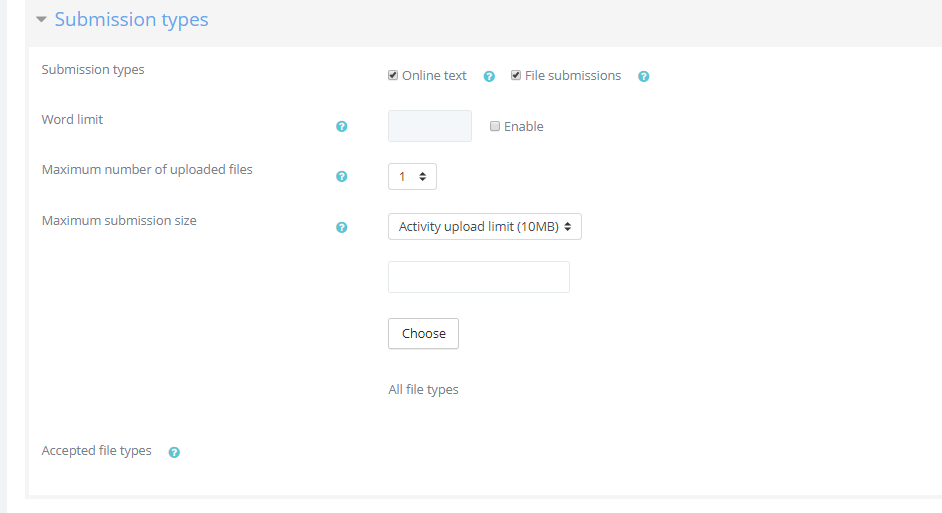
Choose how students will submit their work. You can allow online text, file uploads, or both. You can also turn both options off for offline work, such as presentations, paper packets, labs, or in-class projects.
Online text: Students type or paste their response directly in Radix LMS. This works well for written responses, reflections, journals, short answers, or work where students do not need to upload a separate file. You can also set a word limit if needed.
File submissions: Students upload one or more files. This works well for documents, PDFs, images, spreadsheets, presentations, videos, or photos of handwritten work. When supported file conversion is enabled, teachers can annotate many uploaded documents directly in the browser.
Ask your administrator if document conversion is enabled. If it is not enabled, browser annotation may only be available for PDF files.
Submission file types can be restricted, but it is better to leave the default setting which is accept all types.
Feedback types
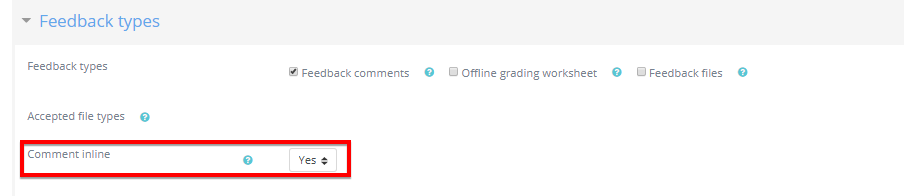
Choose the feedback options teachers will use after students submit work. Common options include feedback comments, inline comments for online text, annotated files, and feedback files.
Submission settings
Require students click submit button: If this is set to No, students can keep editing their submission until submissions are closed or until you prevent submission changes. If this is set to Yes, students can save draft work first and then click Submit assignment when they are ready for grading.
After a student submits final work, they usually cannot edit it unless the teacher reopens it. To allow changes, open View/grade all submissions, find the student, and choose Revert the submission to draft from the action menu.
Require that students accept the submission statement: If your school uses a submission statement, students may be asked to confirm that the work they are submitting is their own. This option may be controlled by your administrator, so it may not appear for every teacher.
Attempts reopened: Choose whether students can submit another attempt after their first submission. You can reopen attempts manually for selected students, or allow Radix LMS to reopen attempts automatically until the student reaches the passing grade.
Maximum attempts: Choose how many times students can resubmit when additional attempts are allowed. Use this to give students another chance while still keeping a clear limit.
Prevent marking as missing before the due date: If this setting is available and enabled, teachers cannot mark a student’s work as missing until the assignment due date has passed. This helps prevent work from being marked missing too early.
Group submission settings
Use group submission settings when students complete one shared assignment as a team. Set up the course groups or grouping first, then choose the group options in the assignment settings.
Students submit in groups: Turn this on when one submission should represent the work of the whole group.
Require group to make submission: Use this when students must belong to a group before they can submit. This helps prevent students from accidentally submitting outside their assigned project group.
Require all group members submit: Use this when every group member must confirm the final submission. This works best when the assignment also requires students to click Submit assignment.
Grouping for student groups: Choose the grouping that contains the groups for this assignment. This is helpful when a course has several different sets of groups, such as official class periods and separate project teams.
For group assignments, confirm the groups before students begin. If a student is in the wrong group, the submission and grading view may not match what you expect. For help setting up groups and groupings, see Groups & Grouping.
Notifications
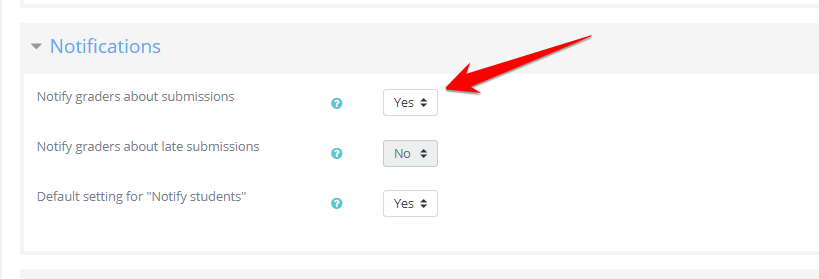
Notifications help teachers know when students submit work or submit late. Turn on Notify graders about submissions if you want to receive a notification for new submissions.
Grade
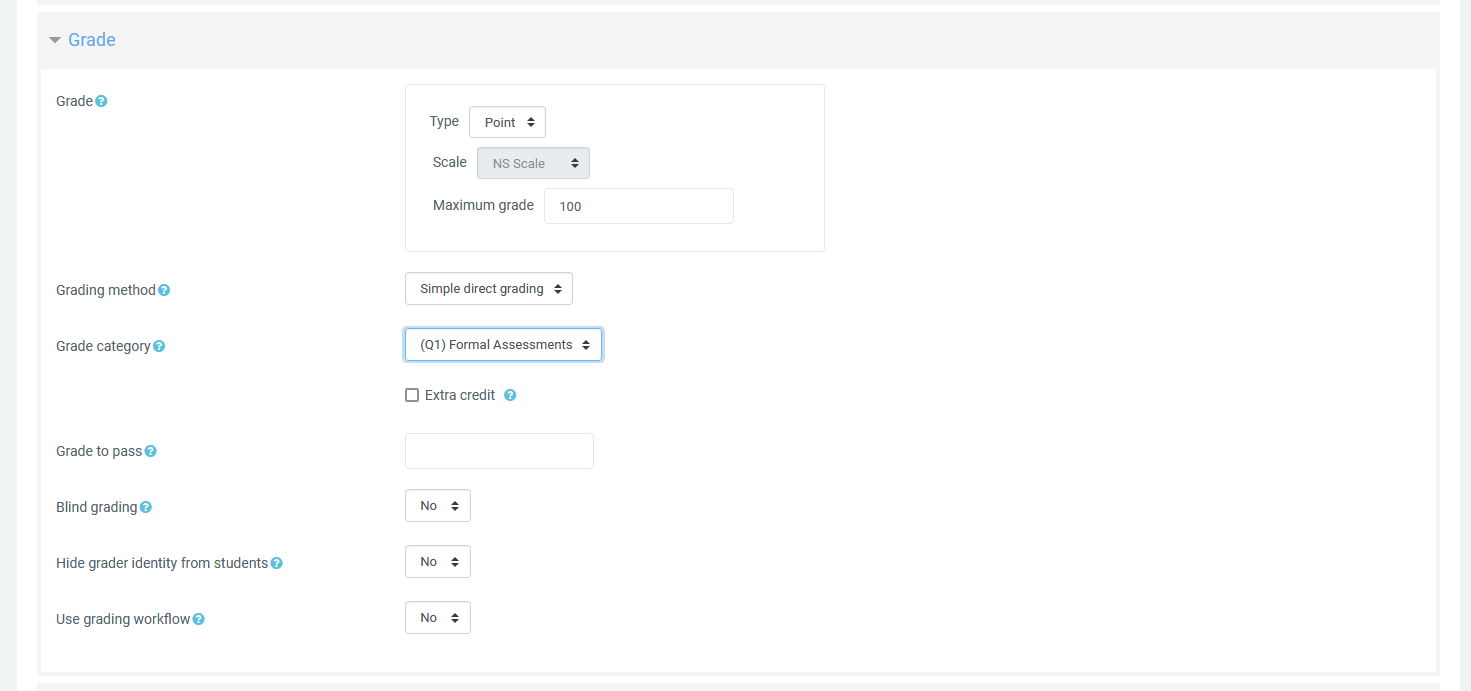
Use the Grade section to decide how the assignment will count in the gradebook. Before saving, check the grade type, maximum grade, grading category, passing grade, and any advanced grading method you plan to use.
Maximum grade: Enter the total points possible for the assignment. This value can affect how much the assignment counts within its grading category.
Grading method: Most assignments use Simple direct grading. If you want to grade with a rubric, choose the rubric option and see Using Rubrics for details.
Grading category: Choose the category where this assignment belongs. Categories can have different weights in the gradebook, so selecting the correct category helps the assignment count the right way in the student’s average.
Passing grade: Set the score students need to meet or pass the assignment. This can be used with activity completion or restrict access rules, but it does not determine the student’s official course passing or failing status.
Extra credit: After you choose a grading category, you may see an Extra credit option. Use this when the assignment should add points without counting against students who do not complete it. Extra credit assignments may show an [EC] label on the course page so students and teachers can identify them more easily.
If your course uses late grade penalties, review the late penalty settings before saving the assignment. These settings control whether late submissions receive an automatic penalty based on your school’s grading rules.
AI Grade
Use the AI Grade section when you want AI Grader to help review written submissions. AI Grader can suggest a grade and feedback, but the teacher must review the suggestions and save the final grade.
Enable AI Grade: Turn this on for assignments where AI Grader should be available from the submissions page.
Student grade level: Choose the grade level that best matches the students. This helps AI Grader write feedback at an appropriate reading level.
Grading strictness: Choose how closely AI Grader should apply expectations, from more lenient to more rigorous. Standard for grade level is usually the best starting point.
Rubric file and AI instructions: If needed, upload a rubric file or adjust the AI instructions for this assignment. Accepted rubric file types may include PDF, DOC, DOCX, or TXT.
AI Grader works best with online text or text-based files such as PDF, TXT, DOC, and DOCX. It cannot reliably evaluate images, drawings, scanned work where text cannot be read, formatting quality, or visual design. Always review AI-generated grades and feedback before saving. For the full workflow, see AI Grader: Grading Written Assignments with AI Assistance.
Activity completion
Use Activity completion when you want Radix LMS to track whether students have finished the assignment. Depending on the assignment setup, completion can be manual or based on conditions.
Common assignment completion options include:
-
Students can manually mark the activity as completed: Students mark the assignment complete themselves.
-
Show activity as complete when conditions are met: Radix LMS marks the assignment complete only after the selected conditions are met.
-
Require view: Students must open the assignment.
-
Require grade: Students must receive a grade.
-
Students must submit to this activity to complete it: Students must submit work before the assignment is marked complete.
Completion settings are often used together with Restrict access. For example, you can require students to submit one assignment before the next activity becomes available. For more details, see Activity Completion Tracking.
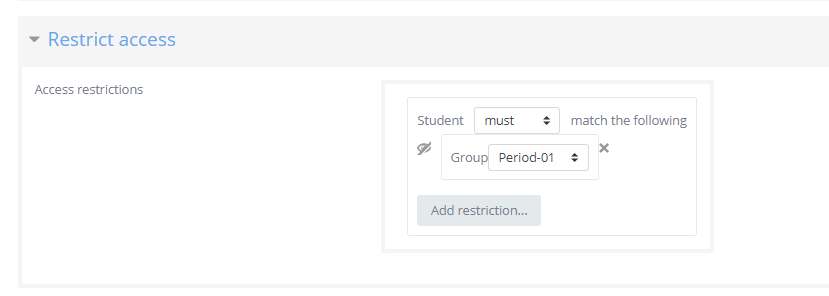
Restrict access
Use Restrict access when only certain students should see the assignment, or when students must complete another activity first. For example, you can limit an assignment to a specific group or require students to pass another activity before this assignment opens.
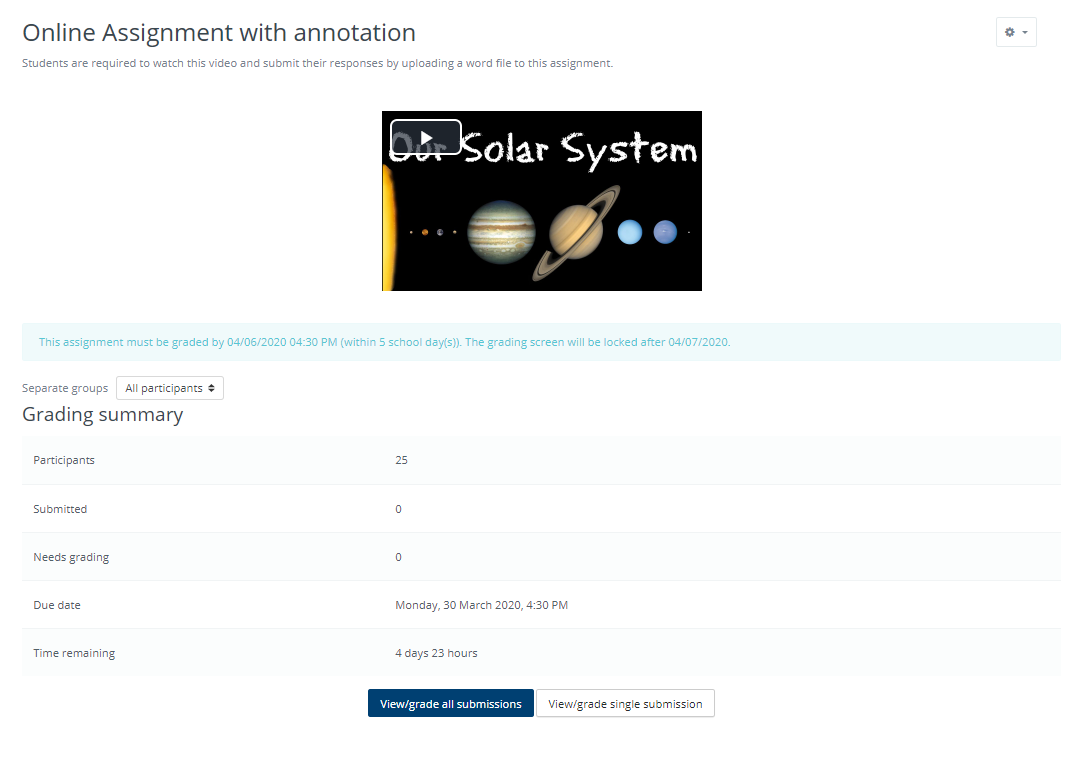
Summary
When you are finished, click Save and display to open the assignment summary. The summary shows helpful totals, such as the number of participants, how many students have submitted, and how many submissions still need grading.
Which type of assignment submission suits you best?
Use these examples to choose the best assignment setup for the work students need to complete.
|
Teacher goal |
Recommended setup |
|---|---|
|
Students type a short response, reflection, journal entry, or written answer directly in Radix LMS. |
Turn on Online text. Add a word limit if needed. |
|
Students upload documents, PDFs, images, presentations, videos, or photos of handwritten work. |
Turn on File submissions. Set the number of files students can upload if needed. |
|
Students need to submit several files for one project. |
Use File submissions and allow more than one uploaded file. This keeps all project files together under one grade. |
|
Students are completing work outside Radix LMS, such as presentations, paper work, labs, performances, or in-class projects. |
Turn off all submission types. Use the assignment to enter grades and feedback only. |
|
Students need to revise and resubmit their work. |
Use attempts and choose whether attempts are reopened manually or automatically until students reach the passing grade. |
|
Students need to work together as a group. |
Use the group submission settings. If every group member must confirm the submission, require all group members to submit. |
|
You want students to answer several questions, especially for a quiz-style activity. |
Consider using SBA instead of Assignment. |
|
You want to grade with a rubric. |
Choose the rubric grading method and review Using Rubrics. |