
Teachers can create, save, share, and copy lesson plans in Radix LMS. This guide covers the full lesson-plan workflow: managing your My Lesson Plans list, finding approved plans in Shared Lesson Plans, creating a plan, using AI to draft an outline, and submitting plans for administrative review.
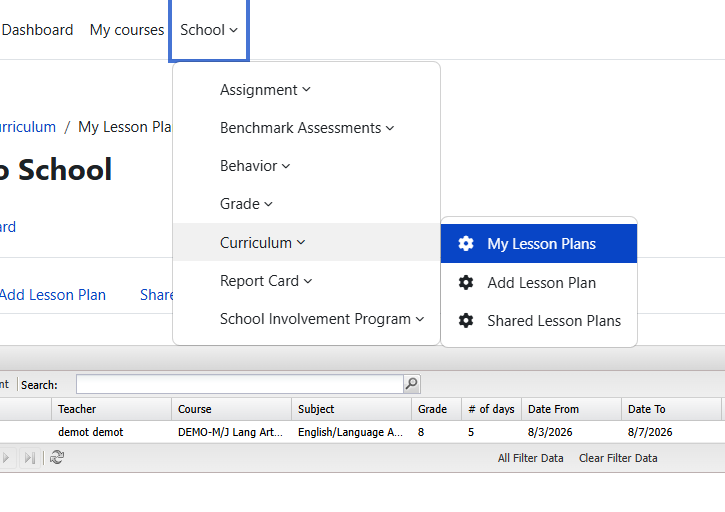
My Lesson Plans is your personal list of lesson plans that you created or copied. It includes drafts that you are still working on. Plans approved by an administrator or department head are highlighted in green.
Shared Lesson Plans
Shared Lesson Plans is the list of lesson plans that have been submitted and approved for sharing. Search by subject, course, teacher, or a keyword in the title, then copy a plan you want to adapt. Draft or unapproved plans do not appear in this shared list.
Shared Lesson Plans
Shared Lesson Plans is the list of lesson plans that have been submitted and approved for sharing. Search by subject, course, teacher, or a keyword in the title, then copy a plan you want to adapt. Draft or unapproved plans do not appear in this list.
Create a lesson plan
To add a new lesson plan, click on "Add" button on top left corner of the my lesson plan list or "Add Lesson Plan" link under curriculum.
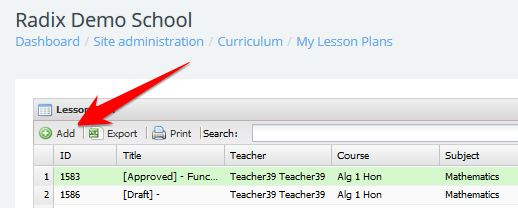
Once the process started, you will have four steps/tabs to go through and add the necessary components of your plan.
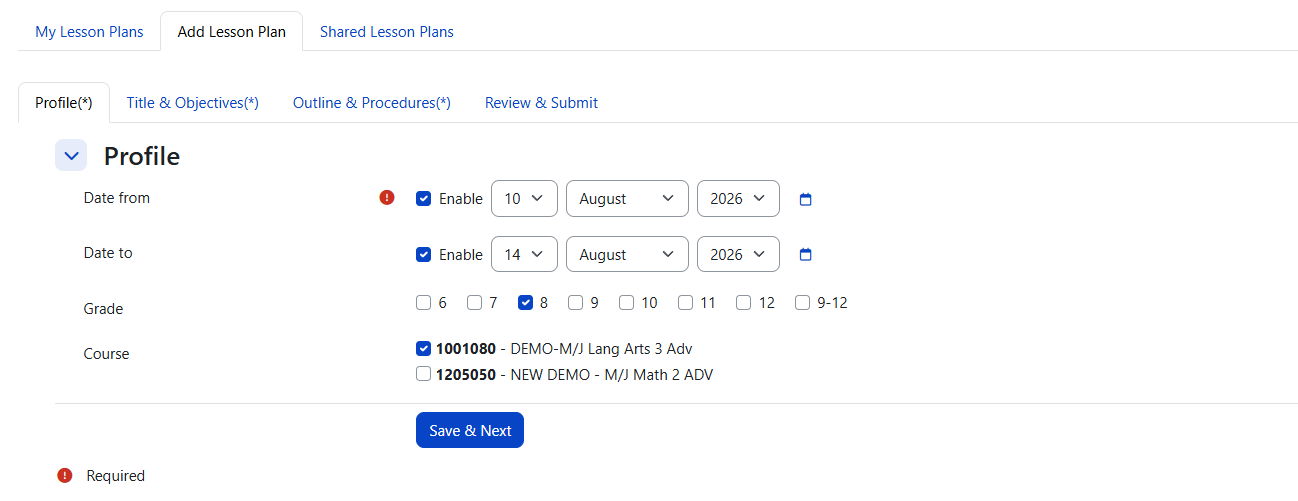
1. Profile
At this step, select the date range, grade level(s), and course(s) for the plan. The selections you make here determine which information is available in later steps. All courses must be in the course directory with an Official Course Code. The course must also have a valid end date. If you see a message that a course is not eligible, contact your school administrator.
The lesson plan is saved as a draft after the first step is completed successfully, so you can return to it later.
2. Title & Objectives
This step includes the Title, Goals, Essential Questions, Benchmarks, Skills, Vocabulary, Differentiation, and Assessments sections. Complete all required fields before moving to the next step.
Most sections include a searchable list of information previously entered for the selected courses. New information becomes available for teachers to reuse after the lesson plan is approved.
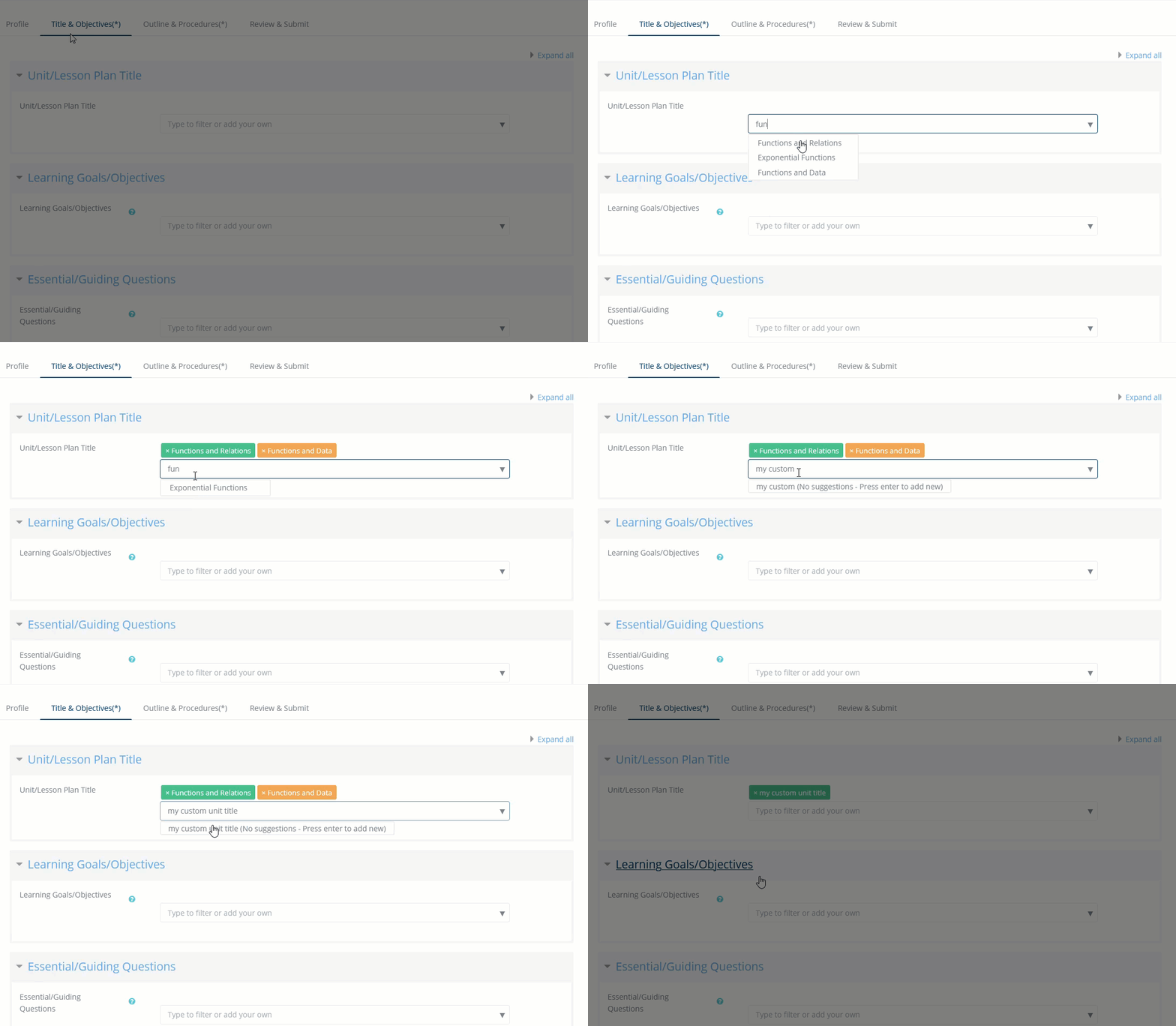
To search/filter for something in the drop-down list, start typing a word. When found, click on the item or use down arrow to highlight it and press enter. to remove the selected item, just click on it. If not found, "No suggestions" will appear in the drop-down list. Pressing enter will add your custom item to the list.
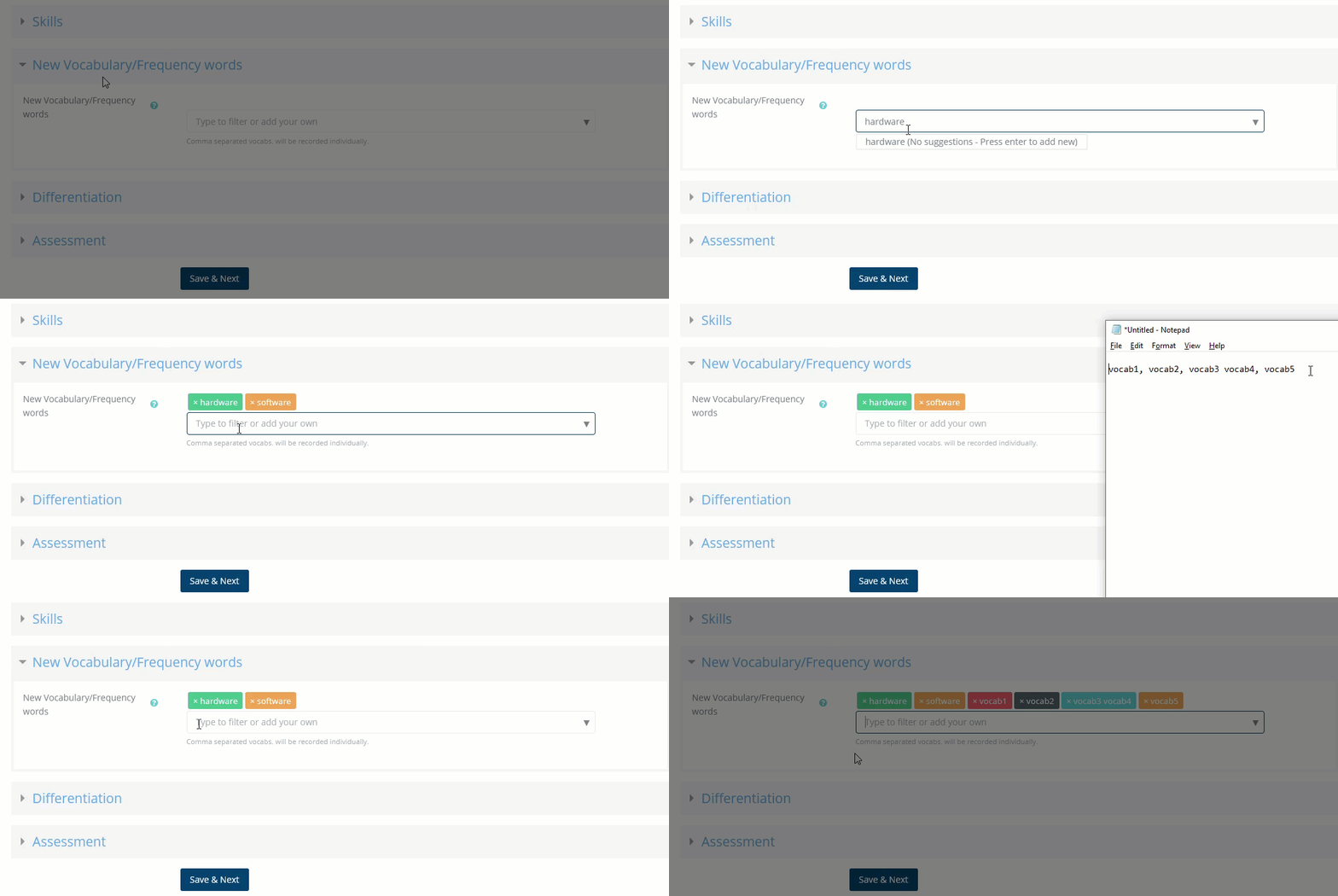
Vocabulary drop-down box has the ability to add your comma separated items individually. Once you paste the list of vocab into the search box, press enter. They will all be added individually.
3. Outline & Procedures
This tab contains the detailed procedures or day-by-day activities. You can attach a document or copy and paste your plan into the text editor.
AI-assisted lesson plan outline
Radix AI uses the subject, grade level, selected course, standards or learning objectives, and number of days from the earlier steps. The Class Length (min) value helps it create an outline that fits the available class time.
-
Review the generated outline and check that it matches your objectives and grade level.
-
Adjust the pacing or instructions as needed.
-
Click Insert to place the read-only generated content into the text editor, then revise it there.
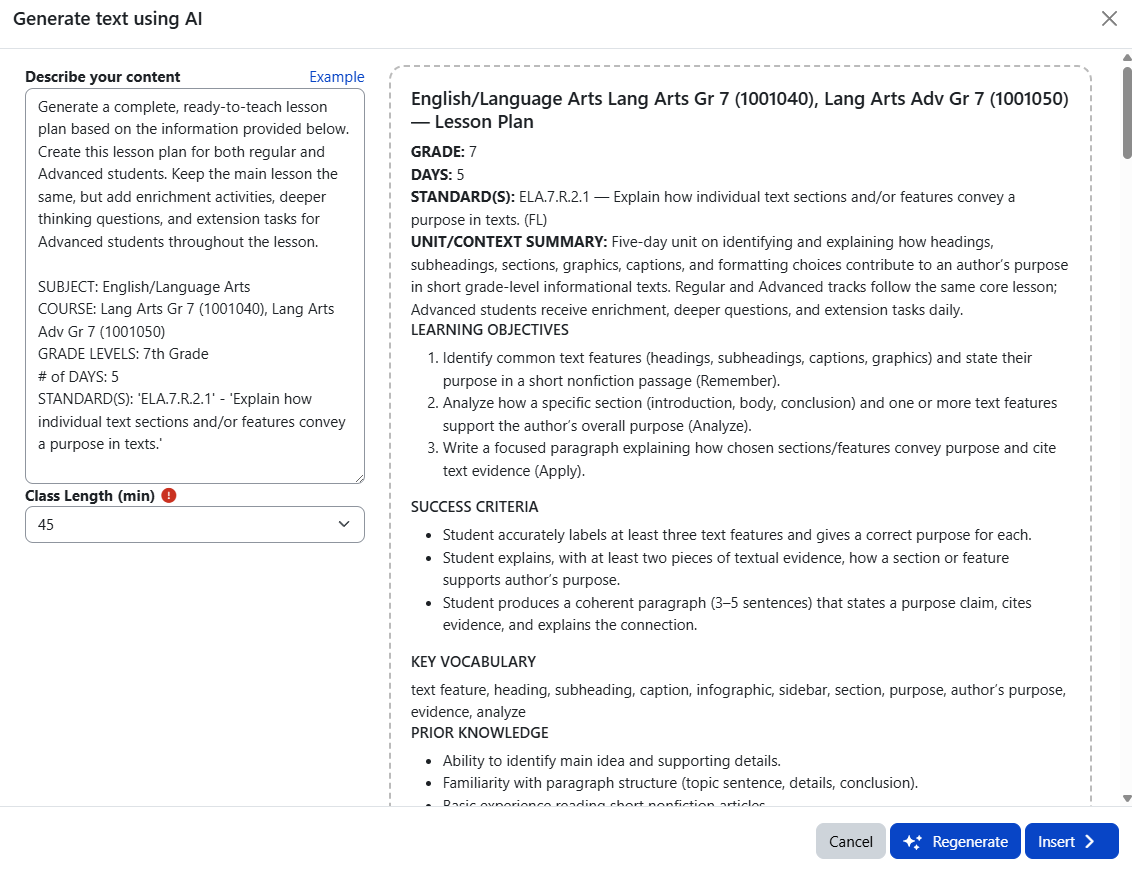
AI-generated content is a draft. Review the sequence, pacing, accuracy, and alignment before submitting the lesson plan. Learn more about Radix LMS AI Tools.
4. Review & Submit
Review your entries and make any necessary edits. When you move to this tab from the previous step using Save & Next, the lesson plan is saved and submitted for review; no separate submission action is required.
Approval Process
Administrators and department heads review submitted lesson plans and can approve or unapprove them. Approved plans are highlighted in green in your My Lesson Plans list and become available in Shared Lesson Plans for other teachers to find and copy. Draft plans are not eligible for approval or sharing.
Weekly Lesson Plan Reports
Administrators and department heads can use the weekly lesson plan reports to monitor planning completion. The reports include submitted lesson plans and approval status for the relevant week, and calculate the number of plan days excluding weekends and non-school days. Unofficial courses are excluded from the weekly submission report.
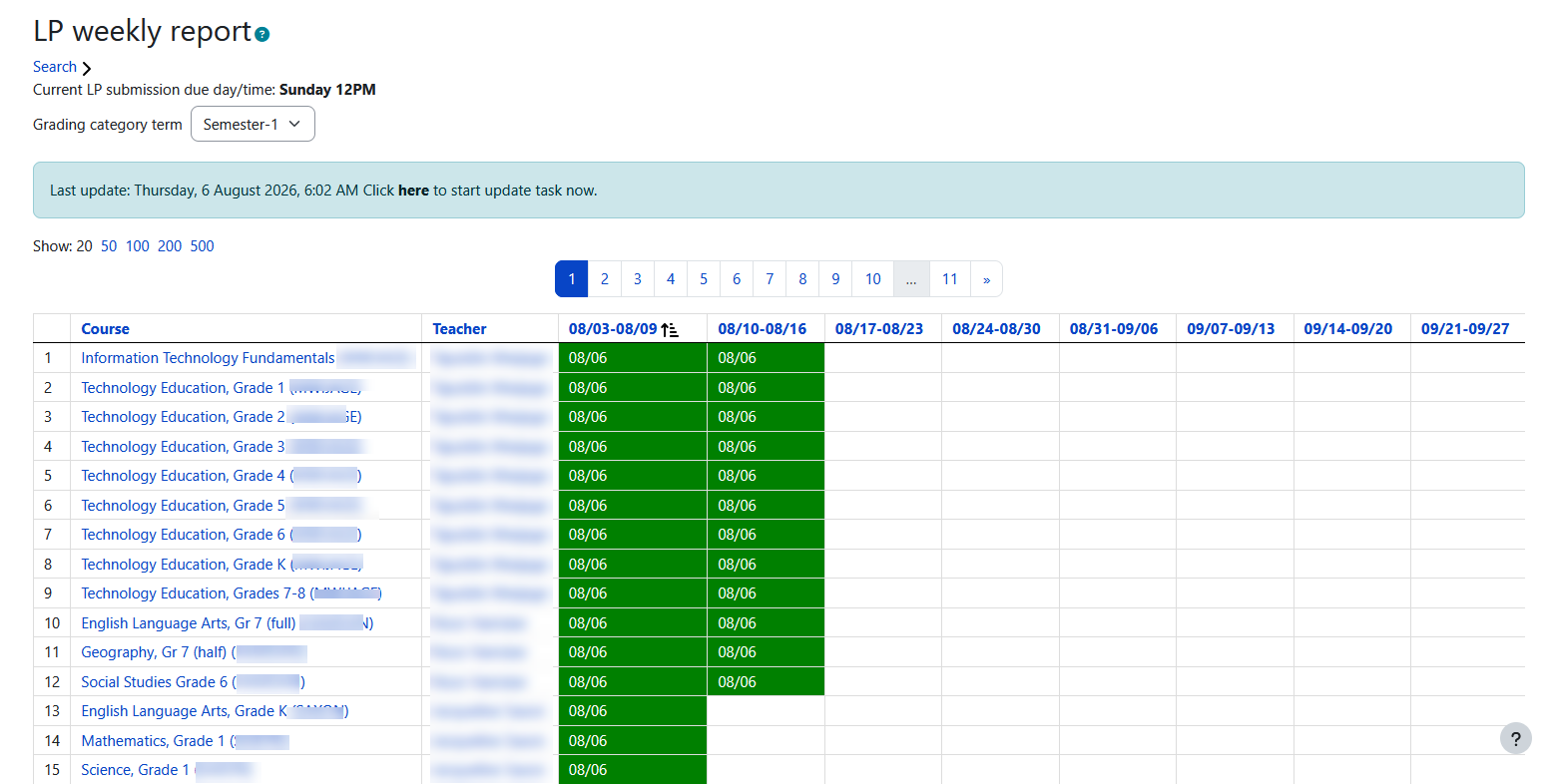
Copy Lesson Plans
You can copy lesson plans from previous years or from other teachers after they have been submitted and approved. Open Shared Lesson Plans and search by subject, course, teacher, or a keyword in the title.
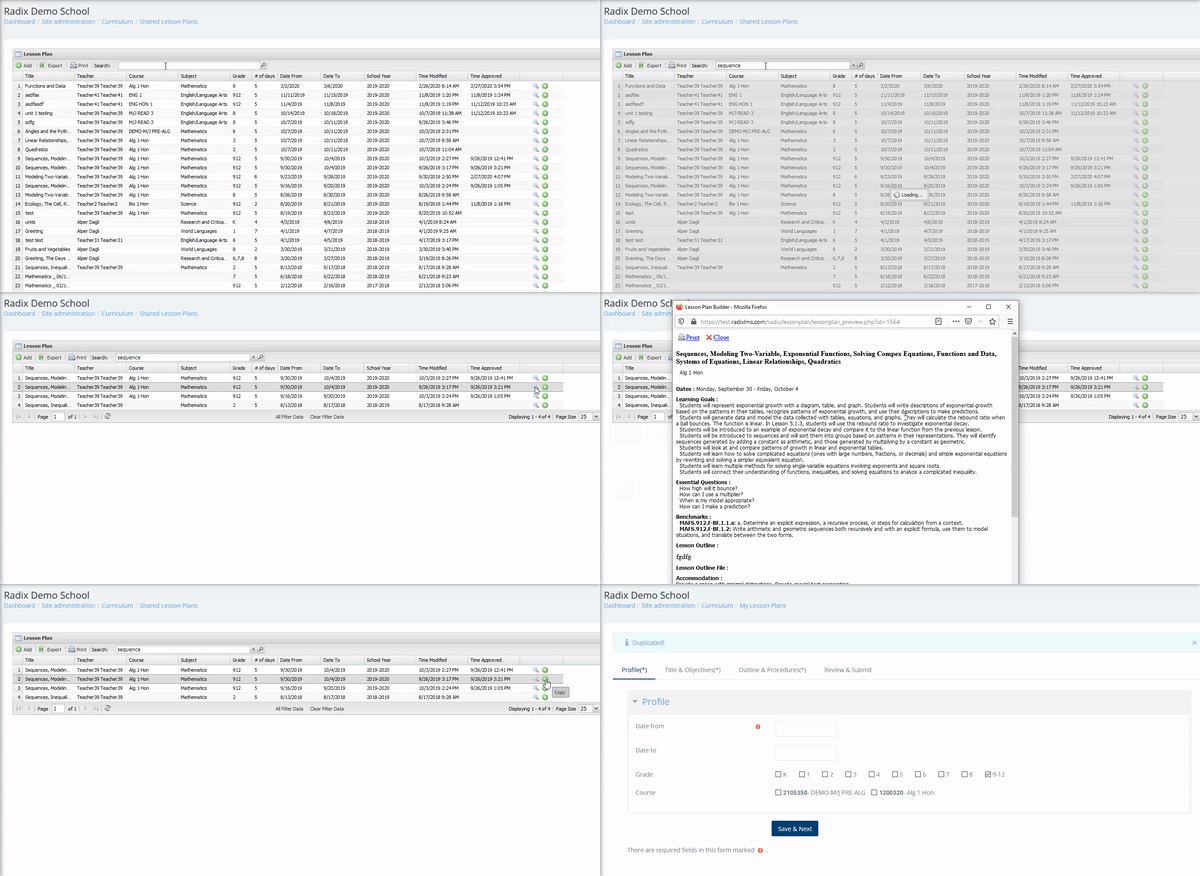
Important
Some items may not match your current courses if the copied lesson plan uses a different course code. For the best match, the copied plan and your current course must have the same Official Course Code. A copied plan starts without an approval date, so it must go through the current review process again.