
Using AI Tools in Radix LMS
Radix LMS AI tools help teachers create text, build lesson content, and draft feedback more efficiently. The main place to find AI is in the text editor toolbar. In some activity areas, Radix LMS also provides guided AI forms that ask for details such as grade level, text length, language, class length, tone, or focus area. Teachers should always review and revise AI-generated content before using it with students.
Where to Find AI
The most common place to access AI is inside a text editor.
Look for the AI icon in the editor toolbar. From there, you can choose:
-
AI generate text
-
AI generate image
If you see a text editor in Radix LMS, there is a good chance AI may be available there.
Common examples include:
-
assignment descriptions
-
Quickmail message body
-
forum prompt or discussion text
-
lesson planning text areas
-
other rich text editor areas across Radix LMS
Click the AI icon in any supported text editor to open the AI menu. From here, teachers can generate text or images while working in Radix LMS.
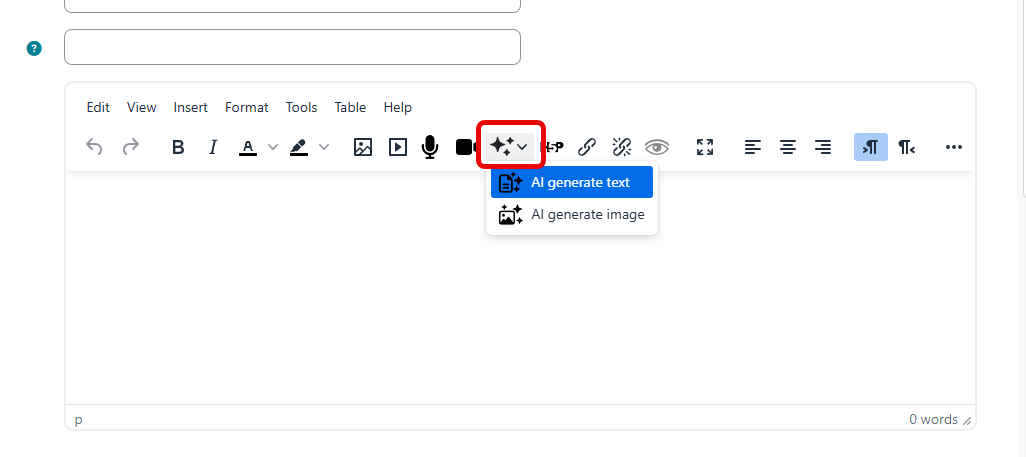
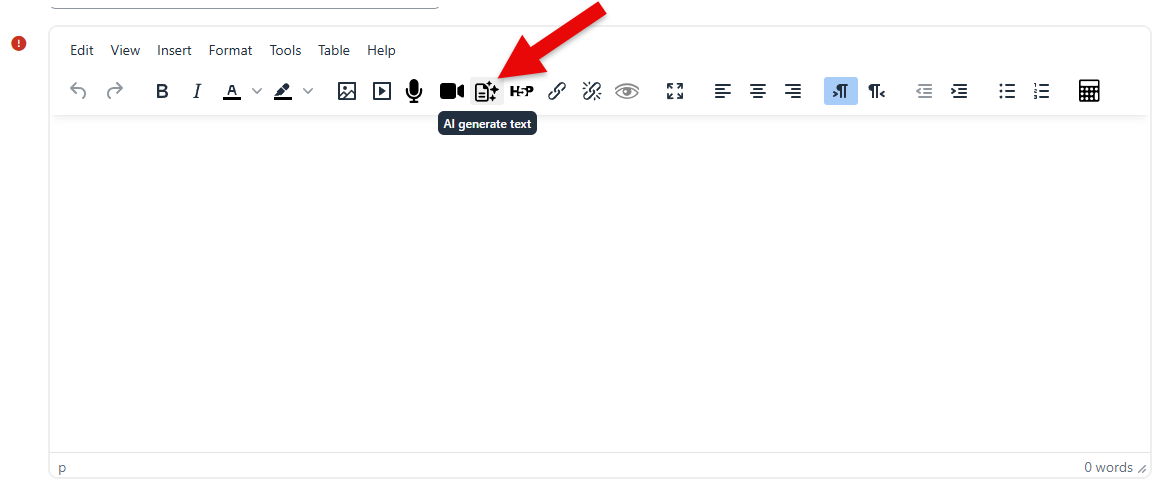
Tip: If you are typing in a rich text editor, check the toolbar for the AI icon before writing from scratch. If both the text and image generation is available at your site, you will see them shown on the dropdown list
AI Text Generation for Activity Descriptions or Directions
In all Radix LMS activities, such as Assignments, SBAs, Forums, the AI tool provides a guided form instead of only asking for a prompt.
On the activity text editor AI tool, Radix LMS will ask for:
-
Describe your content
-
Grade level
-
Text length
-
Language
This helps generate content that is more appropriate for your students.
Teachers can use this tool to:
-
draft assignment directions
-
create discussion prompts
-
write class announcements
-
build student-friendly instructions
-
rewrite text for a different grade level
A few effective ways to use AI for activity descriptions or directions include:
-
creating clear step-by-step directions for an assignment
-
rewriting directions in simpler, more student-friendly language
-
turning a short task idea into a complete activity description
-
adding submission expectations, materials needed, or success criteria
-
creating different versions of directions for younger students or multilingual learners
-
shortening long directions into a cleaner and easier-to-follow format
To use it when editing or adding a new activity such as assignment, SBA or forum:
-
Click the AI icon on the text editor such as Description, activity instructions.
-
Select AI generate text.
-
Describe your content (your prompt)
-
Choose the requested options; Grade level, Text length and language.
-
Click “Generate text”, Review and edit the result.
-
If you need to change anything in your prompt, make your changes and click “Regenerate”.
-
When done, click “insert” which will place the output in your text editor and close the AI window
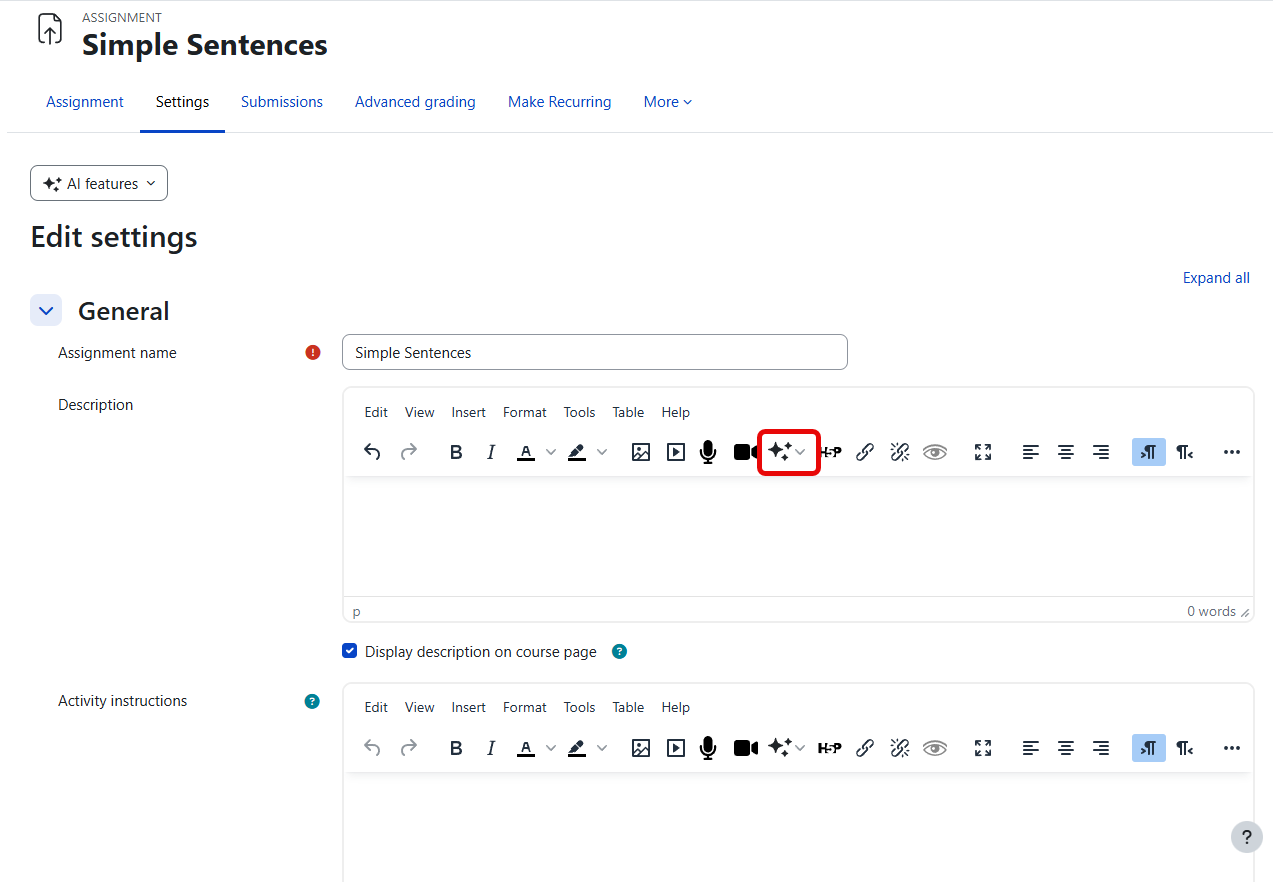
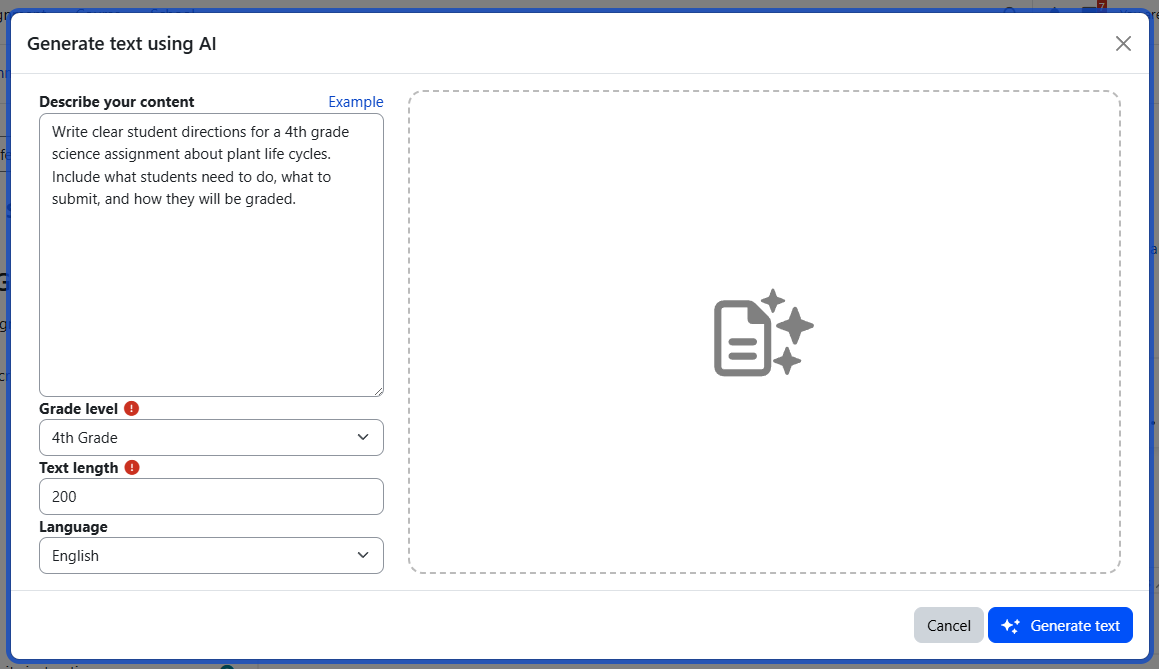
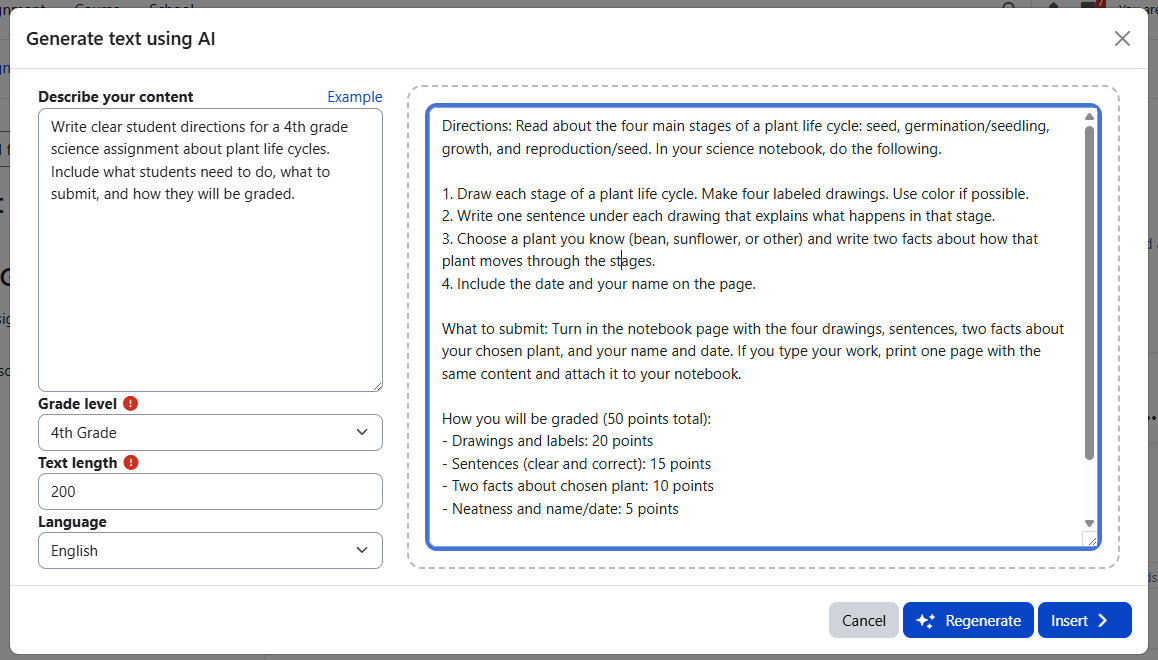
In activity modules, Radix LMS asks for more than a prompt. Teachers can guide the result by choosing grade level, text length, and language
Sample prompt ideas for activity descriptions or directions
Create assignment directions
Write clear student directions for a 4th grade science assignment about plant life cycles. Include what students need to do, what to submit, and how they will be graded.
Rewrite in simpler language
Rewrite these assignment directions for 2nd grade students using shorter sentences and simple vocabulary.
Create a discussion prompt
Write a forum discussion prompt for 8th grade ELA about theme in a short story. Include 3 guiding questions and remind students to respond to a classmate.
Add step-by-step instructions
Create step-by-step directions for a middle school math activity on fractions. Keep the tone friendly and easy to follow.
Create student-friendly project directions
Write project directions for a 5th grade social studies poster about U.S. regions. Include the required sections, materials, and presentation expectations.
Differentiate the same task
Write a simplified version of these directions for English learners in 3rd grade while keeping the same learning goal.
Best practice: The more specific your prompt is, the more useful the result will be. Include the subject, topic, grade level, and the type of text you want.
AI-Assisted Lesson Plan Outline
The lesson plan outline tool uses a more specialized AI workflow.
When generating a lesson plan outline, Radix LMS automatically includes key lesson information once the teacher selects them prior to the outline step.
The following information is gathered automatically. Items marked with an asterisk are must-haves for the AI to generate a sound outline. The more information included, the better the output will be.
-
subject*
-
course
-
grade level*
-
standards or learning goals/objectives*
-
number of days (calculated using the start-end dates)
For lesson plan generation, the teacher chooses:
-
Class Length (min)
This helps the AI create a lesson outline that better fits the time available.
Why the earlier lesson setup matters
The quality of the lesson plan outline depends heavily on the information entered before generation.
The more complete and specific the lesson setup is, the better the AI can produce an outline that is:
-
aligned to the intended skill
-
appropriate for the grade level
-
connected to the standard or learning goal
-
easier to teach without major rewriting
-
more useful for pacing and classroom implementation
If earlier lesson fields are vague, short, or incomplete, the generated outline may also be more general.
You can always update your prompt/description while you are on the AI window and regenerate. The generated content is read-only while you are on the AI window. To make changes to the output, insert it into the text editor.
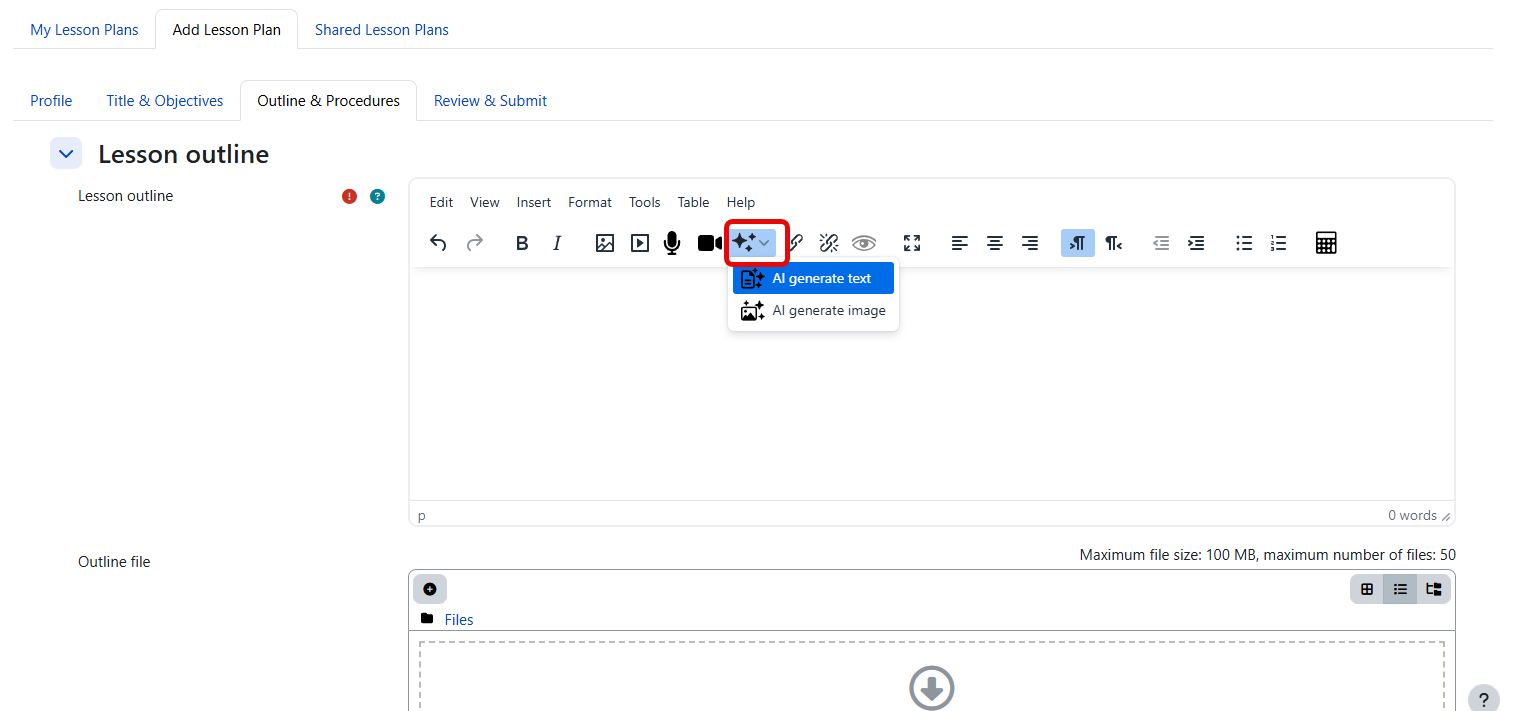
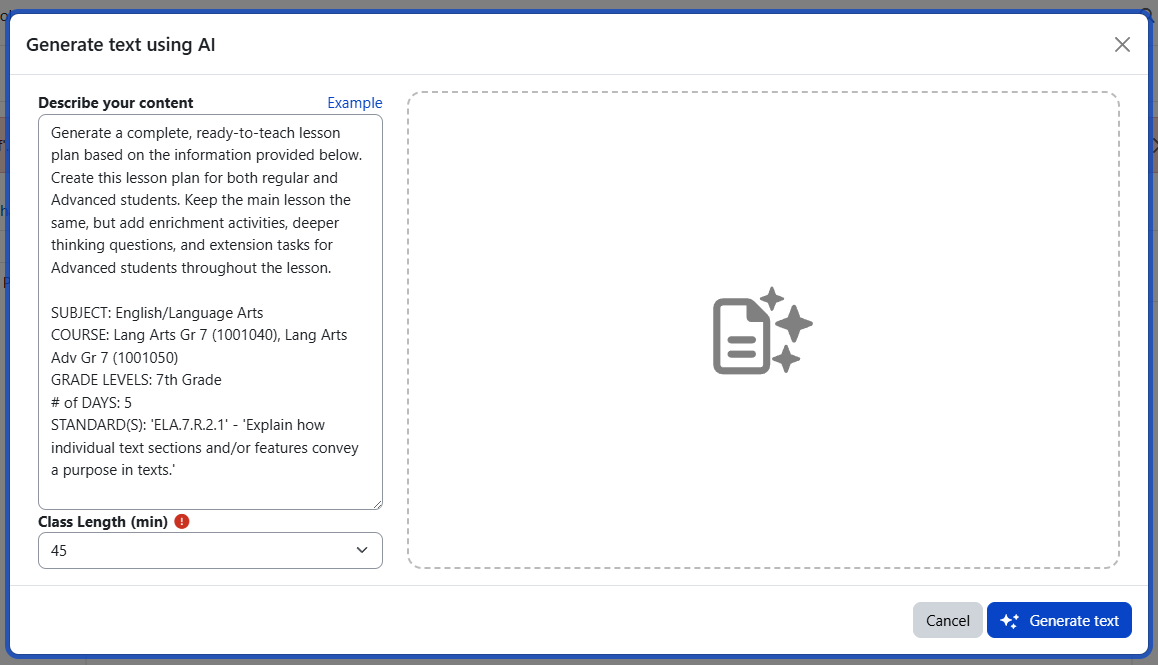
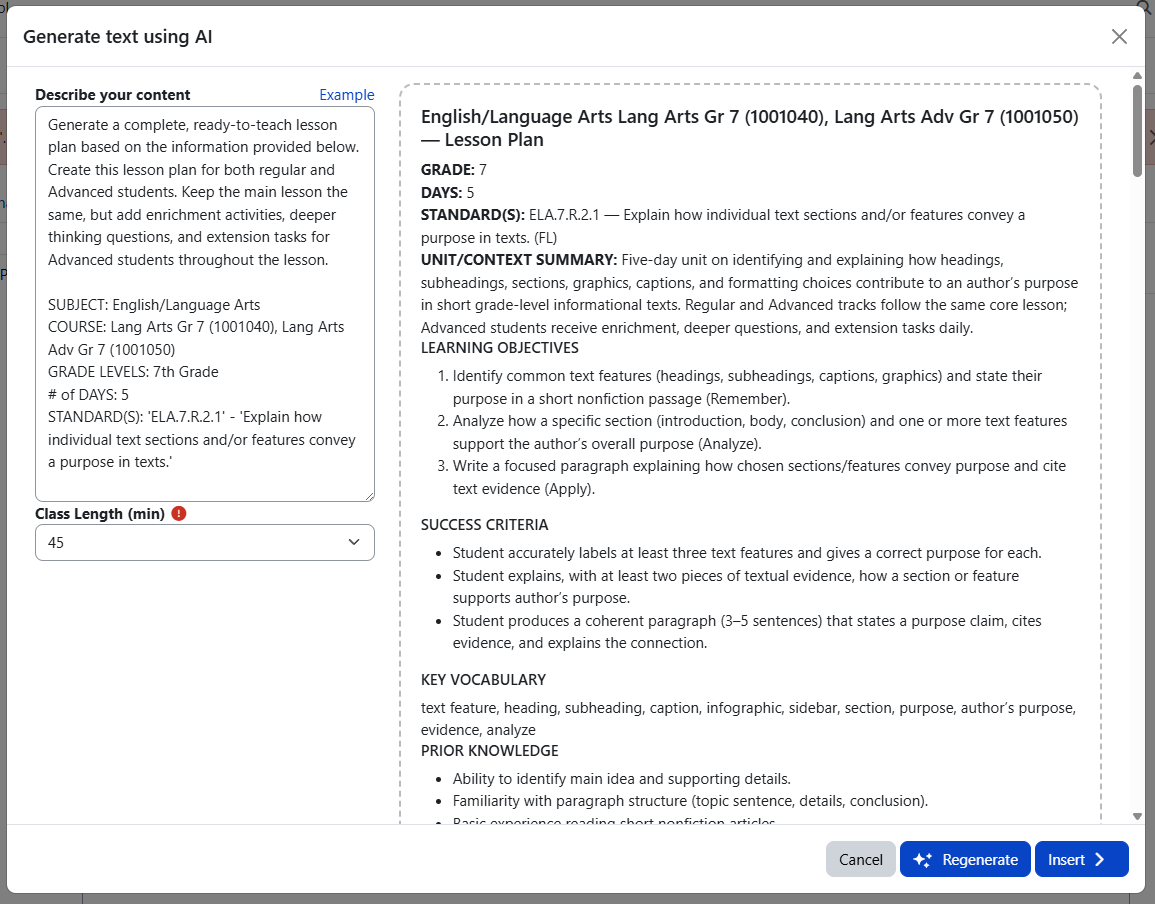
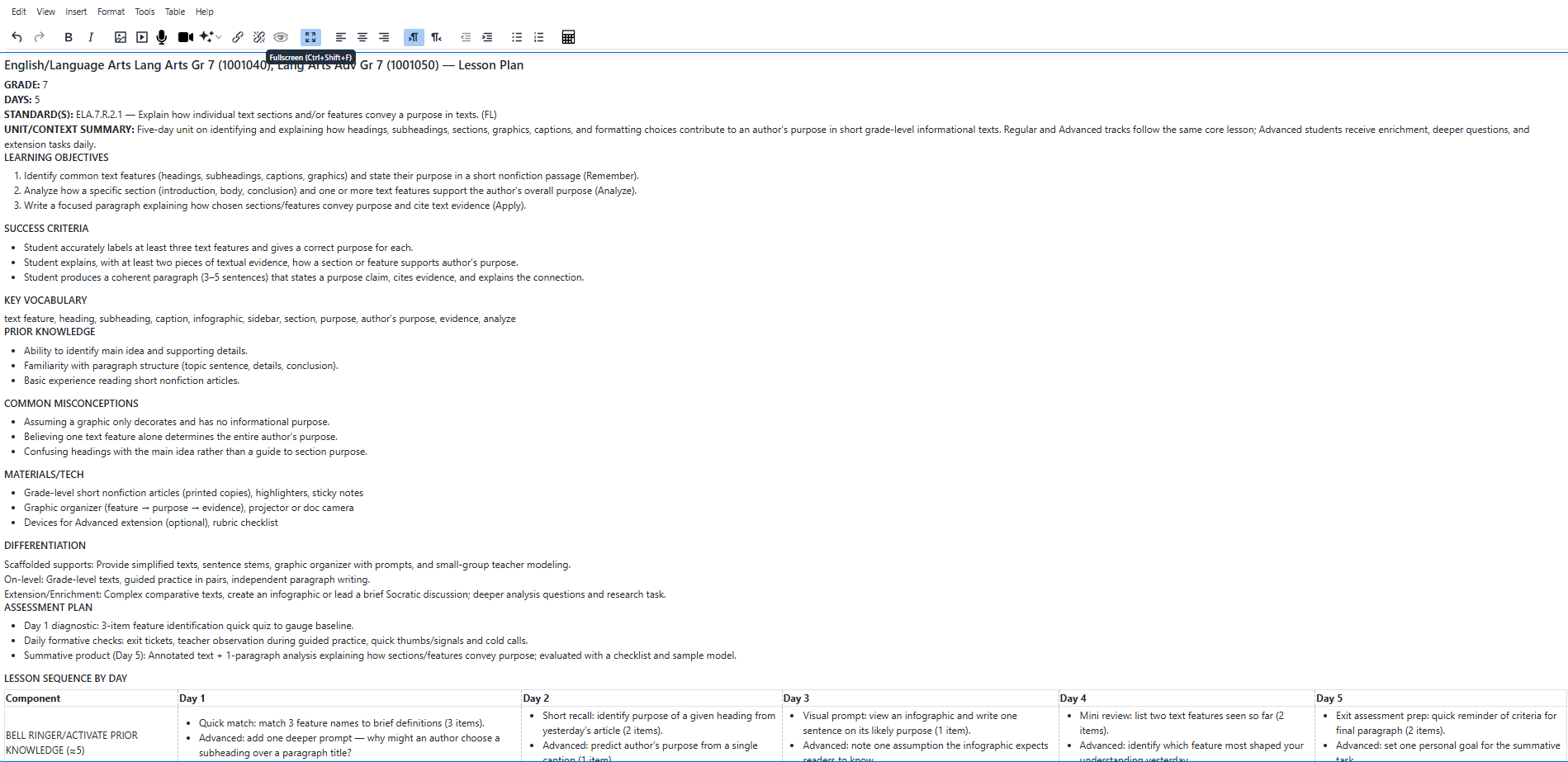
For lesson plan outlines, Radix LMS automatically pulls in core lesson details such as subject, grade level, standards, and number of days. The quality of the generated outline improves when the earlier lesson steps include clear skills, differentiation, vocabulary, and other instructional details.
Important: AI can help organize a lesson quickly, but the teacher should still review pacing, instructional sequence, and alignment before using the outline.
AI-Assisted Feedback Comments
Radix LMS also includes AI-assisted feedback for student text submissions.
To generate feedback, the system automatically gathers:
-
assignment context (description and directions)
-
grading method
-
rubric, if used
-
student submission text
The teacher chooses:
-
Grade level
-
Tone (Supportive & Concise, Detailed coaching, Checklist-style)
-
Focus area (Content, Organization, Evidence & Reasoning, Conventions)
AI-assisted feedback currently works only for text submissions. If the submission is missing or under 100 characters, AI feedback will not generate.
To use it:
-
Go to the single submission page and locate the text editor for feedback comments
-
Open the AI feedback tool by selecting AI Feedback under the AI icon of the text editor
-
Review the information gathered: extracted content and submission, grading method, rubric, and student’s work.
-
Make any adjustment in the content
-
Choose the grade level, tone and focus area.
-
Click Generate feedback to receive feedback from AI
-
Review and insert to the comment box. You can edit the feedback after inserting into the comment box.
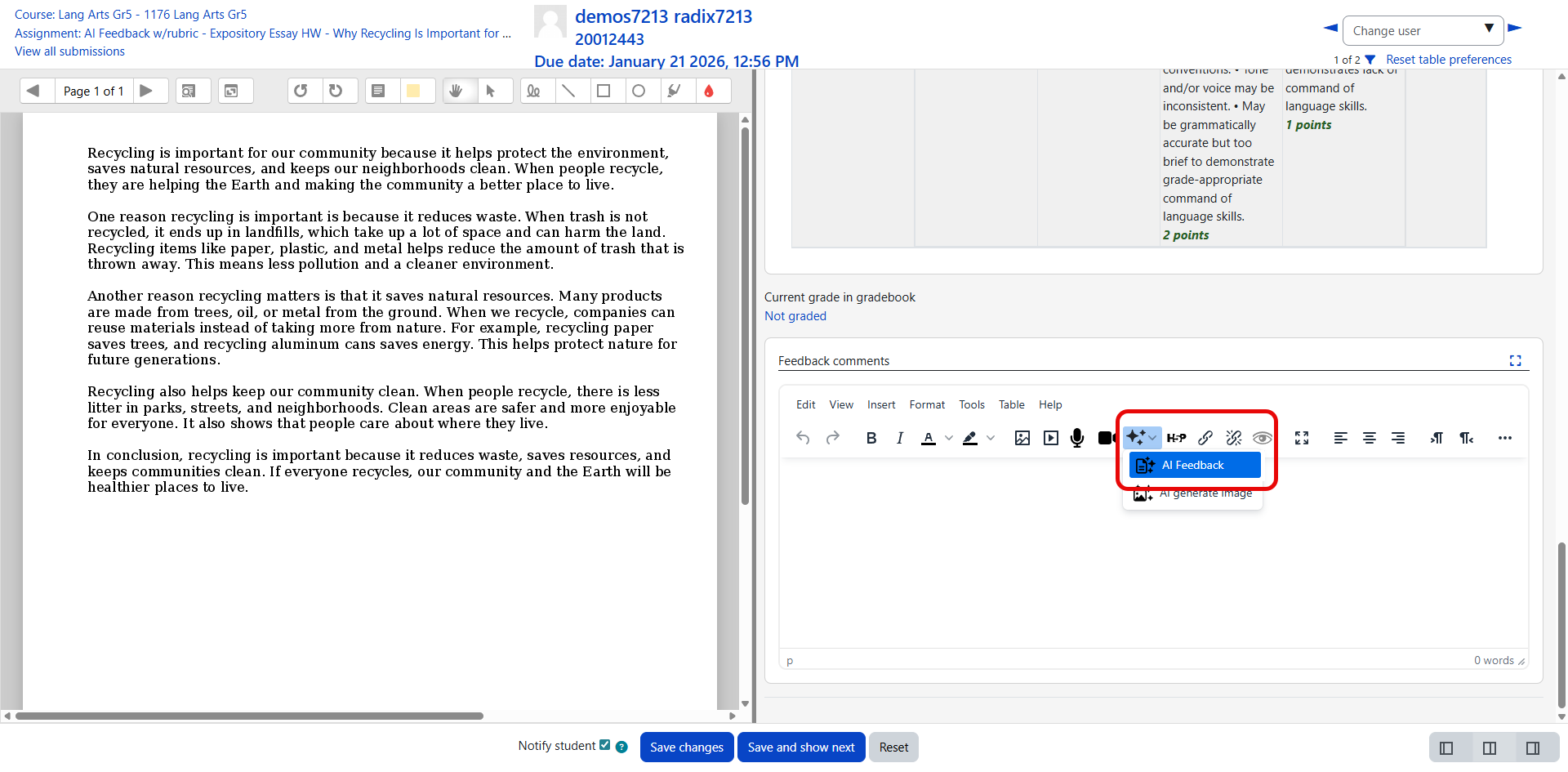
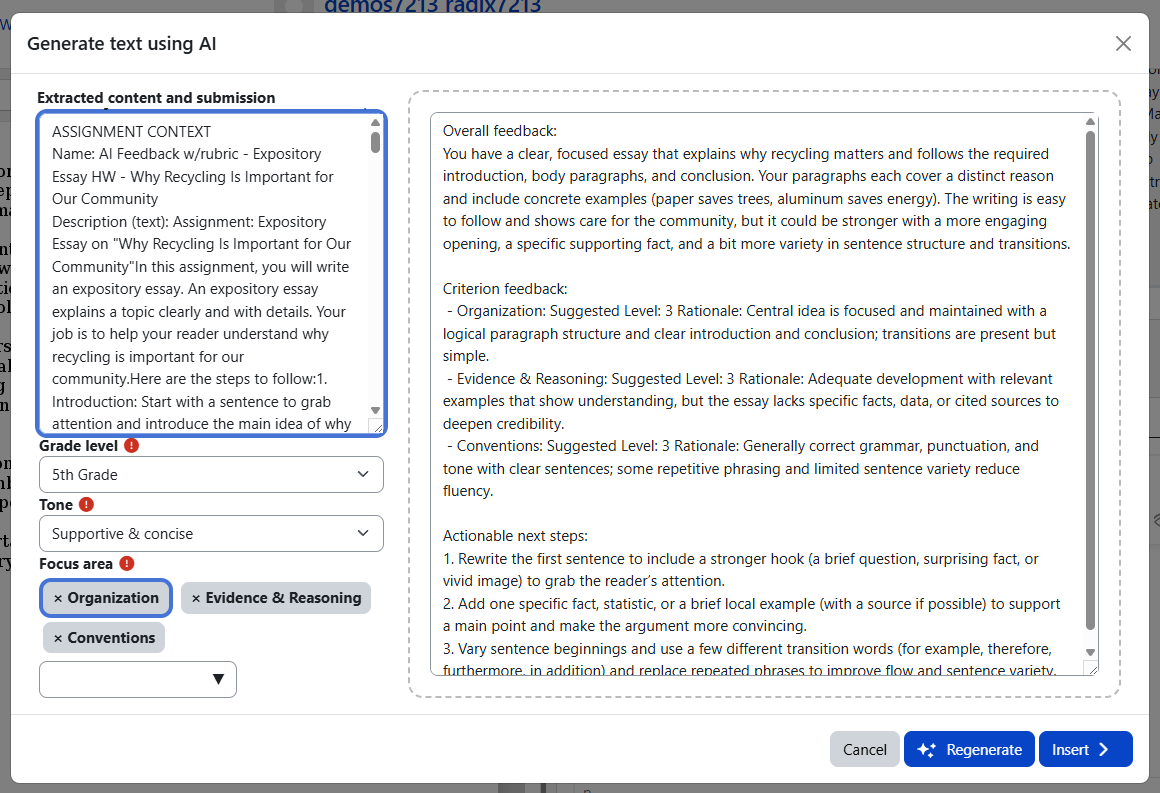
The grade level, tone and focus area are selected once for the assignment, not again for every student submission in the same assignment.
The AI feedback tool uses the assignment context, grading method, rubric, and student submission text along with the tone and focus area selected by the teacher before generating drafting feedback. It also suggests points for each criterion if a rubric is used. You can use a simple grading method or rubric with the AI feedback tool. To use a rubric, you have to make sure it is selected for the assignment before generating comments. You may also define a simple rubric in the assignment description which will be picked up by the AI tool.
Important: If a student submission is missing or too short, Radix LMS will not generate AI feedback. Text submissions must be at least 100 characters long.
AI Grader
This guide explains how to use the AI Grader to help you grade written assignments while keeping you fully in control of final grades and feedback. Click below to access the guide.
AI Grader: Grading Written Assignments with AI Assistance
AI Question Generator
The AI Question Generator helps teachers quickly draft question bank items from a topic, pasted content, course materials, or available standards. Teachers can review and edit the generated questions before using them with students.
Teacher Control and Access
AI features are turned off for students by default. If allowed by the site admin, teachers can control student AI access in two levels:
-
Course level
-
Activity level
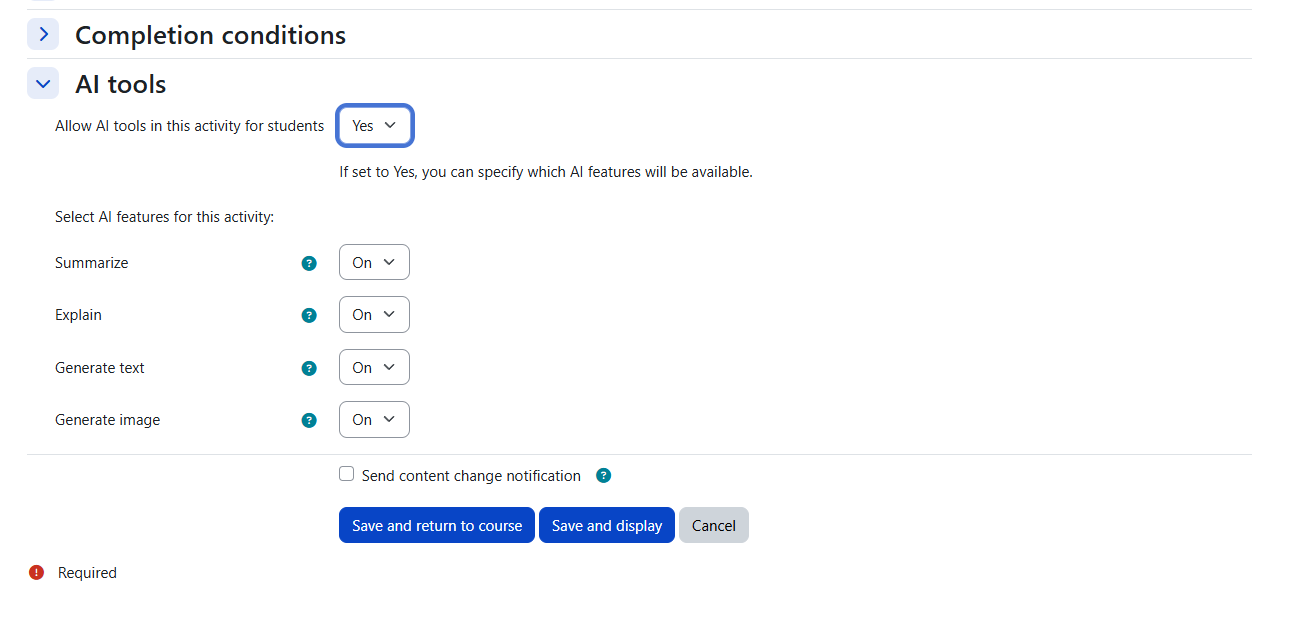
Turning AI on at the course level makes AI tools available as an option for student use in that course, but it does not automatically turn AI on inside every activity.
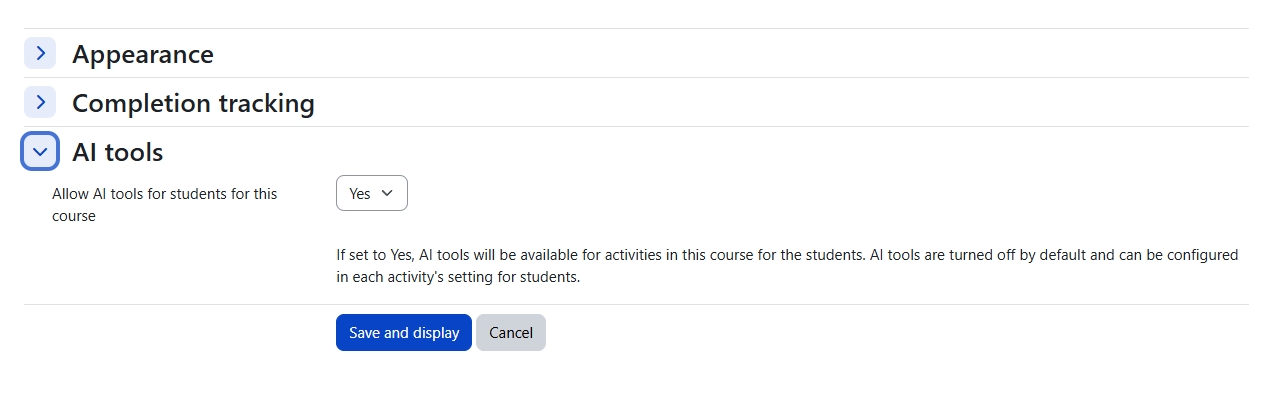
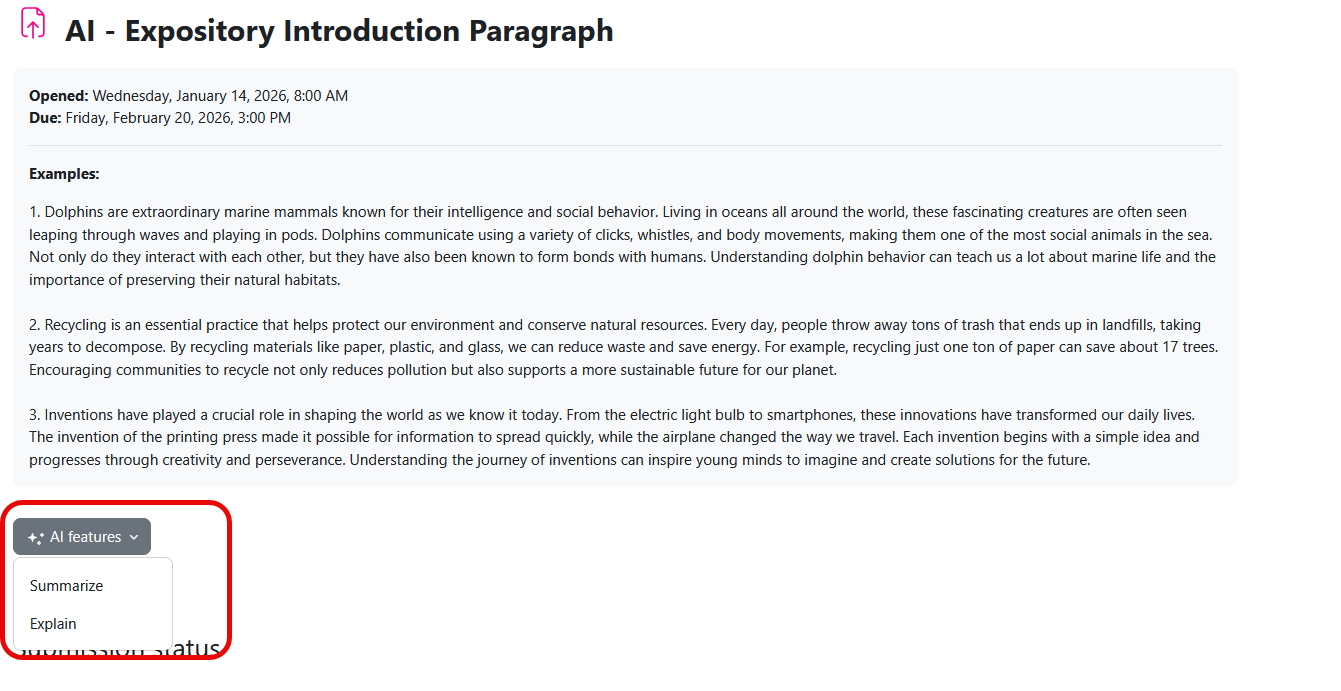
Teachers must still go into each individual activity and decide whether to allow AI there. This means AI in activities stays off until the teacher enables it for that activity. Teachers can also control which AI features are available in an activity by turning specific tools on or off. Once enabled, the Summarize and Explain options can be used in any course page to summarize or explain the main text content of the page.
In practice, this gives teachers control over:
-
whether AI is allowed in the course
-
whether AI is allowed in a specific activity
-
which AI features are enabled in that activity
When AI is turned on for a course, it does not automatically turn on in all activities. Teachers must enable it separately in each activity where they want students to have access.
Teacher control matters: Even when AI is enabled at the school level, teachers still decide whether students can use AI in a course, in an activity, and which AI features are available there.
Tips for Better Results
Teachers usually get better results when prompts are clear and specific.
Weak prompt:
Write a lesson.
Better prompt:
Create a 5th grade science lesson introduction on ecosystems. Keep it student-friendly and about 2 paragraphs long.
Helpful prompt details include:
-
subject
-
grade level
-
skill or topic
-
tone
-
length
-
language
Prompt tip: A good prompt tells the AI what to write, who it is for, and how long or detailed it should be.
Best Practices for Teachers
-
Review all AI-generated content before using it.
-
Make sure the content matches your grade level and lesson goal.
-
Edit the output so it fits your students.
-
Do not rely on AI as the final version.
-
Protect student privacy when using prompts.
Quick FAQ
Where is AI usually found?
Mostly in the text editor toolbar. Once enabled, the Summarize and Explain options can be used in any course page to summarize or explain the main text content of the activity.
Can I use AI in different parts of Radix LMS?
Yes. If a page includes a supported text editor, AI may be available there.
Can AI write feedback for every submission?
Only for text submissions that are long enough. Submissions under 100 characters will not generate AI feedback.
Do students have access to these AI tools?
Not by default. AI is turned off for students unless enabled by the school.
Even then, teachers still control student access at both the course and activity level.
If I turn AI on in the course, is it automatically on in every activity?
No. Turning AI on in the course does not automatically enable AI in activities. Teachers must turn it on separately for each activity.
Can I control which AI features students can use?
Yes. In each activity, teachers can decide which AI features are turned on or off.
Do I still need to review the result?
Yes. Teachers should always review and edit AI-generated content before using it.
Other AI Tools coming soon to Radix LMS
-
AI Question generator from YouTube videos
-
AI support agent