
This guide explains how to use the AI Grader to help you grade written assignments while keeping you fully in control of final grades and feedback.
What AI Grader Does
AI Grader is an assistant that:
-
Reads student assignment submissions (text-based).
-
Uses your instructions and/or a rubric to generate:
-
A suggested grade.
-
Constructive, student-friendly feedback.
-
Adjusts its language to the student’s grade level (K–12).
-
Lets you review and change everything before students see it.
It does not replace you as the teacher; it simply drafts grades and feedback for you to approve or edit.
When AI Grader Works Best (and Its Limits)
AI Grader evaluates text only. It works best for:
-
Essays and written responses
-
Research papers
-
Short constructed responses
-
Text-heavy submission files
-
in PDF, DOCX, DOC, TXT, PPTX, PPT, ODT formats
-
Google Docs links (text content only - when shared with "Anyone with the link")
-
OneDrive document (text content only - the site must have Microsoft OAuth2 service setup for)
-
Google doc or OneDrive document links can be shared in the “Online text” as a link, or submitted via the “File submissions” section.
It cannot properly grade:
-
Images, drawings, or scanned work where text can’t be extracted
-
Design/layout, colors, animations, or slide aesthetics
-
Visual elements such as charts, diagrams, or formatting quality
For Google slides and presentations, AI Grader reads the text content only, not the design.
You should always:
-
Double-check grades and feedback.
-
Make adjustments where the AI missed context or non-text elements.
Enabling AI Grader on an Assignment
You can choose which assignments use AI Grader.
-
Create or edit an assignment in your course.
-
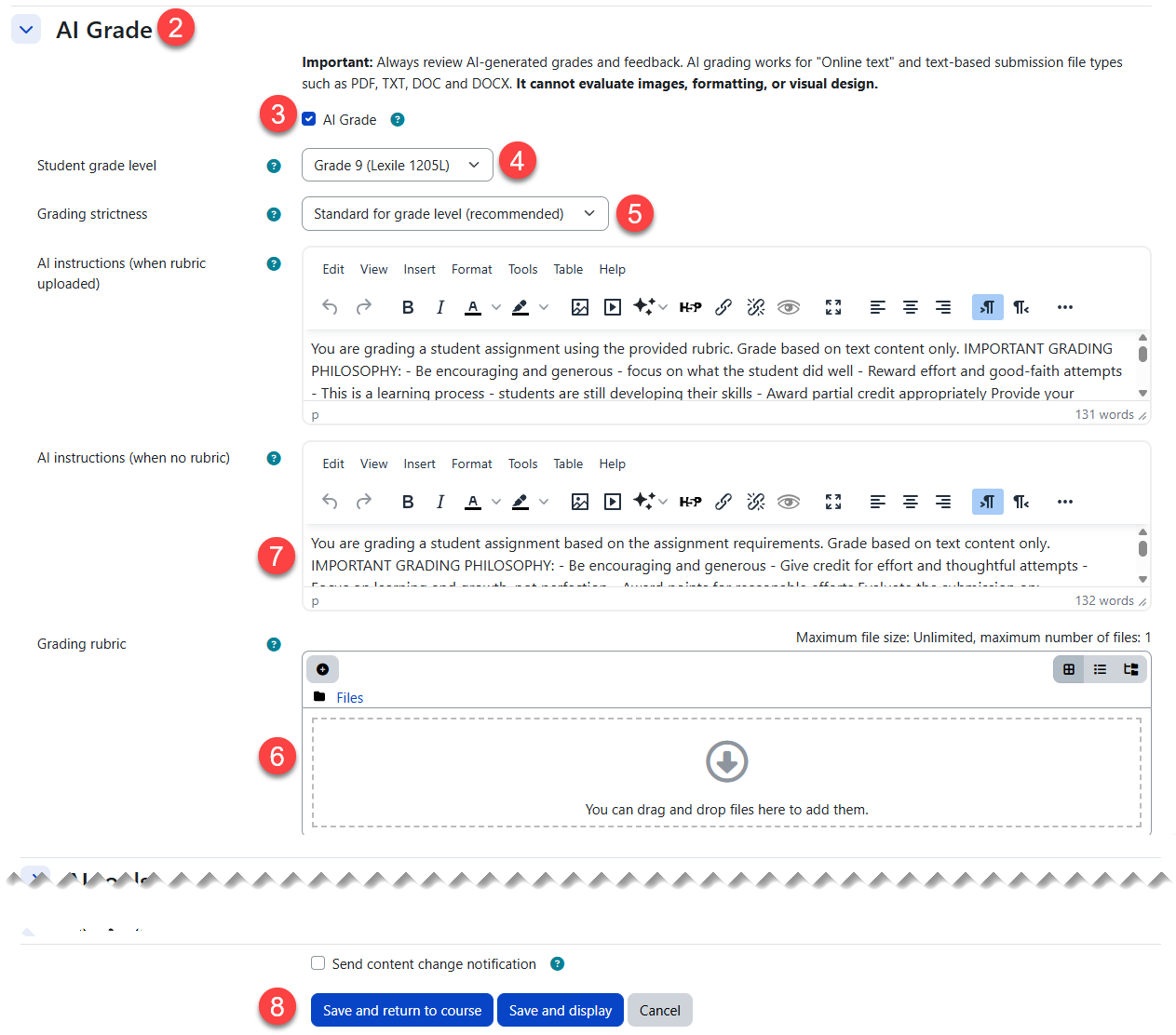
In the assignment settings, find the AI Grade section.
-
Check Enable AI Grade.
-
Select the Student Grade Level (K, 1, 2, …, 12). Each option displays its corresponding Lexile level (e.g., “Grade 5 (Lexile 950L)”) to help you choose appropriately. This controls the reading level and vocabulary of the AI's feedback.
-
Select the grading strictness. Options are:
-
Very lenient — Reward all reasonable efforts
-
Lenient — Generous with points
-
Standard for grade level (recommended) — Grade-level appropriate strictness
-
Rigorous — High expectations
-
Very rigorous — College-level standards
-
(Optional) Upload a rubric. Accepted formats: PDF, DOC, DOCX, or TXT. The AI will use this rubric as the primary grading guide.
-
(Optional) Customize the AI instructions. There are two separate instruction fields:
-
AI instructions (when rubric uploaded) — Used when a rubric file is attached. The AI will use these instructions alongside the rubric criteria.
-
AI instructions (when no rubric) — Used when no rubric is provided. The AI will grade based on these instructions and the assignment description.
Each field is pre-filled with site-wide defaults set by your administrator. You can customize them per assignment.
Example: “Use this rubric to score each criterion from 1–4 and explain why.”
Example: “Focus especially on thesis clarity and use of evidence.” -
-
Save the assignment.
The system does not integrate with advanced grading methods. It uses the rubric you upload within AI Grader.
Grading Individual Submissions with AI
To grade one student at a time:
-
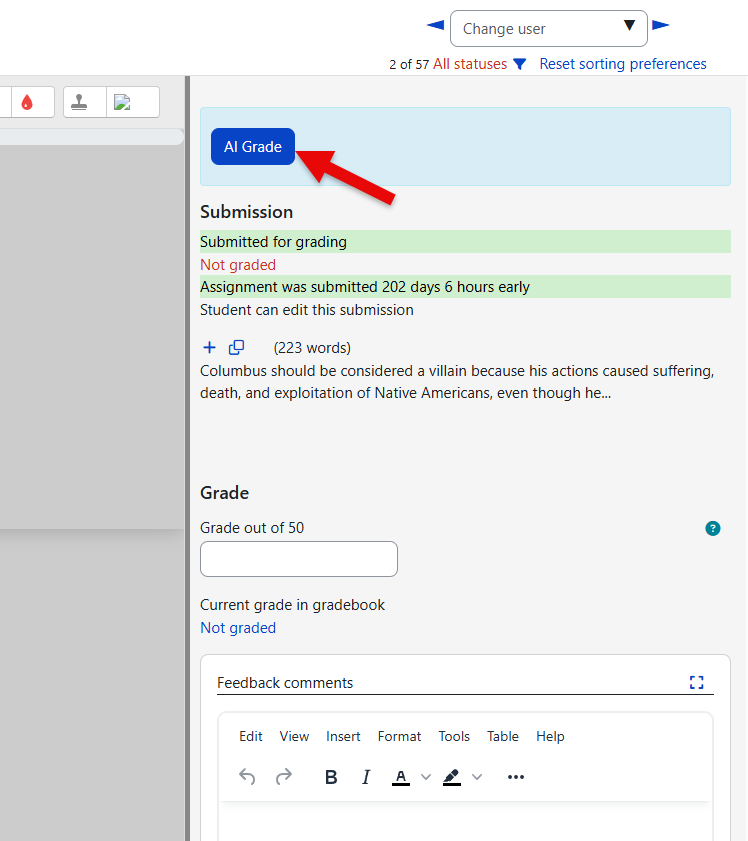
Open the assignment and go to the submissions page. Click the AI Grade button next to a student’s submission.
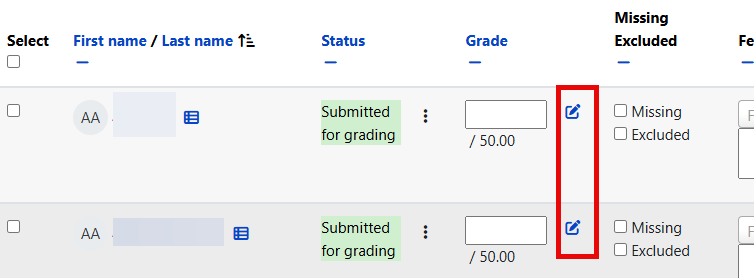
-
Click the AI Grade button
-
The AI will:
-
Read the student’s work.
-
Apply your rubric/instructions, strictness, and grade-level settings.
-
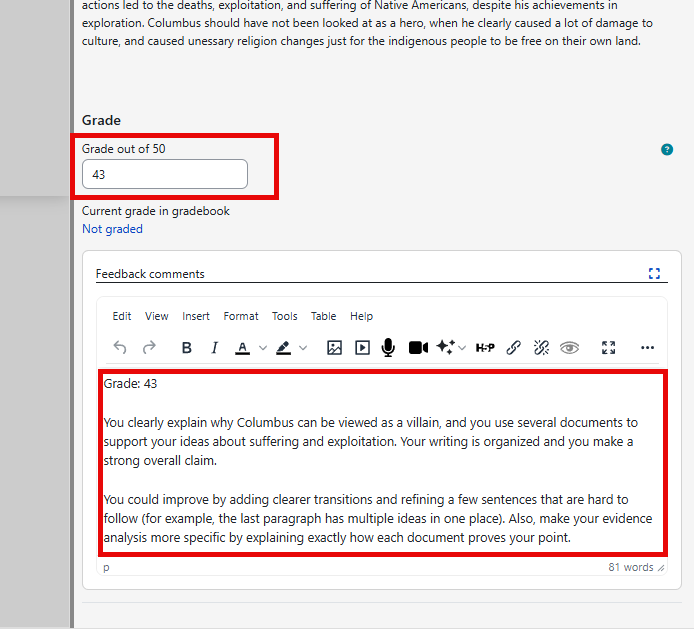
Populate the grade and feedback fields on the form with its suggestions — nothing is saved yet.
-
-
Review:
-
Adjust the grade if needed.
-
Edit the feedback comments for clarity, accuracy, or tone.
-
-
Click Save changes.
Nothing is final until you save; you remain the grader of record.
Some assignments may have a grading restrictions based on the grading due dates or term dates by your school configuration. The AI grading will be hidden for these assignments.
Choosing the Right Grade Level (K–12 and Lexile Support)
AI Grader tailors feedback complexity and expectations to the chosen grade level:
|
Grade Band |
Lexile Range |
Vocabulary |
Sentence Structure |
|---|---|---|---|
|
K |
BR160L |
Very simple, highly familiar words |
Very short, predictable sentences |
|
1 |
165L |
Simple, familiar words |
Short sentences (5–8 words) |
|
2 |
425L |
Simple, concrete words |
Short sentences (8–12 words) |
|
3–5 |
645L–950L |
Simple to grade-appropriate |
Short to straightforward sentences |
|
6–8 |
1030L–1155L |
Moderate to academic vocabulary |
Varied to moderately complex |
|
9–12 |
1205L–1385L |
High school to college-level |
Complex, sophisticated prose |
As a rule of thumb:
-
For younger students, pick their actual grade to keep feedback accessible.
-
For advanced students, you can choose a grade level slightly above to gently stretch them.
Best Practices for Teachers
-
Use clear instructions.
-
Always review AI output.
-
Combine with your own comments.
-
Be mindful of limitations.
In the AI instructions for each assignment, tell the AI what you care about:
Example instruction: “Focus on claim, evidence, reasoning, and grammar. Use a warm, encouraging tone.”
-
Check that the grade matches your professional judgment.
-
Edit feedback so it matches your classroom language, references rubric criteria students recognize, and addresses any non-text elements the AI might have missed.
-
Add personal notes where needed (e.g., behavior, effort, participation) and give specific next steps.
-
Don’t rely solely on AI grading for high-stakes assessments or where visual design/artwork is being graded.
Privacy and Data
The AI Grader plugin is designed with privacy in mind:
Data Sent to AI Service Providers
-
Student submission text content
-
Assignment name and instructions
-
Uploaded rubric content (if provided)
-
AI grader’s Grade level setting
Data NOT Sent to AI Providers
-
Student names or identifiable information
-
Student email addresses
-
Course information beyond assignment context
Disclaimer
AI Grade is a tool to assist teachers in the grading process, not replace teacher judgment. All AI-generated grades and feedback should be reviewed by qualified educators before being finalized. The accuracy and appropriateness of AI-generated content may vary and is subject to the limitations of the underlying AI models.