
The AI Question Generator helps teachers create question bank items from a topic, pasted content, course materials, or—where available—state standards. It is designed to save time when drafting questions while keeping teachers in control of review, editing, and final use.
What this tool does: It helps teachers draft questions faster by using the information they provide, then adds the generated questions to the question bank for review and editing.
For a broader overview of AI capabilities in Radix LMS, see Radix LMS AI Tools.
Where to find the AI Question Generator
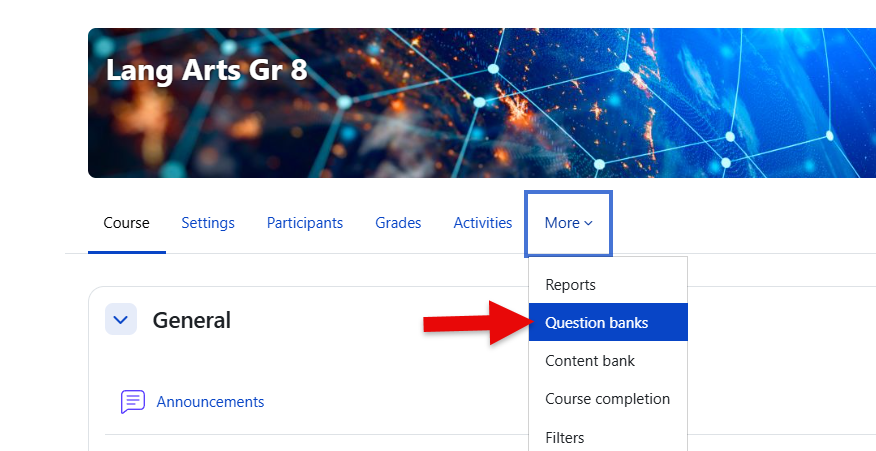
The AI Question Generator is available from inside a course, in the question bank area. Open the course where you want to create or manage questions before starting.
-
Open your course in Radix LMS.
-
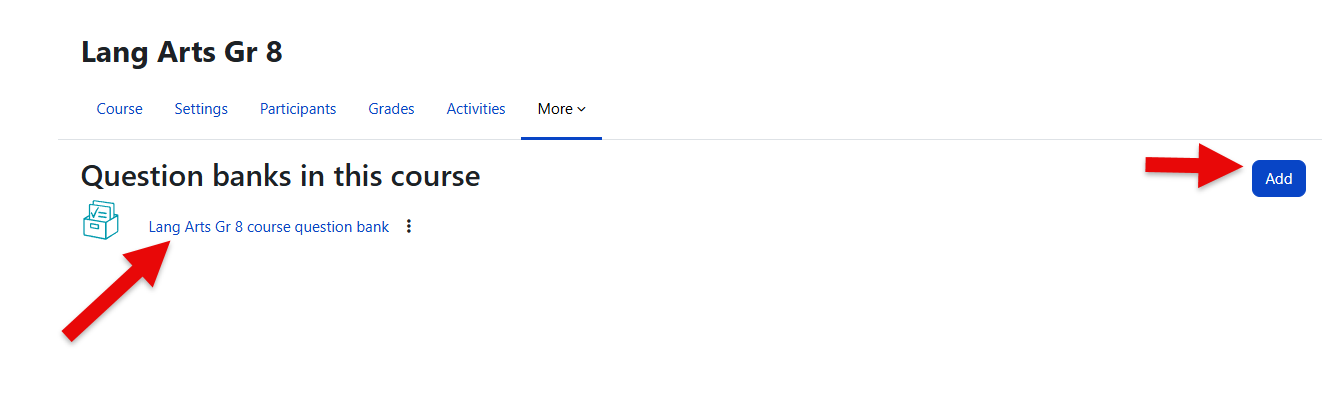
Open the course question bank.
-
Add your own question bank folder or use course’s default question bank.
-
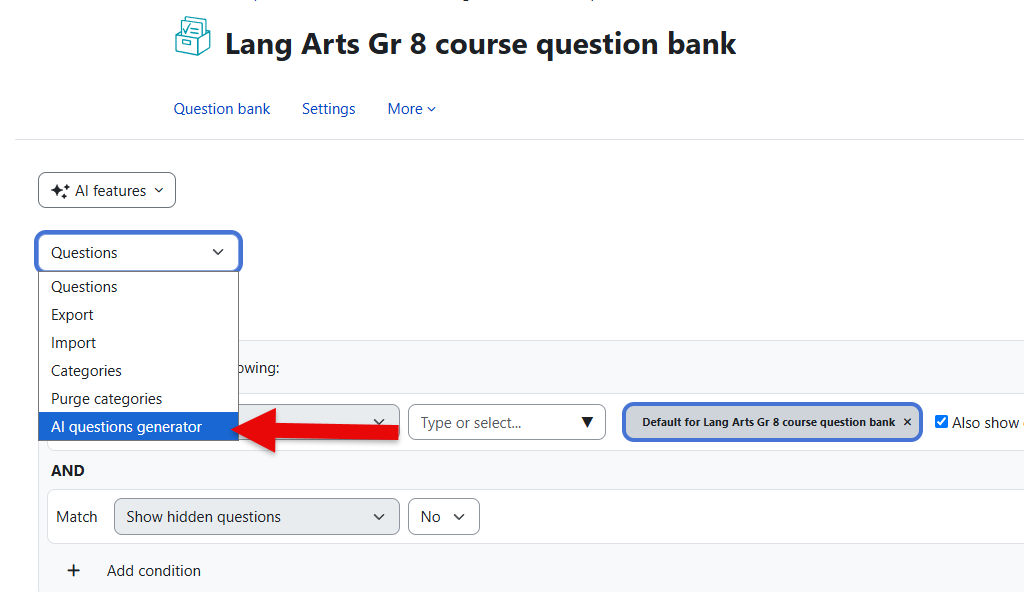
Select the AI Question Generator option.
-
Choose how you want to create questions: Topic, Story, Course contents, or State standard, if available.
If you do not see the AI Question Generator option, it may not be enabled for your site, course, or teacher role. Contact your school administrator for help.
Using the AI Question Generator
Teachers start by choosing what they want the questions to be based on, such as a topic, pasted reading passage, course content, or state standard. After the questions are generated, teachers should review them in the question bank and make any needed edits before using them with students.
Basic workflow
-
Select a question generation option.
-
Provide the requested information, such as a topic, text passage, course resource, or state standard.
-
Select the target Grade level for the questions.
-
Choose the number of questions to generate.
-
Choose a preset for the type of questions you want to create. Available options may include Multiple choice, True-False, Match, Short answer, and Numerical.
-
Choose whether to include existing questions as context, if the option is available. This helps the tool avoid creating questions that are too similar to questions already in the selected question bank folder.
-
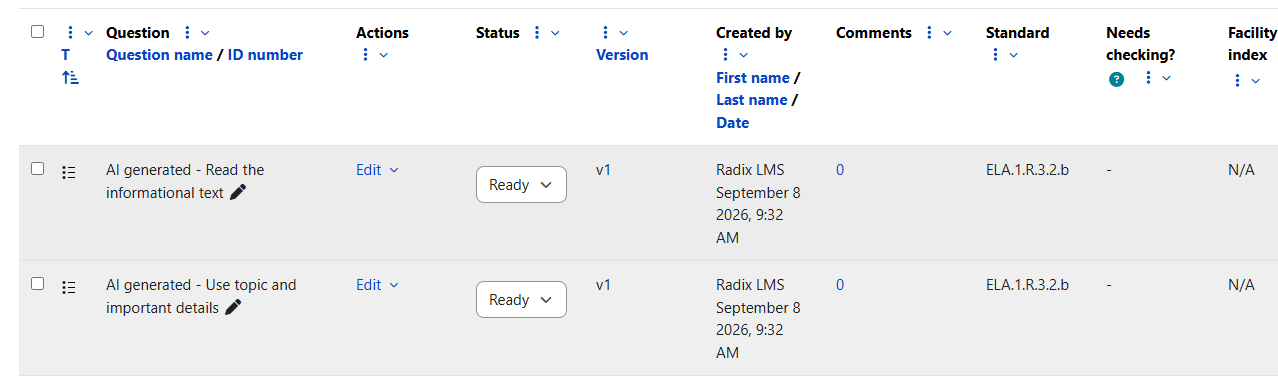
Choose whether to add the preconfigured AI-generated prefix to the question names, if the option is available. This makes AI-drafted questions easier to identify when reviewing the question bank.
-
Submit the request.
-
The process usually begins within about a minute. You may leave the page since the process will continue in the background.
-
Review the generated questions in the question bank.
-
Edit, approve, or remove questions as needed before using them with students.
Question generator settings
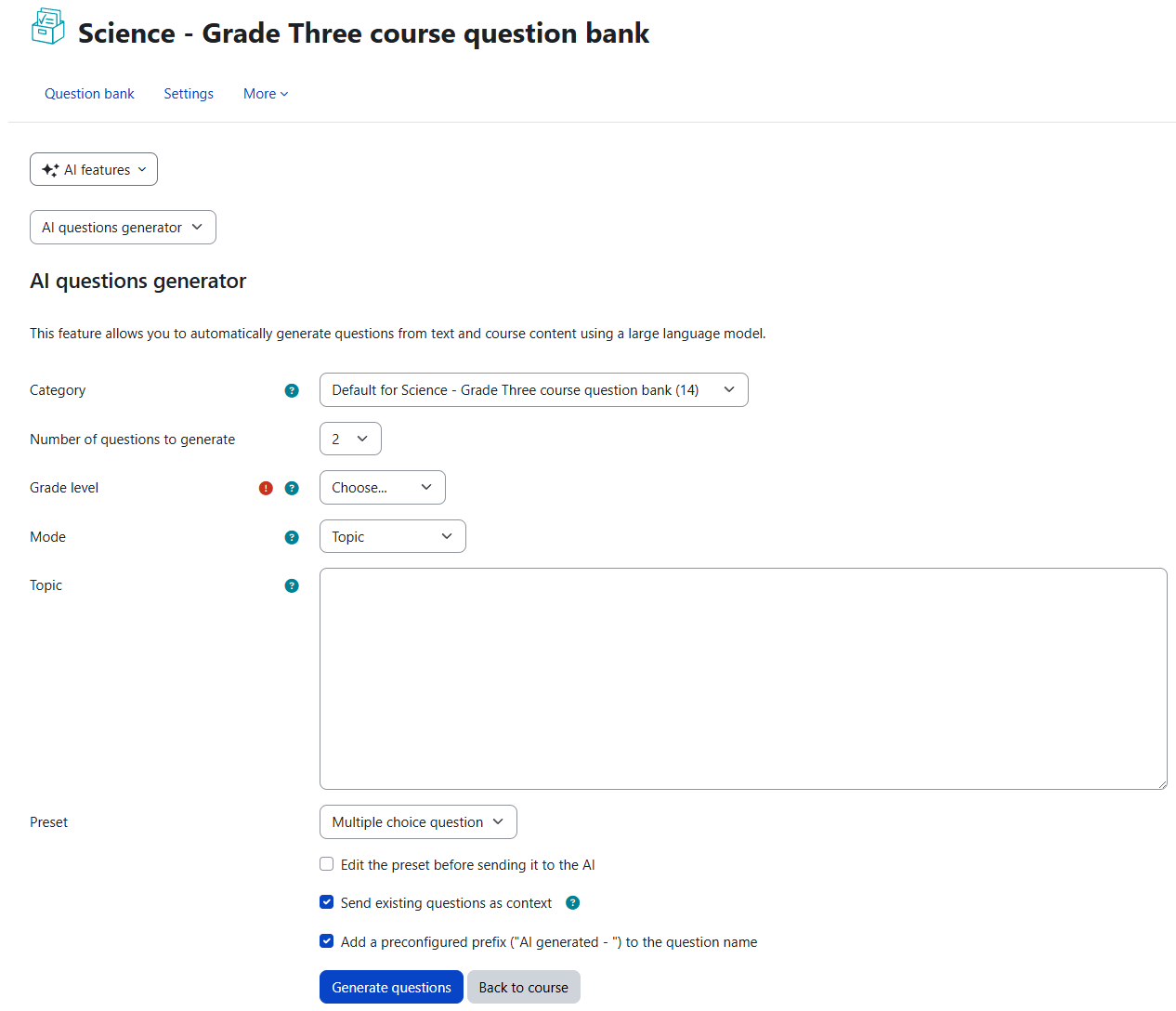
The question generator form includes key settings that help teachers control what gets created, how closely the questions match their needs, and how the new questions are organized.
|
Setting |
What it does |
|---|---|
|
Grade level |
(Required) Select the grade level the questions should target, such as Pre-K, 5th Grade, or 12th Grade. This helps guide question difficulty, vocabulary, and alignment across all generation modes. |
|
Preset |
Choose the type of question you want the tool to draft, such as Multiple choice, True-False, Match, Short answer, or Numerical. The selected preset guides the format of the generated questions. |
|
Edit the preset before sending it to the AI |
When selected, teachers can review the preset instructions before generating questions. The instructions appear in an editable text box, so teachers can make small adjustments to better match their lesson, students, or preferred question style. For example, teachers might ask for simpler wording, a specific difficulty level, more detailed answer feedback, or questions that focus on a particular part of the source material. 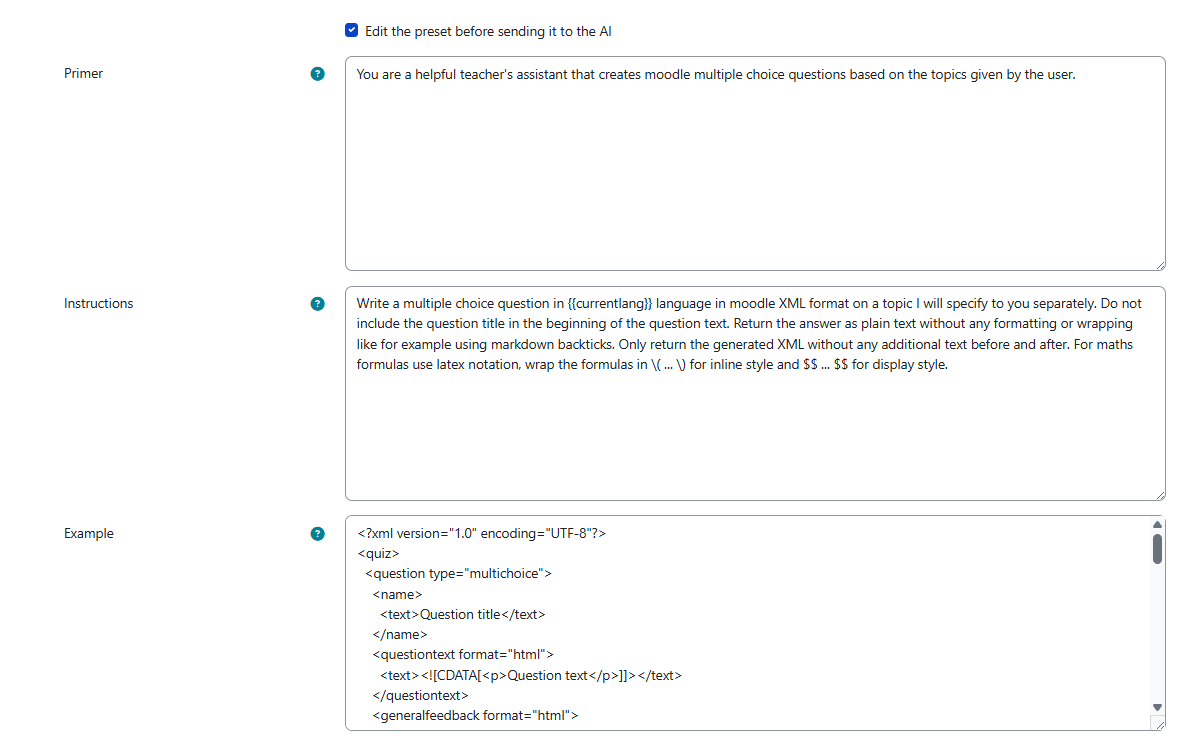
|
|
Send existing questions as context |
When selected, the tool considers questions already in the selected question bank folder. This helps reduce duplicate or overly similar questions. Use this setting only if you have added your own folder for similar questions. |
If the option to add a preconfigured AI-generated prefix appears, you can leave it selected to make AI-drafted questions easier to identify in the question bank.
Generation modes
The AI Question Generator supports multiple ways to create questions, so teachers can choose the source that best matches the lesson or assessment need.
|
Mode |
What the teacher provides |
Best used for |
|---|---|---|
|
Topic |
A short topic or subject area |
Creating general questions about a topic |
|
Story |
Pasted text or source content |
Creating questions based closely on a reading passage or teacher-provided text |
|
Course contents |
Selected course activities or files |
Creating questions from materials already used in the course |
|
State standard |
An available state standard |
Creating questions aligned to a selected standard |
Important: State standard options appear only when they are available for your site and course.
Supported content sources
In Course contents mode, the plugin can extract text from selected course resources and send that text as context for question generation.
Currently supported activity and resource types include:
-
Text and media area
-
Page
-
File
-
Folder
-
Lesson
-
Book
If a file cannot be read by the tool, try using a text-based version of the material or paste the relevant content directly into the generator.
-
AI-generated questions should always be reviewed for accuracy, wording, difficulty, and alignment before use.
-
Very large source materials may take longer to process and may produce less focused results.
-
Scanned documents or image-heavy files may not provide enough readable text for strong question generation.
-
If generation does not complete successfully, try again with a shorter or clearer source, or paste the most important text directly into the generator.
State standard option
Teachers may see a State standard option in addition to Topic, Story, and Course contents.
When using this option, the list of standards is based on the course subject. For example, if you are creating questions in an Algebra course, you will only see standards related to Math.
In this mode:
-
Select the target Grade level: You must manually select the grade level even when using state standards. This ensures the AI uses the correct vocabulary and difficulty for your specific students, rather than relying on the standard’s default grade level.
-
Select the available state standard: The list of standards is filtered by the course subject. For example, Algebra courses show only Math standards.
-
Review alignment: Ensure the generated questions match both the selected standard and the target grade level.
-
Edit the generated questions before adding them to a quiz, lesson, or assessment.
This option is useful when teachers want questions that are closely connected to required standards.
Best practices
-
Use Topic mode for brainstorming or broad question drafting.
-
Use Story mode when you want questions tied closely to a pasted reading passage or teacher-provided text.
-
Use Course contents mode when existing course resources contain the material students are expected to know.
-
Use State standard mode when you want questions generated and aligned to a selected standard.
-
Review every generated question before using it in quizzes, lessons, or assessments.
-
Edit wording, answer choices, feedback, and difficulty level as needed for your students.