
Instant Messaging
Find your messages
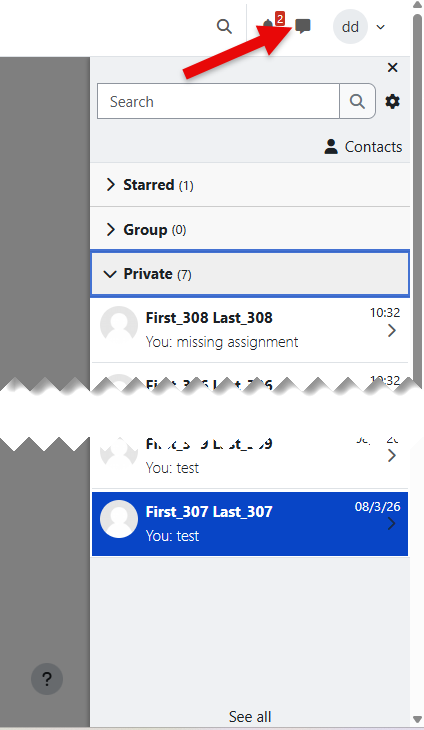
Open the messaging menu at the top of the screen to see recent conversations and the unread conversation count. From the messaging drawer, you can search messages or contacts, open your contact list, change messaging preferences, view sent and received messages, or open the full messaging page.
The screenshot below shows the message menu and drawer layout.
For parents and students: send a message
Parents and students can send messages to teachers and school staff when messaging is enabled and the recipient is available to message.
-
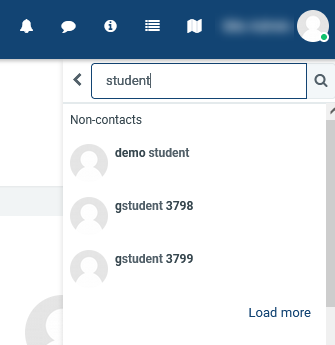
Open the messaging drawer from the top menu, then search for the teacher or staff member by name.
-
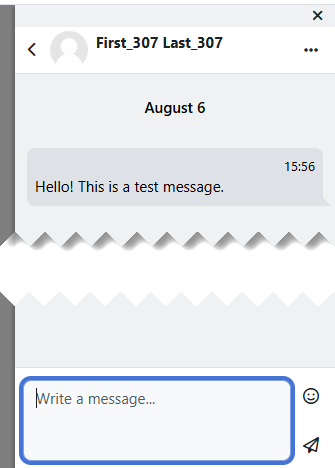
Open the conversation and type your message. If the person is not already in your contacts, Radix may show options to message them or add them as a contact, depending on the school’s settings.
-
Use Enter to start a new line unless you have turned on the preference to send messages with Enter.
Sending a message
Manage contacts and conversations
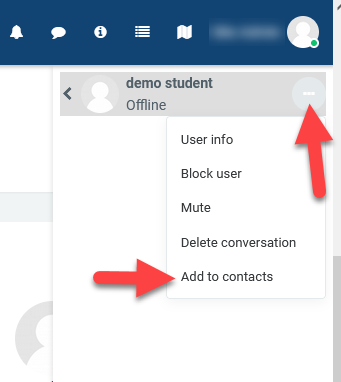
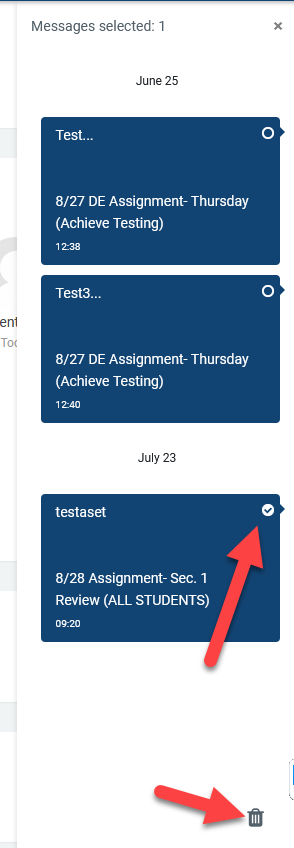
Use search in the messaging drawer to find contacts, people you are allowed to message, and previous message text. Depending on your permissions and the other person’s settings, you may be able to add a contact, accept or decline a contact request, mark a conversation as a favourite, mute a conversation, block a user, or delete messages from your own view.
Deleted messages are removed for the user who deletes them. Users with elevated permission may also be able to delete messages for everyone.
|
|
Message preferences and delivery
-
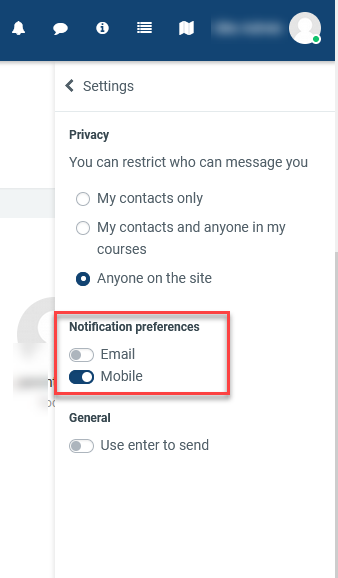
Open messaging preferences from the user menu or from the gear icon in the messaging or notification menu.
-
Available outputs depend on what the administrator has enabled. Common outputs include pop-up notifications in Radix, email, mobile push notifications, and SMS if configured for the site.
-
The Enter-to-send option controls whether pressing Enter sends the message or creates a new line.
-
Email messages go to the email address in the user profile unless the site allows notification email override and the user has configured an alternate address.
Administrators can mark each message output as disallowed, permitted, or locked. If an output is locked or disallowed, users may not be able to change it themselves.
For teachers and staff: message selected students and parents
Teachers and administrators can send messages to multiple participants at once. These messages are delivered as individual conversations, not a shared group thread — each recipient sees the message as a private conversation with you.
-
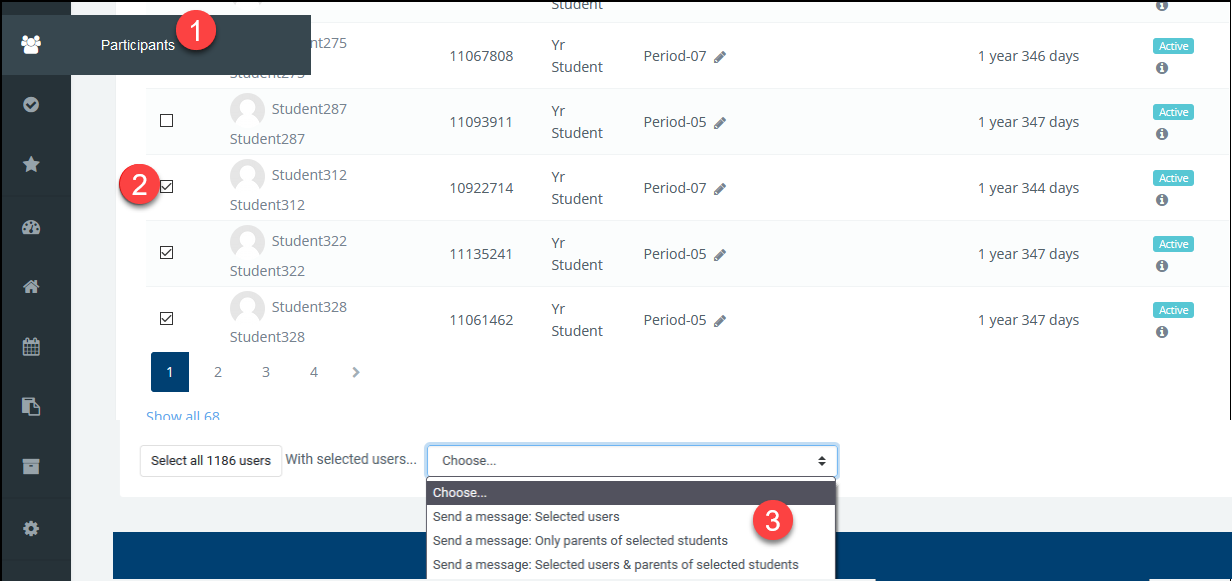
Go to Participants in your course (teachers) or Site administration → Users → Browse list of users (administrators).
-
Select participants from the list, or use Select all at the bottom.
-
From the With selected users… drop-down, choose Send a message. You can send to only the selected students, only their parents, or both. You can also filter by role before selecting.
-
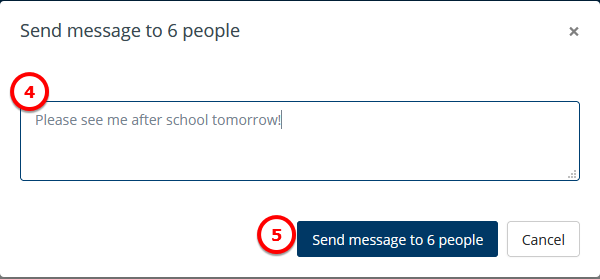
Type your message in the pop-up window.
-
Click Send message. The button shows how many people will receive the message.
Each message appears as a separate conversation in your messaging drawer. If you want messages to also be delivered by email, the administrator must enable email output in the Messaging Settings. Users may be able to opt out of email delivery depending on whether the administrator has set the output to Permitted or Locked.
|
|
Parents receive messages only if they have a registered parent account linked to their student. Registered parents appear on the participant list next to the student's name. See the Parent Quick Guide for how to register.
Sending messages via the assignment grading screen
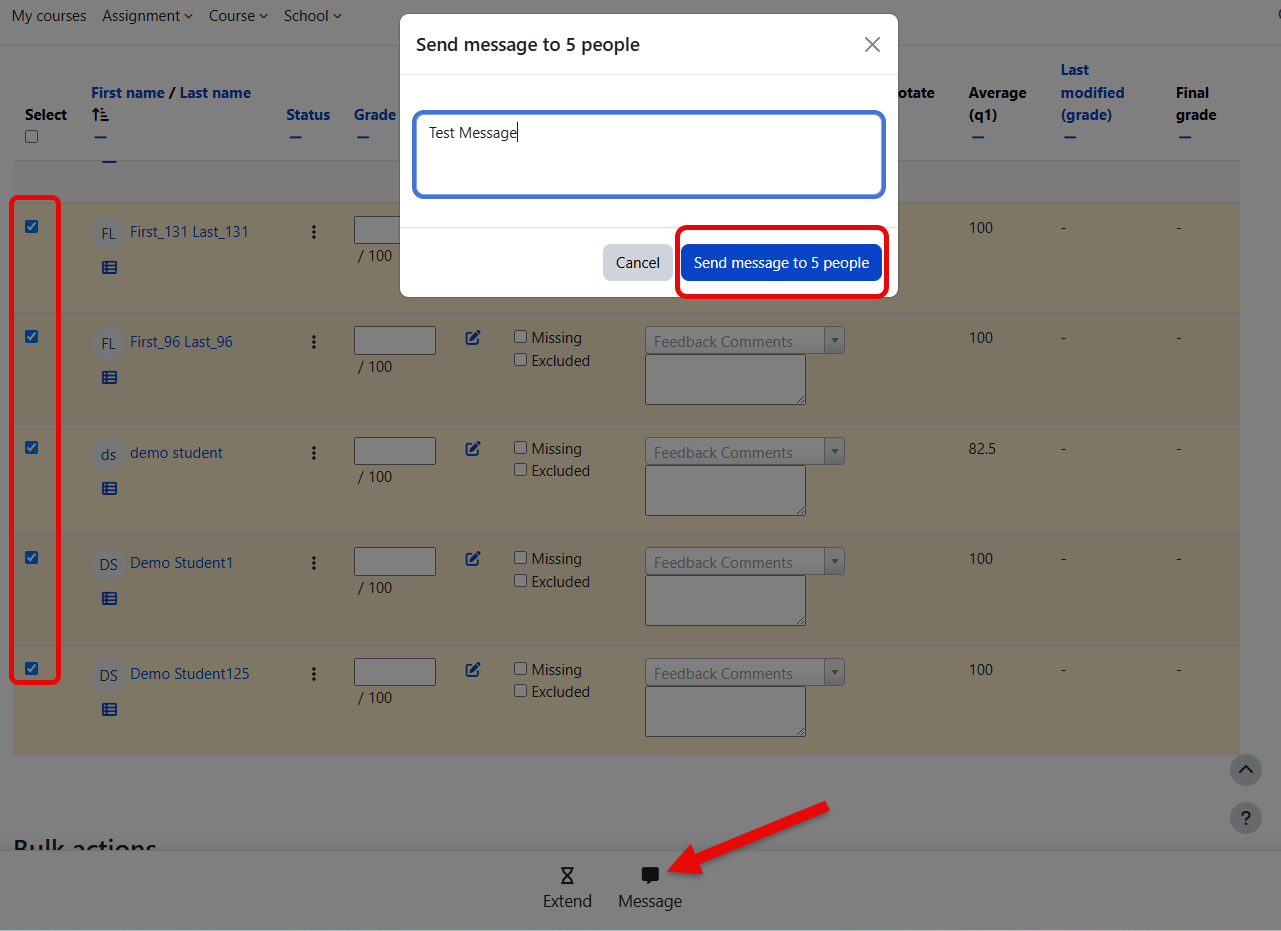
You can also send messages directly from the assignment grading page while you are grading:
-
On the assignment grading page, select the students you want to message.
-
Click Send a message at the bottom of the list.
-
Type your message in the pop-up window and
-
Click Send message to ## people.
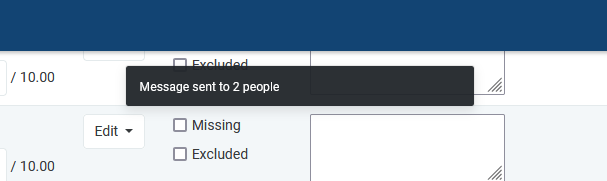
A notification confirms the message was sent.
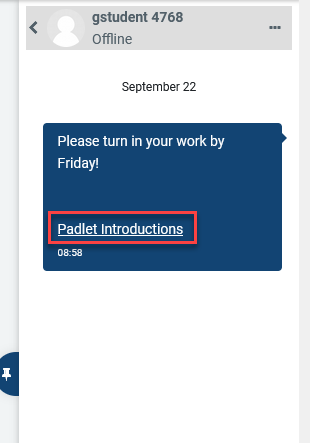
The message automatically includes a link to the assignment so students can access it directly from the conversation.
Administrator notes
-
Messaging can be turned on or off sitewide from Site administration → Advanced features.
-
When
messagingallusersis disabled, users can only message contacts and people in their courses. When enabled, any user on the site can message any other user. -
Student and parent roles are restricted from messaging other students or parents — they can only message teachers and staff.
-
The maximum message length is 4,096 characters.
Related pages: Notifications · Messaging Settings · Quickmail · Parent Quick Guide