
This guide explains the main teacher grading workflows in Radix LMS. Teachers can use this page to understand when to use quick grading, bulk updates, individual grading, AI-assisted feedback, AI Grader, late work grading, assignment attention lists, and special program indicators. It also highlights current filter behavior, grading restrictions, feedback comment tools, and common troubleshooting steps.
Quick grading
Quick grading allows you to enter numeric grades and feedback comments directly in the assignment submissions table. Use it when you need to update several students quickly without opening the full individual grading screen.
-
Use the full Grade interface when you need to annotate files, use rubrics or marking guides, upload feedback files, review long online text submissions, or use AI Feedback.
-
Quick grading is not compatible with advanced grading methods such as rubrics and marking guides, and it is not recommended when multiple graders are grading the same assignment.
-
Submission comments are a two-way private conversation between a student and staff and are visible to students immediately. Use the grading interface to give formal grading feedback.
To open quick grading, open the assignment from your course page and select View/grade all submissions. If quick grading is not already enabled, select the Quick grading option on the submissions page. Radix LMS remembers this preference the next time you open the same submissions screen.
Enter Grades and Feedback for Multiple Students at Once
Quick grading lets you enter grades and feedback for multiple students directly on the View/grade all submissions page.
Important: This method is not compatible with grading with Rubrics or Marking guides (see Using Rubrics) and is not recommended for long online text submissions. In those cases, use Grading individual submission.
-
On your course page, click the name of the assignment activity. The assignment page opens with the assignment description and submission summary.
-
Select View/grade all submissions. The submissions table opens with one row for each student and columns based on the assignment settings.
-
If needed, enable Quick grading so grade and feedback fields appear directly in the table.
-
Use the filters above the table to narrow the list before grading:
-
Use the Submission status filter to show all statuses, submitted work, or submissions that require grading. The active status appears near the submission count and filter icon.
-
Use the Grade status filter to show students with Missing, Excluded, or Ungraded grades.
-
Use the Restriction filter to show only students who have access to the assignment based on supported access restrictions. Group, grouping, and profile restrictions are applied automatically.
-
Use Assignments per page to control how many students are shown. If the list has multiple pages, use the page, next, and previous links.
As you change these options, the page refreshes to show the updated results. If you need to clear saved sorting, use Reset sorting preferences.
-
-
Review the table columns. Depending on your school settings, you may see a current term average column, such as Average (Q1) or Q1 Average, to help you understand the student’s current standing while grading.
-
(Optional) Collapse columns you are not using to make the submissions table more compact. Select Hide [-] under a column name to collapse it, and select Show [+] to reopen it.
-
Enter grades in the Grade column. If feedback comments are enabled, enter feedback in the Feedback comments column. If your school uses a preset feedback comments list, select a comment above the comment box, then edit it as needed.
-
Select Save all quick grading changes before leaving the page. To notify students of a grade change by email, select Yes in the Notify students menu before saving.
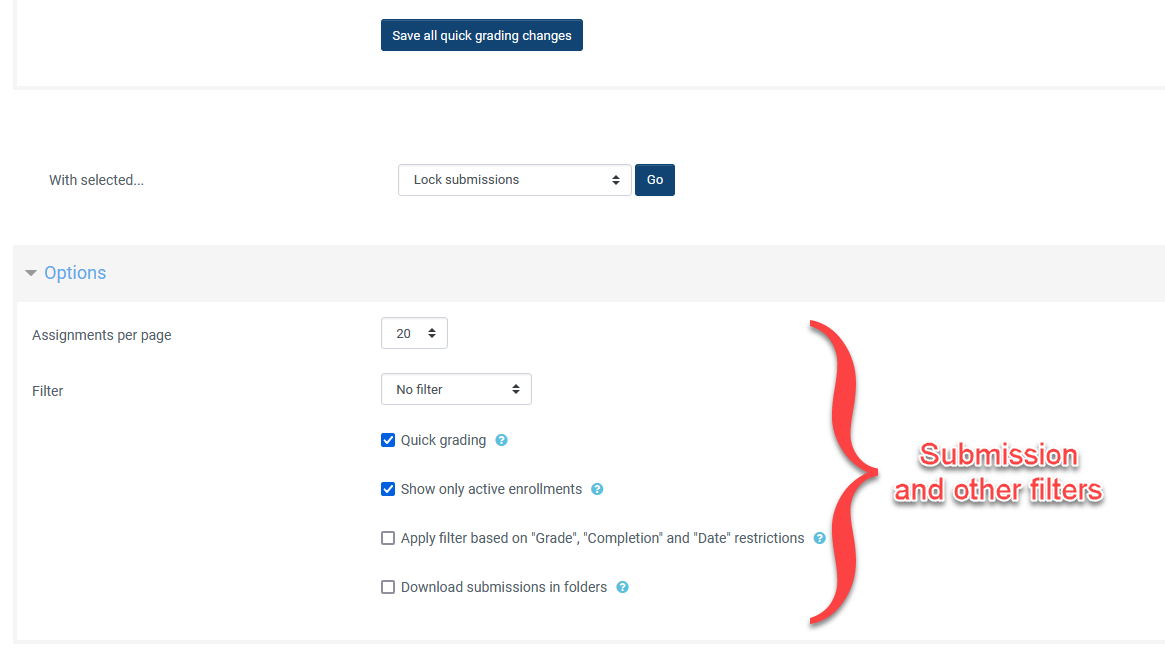
Submission and other filters |
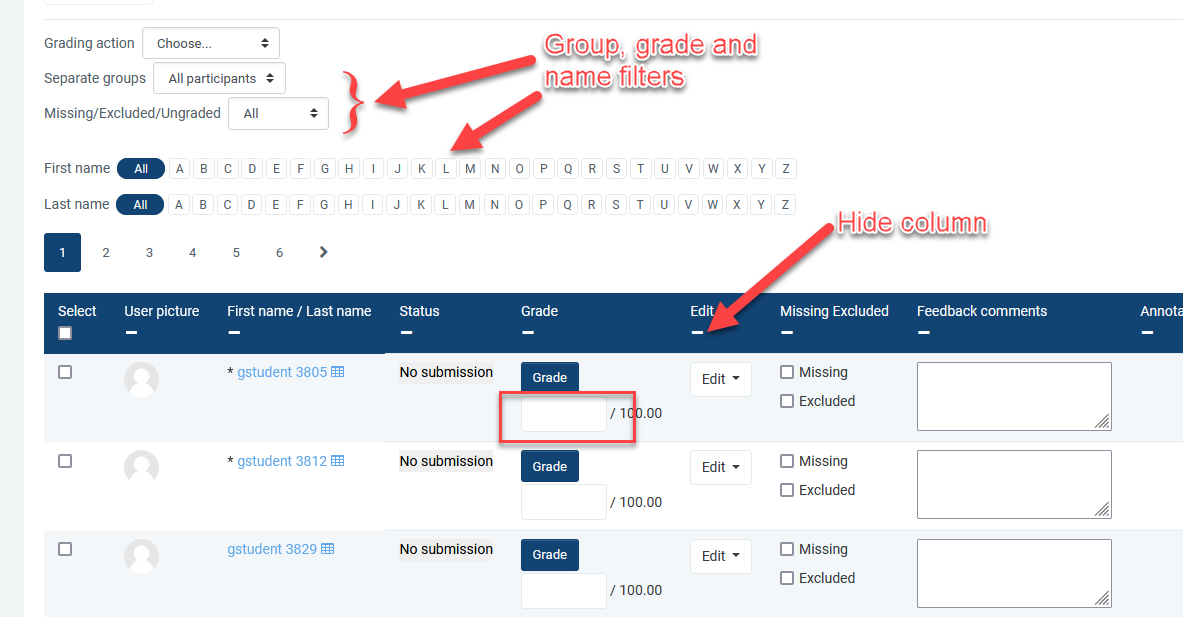
Quick grading filters and columns |
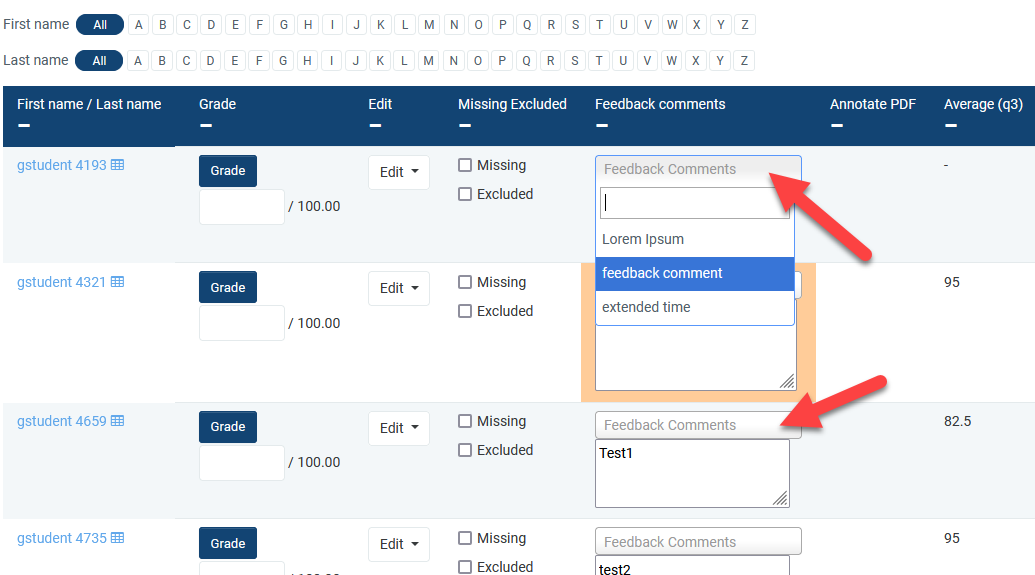
When the feedback comments list is turned on |
8. Once the feedback comments list is turned on and comments have been added by the admins, the teachers will see a dropdown list of comments right above the feedback comments text box on their grading page. Comments can be searched in the dropdown list as you type. When you select a comment, it will be inserted into the comment box and can be edited if needed.
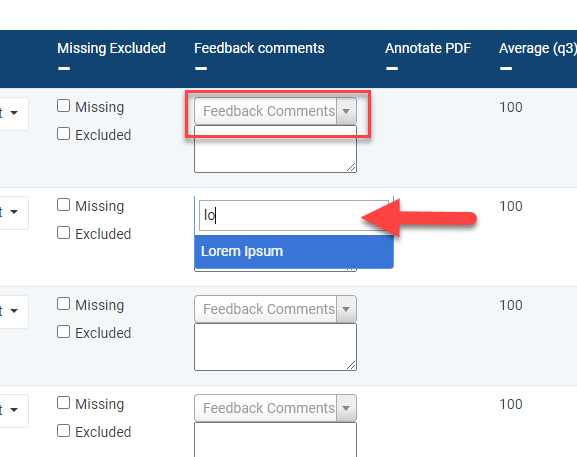
Select or start typing to find a comment |
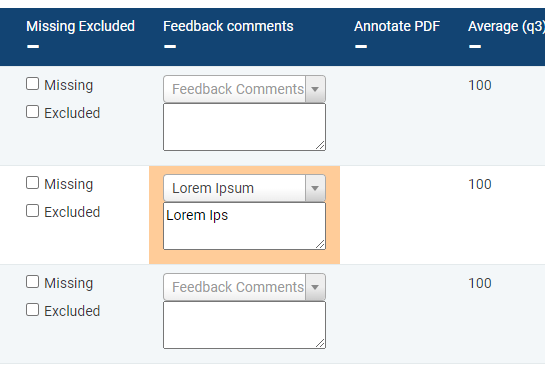
Edit the selected comment if desired |
Important: You must click Save all quick grading changes before navigating to another page or you will lose any grades or feedback comments.
Bulk actions
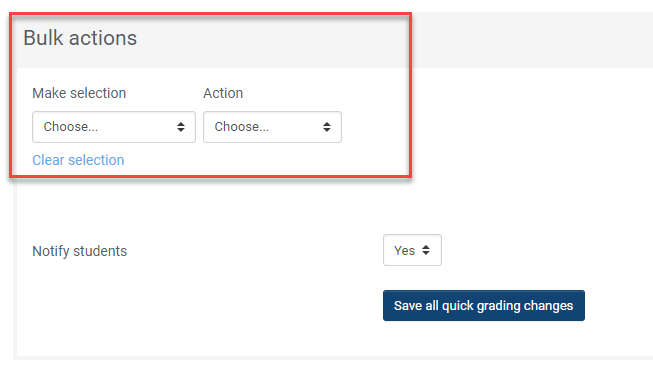
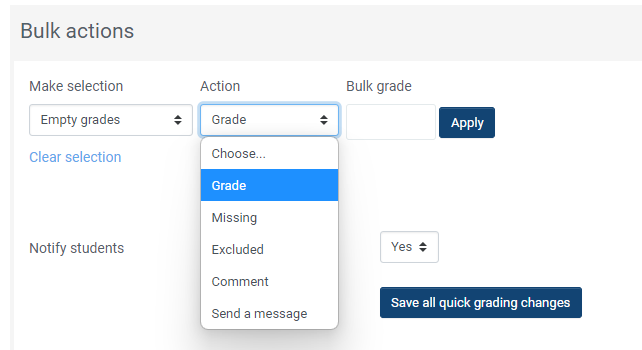
Bulk actions let you apply the same update to several visible students on the quick grading page. You can enter a bulk grade, mark or unmark grades as missing or excluded, add feedback comments, or send a message to the selected students.
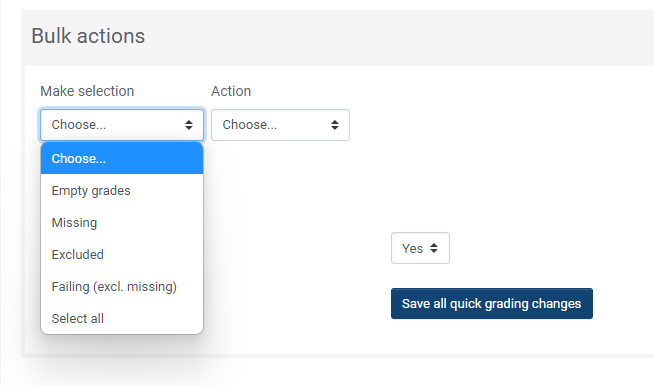
Step 1 — Use the Make selection menu to select students. You can select visible students by status, such as missing, excluded, or failing, or manually check individual students. The selection applies to the students currently listed on the page. If students are split across multiple pages, repeat the action on each page or increase the number of students shown per page before selecting.
Step 2 — Choose an option from the Action menu. The available actions depend on the students you selected. For example, Unmark missing appears only when the selected students include grades currently marked as missing.
Step 3 — If the action requires a value, such as a bulk grade or feedback comment, enter the value in the field that appears and select Apply. The selected value is inserted for the selected students. If the action is Send a message, a message window opens so you can write and send the message.
Step 4 — Select Clear selection before starting a new bulk update. After a bulk action changes the values in the table, select Save all quick grading changes before leaving the page.
|
|
|
Grading individual submission
To grade one student at a time, open the assignment submissions table and select the Grade icon for the student. When the only available action is grading, Radix LMS shows a direct Grade icon instead of placing the action inside a three-dot menu.
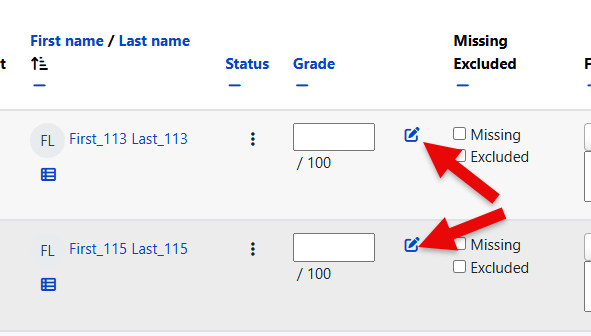
The Student Grading Page lets you enter or update the grade, add feedback comments, use advanced grading when enabled, and upload feedback files if feedback files are enabled in the Assignment Quick Guide settings. You can use drag and drop to upload feedback files.
Online text submission tools
For long online text submissions, use the expand icon to view the full submission. You can also use the copy icon next to the expand icon to copy the full text submission to the clipboard while preserving the text layout as much as possible.
Annotating submissions
If the student has uploaded a PDF, Docx or excel file, or if you set 'Comment inline' for an online text submission, then their submission will be displayed on the grading screen, allowing you to annotate it (requires the site to be configured for annotation and document conversion), using a variety of tools, stamps (if uploaded by the admin) and comments which may be saved to a comments bank. When the annotations are complete, clicking to save the changes will result in it being displayed to the student as part of their feedback.
The submission may be annotated (1) and/or downloaded (2); a grade entered (3) and individual feedback is given (4). The teacher saves the changes (5) and moves to the next student (6)

Comments may be added and then saved in a quick list for future use (1) Click the paper/magnifying glass icon to the right of the page selector to filter comments you have already added to the work(2):
-
In the Search comments pop-up window, enter the term you would like to search for in the Filter comments... box.
-
Clicking on the comment will take you to the part of the paper where that comment has been added.
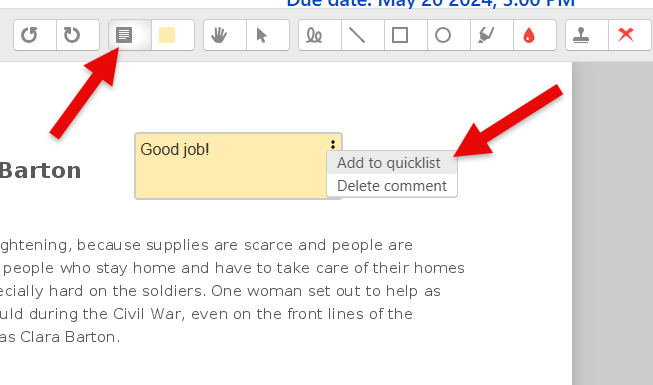
1.Saving and re-using comments |
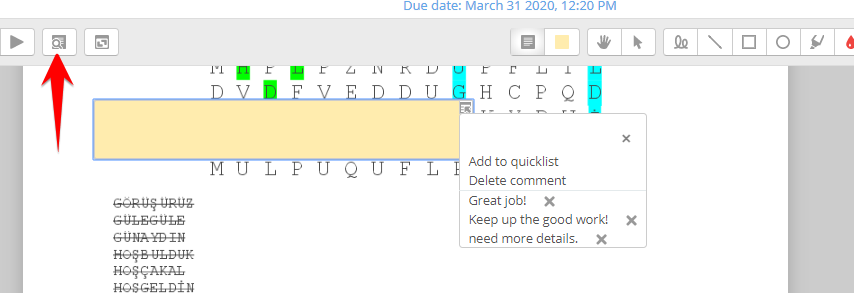
2. Accessing comments |
Note: To ensure that comments display to students as the grader intends, do instruct students to download the annotated PDF rather than just previewing it. Preview sometimes displays comments in a way that obscures the original text.
The review panel and/or the grading panel may be collapsed by clicking the icons at the bottom right of the screen.
AI Feedback and AI Grader
If AI Feedback is enabled for your site, teachers can use it from the individual grading screen to generate draft feedback for online text submissions. Select AI Feedback in the feedback comments editor, review the extracted content and submission, choose the feedback options, and then select Generate feedback.
-
AI Feedback is designed for online text submissions. If no submission is extracted, paste the student’s work into the prompt box and try again.
-
The submission must contain enough text for meaningful feedback. If the text is empty or too short, the generate option is disabled or the teacher is prompted to add more content.
-
The tool can use assignment context and supported advanced grading details, such as rubrics or marking guides, to draft feedback.
-
Teachers can choose options such as tone, focus areas, and grade level. These choices are remembered per teacher and assignment.
-
AI-generated feedback should be reviewed and edited by the teacher before saving. The teacher remains responsible for the final feedback sent to the student.
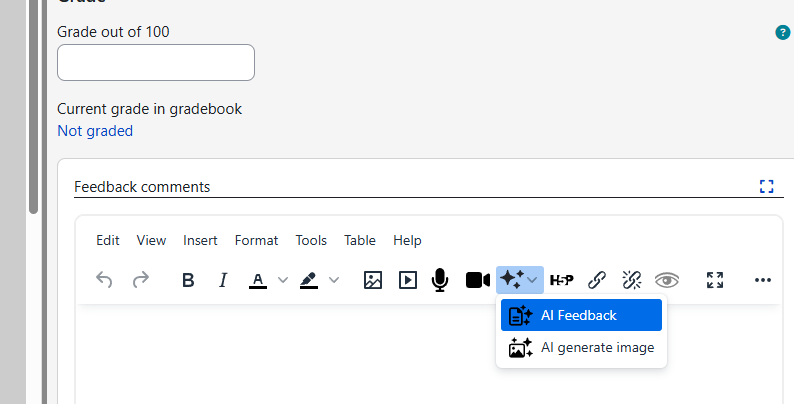
AI Grader
AI Grader is separate from AI Feedback. AI Feedback drafts feedback comments from the feedback editor, while AI Grader can suggest both a grade and student-friendly feedback for written assignment submissions. Teachers remain in control: the AI suggestions are not final until the teacher reviews them, edits them if needed, and saves the grading form.
AI Grader works best for text-based work such as essays, written responses, research papers, and text-heavy submission files. It can use assignment instructions, teacher-provided AI instructions, grade level, grading strictness, and rubric information to prepare a suggested grade and feedback. It does not properly evaluate images, drawings, scanned work where text cannot be extracted, visual design, formatting quality, or other non-text elements.
To use AI Grader, enable AI Grade in the assignment settings, configure the grade level and grading strictness, and optionally provide rubric or instruction details. Then open the assignment submissions page and select AI Grade for an individual student submission. Review the suggested grade and feedback before saving.
Learn more: See Radix LMS AI Tools for AI Feedback and other AI features, and AI Grader: Grading Written Assignments with AI Assistance for the full AI Grader workflow.
Late work grading
Late work grading helps teachers quickly update work that needs attention across their courses. It can show students with missing, excluded, failing, or ungraded work in assignments, quizzes, and SBA activities, depending on your school settings. The page also supports preset feedback comments and can show the configured term average column, such as Q1 Average, which updates after grade changes.
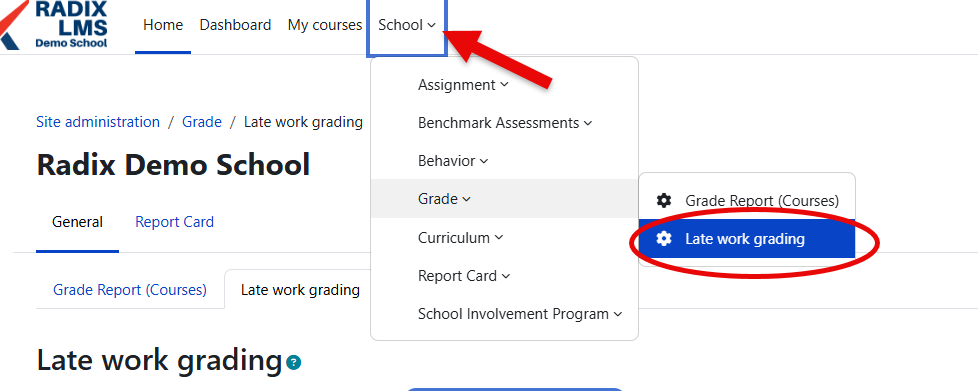
Teachers can filter by student and course to see the items that need attention, then update grades, missing status, excluded status, and feedback comments from the same screen. Once a student’s item no longer matches the attention criteria, it will no longer appear on this page unless it still has a failing grade or another status that needs attention.
Restriction filter: If an assignment has access restrictions, use the option to show only students who currently have access to the selected activity. Assignment grading restrictions also apply on this page. If a grading due date has passed, the item is highlighted and grade changes are not allowed.
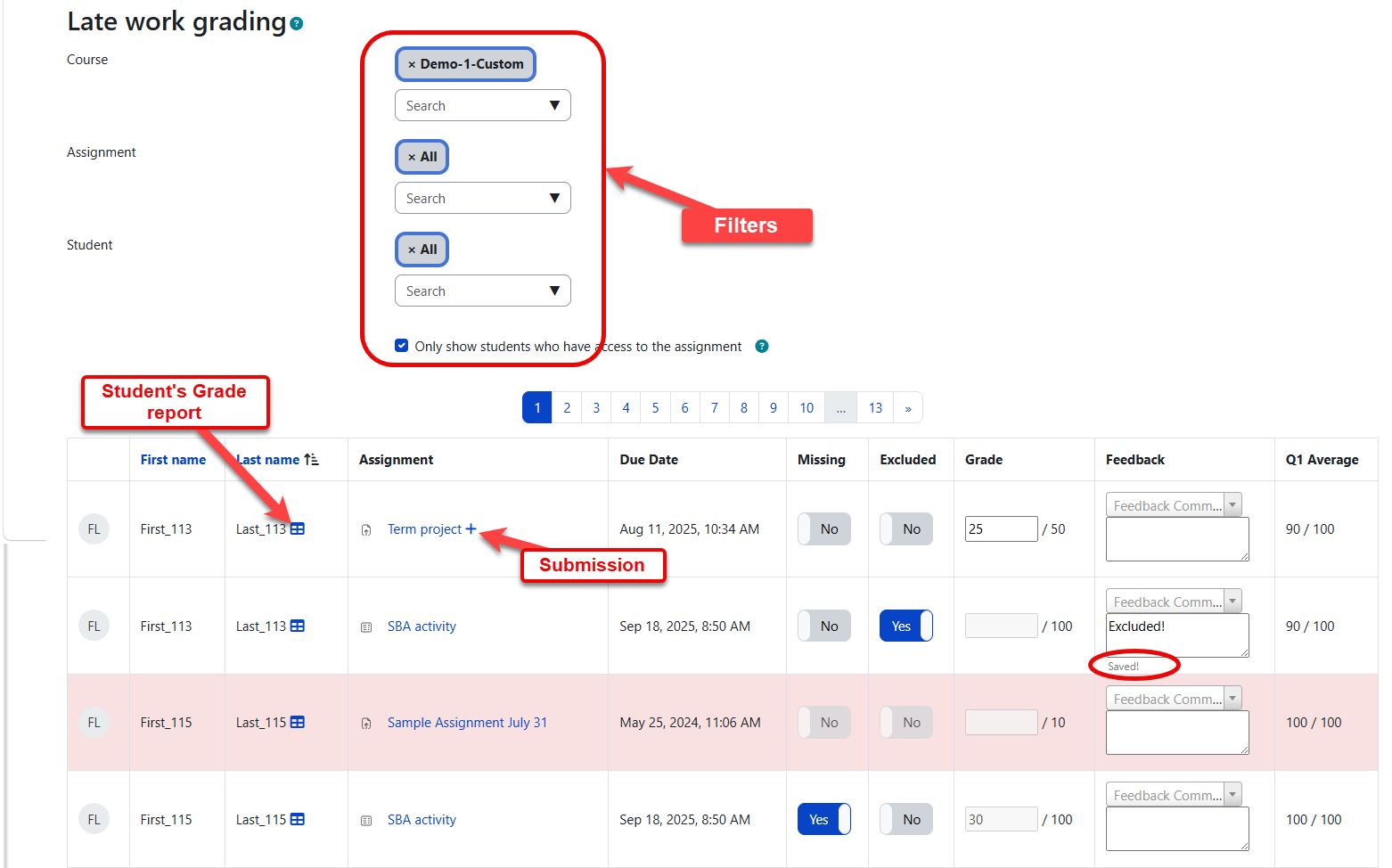
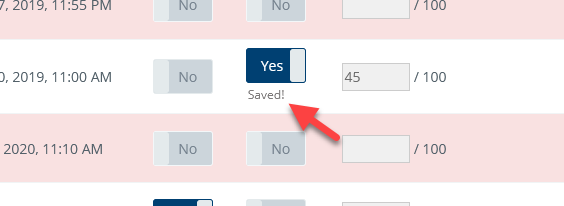
Changes on this screen are saved automatically; you do not need to select a separate save button. After a grade, status, or feedback comment is saved, a Saved! message appears near the field you changed.
Please note that if your school uses assignment grading restrictions, those restrictions apply on this page as well. If the grading due date has passed for an assignment, the item is highlighted and grade changes are not allowed. If your school prevents marking assignments as missing before the due date, the missing option is unavailable until the due date has passed.
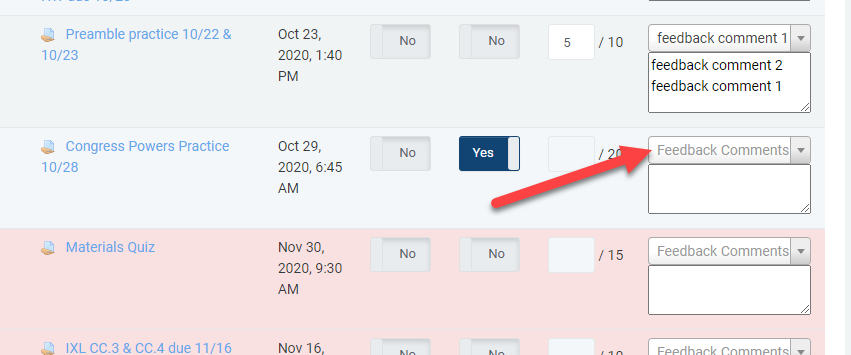
If your school uses a preset feedback comments list, they will appear above the comment box on the late work grading page like below.
Assignments needing attention block
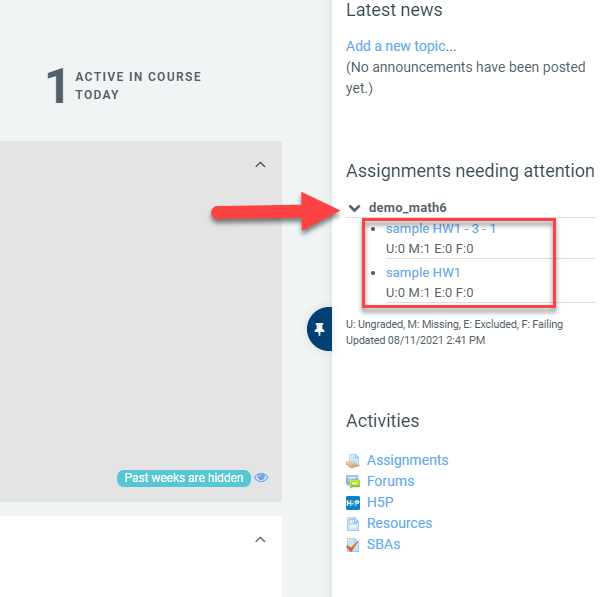
You can also access the quick grading screen of any assignment that needs your attention meaning, an assignment that has missing, excluded, failing, or empty grade. This block will show all of those assignments and clicking on the name of the assignment will take you to the quick grading screen. Please note that this list is updated nightly, so each morning you will see the most updated list on the block. To see the list, click on the small arrow in the block and expand the view.
Students in special programs on grading screens
While you are on quick grading or late work grading screens, you will be able to see if the student is in any of the special programs such as ESE/Special Education, ESOL/ELL, Gifted/TAG, or 504. If the student is in any of these programs, an (*) will be shown in front of his name. Hovering your mouse over this asterisk will show the details of those programs.
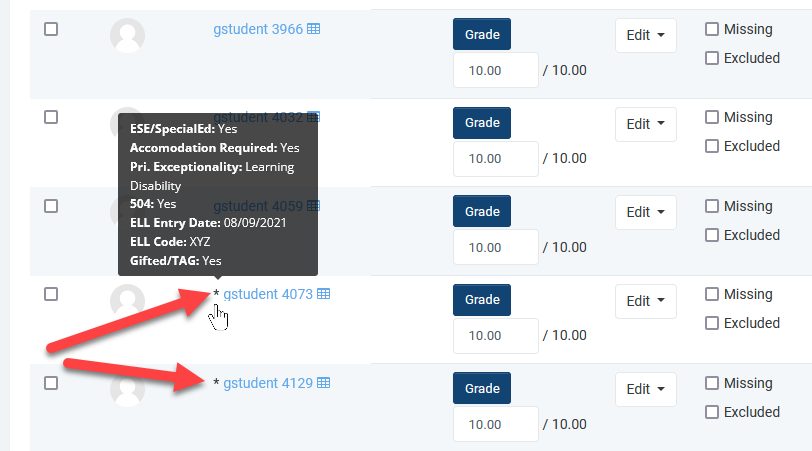
quick grading page |
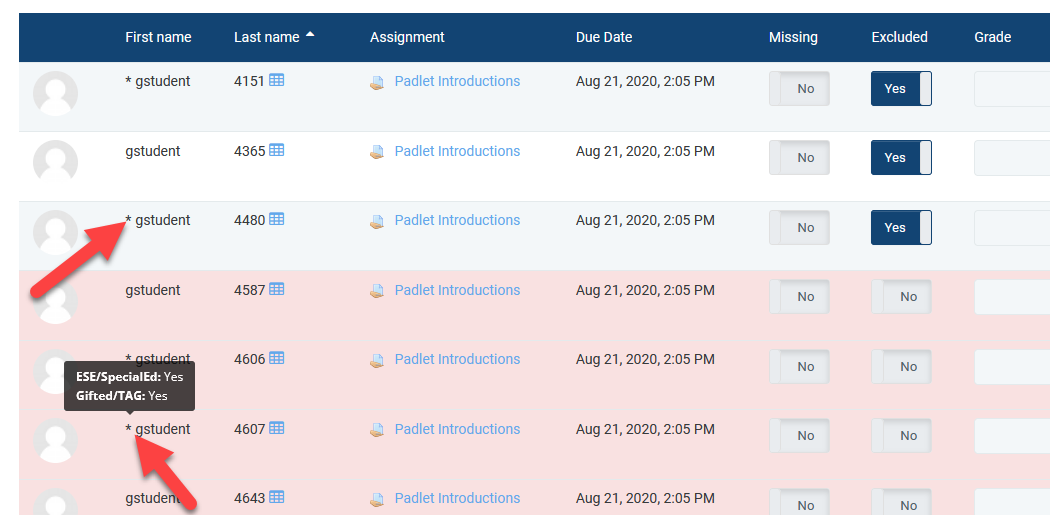
Late work grading page |
Troubleshooting
|
Issue |
What to check |
|---|---|
|
I cannot change a grade. |
The assignment may have a grading restriction or an expired grading due date. Restricted items are highlighted and cannot be edited unless your school changes the restriction. |
|
I cannot mark an assignment as missing. |
Your school may prevent marking assignments as missing before the due date. If enabled, the missing option is unavailable until the due date has passed. |
|
The feedback comments dropdown is empty. |
The feedback comments feature must be enabled by school admins, and preset comments must be added before teachers see selectable comments. |
|
AI Feedback is unavailable. |
AI Feedback must be enabled for the site and is intended for online text submissions with enough extracted or pasted text. It may not appear for unsupported submission types or restricted assignments. See Radix LMS AI Tools for more information. |
|
AI Grader is not showing. |
AI Grade must be enabled in the assignment settings before the AI Grader action appears. It works best with written submissions where text can be extracted. If the assignment has a grading restriction, an expired grading due date, or an unsupported submission type, the AI Grader action may not be available. See AI Grader: Grading Written Assignments with AI Assistance for the full workflow. |
|
I downloaded submissions but did not get the list I expected. |
Check the active submission status filter before downloading. Download behavior can depend on the current filters and assignment settings. |