
About rubrics
Rubrics help teachers grade assignments using clear criteria instead of only entering one overall score. A rubric shows students what you are looking for before they submit, and it helps keep grading consistent across the class.
Use this page when you want to create, edit, or grade with a rubric in an assignment. For broader assignment setup options, see Assignment Setup & Settings. For the full grading workflow, see Using Assignment.
Each rubric is made of criteria and performance levels. For example, a writing rubric may include criteria such as organization, evidence, and conventions. For each criterion, you choose the level that best matches the student’s work. Radix LMS then calculates the assignment grade based on the levels you selected.
Turn on rubric grading for an assignment
You can turn on rubric grading while creating the assignment, or you can add it later from the assignment’s advanced grading settings.
Create or edit a rubric
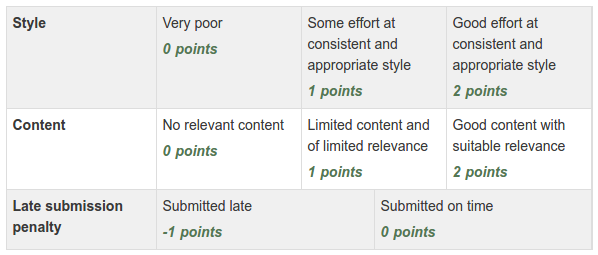
After rubric grading is enabled, you can build a new rubric or choose an existing rubric template.
-
Open the assignment and go to Advanced grading.
-
Choose Define a new rubric from scratch, or choose a saved template if one is available.
-
Add a clear rubric name.
-
Add each criterion, such as content, organization, evidence, accuracy, or conventions.
-
Add the levels for each criterion and enter the point value for each level.
-
Review the rubric options. In most cases, allow students to preview the rubric so they know how their work will be graded.
-
Save the rubric as ready when you are finished. Use draft only if you are still working on it.
Keep rubric language student-friendly. Criteria and levels should describe what successful work looks like, not just list point values.
Helpful rubric options
-
Allow users to preview rubric — lets students see the rubric before they submit.
-
Remarks — lets you add comments for individual criteria while grading.
-
Points — required for grade calculation, even if you mainly use the rubric for feedback.
-
Criterion weight — criteria with higher point ranges count more toward the final grade.
Grade submissions with a rubric
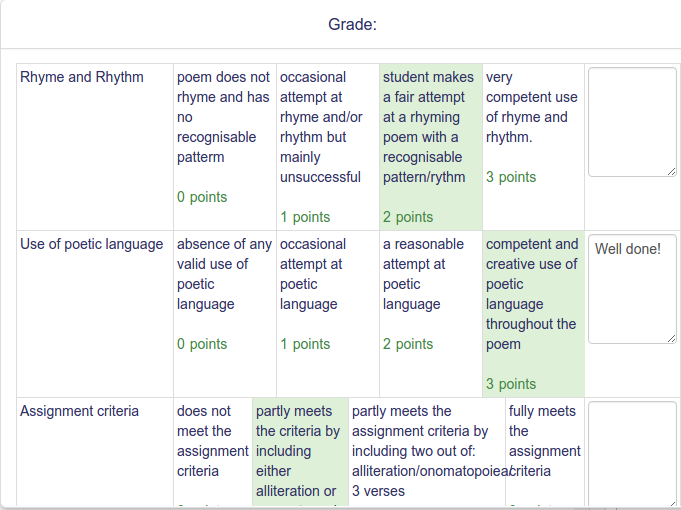
-
Open the assignment.
-
Select View/grade all submissions.
-
Select the Grade icon for the student you want to grade.
-
Review the student’s work.
-
For each rubric criterion, select the level that best matches the work.
-
Add criterion comments if remarks are enabled.
-
Add overall feedback comments or feedback files if needed.
-
Save your changes before moving to the next student.
Every rubric criterion needs a selected level before the grade can be calculated. If you are using AI-assisted feedback, review the suggested feedback and rubric selections carefully before saving.
How rubric grades are calculated
Radix LMS turns the selected rubric levels into the assignment’s final grade. The final score is based on the point values in the rubric and the assignment’s maximum grade.
For example, if an assignment is worth 100 points, Radix LMS converts the rubric result into a score out of 100. If one criterion has more possible points than another, it has more impact on the final grade.
For most teachers, the key step is to make sure your rubric points match your grading intent. Use higher point ranges for criteria that should matter more, and include a 0-point level when you want the lowest level to count as no credit for that criterion.
What students see
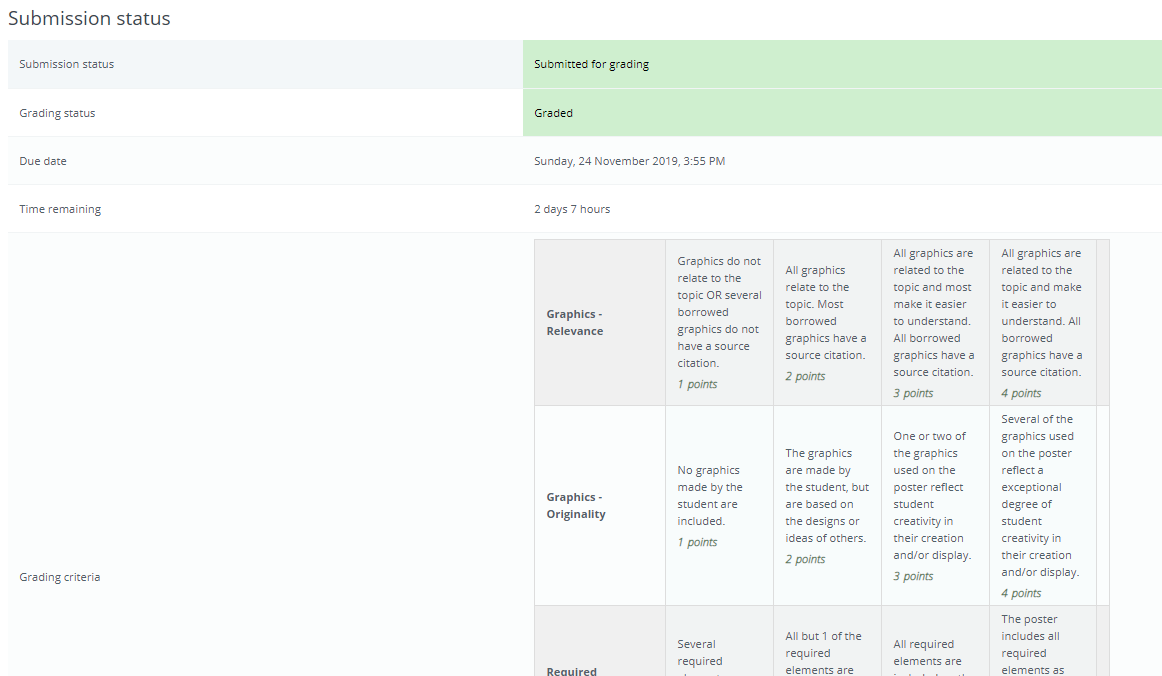
How students view a rubric |
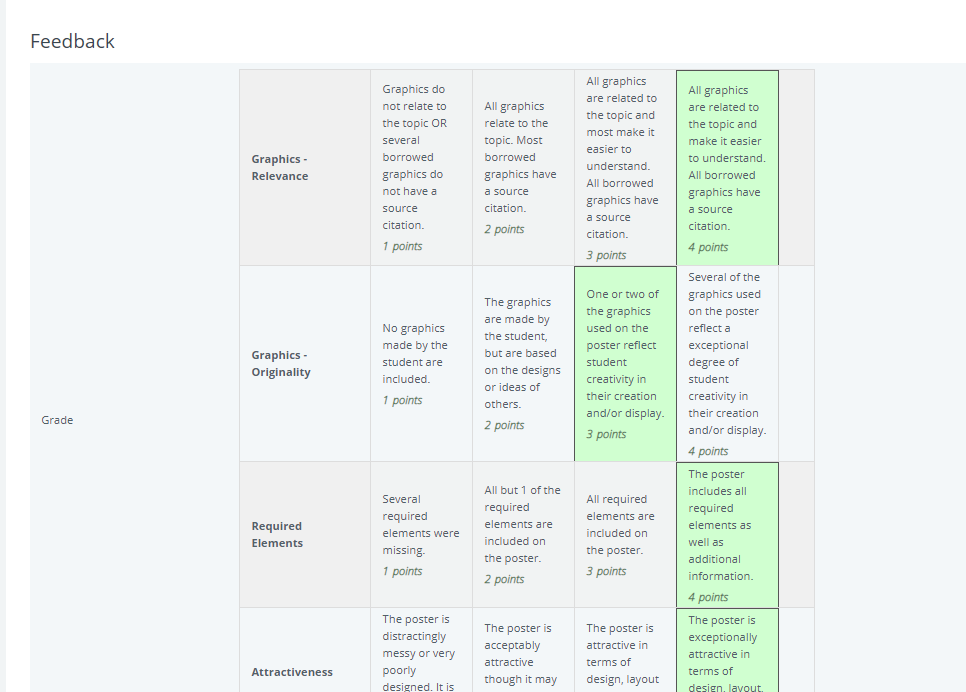
|
If student preview is enabled, students can see the rubric before they submit their work. This helps them understand what a strong submission should include. After grading, students can see the selected levels, rubric comments if used, and overall feedback.
How teachers access the rubric
Teachers access the rubric from the assignment grading screen. Open the assignment, select View/grade all submissions, then select the Grade icon for a student. The rubric appears in the grading area so you can choose levels, add criterion comments if enabled, and save the grade.
FAQ
Where do you go to edit a rubric?
Open the assignment, go to Advanced grading, and choose the option to edit the current rubric definition. Make your changes, then save the rubric when you are finished.
Can you copy rows of the rubric?
Yes. Use the duplicate option on a criterion row to copy it, then update the copied criterion and levels as needed. This is useful when several criteria use the same performance levels.
How do you choose another rubric for an assignment?
Open the assignment and go to Advanced grading. Remove the current rubric, then choose another saved template or create a new rubric from scratch. Be careful if grading has already started, because changing the rubric can affect existing grading work.
Why are total grades coming out strange?
Unexpected grades usually happen when the rubric point values do not match the intended weighting. Check that each criterion has sensible point values, that higher-value criteria are meant to count more, and that the lowest level is 0 points if you want that level to give no credit.