
Use assignments when students need to turn in work for grading, or when you need to grade work completed outside of Radix. Students can type responses online, upload files, or complete work offline while you record the grade in the course.
Create an assignment
-
In your course, turn editing on and choose Assignment from the activity chooser.
-
Enter a clear assignment name and write short instructions in the description. Include what students should submit and any important due-date expectations.
-
If needed, add directions, examples, or templates in the Additional files area.
-
Choose the submission type: Online text, File submissions, or no submission for offline work.
-
Review availability, grading, feedback, and submission settings. For rubrics, choose Rubric as the grading method, then create or attach the rubric after saving the assignment.
-
Click Save and display to review the assignment before students begin.
If a setting is not available, it may be controlled by your school or site settings. Ask your administrator if you need help finding a specific option.
When writing assignment descriptions or instructions, teachers may see AI tools in the text editor. These can help draft or improve text, summarize content, explain content, or create images when the tools are enabled for the course or activity. Learn more in Radix LMS AI Tools.
Choose how students submit work
Assignments can collect work in different ways. Choose the option that matches what students need to turn in.
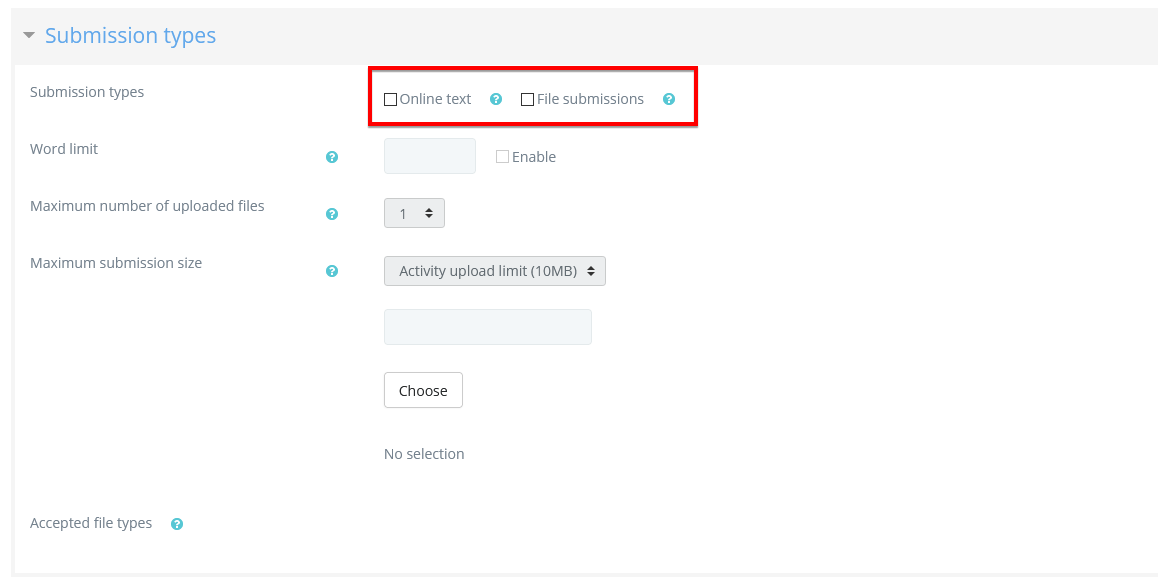
Online text: Students type their response directly in Radix. This works well for short answers, reflections, journals, and written responses. You can set a word limit if needed.
File submissions: Students upload one or more files. Use this when students need to submit documents, slides, images, PDFs, or other files you can open and review.
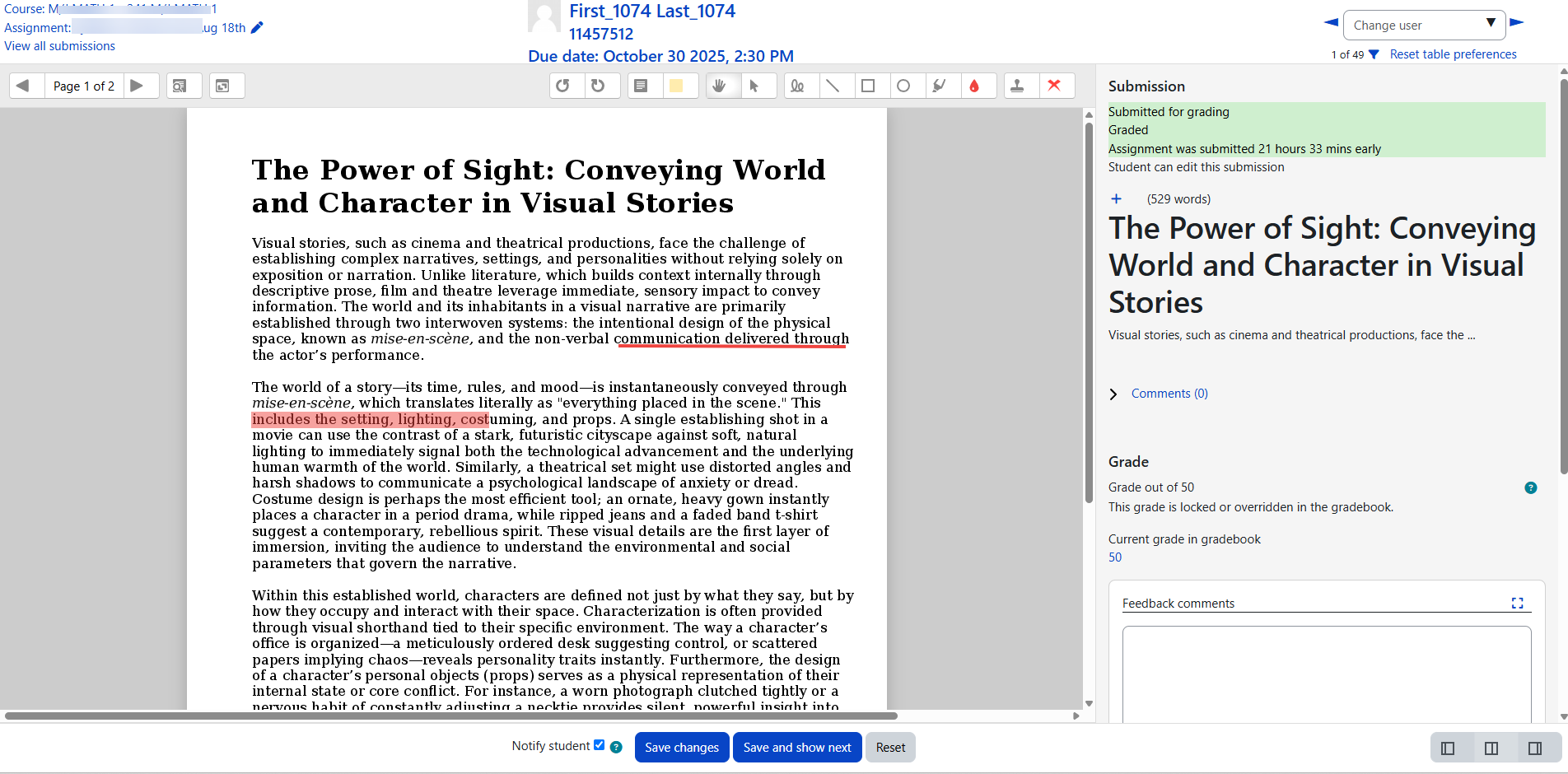
Some uploaded documents can be converted so you can write comments directly on them in the browser. If this does not work for a file type your teachers need, ask your administrator to check document conversion settings.
In the example below, a DOCX file has been uploaded and converted so the teacher can add comments directly on the student’s work.
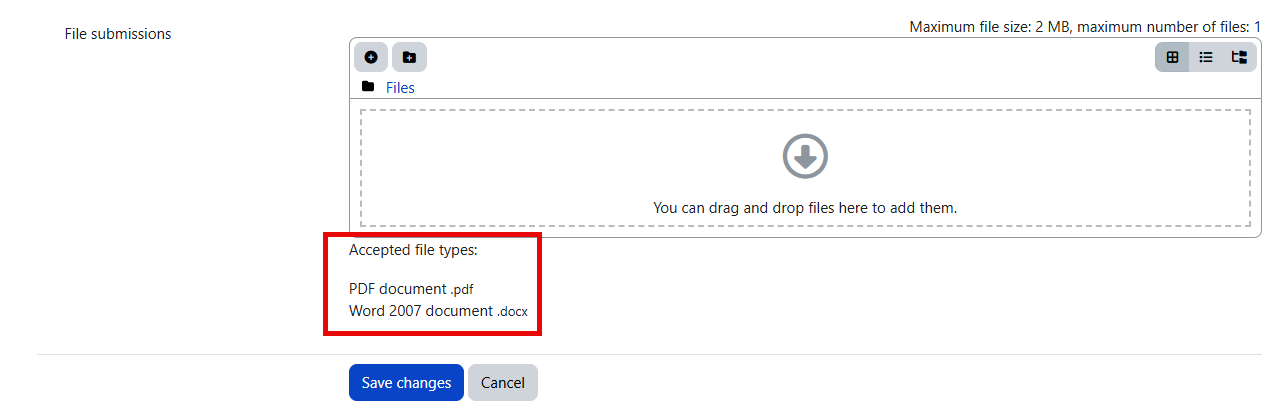
Maximum submission size: This controls the largest file a student can upload for this assignment. You can also limit accepted file types, such as PDF, DOCX, or image files. If you leave the accepted file types blank, students can upload any file type allowed by the course.
If the file types have been restricted, then when students attempt to submit the assignment, they will see a message telling them which files are accepted:
What students see
Student view
-
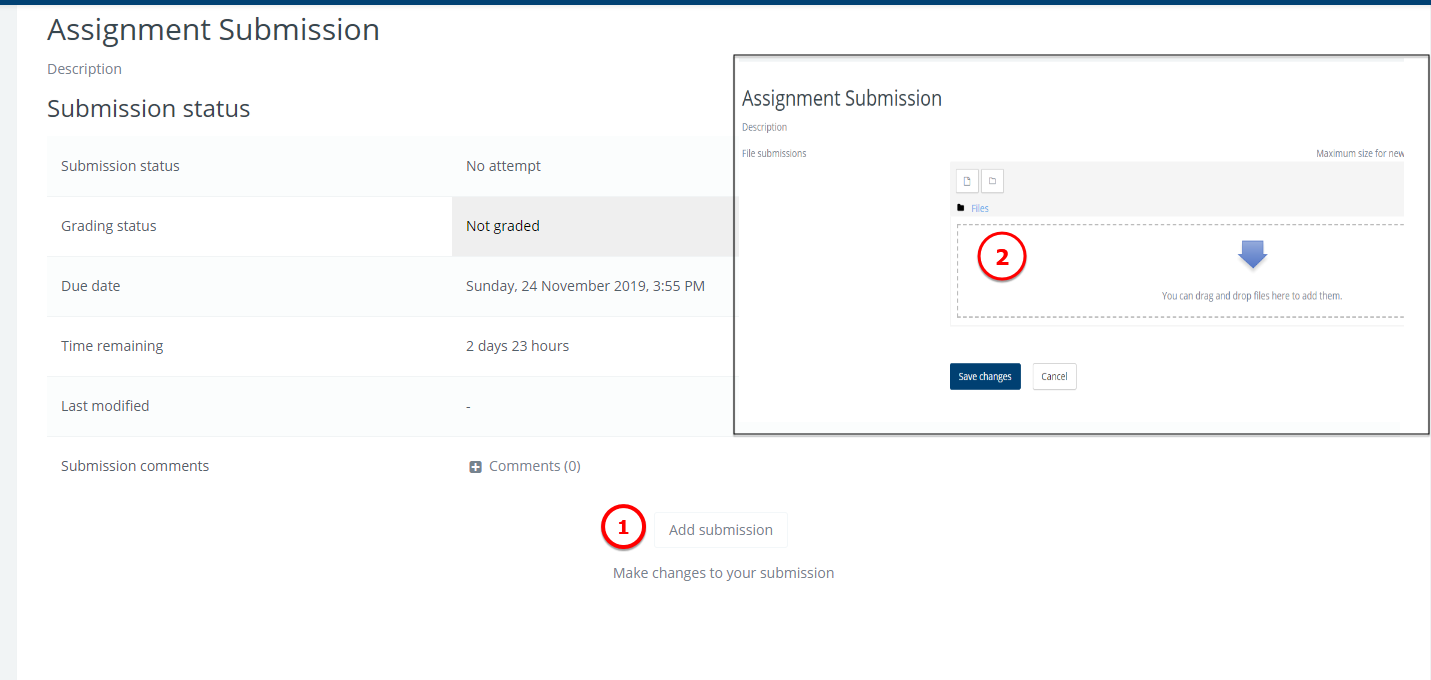
Students open the assignment from the course page and click Add submission.
-
Depending on the assignment settings, students type their response, upload a file, or both.
-
If drafts are allowed, students may return and make changes before submitting the final version.
-
If the assignment requires final submission, students click Submit assignment when they are ready to turn in their work.
Teacher view
-
After students submit work, open the assignment to see the grading summary.
-
Click View/grade single submission to grade one student at a time, or click View/grade all submissions to open the full class grading table.
-
From the grading screen, you can review the student’s work, enter a grade, add feedback comments, upload feedback files, annotate supported files, save your changes, and move to the next student.
-
For offline assignments, use View/grade all submissions to enter grades and feedback even though students did not submit work online.
Helpful detailed guides
-
Assignment Setup & Settings — use this when you need more detail about due dates, submission types, grading options, feedback settings, group submissions, activity completion, AI tools, AI Grade, and offline assignments.
-
Using Assignment — use this for the full grading workflow, including viewing submissions, filtering, quick grading, bulk actions, feedback, and annotation.
-
Using Rubrics — use this when you want to grade with a rubric instead of a simple score.
-
Grading — use this for the broader teacher grading tools, including quick grading, bulk updates, AI-assisted feedback, late work, and special program indicators.
-
AI Grader: Grading Written Assignments with AI Assistance — use this when you want AI help reviewing written submissions while keeping the final grade and feedback under teacher control.
-
Radix LMS AI Tools — use this for an overview of AI tools available in Radix LMS.