
Recurring assignments let you create several copies of the same assignment at once, such as daily warm-ups, weekly journals, or repeated homework checks. Start by creating one base assignment with the directions, grade settings, and submission settings you want to reuse.
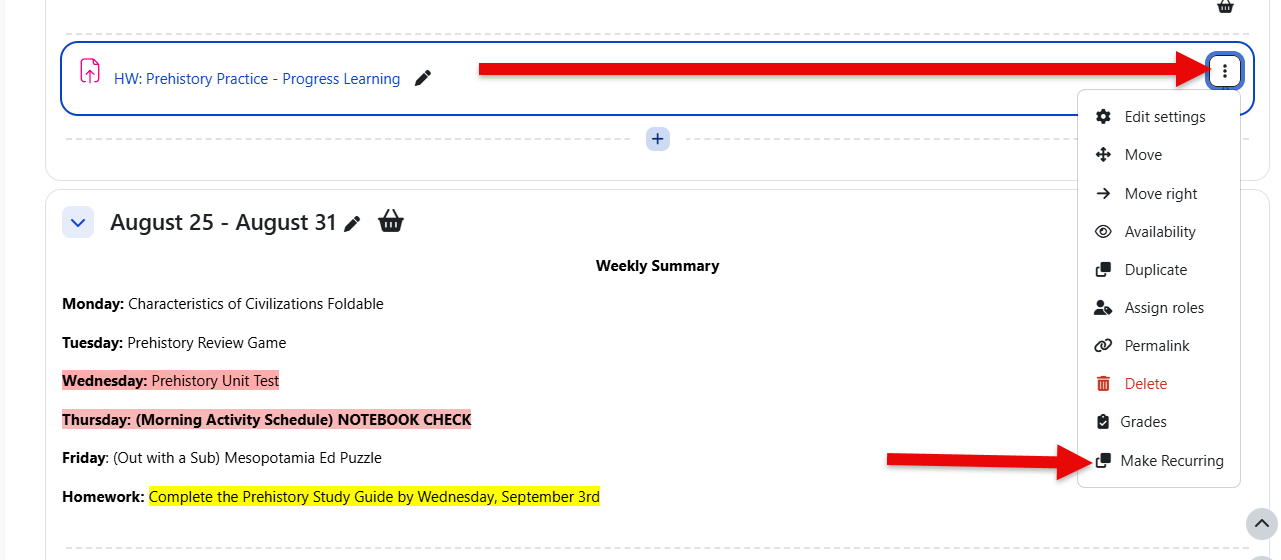
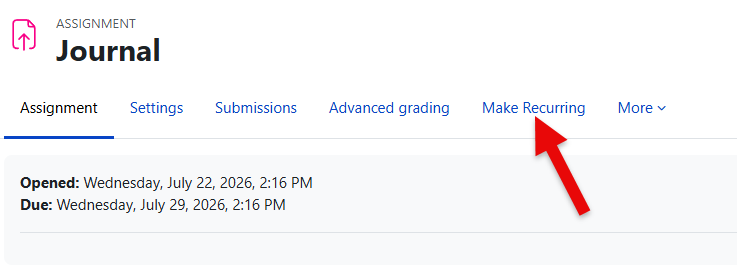
To begin, open the assignment edit menu and click Make recurring.
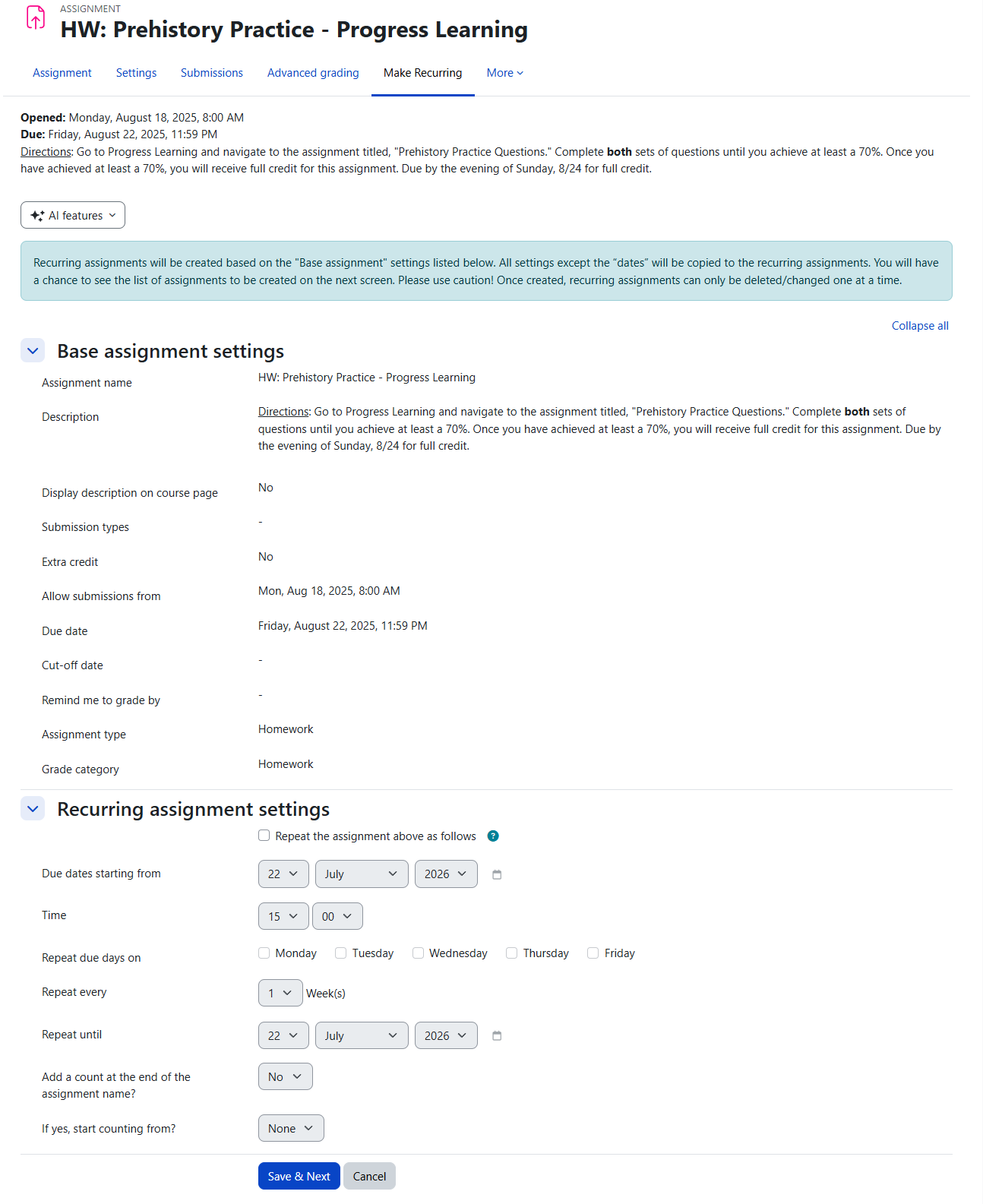
The recurring assignment form shows the details of the base assignment and lets you choose how the copies should be created. Select the frequency of recurrence, the days of the week, the start date, and when the recurrence should stop.
You can end the recurrence after a set number of assignments or on a specific date. The end date cannot go beyond the course or term end date, so make sure the course has an end date before using this feature.
If you want the assignment names numbered, enable the numbering option and choose the starting number. For example, Radix LMS can create Journal 1, Journal 2, Journal 3, and so on.
After you click Save & Next, Radix LMS shows a confirmation list of the assignments that will be created. Review the assignment names, dates, weeks, and grading categories carefully. If anything needs to change, go back, update the recurrence settings, and save again.
If all selected due dates fall on school holidays or non-school days, Radix LMS shows an error and asks you to go back and adjust the dates. If only some dates fall on holidays, those dates are skipped and a warning appears on the confirmation screen.
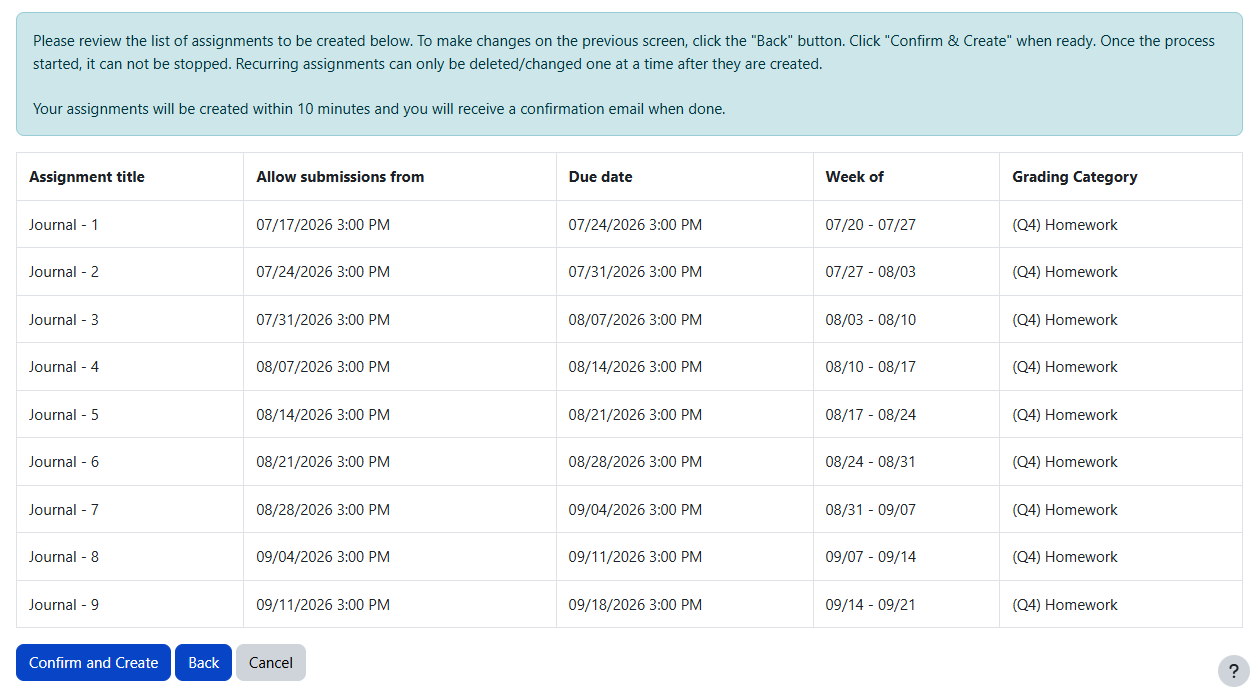
When the list looks correct, click Confirm and Create. Radix LMS queues the recurring assignment task and shows a success message. The assignments are created in the background, and you will receive an email confirmation when the process is complete.
You cannot start another recurring assignment task for the same course while one is already running. Wait for the confirmation email before creating another recurring assignment set.
Use caution when creating recurring assignments. After the assignments are created, they cannot be deleted in bulk. If you create the wrong set, you must delete or edit the assignments individually.