
Radix Grade Settings
The grade settings control thresholds, display options, and features used across grade reports, dashboards, and notifications. Navigate to School → Grade → Radix Grade Settings to configure them.
|
Setting |
Type |
Default |
Description |
|---|---|---|---|
|
Failing grade threshold % |
Dropdown (0–100) |
60% |
Any grades below this percentage are considered failing for grade alerts, dashboards, and the GPA report's failing course count. |
|
Number of failing courses threshold |
Number |
3 |
Students with failing grades in this many or more courses will be included in failing grade alerts. |
|
Exclude scale courses from GPA calculation |
Checkbox |
On |
When enabled, courses using SCALE as the grade type for any term average are excluded from the simple GPA calculation on the GPA/Average report. |
|
Include courses/students without term grades |
Checkbox |
On |
When enabled, official courses with no term grades will still appear on the Grade Report (Courses). You can then filter for students without grades. |
|
Enable feedback comments list |
Checkbox |
Off |
When enabled, teachers see a searchable dropdown list of pre-populated feedback comments on grading pages. Admins manage the list via School → Grade → Feedback Comments (see the Feedback Comments section below). |
|
Show decimal points on grade history PDF |
Checkbox |
On |
When enabled, numerical grades on the grade history PDF show two decimal places (e.g., 89.51). When off, grades are rounded to the nearest whole number (e.g., 90). |
|
Show letter grade on grade history PDF |
Checkbox |
On |
When enabled, letter grades (A, B, C…) appear next to numerical grades on the grade history PDF. |
|
Show all students on late work grading for SBAs |
Checkbox |
Off |
When enabled, all students (including those with passing grades) appear on the late work grading page for SBA activities. When off, only students with missing, excluded, or failing grades are shown. |
Grade Reports
There are four different school-wide grade reports: Term grade report, GPA report, grade history report, and achievement report.
Term Grade Report
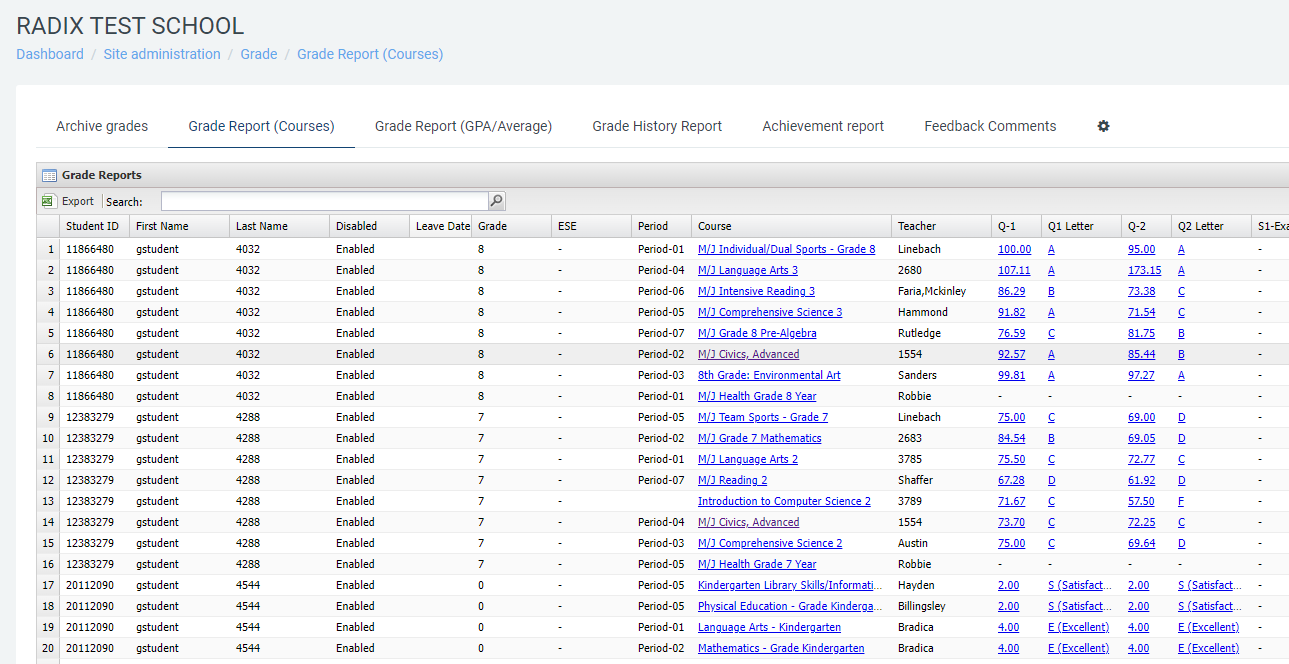
Also called "Grade Report (Courses)." This report shows students' term grades, end-of-year course averages, and final grades (if any). Click a course name to view the course grade report with all assignment grades for all students. Click a student's grade to view that student's individual grade report for the course.
Export & filter behavior:
-
When exported to Excel, grades are rounded to 2 decimal places (e.g., 89.88 instead of 89.876543).
-
Demographic filter fields display human-readable values: Race and Ethnicity show actual labels (e.g., "White", "Hispanic") instead of numeric IDs. ESE, ELL, and Gifted columns display "Yes" or "No" instead of 1 or 0.
-
The Grade column on exports shows readable labels (e.g., "7th Grade", "Kindergarten") instead of numeric values.
-
The "Disabled" column on exports is labeled "Withdrawn" with "Yes"/"No" values.
GPA Report
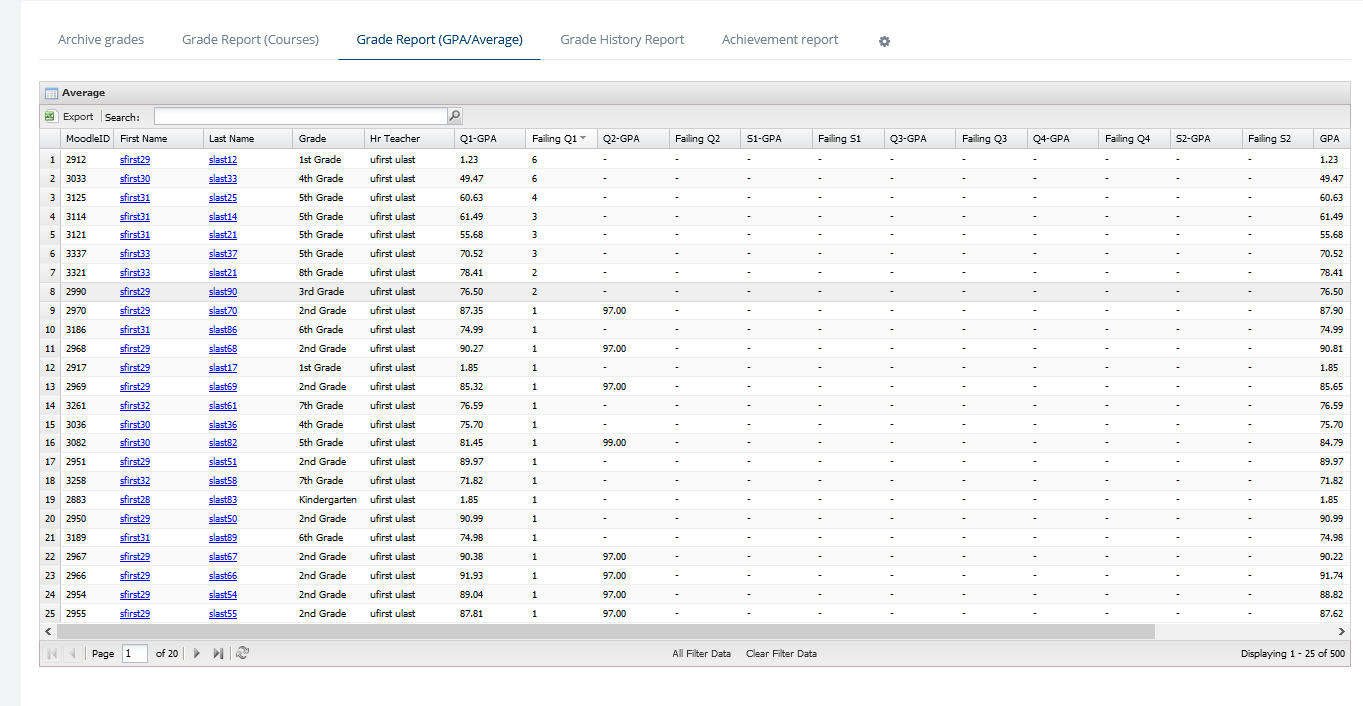
This report shows each student's simple GPA per term, calculated from course weights. It also displays the number of failing courses per grading term. Click a student's name to view their detailed course grades.
Grade History Report
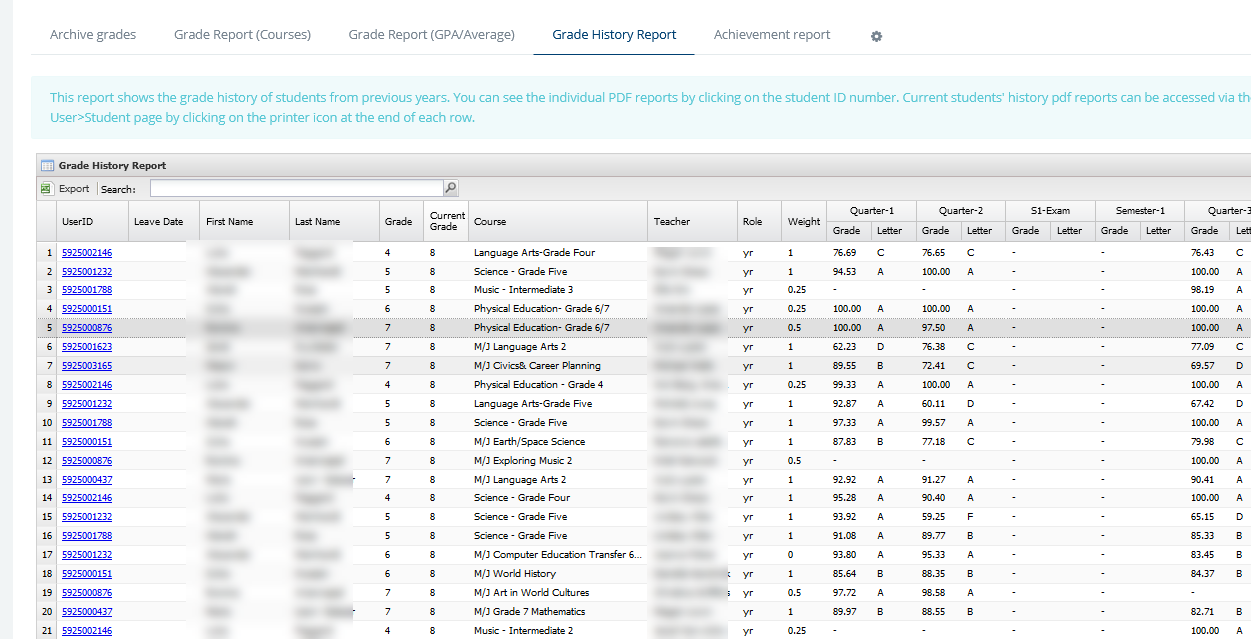
This report shows students' grade history from previous years and the current year.
You can download the individual PDF report of a student's grades by clicking on the student ID number. The downloaded file uses a descriptive filename format: GradeHistory_[StudentID]_[FirstName]_[LastName]_[MMDDYYHHMM].pdf (e.g., GradeHistory_100001626_John_Smith_061520261045.pdf). When viewing from the grade history page or the student user page (printer icon), the same naming format applies.
Two settings control the PDF display:
-
Show decimal points — When enabled, grades show two decimal places. When off, grades are rounded to the nearest whole number (89.51 → 90).
-
Show letter grade — When enabled, letter grades appear next to numerical grades (e.g., "89.51 (B)").
These settings are configured in Radix Grade Settings (see settings table above).
Archiving Grades
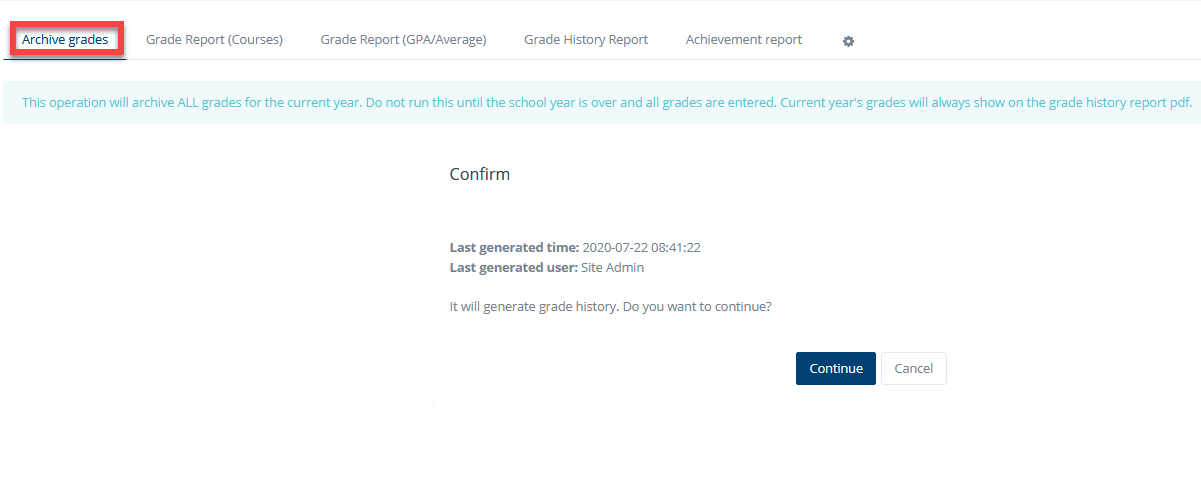
School admins must archive the current year's grades once they are finalized. Archiving records grades into the grade history report and makes them available in subsequent years. Do not archive mid-year — doing so causes duplicate records on the grade history PDF. Only archive after the school year ends and all grades are finalized.
Achievement Report (new)
This report generates a list of students based on criteria you define, such as A Honor Roll, A/B Honor Roll, or B Honor Roll.
How to Set a Criterion
No students appear on this report until you add at least one criterion. To add a criterion, go to the achievement report, click Achievement Criteria, then click "Add criterion" on the next page.
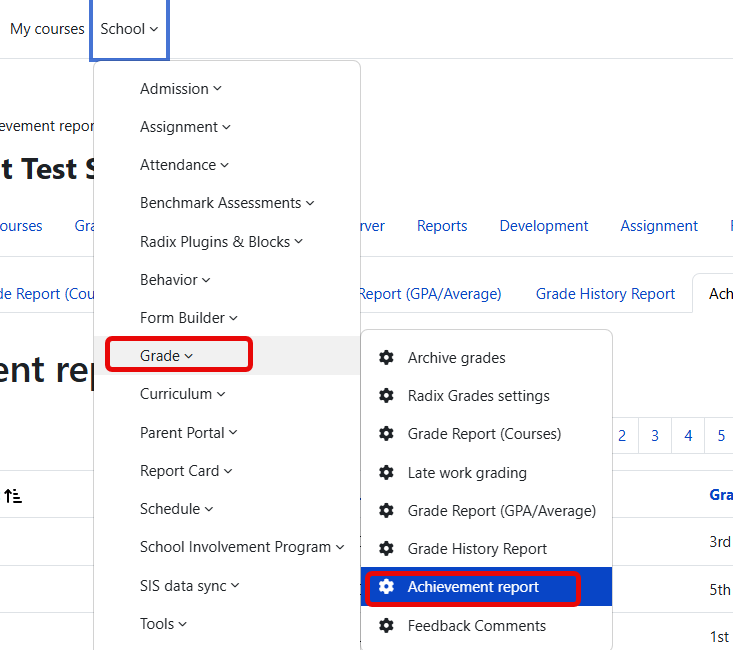
1- Go to achievement report under "grade" |
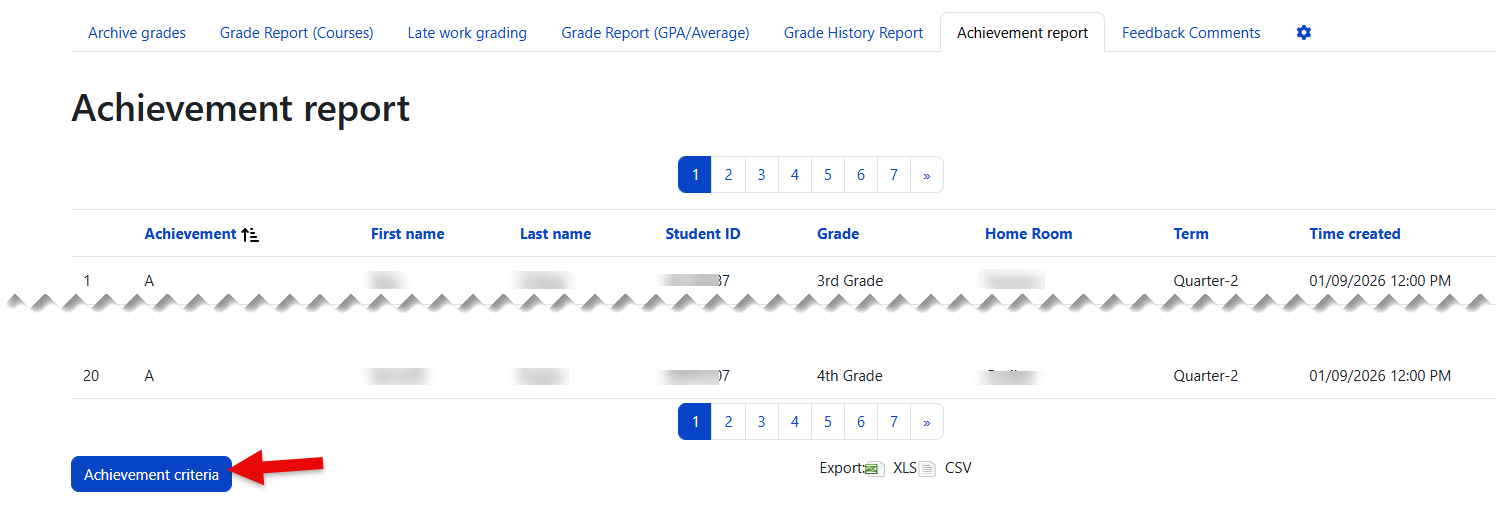
2- Click on "Achievement criteria" to see or add/edit them. This screen is where your report will appear once it is generated. |
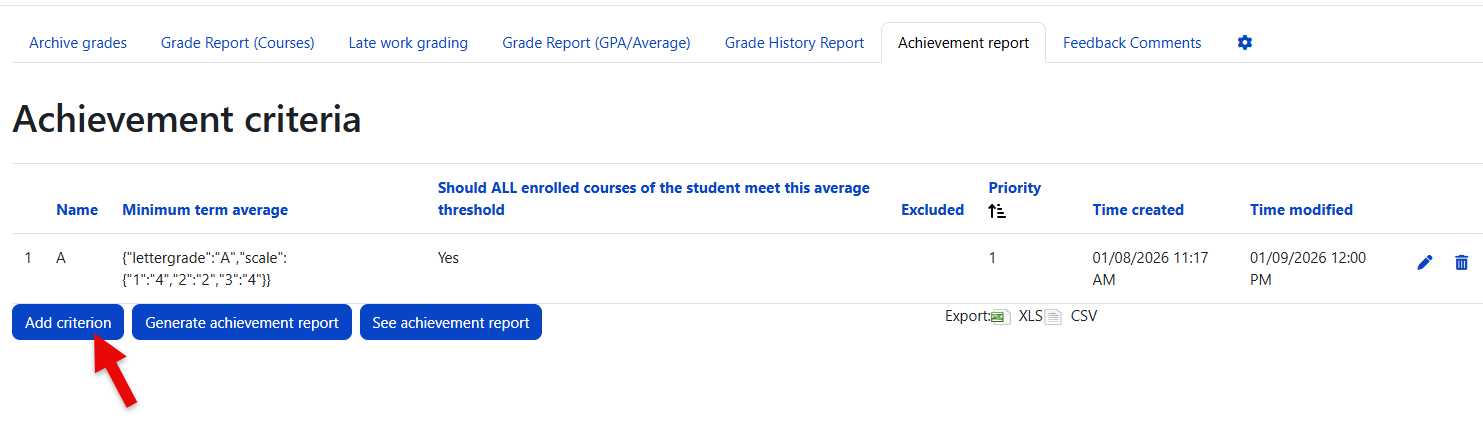
3- Click "Add criterion" if this is the first time you are adding them. If you already added them, this is the page where they will be listed. |
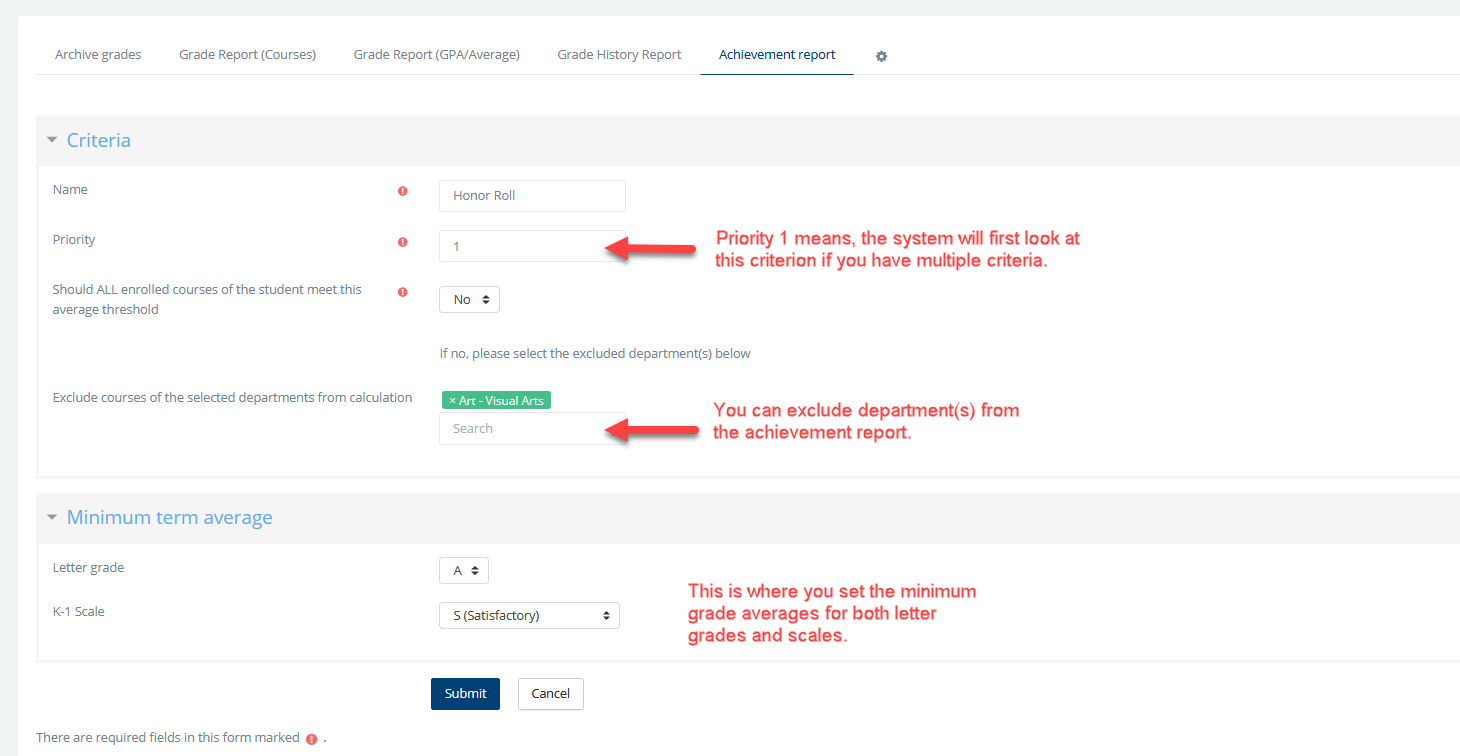
On the next page, enter the details for your criterion (e.g., Honor Roll). Once saved, add your next criterion (e.g., A/B Honor Roll).
|
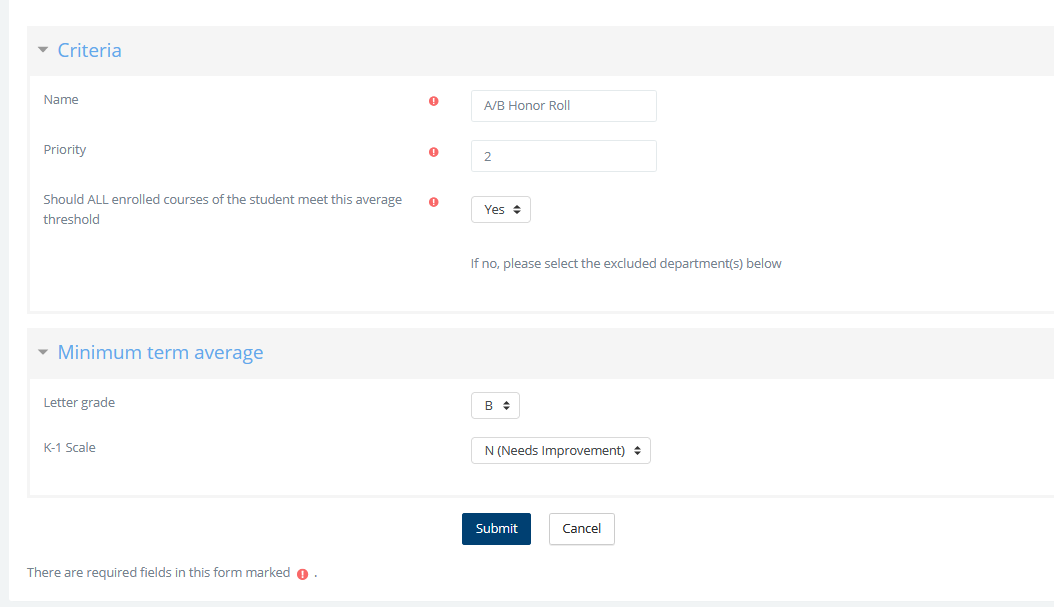
A second criterion with a priority of 2 |
When adding multiple criteria, assign priorities so the system knows which to evaluate first. Higher achievements should have higher priority. This ensures each student appears in only one achievement roll.
Once all criteria are added, you can generate the achievement report. Click the "Generate Achievement Report" button and select the term. You will receive an email confirmation once the report is ready, typically within 15 minutes.

|
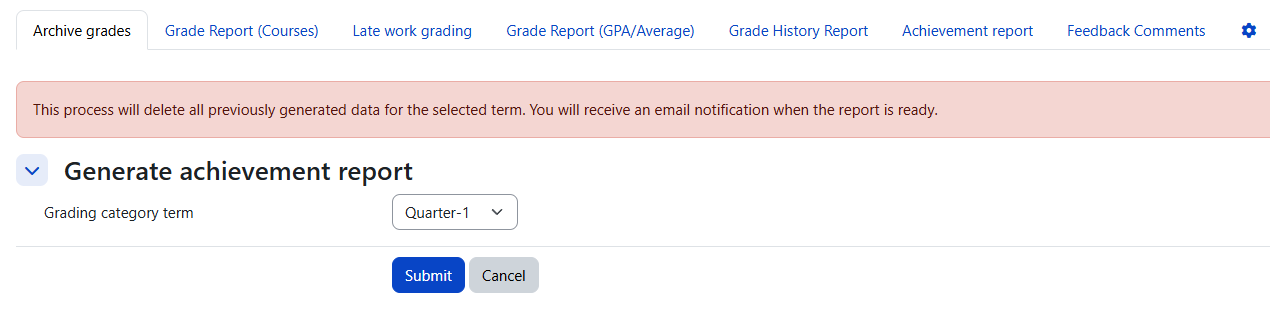
To generate your report, select the term and click Submit. Re-generating a report erases the previous data for the selected term. |
After generation completes, click "See Achievement Reperation is completed. You will be able to download this report in Excel or CSV format to be used on certificates.
Note: By default, students must have grades in all enrolled courses to qualify for the achievement report. To include students who have at least one term grade but may be missing others (e.g., students enrolled mid-y
at least one term grade but may be missing others (e.g., a student enrolled mid-year), enable the "Include Students with Empty Course Grades" option when generating the report.
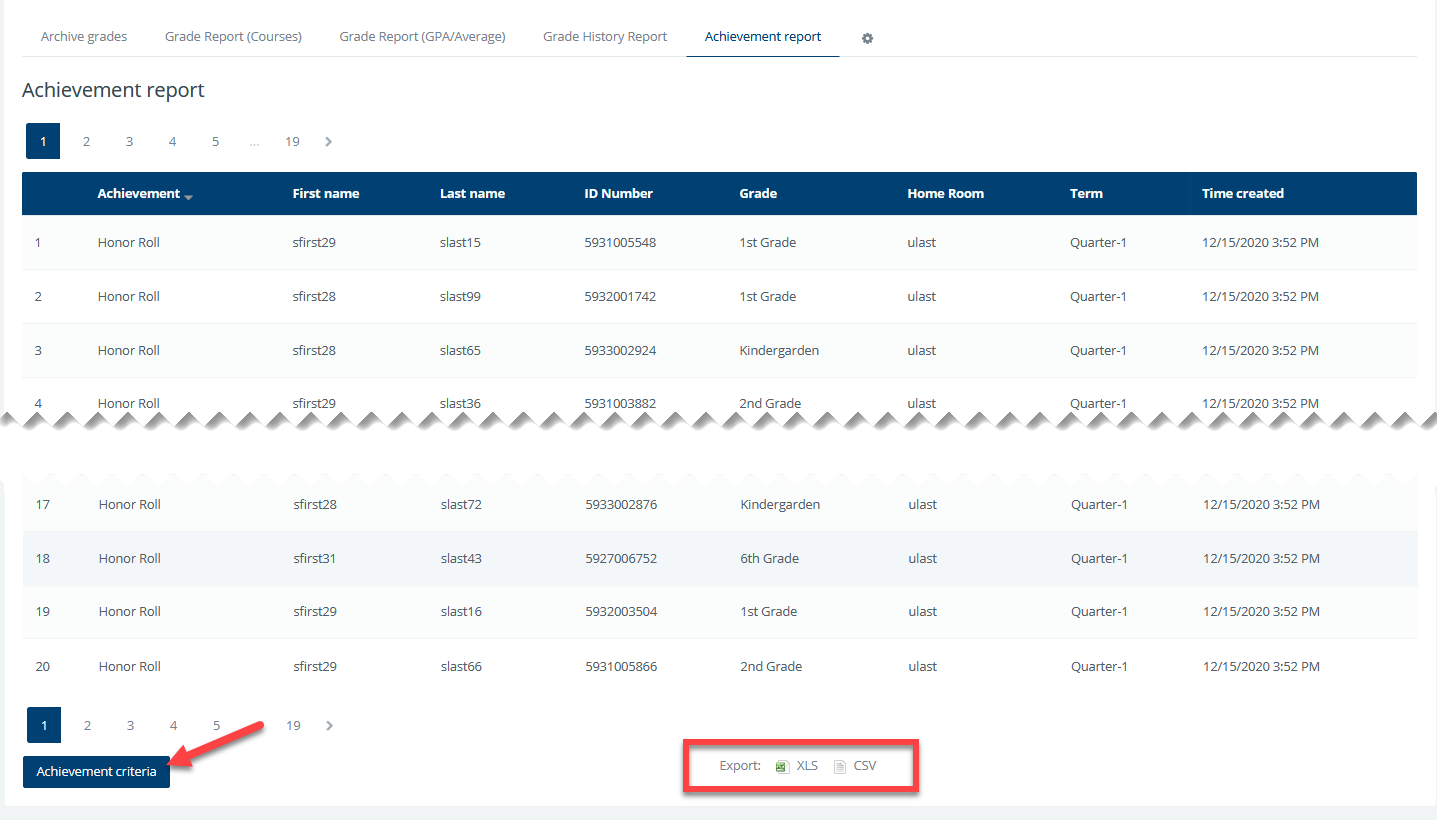
The achievement report with the names, ID numbers, grade levels, homeroom, and term information of students. |
Feedback Comments List
You can create a list of feedback comments that could be used by teachers to select when giving comments on the grading screens. To turn this feature on for the entire school, navigate to School > Grade > Radix grade settings and check the box next to "Enable feedback comments list" setting.

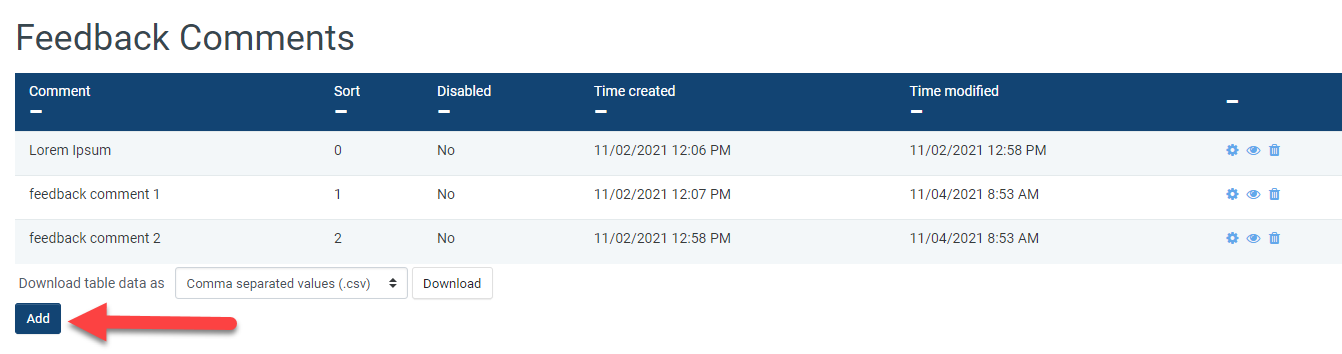
To manage the list of available feedback comments, navigate to School → Grade → Feedback Comments.
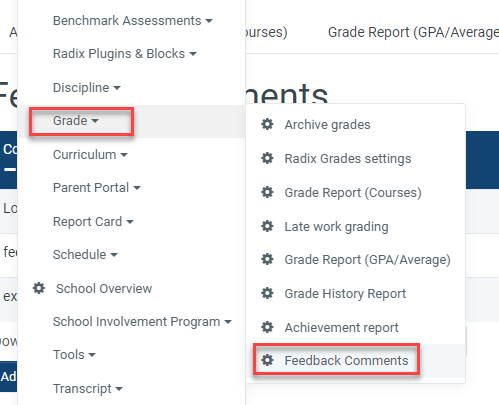
Click the Add button to create a new comment, or use the gear icon at the end of a row to edit one. Click the eye icon to hide a comment from the list. Comments already used by teachers are not affected by changes, deletions, or hiding.
Once the feature is enabled and comments have been added, teachers see a searchable dropdown list above the feedback text box on their grading page. Select a comment to insert it into the text box, where it can be further edited if needed.
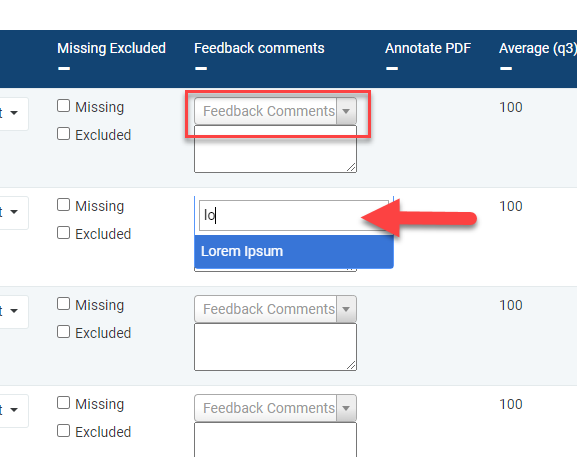
Select or start typing to find a comment |
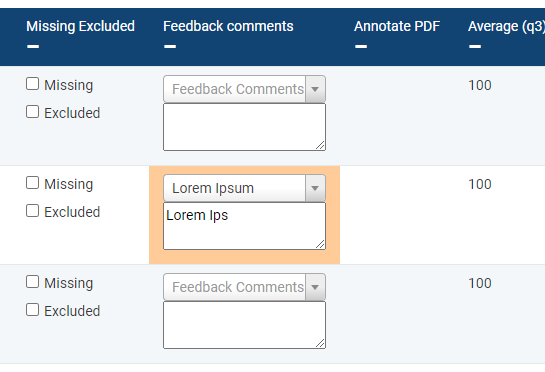
Edit the selected comment if desired |