
A course can be saved with some or all of its parts by using the course backup. Typically, the whole site will be archived at the end of the school year. A teacher can create a backup or download an existing backup for use on another Radix LMS site.
Backing up a course or a single activity such as an SBA or Assignment follows the exact same process. When backing up an SBA, you still have to go through the course backup process and select that single activity from the list of activities in the course. Below is an example of backing up a single SBA activity.
Steps to backup an SBA (or other course content)
-
Go into the course where your SBAs (or other activities) are created.
-
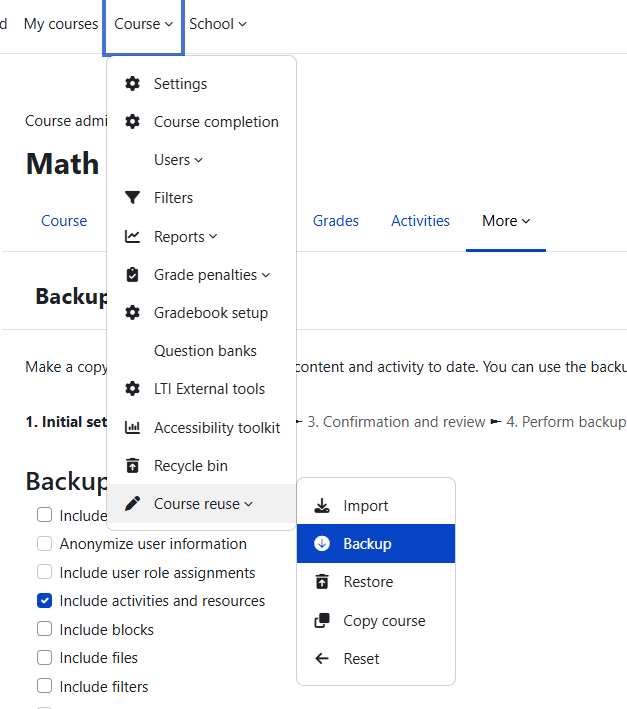
Go to the course Backup page via Course > Course reuse > Backup
-
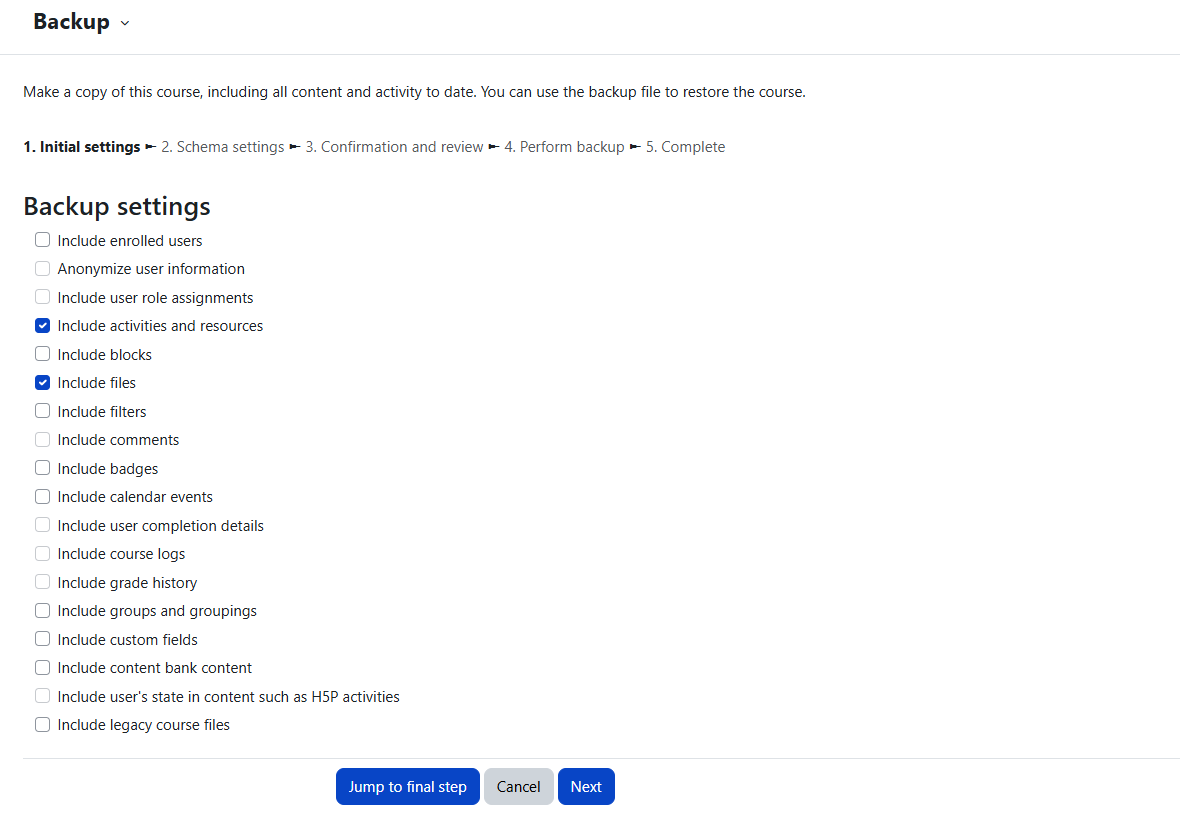
Initial settings - Select what you want to include in this backup file such as activities, blocks, filters, and other items as you wish, then click the Next button. In this example, we are backing up an SBA. To do that, you should only select "Include Activities" and "Include question bank". There is no need to include any other items since we are only interested in backing up one or more activities such as SBA or Assignment. When ready, click Next.
-
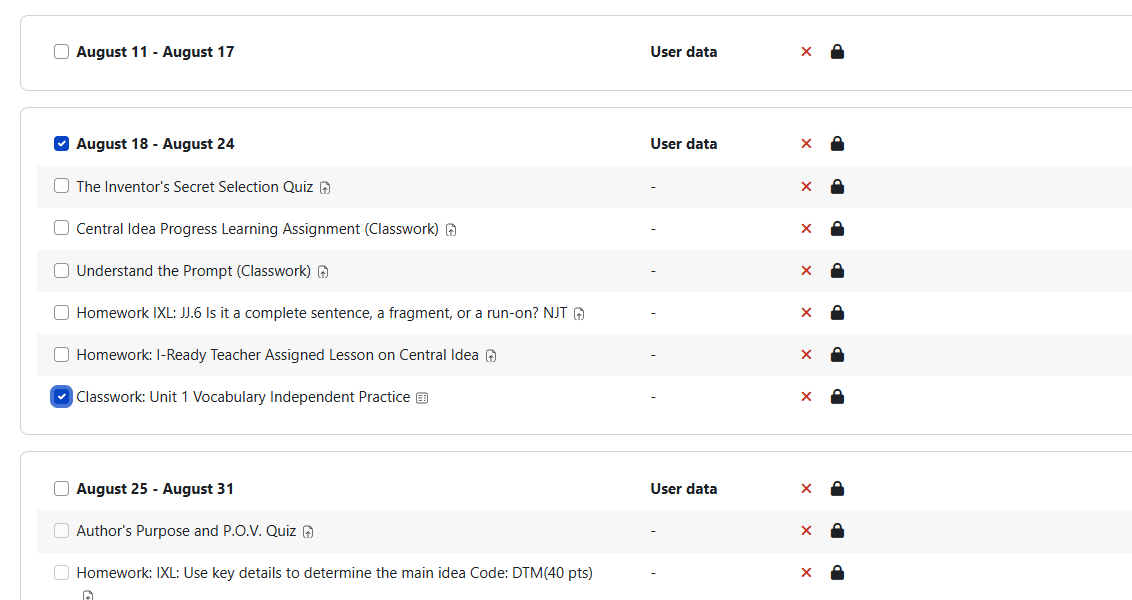
Schema settings - Select/deselect specific items to include in the backup, then click the Next button. If you have too many items in your course but only want to back up a few, it would be easier to unselect all and select the ones you want. To do that, click "none" at the top of the page and select the week titles where your activities reside, then select the activity you want to include in this backup.
-
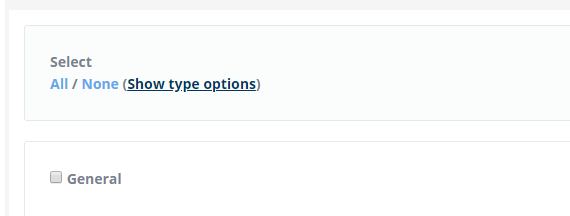
If desired, select specific types of activity to be backed up by clicking the link 'Show type options'. If you select a specific type of activity, such as SBA, make sure to select the week it belongs to.
-
Confirmation and review - Check that everything is as required, using the Previous button if necessary; otherwise, click the 'Perform backup' button.
-
Complete - Click the Continue button.
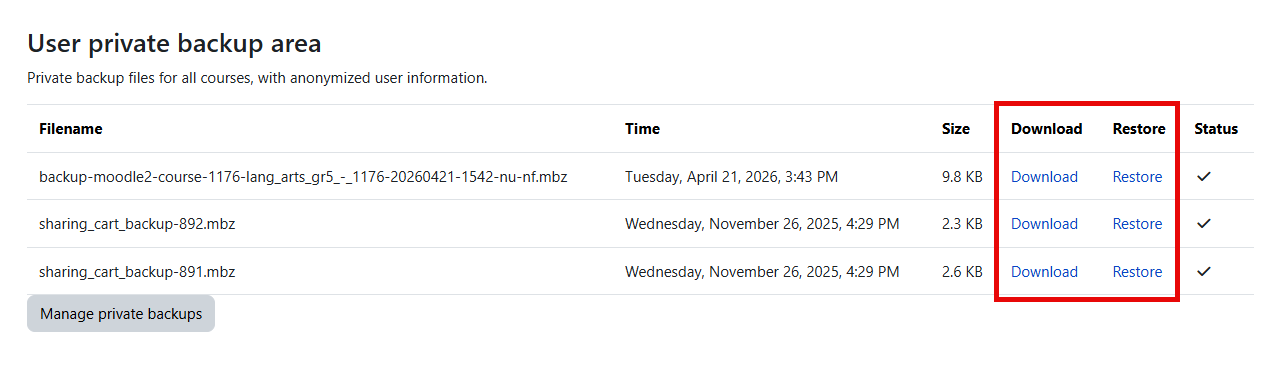
Depending on the number of questions in your question bank, the backup process may take longer than usual. To avoid this, try creating SBAs using the questions located in the course category. A backup file (with the distinctive .mbz extension to avoid confusion with .zip files) is then saved in the course backup area. Backup file names end with -nu.mbz when backed up with no users. You can download your backup file to restore it to another Radix LMS site. If you are restoring the activities into another course on the same site, you can click on the "restore" button to start the process.
Steps to restore an SBA (or other course content)
A course backup file (.mbz) may be restored from within any existing course for which you have permission. During the restore process, you will be given the option to restore as a new course or into an existing course.
It is possible to DELETE a course when doing a restore. Be extra careful not to select the "delete" option if that is not your intention.
-
Go to the course you are restoring the activities into and hover over the "Course" dropdown menu, “course reuse,” and then "Restore" or click the gear menu and then 'Restore'.
-
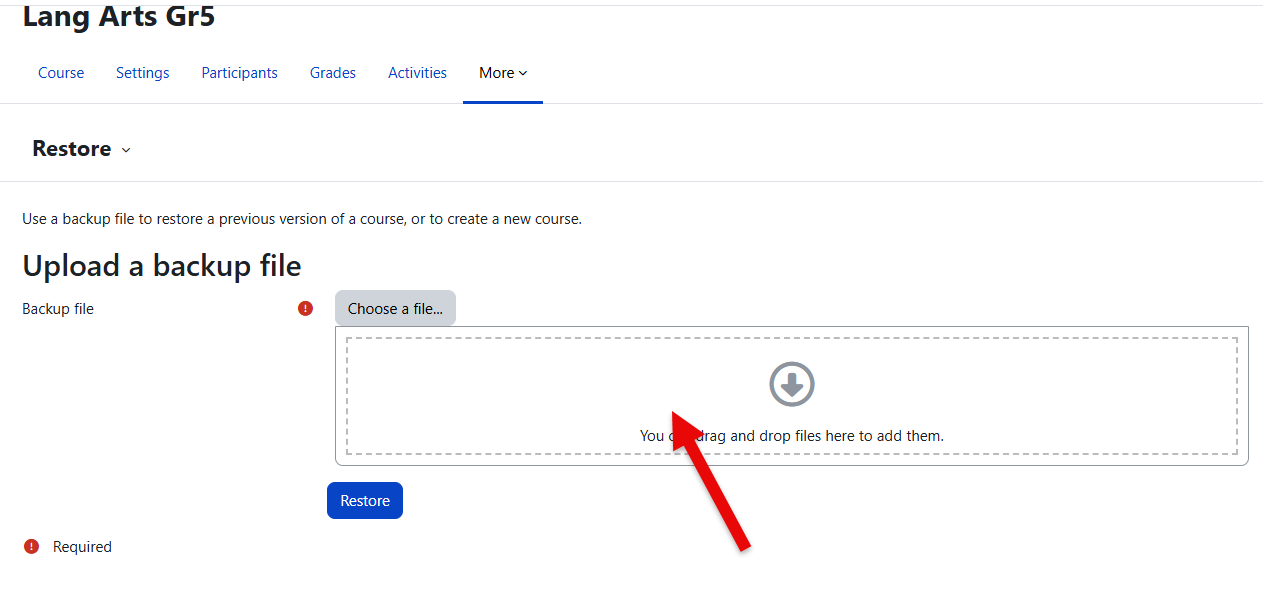
If you are restoring content from another site, upload your backup file (.mbz) and click restore. If you are restoring content that you backed up on the same site, find the file in your private backup area and click on the Restore link next to it.
-
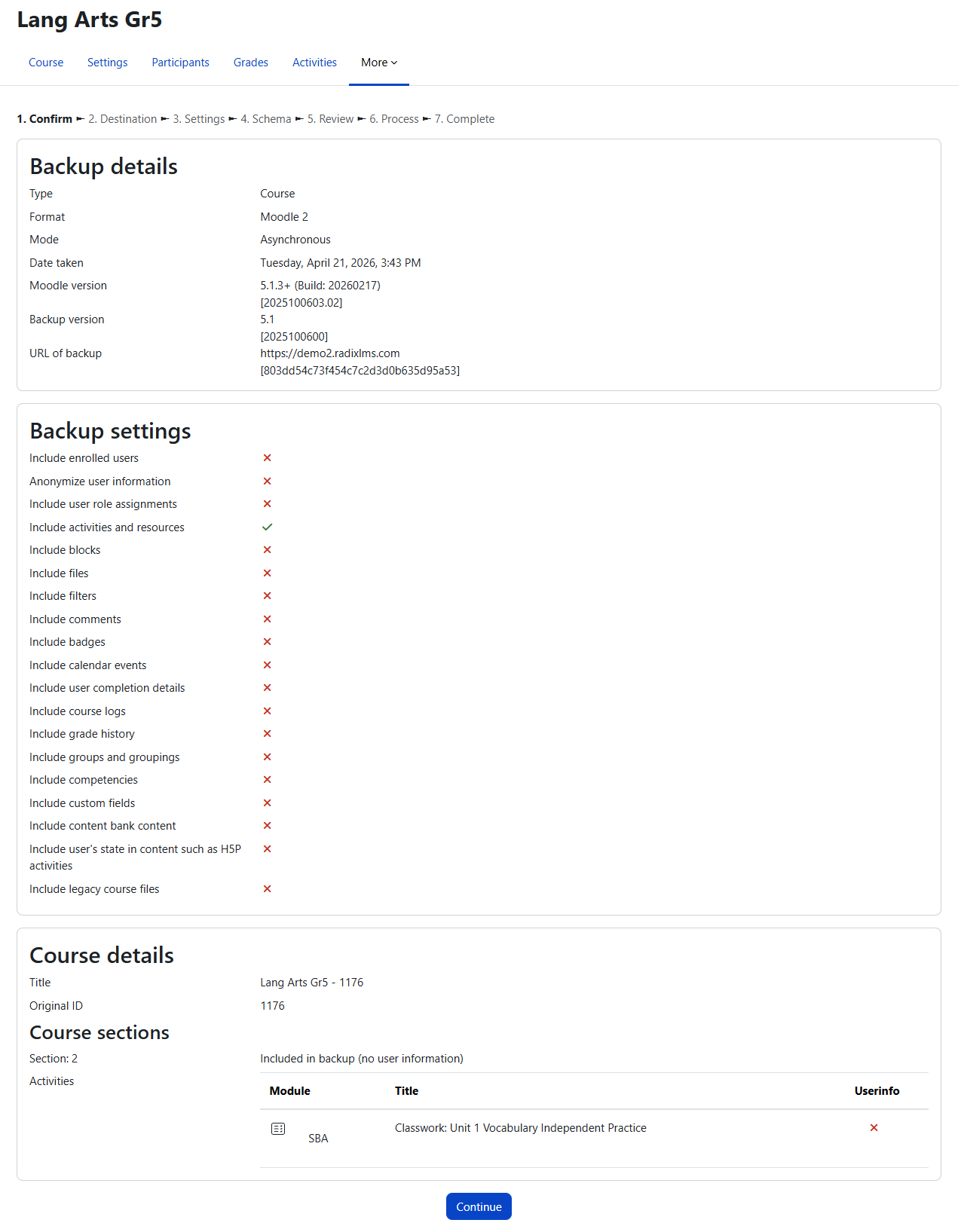
Confirm - Check that everything is as required in the backup file details and then click the Continue button.
-
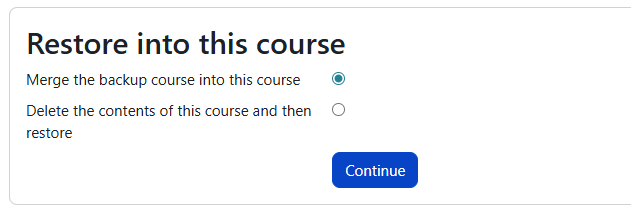
Destination - On this page, there are three "Continue" buttons, each leading to different destinations: a new course, this course, or an existing course. Depending on where you want to restore the file, you will click on one of them. In this example, we are restoring a single or multiple SBA activities into this course by merging the backup course into the existing one. Since we are already in the course we want to restore the content to, scroll down and find the section that says "Restore into this course". If you are an administrator, you might see all the courses on the site and have to search/find the one you are looking for.
-
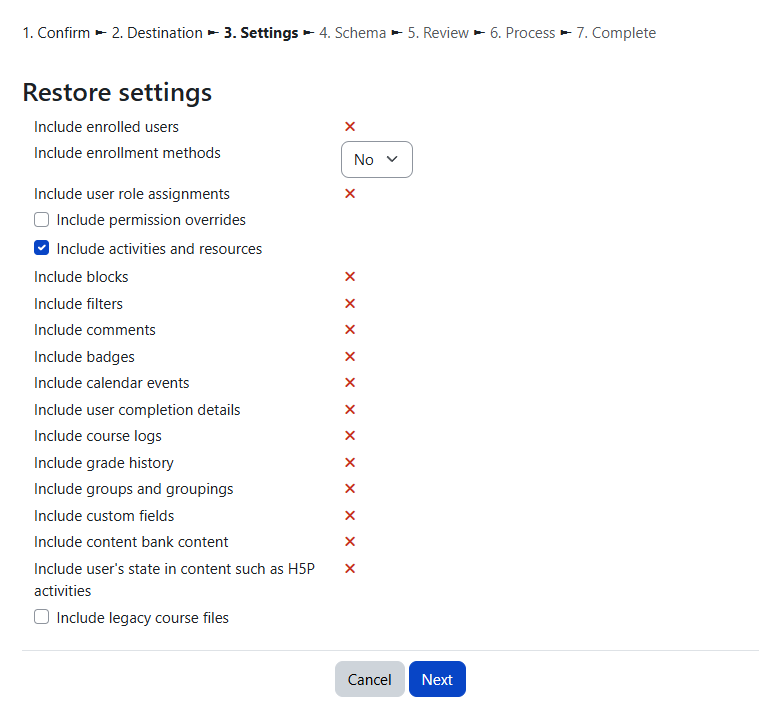
Settings - Select activities and question bank as available, then click the Next button. Since the backup file did not include anything but "Activities" and "Question bank", the other options cannot be selected. Anything other than those two should be unchecked.
-
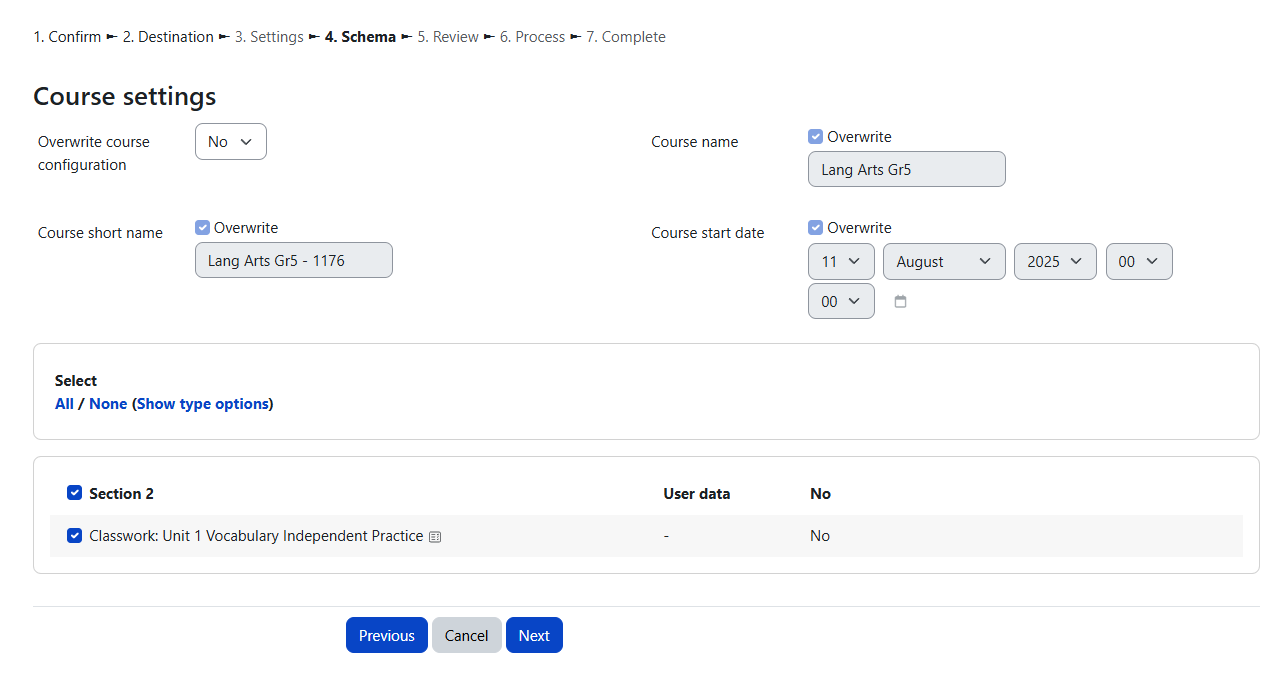
Schema - Select/deselect specific items. Although it is possible to amend the course name, short name, and start date, do not change any of those since our goal is to restore activities to an existing course.
-
Review - Check that everything is as required, using the Previous button if necessary, then click the 'Perform restore' button.
-
Complete - Click the Continue button.
Your SBAs (or activities) in the backup file will be restored into the matching sections/weeks of the current course. They may be in hidden status, and their settings may need to be updated, such as due date, number of attempts, or grading categories. It would be best to review the activities restored and make necessary adjustments.
The grading categories of the restored SBA (or assignments) may not match the course’s current grading categories. Check each activity to confirm its grading category is correct.