
Student Re-Enrollment for School Administrators
Student Re-Enrollment is an end-to-end enrollment management solution built directly into Radix LMS. It replaces external forms, manual spreadsheets, and third-party payment links by enabling families to review demographic records, complete customizable re-enrollment forms, pay registration fees via Stripe, and receive instant confirmations—all from within their Radix dashboard.
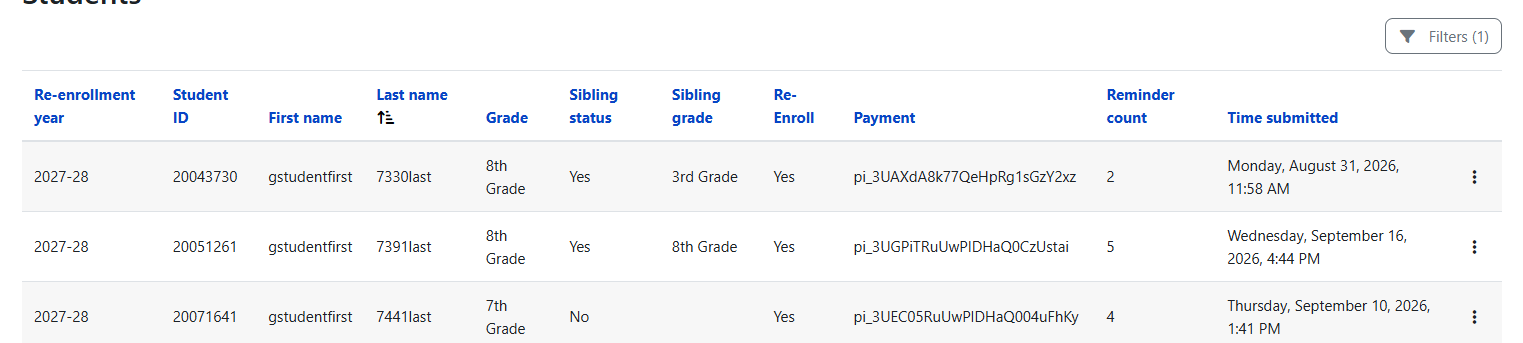
Re-enrollment year: The year is determined by the Core Plugin Settings --> School Year setting. When the school year changes, new records use the new year; the report continues to contain records from previous cycles.
Accessing Re-Enrollment Tools
Administrators, registrars, and campus staff can access re-enrollment management tools through the main school navigation menu:
-
Plugin Settings: Go to School > Student Re-Enrollment > Re-Enrollment Plugin Settings
-
Re-Enrollment Report: Go to School > Student Re-Enrollment > Re-Enrollment Report
-
Re-Enrollment Feeder Report: Go to School > Student Re-Enrollment > Re-Enrollment Feeder Report (dedicated report for receiving campuses to review incoming feeder-grade transfers).
How the process works
-
Select the form used for re-enrollment.
-
Set the re-enrollment window start and end dates.
-
Configure eligibility, exclusions, feeder-school grades, notifications, and field mappings.
-
Review and test the form, including any payment fields.
-
Open the window so eligible families can access the form.
-
Monitor progress in the Re-Enrollment Report and follow up as needed.
Configuration settings
Configure the active re-enrollment window, forms, notification schedules, and transition behaviors on the Re-Enrollment Plugin Settings screen.
|
Setting |
What It Controls |
Admin Guidance |
|---|---|---|
|
Window Start Date |
The first date the re-enrollment process is open and accessible to families. |
Align with school communications sent to parents. |
|
Window End Date |
The deadline for families to complete and submit re-enrollment. |
Ensure sufficient response time before scheduling rollover. |
|
Form |
The active student form assigned for re-enrollment. |
Select the default form or a custom student form created in Radix Form Builder. |
|
Excluded Grade Levels |
Grades omitted from the re-enrollment cycle. |
Use for non-returning grades such as graduating 12th graders. |
|
Feeder School Grade Levels |
Transition grades moving to another campus (e.g., rising 6th or 9th graders). |
Triggers feeder transfer workflows, parent warning modals, and receiving school reporting. |
|
Receiving School Name |
The name of the receiving campus for graduating feeder grades. |
Used dynamically in parent communications and confirmation templates. Standard placeholders (e.g., |
|
Feeder Grade Warning Text |
Custom informational text displayed in a one-time entry popup for feeder-grade parents. |
Clearly explains that submission data will be securely transferred to the receiving campus for enrollment planning. |
|
Reminder Frequency |
Automated email delivery interval for eligible non-responders. |
Select daily or every 2, 3, 4, or 5 days. |
|
Reminder Template |
Email subject and body sent to non-responders. |
Include clear deadlines, help desk contacts, and re-enrollment links. |
|
Confirmation Template |
Automated email receipt sent immediately upon submission. |
Enable to provide families with a timestamped record of their completed re-enrollment. |
|
Field Mapping: Plan to Re-Enroll |
The form field that captures whether the student intends to return. |
Map to the corresponding dropdown/radio field on your assigned form. |
|
Field Mapping: Sibling Status |
The form field capturing whether the student has siblings applying. |
Map to the corresponding sibling field on your form. |
|
Field Mapping: Sibling Grade |
The form field capturing the grade level of incoming siblings. |
Map to the corresponding sibling grade field on your form. |
Payment, promotion code, and year settings: The payment account and currency are configured in the Radix Form Builder settings. The fee amount is configured on the payment field within the form, not in the re-enrollment plugin settings. To show a coupon/promotion code field during payment, enable Allow promotion codes on the Stripe payment gateway used by the form. The re-enrollment year comes from Core Plugin Settings --> School Year.
Notifications and reminders
Reminder notifications can be configured for daily or every 2, 3, 4, or 5 days. Confirmation notifications can be enabled for successful completion. Review both templates before launch and include the deadline, next steps, and support information.
Reminder links after the window closes: Reminder links sent to families remain active after the configured re-enrollment window ends. If a family follows one of those links after the window has closed, Radix shows the unavailable page instead of the form. This prevents late submissions from being created or updated.
Parent and Student Experience
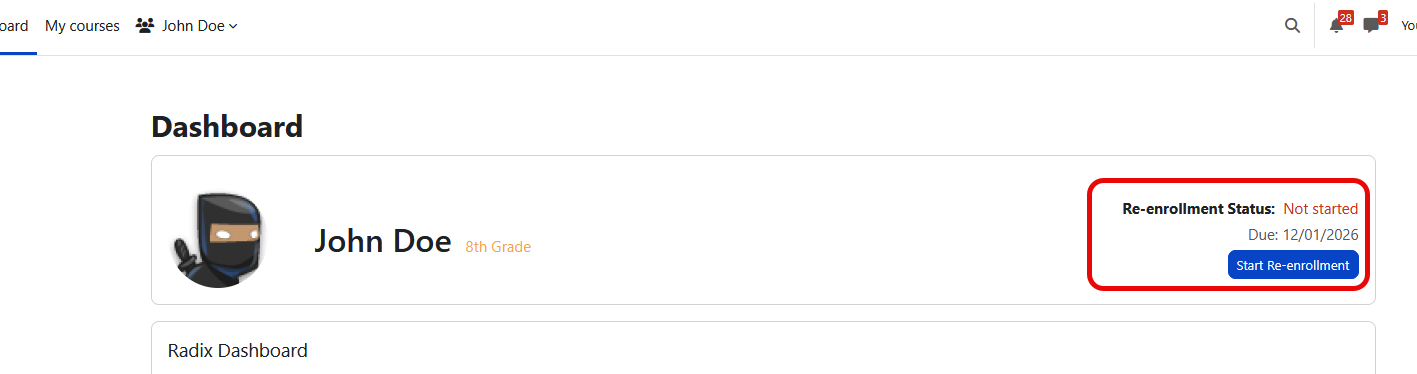
Families can track and complete re-enrollment directly from the Radix LMS Dashboard header block (located next to the student's grade level) and via the Mobile App.
Dashboard Status Widget
-
Not Started (Red): Displays a Start Re-Enrollment button directing the parent to the student's assigned re-enrollment form.
-
Pending Payment (Red): When a form is submitted but an associated registration fee is unpaid, the button changes to Continue Re-Enrollment to resume checkout.
-
Completed / Submitted (Green): Once the form is submitted and payment verified, the button is locked and displays a completed status badge.
Non-Returning ("No" Intent) Workflow
When a parent selects "No" in the mapped re-enrollment intent field:
-
Fee and payment requirements are automatically bypassed.
-
The submission is immediately marked as Completed (avoiding false "Pending Payment" statuses).
-
A clean confirmation screen appears with a direct Continue action back to the family dashboard.
Closed Window: Unavailable Page
When a parent or guardian follows a re-enrollment reminder link, Radix checks the configured re-enrollment window before displaying or processing the form. If the window is not yet open or has already closed, the family sees an unavailable page instead of the re-enrollment form.
The page displays the heading Re-enrollment isn't available right now and a message addressed to the student's parent or guardian explaining that the re-enrollment form for the re-enrollment year is not available at this time. The message explains that re-enrollment may not have opened yet, or the window may have closed, and tells families who received a reminder email and are not sure what to do next to contact the school office.
The page also includes a Return to Dashboard button that sends the user back to their Radix LMS dashboard at /my/.
Administrator access: Users with form management permissions can still access the re-enrollment form even when the window is closed. Administrators are not blocked by this unavailable page.
Stripe promotion codes and discounts
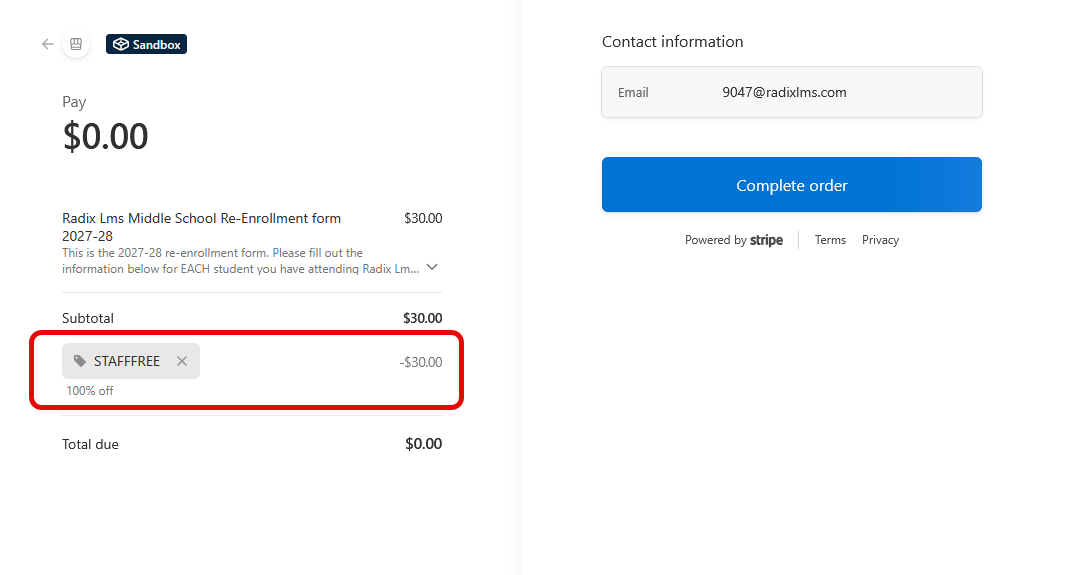
If the re-enrollment form includes a payment field and the selected Stripe gateway has Allow promotion codes enabled, Stripe displays a promotion code field on the checkout page. Parents can enter a valid Stripe promotion code before completing payment, and Stripe applies the discount to the checkout total.
-
Promotion codes are created and managed in Stripe, then made available through the Stripe gateway configuration used by the form.
-
When Allow promotion codes is disabled, the Stripe checkout page does not show the promotion code field.
-
Discounted payments are accepted as completed when Stripe reports the checkout session as paid and the charged amount does not exceed the configured form fee.
-
For 100%-off promotion codes, Stripe may complete checkout with no payment required. Radix records the completed checkout using the Stripe checkout session ID and treats the re-enrollment as complete.
Pre-Filled Demographics & Contact Verification
-
Student and primary contact records are automatically pre-populated using active SIS data.
-
Parents can review their current information and use editable toggles to submit corrections for administrative verification without directly altering core SIS records.
Feeder School Transitions & Data Transfer
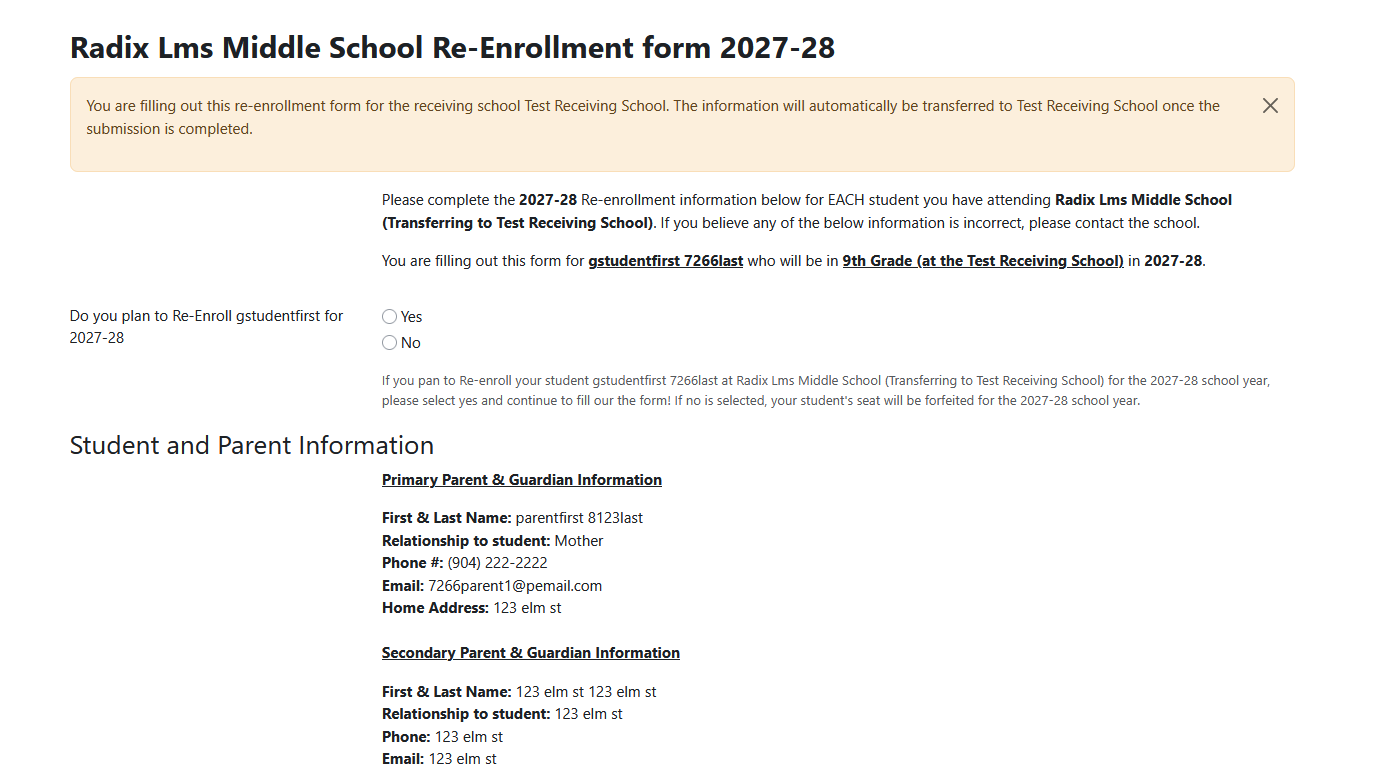
For campuses with graduating feeder grades (e.g., K–5 elementary schools feeding into a 6–8 middle school), Radix LMS handles the transition seamlessly without requiring parents to create new accounts at the receiving school:
-
Parent Transition Modal: Parents opening a form for a feeder-grade student see a one-time informational modal containing the configured Feeder Grade Warning Text.
-
Dynamic Communication Placeholders: Standard placeholders (e.g.,
[[schoolname]],[[upcominggradelevel]]) dynamically adapt for feeder students to reflect the receiving school context. -
Re-Enrollment Feeder Report: Staff at receiving campuses can access the dedicated Re-Enrollment Feeder Report under School > Student Re-Enrollment > Re-Enrollment Feeder Report to:
-
Monitor incoming feeder submissions in real time.
-
Filter records by Feeder School Code and grade level.
-
Audit student responses, sibling plans, and contact change requests prior to enrollment rollover.
-
Default form included with the installation
The installation includes a default re-enrollment form so schools can begin with a working starting point.
-
Review every section and field before opening the window.
-
Update school-specific wording, policies, contact information, and deadlines.
-
Remove questions your school does not need.
-
Confirm required fields, conditional fields, signatures, and payment fields.
-
Test the complete family experience before launch.
Using the Re-Enrollment Report
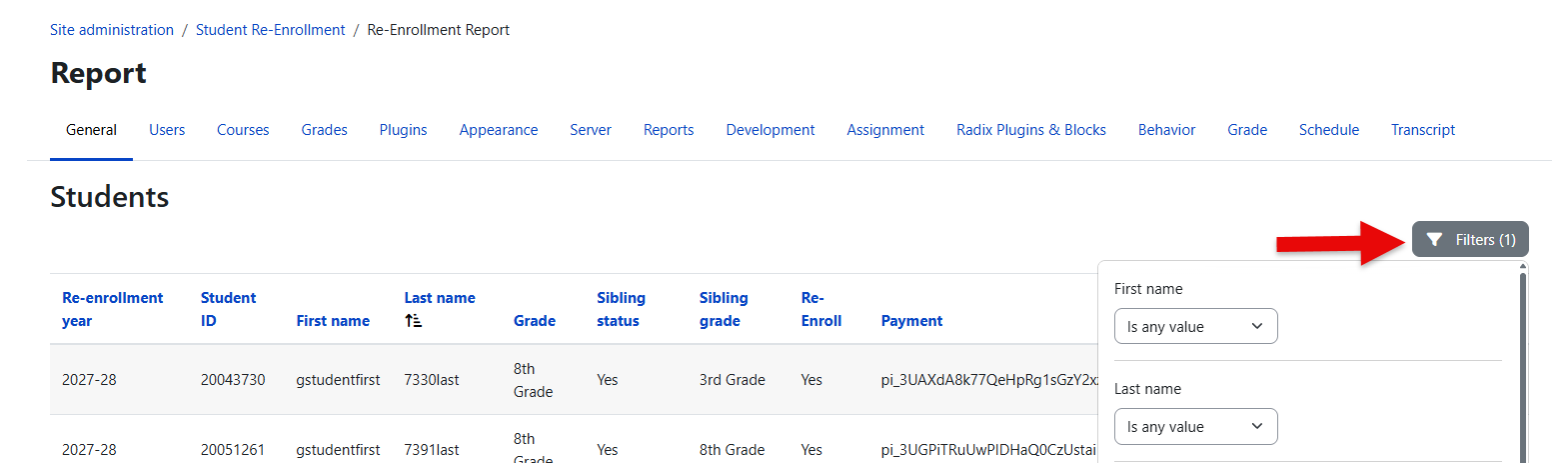
The Re-Enrollment Report provides administrative visibility into school-wide completion and payment metrics.
Status Tracking & Filters
Filter re-enrollment records by:
-
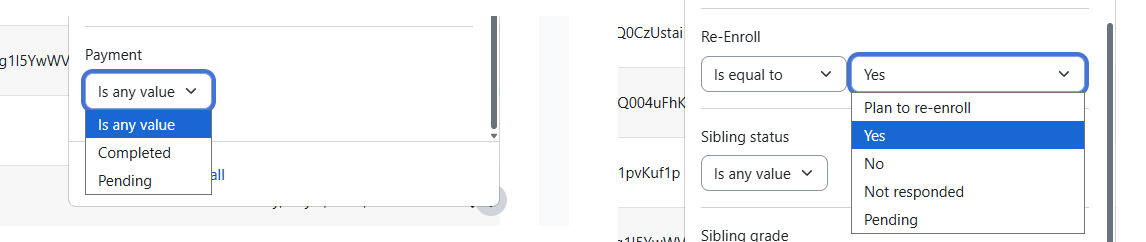
Re-enrollment status: Filter by the student response shown in the report’s Re-enroll? column. Typical options are Yes, No, Not Responded and Pending.
-
Grade: Limit results to a selected grade level.
-
Payment: Filter by Completed or Pending. Completed shows records with a successful transaction ID; Pending shows records without one, including canceled or unsuccessful payments.
Full Field CSV Export
Selecting Export to CSV generates a comprehensive spreadsheet containing:
-
Core student demographic records and SIS IDs.
-
Submission timestamps, completion statuses, and payment transaction IDs.
-
All custom and standard form field responses submitted on the active re-enrollment form.
Available filters
|
Filter |
How it works |
|---|---|
|
First Name / Last Name |
Text inputs that find records matching the student’s first or last name. |
|
ID Number |
Text input used to find a specific student by SIS ID number. |
|
Grade |
Dropdown used to limit results to a selected included grade level. Leave set to All to include every available grade. |
|
Re-enrollment Year |
Dropdown used to view the current cycle or previous/historical re-enrollment years. The next re-enrollment year is selected by default when available. |
|
Re-enrollment status |
Dropdown tied to the report’s Re-enroll? column. Options are Yes, No, Not Responded and Pending |
|
Payment |
Dropdown with exactly two options: Completed and Pending. Completed shows records with a successful Stripe transaction ID. Pending shows records without a successful transaction ID, including canceled or incomplete payments. |
|
Sibling Status |
Dropdown used to filter by whether sibling information was captured in the submission. Options are Yes and No. |
|
Sibling Grade |
Dropdown used to filter by the incoming sibling’s grade level captured in the submission. |
How filters behave
-
Without a Re-enrollment Year filter, records from all available years remain together in the report.
-
Use Re-enrollment Year to isolate a specific cycle or review historical records.
-
When multiple filters are applied, the report narrows the results to records matching the selected criteria together.
-
Clear an individual filter to broaden the results for that field.
Reviewing and editing submissions
-
Edit: Select the pencil icon in a row to open the associated re-enrollment form. Make the necessary changes and save the submission.
-
View submission: Select the message/submission icon to review the full submission details without opening the editing form.
-
After saving an edit, return to the report and confirm that the updated values and status are displayed correctly.
Sending a manual reminder
For a student with a Not started status, select the notification icon in the row and confirm the prompt to send a reminder. The reminder action is available only when the record is eligible for a reminder and the administrator has the required permission.
Understanding report fields
|
Report field |
Values shown |
What it means |
|---|---|---|
|
Re-enrollment year |
School year/cycle value such as 2026-27. |
Identifies the re-enrollment cycle for the record. The value comes from the school year setting and allows current and historical cycles to remain in the same report. |
|
Student ID |
The student’s SIS ID number. |
Use this value to identify the exact student record when reviewing submissions, exporting data, or reconciling with SIS records. |
|
First name |
The student’s first name. |
Displayed from the active student record and used with the name filters to locate students quickly. |
|
Last name |
The student’s last name. |
Displayed from the active student record and used for sorting, searching, and matching exported rows to students. |
|
Grade |
The student’s current grade level. |
Shows the grade used for eligibility, included/excluded grade rules, feeder-grade workflows, and grade-level filtering. |
|
Sibling status |
Yes, No, or the mapped form value. |
Indicates whether the submitted form captured an incoming sibling. This is intended as a quick filter for students with or without sibling information. |
|
Sibling grade |
The incoming sibling’s grade level, when provided. |
Displays the grade captured in the mapped sibling grade field. If no sibling grade was submitted, this field may be blank. |
|
Re-enroll? |
The value selected in the form’s mapped re-enrollment field, or a system status such as Pending or Not Responded. |
This is the student’s re-enrollment response/status. The filter is labeled Re-enrollment status; use the options provided by the form field rather than treating this as a payment status. |
|
Payment |
A transaction ID or Pending. |
A transaction ID indicates a successful payment. Pending indicates that payment was canceled or unsuccessful, or that no successful transaction ID is recorded. |
|
Reminder count |
A number such as 0, 1, or higher. |
Shows how many reminder notifications have been sent for the student during the re-enrollment cycle. |
|
Time submitted |
The date and time the form was last submitted. |
Indicates the latest submission timestamp for the student’s re-enrollment form. Use this to confirm when the family completed or last updated the submission. |
|
Submitted by (export only) |
The first and last name of the user who submitted the form, when available. |
Identifies the account holder who completed the submission, which helps staff audit parent/guardian activity and follow up with the correct contact. |
|
Signature of parent (export only |
Signed or the submitted signature status. |
Indicates whether the parent/guardian signature field was completed on the submitted form. |
Roles and Permissions
Re-enrollment permissions are pre-configured for standard administrative roles:
|
Role |
Access Level |
|---|---|
|
Site Administrator & Principal |
Full access to plugin settings, form field mappings, re-enrollment reports, feeder reports, manual reminders, and submission editing. |
|
Registrar & Assistant Principal |
Access to re-enrollment reports, feeder reports, student submission details, manual reminders, and CSV exports. |
|
Data Clerk |
Access to view re-enrollment reports, feeder reports, and export CSV datasets for enrollment audits. |
Launch checklist
- Review and assign the re-enrollment form
- Review the default form and make school-specific edits
- Set the start and end dates
- Confirm excluded and feeder-school grade levels
- Review reminder and confirmation templates
- Confirm that administrators understand reminder links remain active after the window closes and that families who follow them will see the unavailable page instead of the form
- Test the parent workflow and payment fields, if used
- Confirm staff permissions for settings, reports, submissions, and reminders