
Admission helps schools manage the prospective student application process in Radix LMS. The plugin includes four major areas: the public application form, the administrator application list, Form Fields settings, and Admission Plugin Settings. Use these tools to collect applications, manage submitted records, configure field labels and dropdown values, send confirmation and notification emails, and apply school-specific admission rules such as age restrictions.
Who uses this page: School administrators and site administrators responsible for the student application process.
When to review: Before each admission cycle, at the beginning of the school year, or whenever application form fields or settings change.
By default, the site Principal role has full access to Admission. Additional access can be granted through the Admission capabilities listed below.
Application Form
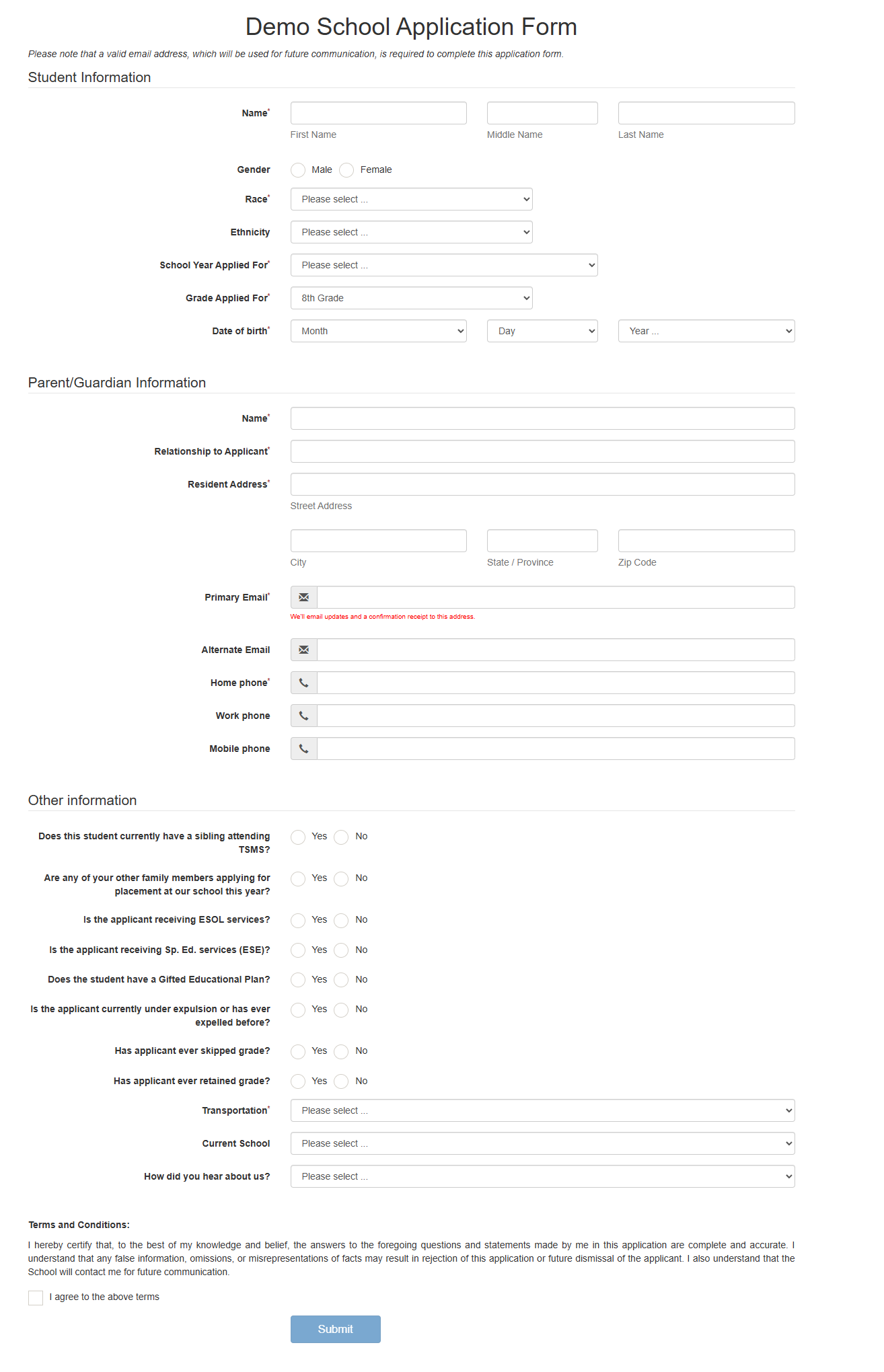
The application form is available by adding /radix/admission to the end of your Radix LMS URL. Example: yourschool.radixlms.com/radix/admission. The application form can be embedded into the school's website or used as a standalone link. Using a standalone link is recommended because it gives families the full form experience and avoids website embed issues.
The form includes three sections: Student information, Parent/Guardian information, and Other information. Some fields are required by default, and administrators can make additional fields required from Form Fields settings. Some fields are conditional and appear only when their related option is selected. For example, if the applicant selects Kindergarten as the grade level, a follow-up question may appear asking whether the student attended VPK.
The current form also supports configurable additional fields, including var2, var2_text, var3, var3_text, var4, and var4_text. These are commonly used for school-specific questions such as Boarding, International, and Fee-related fields. The default race field label is Race, and Ethnicity is available as a separate field that is disabled by default unless enabled in Form Fields settings.
Application List
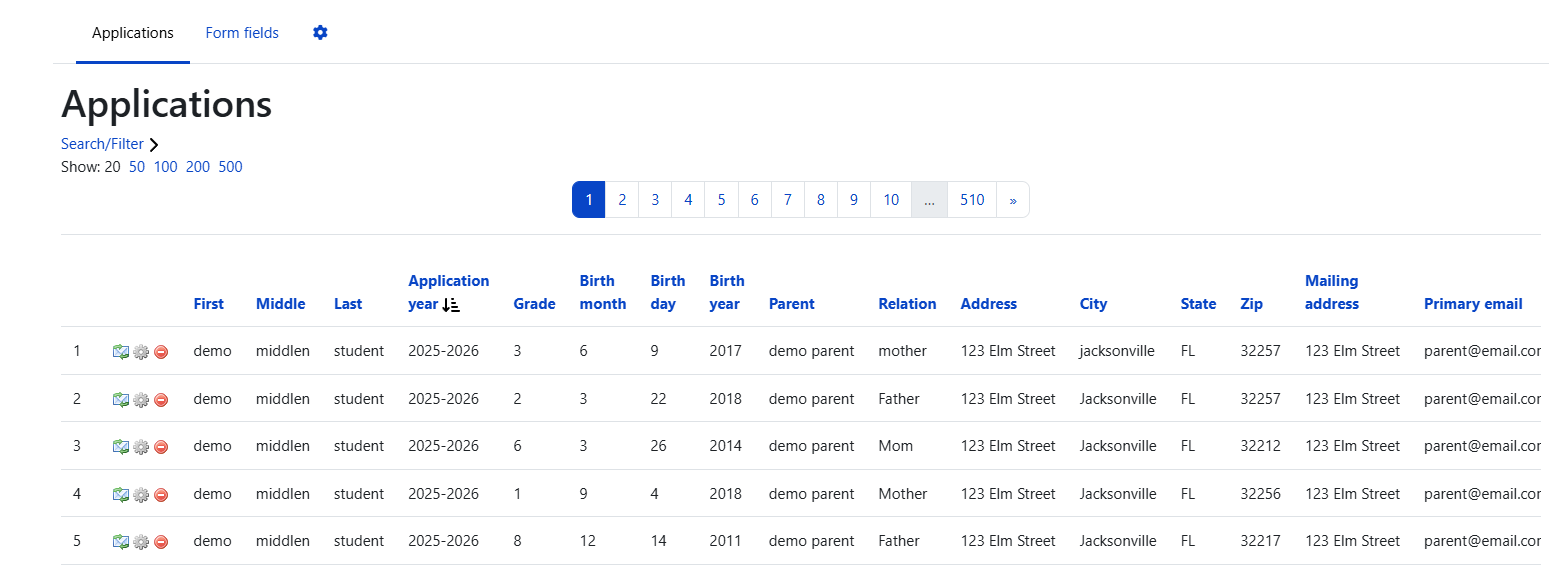
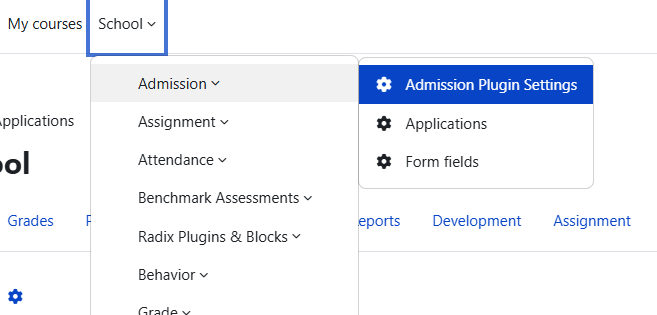
The application list is available from the site administration menu under School ► Admission ► Applications.
Applications are sorted by newest submission first by default. To change the sort order, select a column title. An arrow appears under the title to show whether the list is sorted in ascending or descending order.
Action icons

|
Use Search/Filter to search text fields, including notes, or filter by predefined values such as application year, grade, and gender. Text search applies to text fields only; it does not search predefined dropdown values. |

|
To add an application manually, select the add button at the bottom of the application list. |

|
To download the list of applications, click the desired format at the bottom of the list. CSV is recommended for long lists because it is faster and can be opened or saved as XLS afterward. Exported files now use descriptive filenames, such as |

|
To edit, delete, or review the communication log for an application, scroll to the far right of the list. The action icons appear at the end of each application row in this order: Communication Log, Edit, and Delete. |
Application Edit Page
Use the application edit page to review or update an individual application after it has been submitted. The edit page includes the submitted application fields and any currently enabled configurable fields, including Race, Ethnicity, and school-specific fields such as var2 through var4. Use this page when staff need to correct applicant information, update application details, review notes, or prepare an approved application for processing. Access is controlled by the Admission application management and processing capabilities.
Form Fields
Form Fields are available from the site administration menu under School ► Admission ► Form Fields.
Use Form Fields to update field labels, manage dropdown options, and control whether fields are required, disabled, or visible on the public form. These settings affect new submissions, administrative filters, and the application edit page.
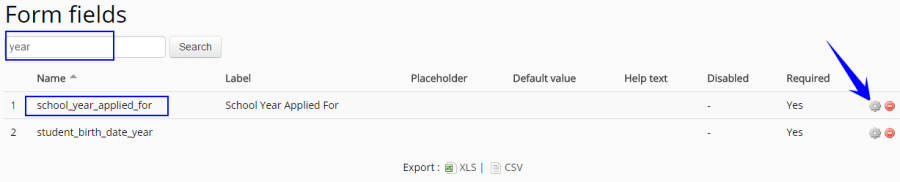
For example, to add a new application year, search for year in the Form Fields search box and select the edit icon for school_year_applied_for.
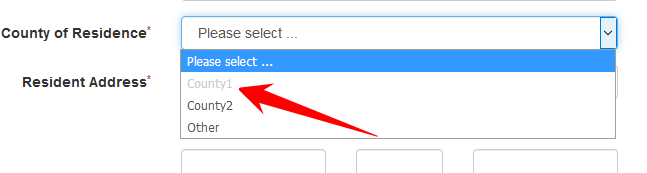
On the edit page, find the years in the "options" box and add the new year to the bottom of the list. Note that, all items of the dropdown menu listed twice separated by a "|". The first one is the text recorded to the database, and the second one is the text used in the dropdown menu. The "Y" or "N" at the end will determine if the item will be visible to the applicant on the menu or not. If you do not want any school year to be visible on the menu, simply add "N" to the end of the item separated by "|". The same method can be used to add a new "birth year" to the drop down list.
Examples:
|
Not Visible: |
2015-2016|2015-2016|N |
|
Visible: |
2016-2017|2016-2017(current year)|Y |
|
Visible but disabled: |
2017-2018|2017-2018|Y|disabled |
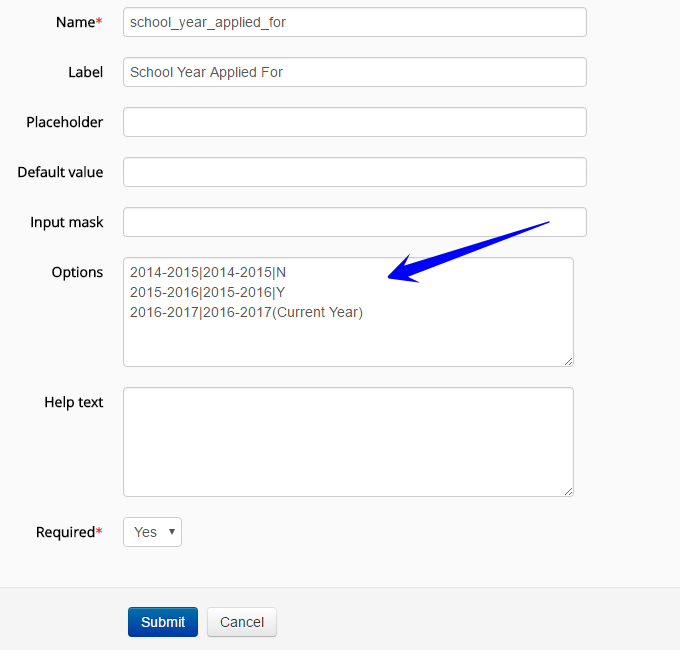
Important: Do not delete dropdown options. If an option should no longer appear, make it invisible by adding N at the end. Deleting a dropdown option can remove it from application filters and make historical records harder to review. If an option should remain visible but should not be selectable, use |Y|disabled at the end.
Other field properties are managed the same way. To make a field required, find it in the Form Fields list and change the Required option to Yes. To change a field's label, update the Label text on the edit page.
Commonly reviewed configurable fields include school year, birth year, grade level, Race, Ethnicity, and the additional school-specific fields var2 through var4. When adding or updating options, confirm that each option follows the expected option format and that visibility or disabled status is set intentionally. If Ethnicity or any additional school-specific field should appear on the public form, enable it here and confirm whether it should be required.
Important: Never delete a form field. Deleting a field removes recorded data permanently. To hide a field from the form, set its Disabled option to Yes.

Admission Plugin Settings
Navigation: School → Admission → Admission Plugin Settings
Use this page to configure the application form appearance, email settings, and admission behavior.
Form Appearance
|
Setting |
Description |
|---|---|
|
Form title |
The title displayed at the top of the public application form. |
|
Description |
Introductory text displayed below the title. |
|
Terms and conditions |
Legal or policy text applicants must accept before submitting. |
|
Footer |
Text displayed at the bottom of the form. |
|
Success message |
The confirmation message applicants see after a successful submission. |
Email Settings
|
Setting |
Description |
|---|---|
|
Send verification email |
When enabled, applicants receive a verification email after submission. Uncheck to disable. |
|
Email subject |
The subject line of the verification email. |
|
Email body |
The body text of the verification email. Use the dynamic fields below to personalize the message. |
|
Additional recipients |
Email addresses that receive a notification when a new application is submitted. Separate multiple addresses with a comma. |
Dynamic fields available for the verification email:
|
Field |
Inserts |
|---|---|
|
|
Parent or guardian name |
|
|
Application year |
|
|
Student first name |
|
|
Student last name |
|
|
Grade applied for |
|
|
Verification link |
|
|
Current date |
Duplicate Application Control
|
Setting |
Description |
|---|---|
|
Turn off duplicate application control |
When enabled, the system does not check for duplicate applications and allows students to reapply within the same year. This is useful for schools that open mid-year admission windows. Disabled by default. |
Beginning-of-Year Admission Checklist
-
Update the application year dropdown. Add the new year, make old years invisible when appropriate, and disable options that should remain visible but not selectable.
-
Review birth year and grade-level options for the upcoming admission cycle.
-
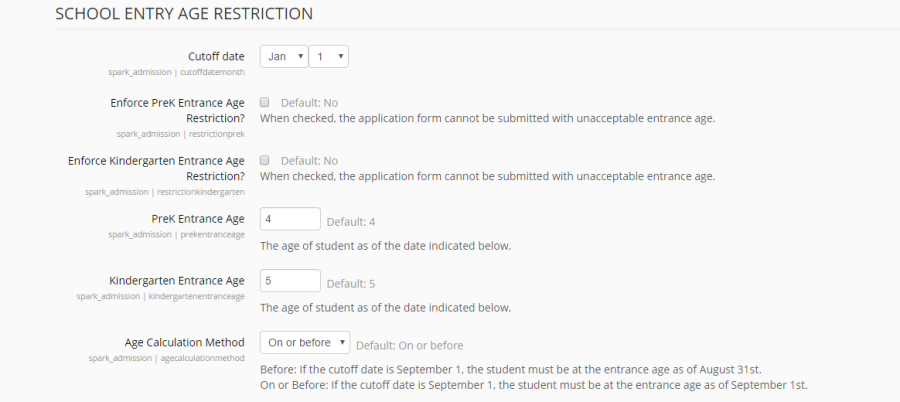
Confirm age restriction settings for Kindergarten and Pre-K, including cutoff date, required age, and calculation method.
-
Review form title, description, terms and conditions, footer, success message, and verification email text.
-
Confirm whether verification emails should be sent to applicants.
-
Update Additional recipients so the correct school staff receive new application notifications.
-
Review field visibility, required status, and disabled status for Race, Ethnicity, and school-specific fields such as Boarding, International, and Fee.
-
Submit a test application and confirm the confirmation message, school notification email, Application List entry, filters, exports, and edit page.
School Entry Age Restriction
Schools can enforce age restrictions for Kindergarten and/or Pre-K from Admission Plugin Settings. Turn on the appropriate restriction, then update the cutoff date, required age, and calculation method based on the school’s policy. If a parent applies for a restricted grade level with a birth date that does not meet the rule, a warning appears under the birth date field and the application cannot be submitted until the birth date is corrected. Age restrictions are not enforced by default.
Admission Overview Charts
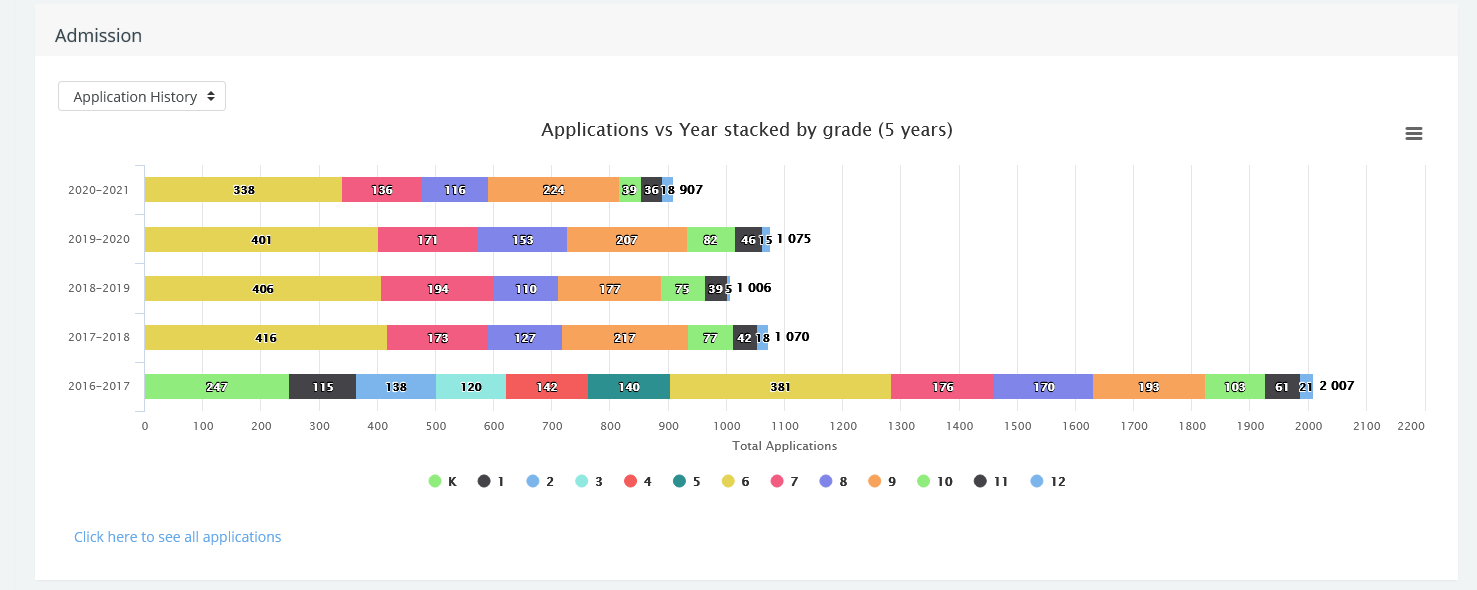
Administrators can view admission charts under School → School Overview. These charts help school leaders compare the last five years of application data and analyze the current year's applications by gender, race/ethnicity, grade, zip code, confirmation status, and how applicants heard about the school (the Hear chart).
Permissions
|
Capability |
Description |
|---|---|
|
manageapplication |
Full access to view, edit, and manage all applications. Assigned to the Principal role by default. |
|
processapplication |
View and process approved applications only. Use this for data clerks or registrars who handle enrollment after approval. |
|
deleteapplication |
Delete applications from the application list. |
|
applicationsetting |
Access Admission Plugin Settings and Form Fields configuration. |
Tips and Troubleshooting
|
Issue |
What to check |
|---|---|
|
A dropdown value should no longer be selectable |
Do not delete it. Mark it invisible ( |
|
Applicants report required-field problems |
Review Form Fields for duplicate or misconfigured fields. Check disabled and required status for each field. |
|
School name or custom value is unusually long |
Verify that the application saves without a "Data too long for column" error before opening the form publicly. |
|
Application form loads slowly |
Performance and static-file cleanup updates have been applied. If the issue returns, report it as a regression. |
|
Field types on the edit page do not match the public form |
This was resolved in a previous release. If it recurs, report it so field type consistency can be verified. |
Related Pages
-
School Overview (for admission charts)