
☁ Cloud Storage Integration with Radix LMS
Radix LMS can connect to Google Drive and/or Microsoft OneDrive so you can select files from your cloud storage anywhere Radix shows the file picker (Assignments, Resources, Pages, etc.).
⚙ Before You Start: Site Setup Requirements
Cloud storage options require site-level integration setup.
-
If you don’t see Google Drive or OneDrive in the file picker, contact your Site Admin and ask them to reach out to Radix LMS Support to enable cloud storage integrations.
-
OneDrive requires the site to run over HTTPS/SSL.
📎 How to Attach a File from Google Drive or OneDrive
-
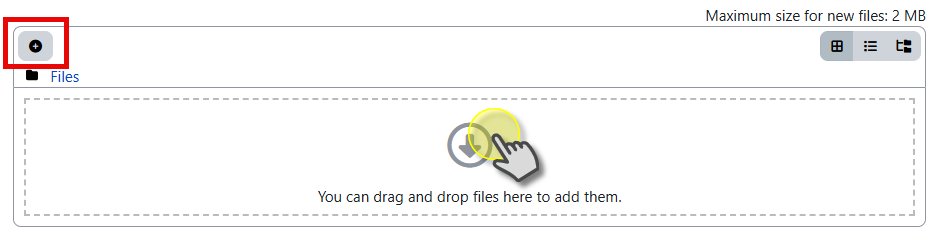
Go to the place where you need to attach/upload a file (example: Assignment submission, Add a resource, etc.).
-
Click Add file icon or drag-drop area.
-
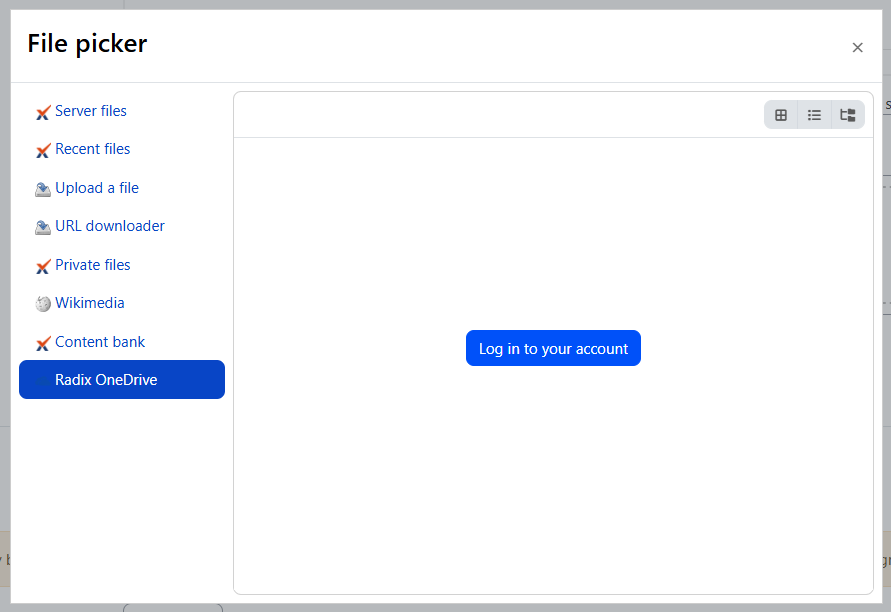
In the left menu, choose Google Drive or OneDrive. (Contact your administrator if not available)
-
If prompted, log in and Allow access.
-
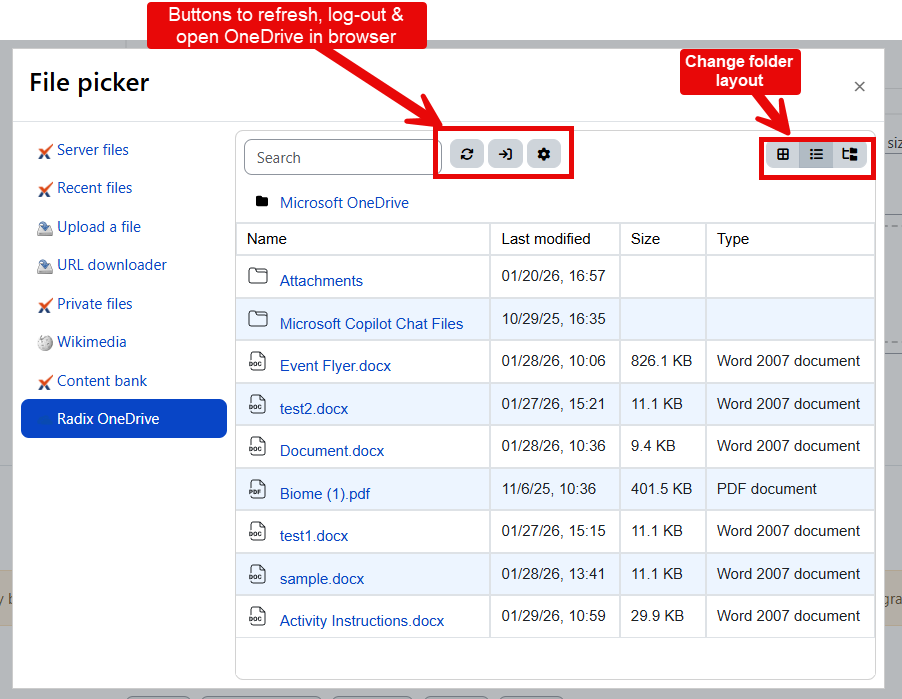
Select the file you want.
-
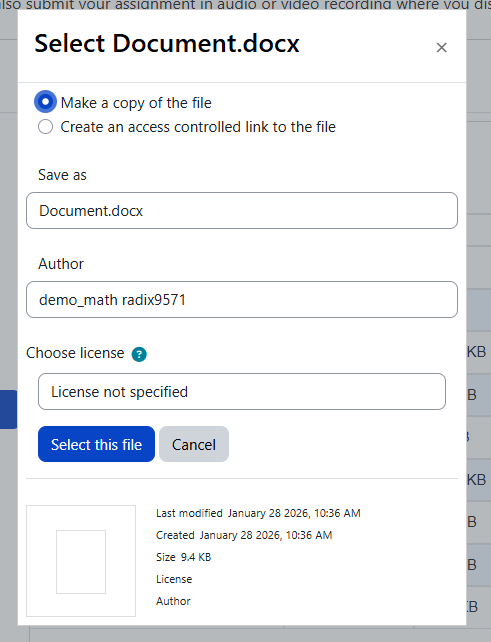
If you are prompted to choose how to use the file (example: Make a copy vs Access controlled link), choose the option that matches your purpose (see the next section).
-
Click Select this file to finish.
📄 Choosing How the File is Added (Copy vs Access Controlled Link)
Depending on the activity and your site settings, you may see one or more options like the following.
🅰 Option A: Make a copy of the file
-
Radix LMS copies the file into the course/site and uses that copied version.
-
Later changes you make in Drive/OneDrive will not automatically update the version used in Radix LMS.
Use this when: you want a stable snapshot (common for handouts, final versions, or when you don’t want ongoing changes).
🅱 Option B: Access Controlled Link (ACL)
When enabled, Access Controlled Link provides a controlled workflow commonly used in Assignments:
-
The submitted file is stored under a site (system) account so access can be managed consistently.
-
After submission, the student typically cannot replace or change the submitted file.
-
The teacher can access and work with the submitted file during grading (for example, commenting/annotating depending on the workflow).
Use this when: you need controlled assignment submissions and consistent access management.
🚫 Why You Might Not See “Access Controlled Link”
Access Controlled Link may not be available if the Site Admin has not connected a system account to Radix LMS for Google Drive/OneDrive.
If you need ACL but don’t see it:
-
Contact your Site Admin and ask them to connect the system account and confirm ACL is enabled for the repository, or have them reach out to Radix LMS Support.
🔧 Quick Troubleshooting
❓ I don’t see Google Drive or OneDrive in the file picker
The integration may not be enabled at the site level. Contact your Site Admin and ask them to reach out to Radix LMS Support.
⚠ OneDrive sign-in doesn’t work / loops
This often points to a site configuration issue (commonly HTTPS/SSL). Report it to your Site Admin.
🔍 I can’t find all my Google Drive files
Depending on configuration, Google Drive browsing may only show files previously uploaded via Radix LMS (this can be expected).