
-
Report Cards: Printable PDF reports that include academic, behavior, and attendance records. Generated by school admins, usually at the end of grading periods (quarters/semesters).
-
Progress Reports: Instant, unofficial reports generated by teachers, students, or parents. These reflect the student's current data at the time of generation.
Generating report cards (Admins)
-
School admins can generate report cards at any time, usually at the end of a term or quarter. Mid-term progress reports are generated using the same settings.
-
To begin, configure the global Report Card Plugin settings under School > Report Card.
Report card plugin settings
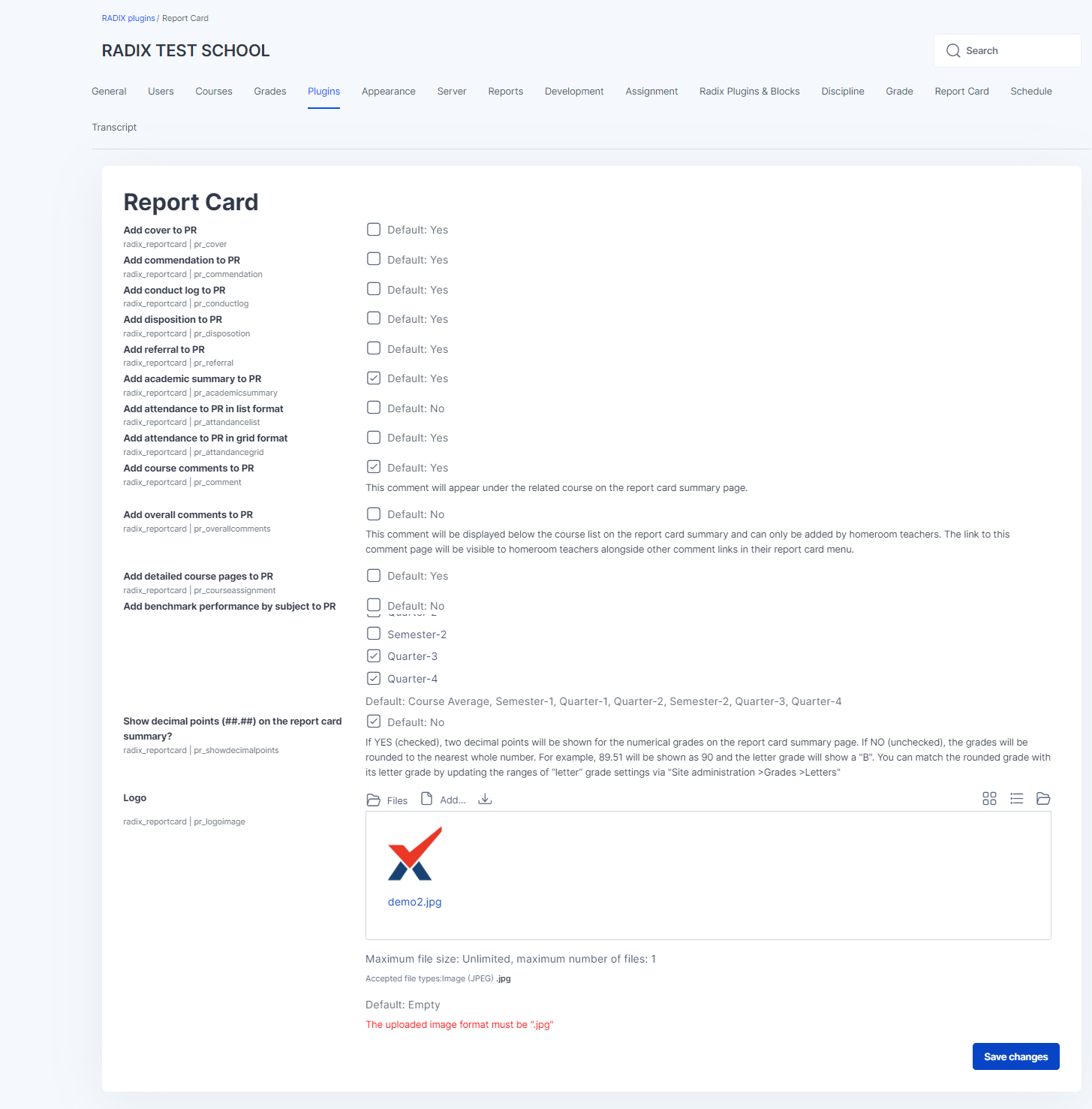
The report card plugin settings are global configurations that will determine the content of both report cards created by the admins and instant progress reports generated by the parents or students on their dashboards.
|
|
Category Averages on Report Cards
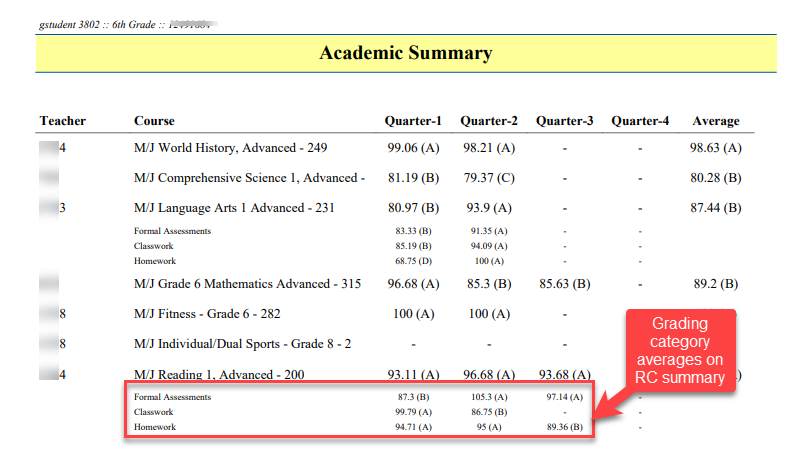
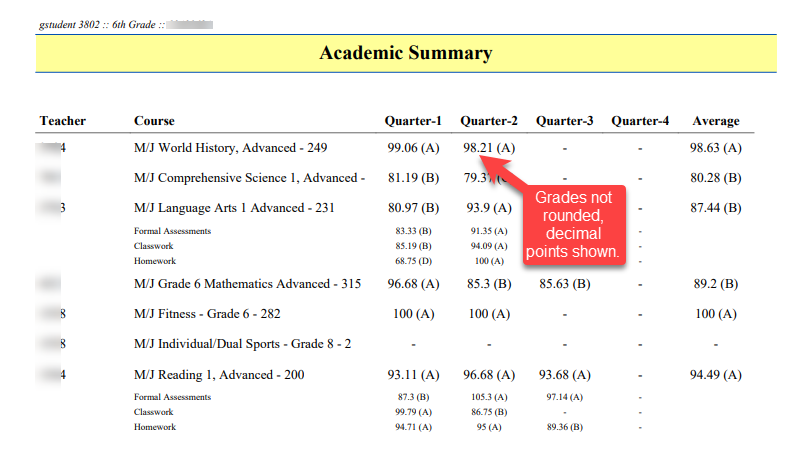
Include category averages under each course on the report card summary page. Configure this setting under School > Report Card > Courses for Category Grades. You can select specific courses or departments where you want to show these averages.

|
|
Percent scales on the summary page
To display percentage scales on the report card summary page, ensure the option to show percentage information is enabled. These scales will appear at the footer of the summary page and are usually tied to elementary courses if they are being used.

Settings to include letter (%) scale information. |
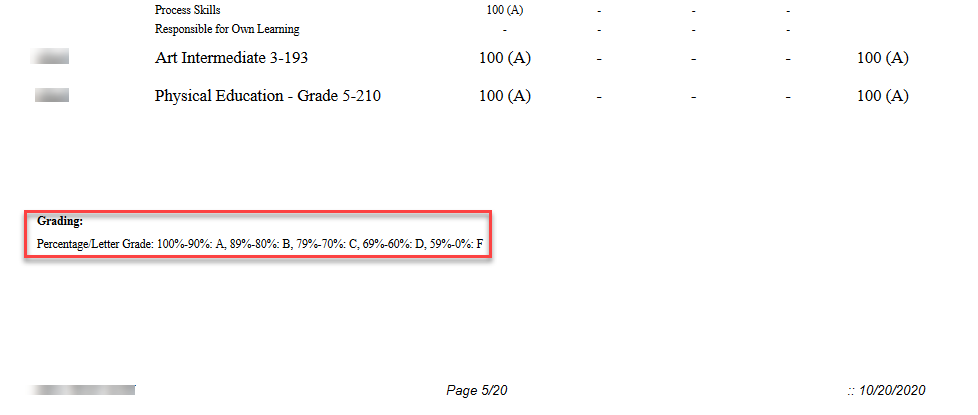
Grading scales on the report card. |
Summary Page Layout
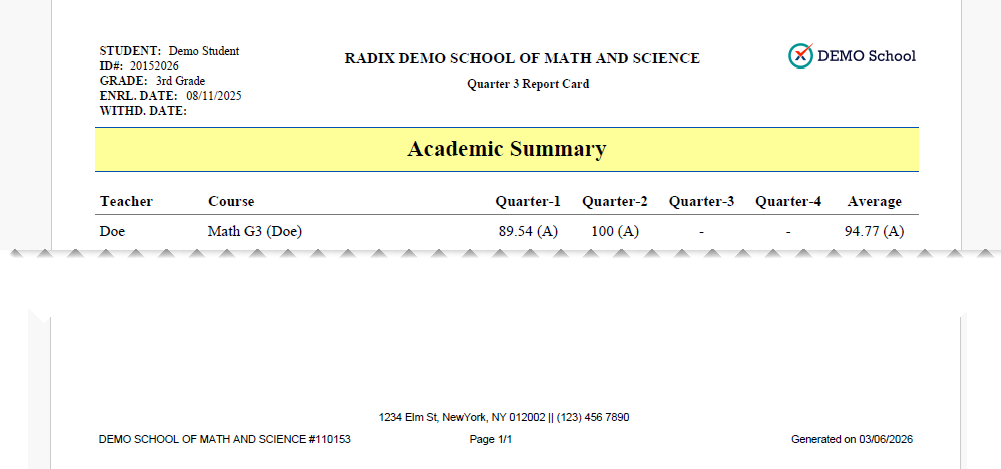
The summary page is the main academic overview page of the report card. It displays student information, academic grades by term, and school details in a structured layout.
Header
|
Position |
Content |
|---|---|
|
Left |
STUDENT (first middle last), StudentID, Grade, Enrollment Date, Withd. Date |
|
Center |
School name and Report Title-1 |
|
Right |
School logo (scaled to max 30×20mm maintaining aspect ratio) |
Footer
|
Position |
Content |
|---|---|
|
Top center |
School’s full address and phone number |
|
Bottom left |
School name + school number |
|
Bottom center |
Page number |
|
Bottom right |
Report card generation date |
Course Display Rules
-
Courses with no grading categories are automatically excluded from the summary page, even if they are official.
-
Same filtering applies to progress report emails — non-graded courses are excluded from the email course list.
-
Long names are truncated with ellipsis — teacher names at approximately half column width, course names at 40 characters.
Semester-school academic summary
For semester-based schools, the report card summary uses a semester academic summary layout. This layout groups and labels term information according to the school’s semester structure so that the summary page matches how grades are reported for that academic calendar.
Detailed course pages and excluded assignments
When Add detailed course pages to PR is enabled, each course detail page shows graded activities and their impact on the course average. Assignments that are excluded from grade calculations are clearly marked with an [Excluded] indicator next to the assignment title, so families can distinguish visible assignments from assignments that affect the final average.
Adding & Generating Report Cards
Once the global settings are configured, you are ready to generate your report card.
-
Adding Report Card folder:
-
Navigate to School > Report Card > Report Cards.
-
Assign a name for the report card folder and select the appropriate settings (enable for students, grades, allow teacher comments, etc.). You can modify these settings later as needed.
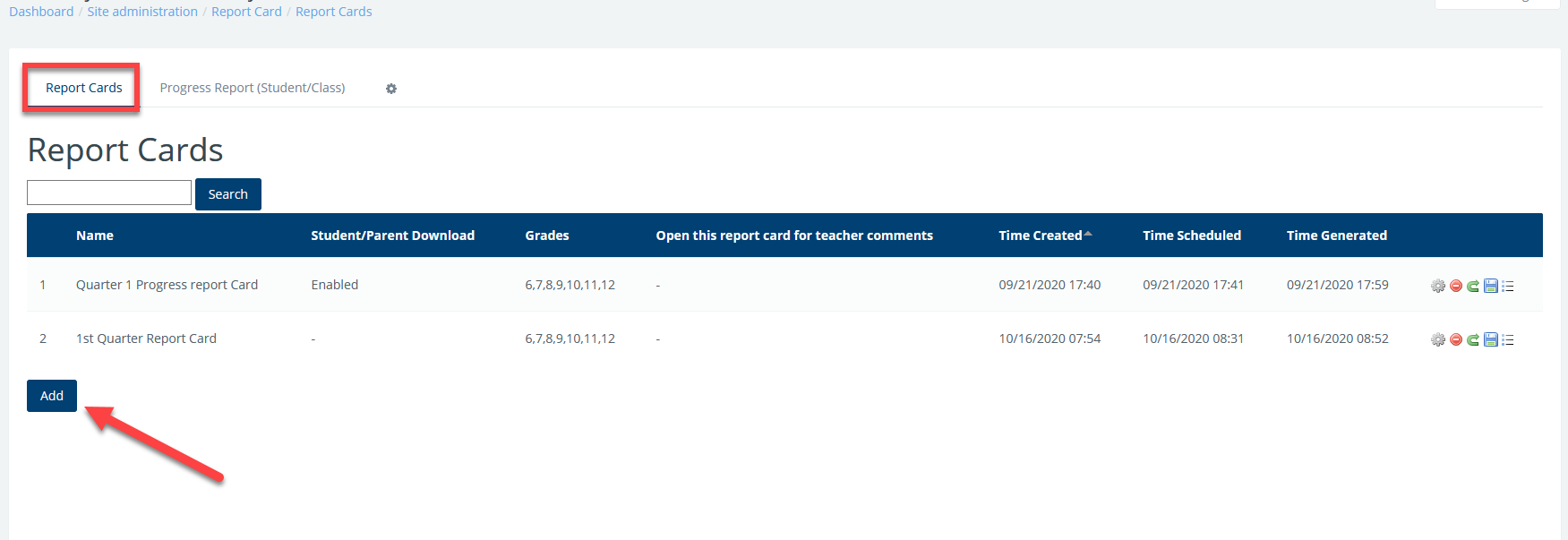
List of report card generated, click add to add your RC |
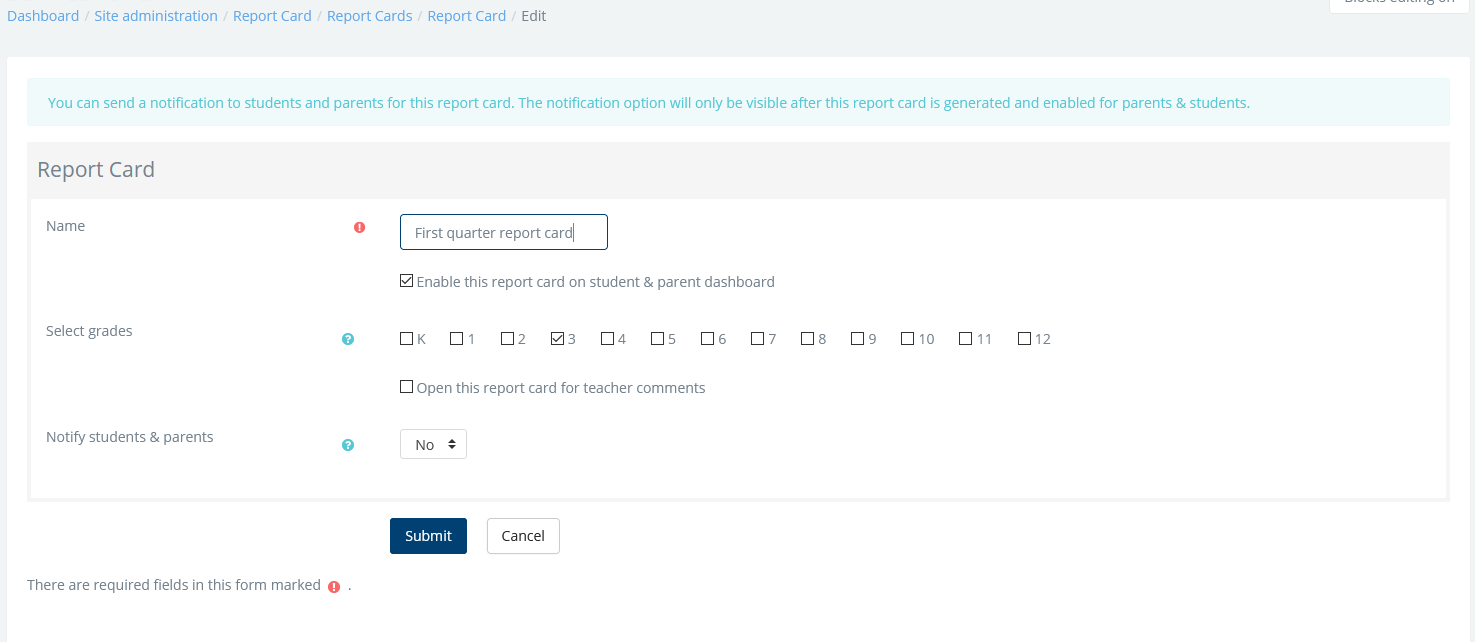
Name and save your RC to go back to the list. |
-
Generating Report Cards:
-
Once the report card is added, click the play button to start the generation process.
-
Configure titles (note: “Report Title-1” is now labeled “Report Title-1 (for summary page)” as it appears on the summary page header), sorting options, and select the term. The option “Include all graded activities and attendance records from the beginning of the year” applies to detailed course pages and attendance pages — if selected, report card generation may take longer. Make sure to enable teacher comments if desired.
-
Notifications will be sent to the specified email addresses in addition to the user who generates them once the report cards are ready (typically 5-10 minutes).
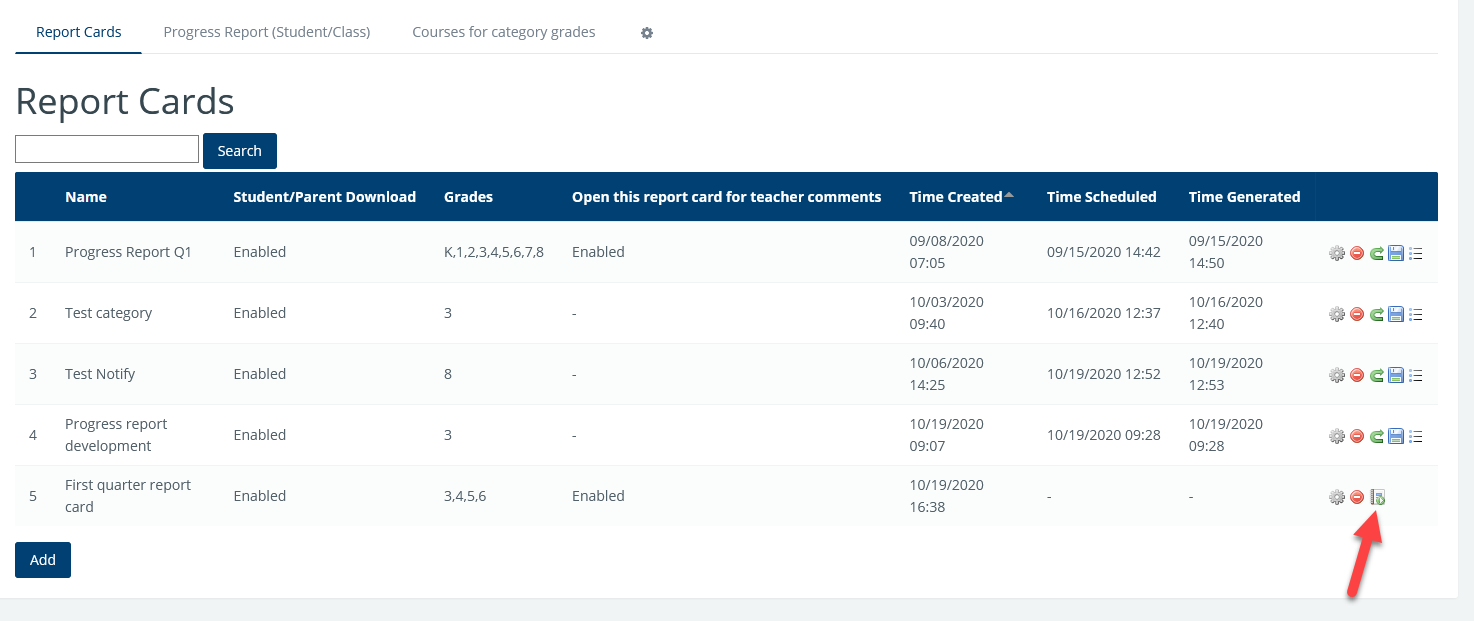
Click on the play button to go to the page where other information will be added and the process will be started. |
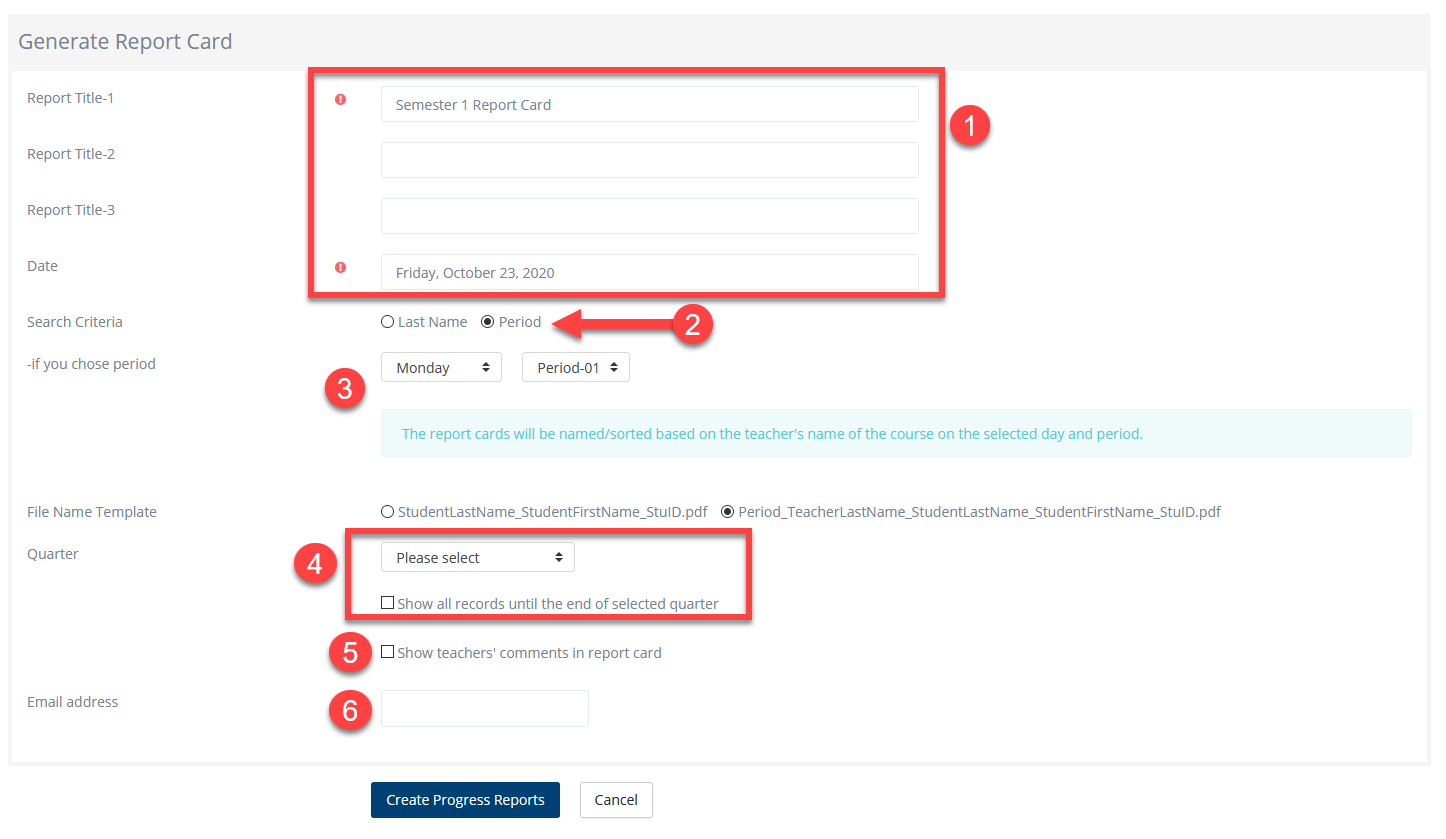
|
Review or re-generate report cards
-
After generating report cards, new icons will appear in the report card list for reviewing, re-generating, or enabling them for students.
-
If you need to re-generate the report cards, note that this will delete the previously generated PDFs and replace them with new ones based on updated settings.

|
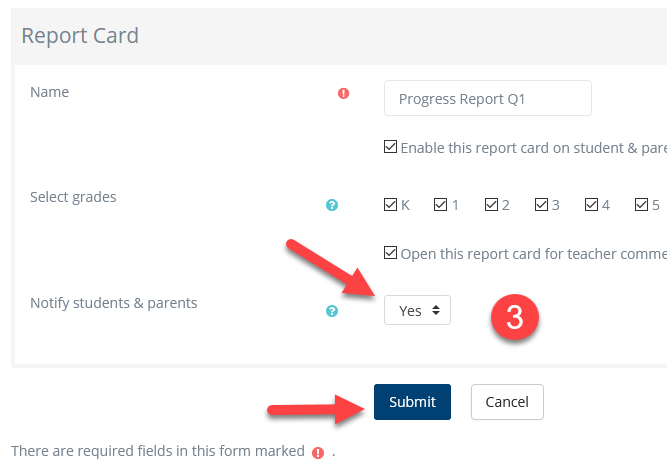
Edit report card settings such as to enable for students/parents, open for comments, notify parents/students. |

|
Delete report cards. If the report card has any comments added by teachers, you can not delete them. |

|
Re-generate the report cards. When you click on this button, you will have a chance to change report card settings before re-generation. This operation will delete the previously generated PDFs for this report card and generate the new ones. |

|
Save all of the generated PDFs to your computer as a zip file. |

|
See the list of the report cards generated for each student. You can search by student's name and check the accuracy of the reports. |
Regenerate report cards for selected students
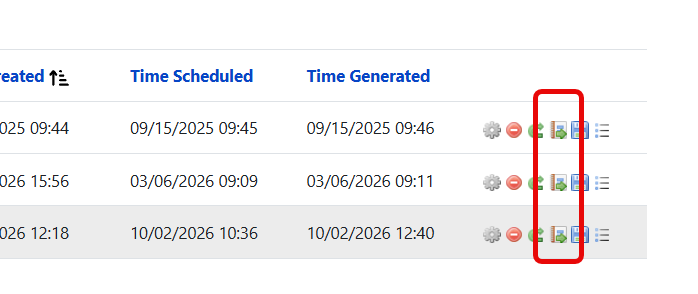
Administrators can also use Regenerate Student Report Cards to rebuild report cards for only selected students in an already generated internal report card batch. This is useful when grades, attendance, or comments were corrected for a small group of students after the batch was generated.
-
Access: This action is available to administrators from School > Report Card > Report Cards. Teachers do not see or use this tool.
-
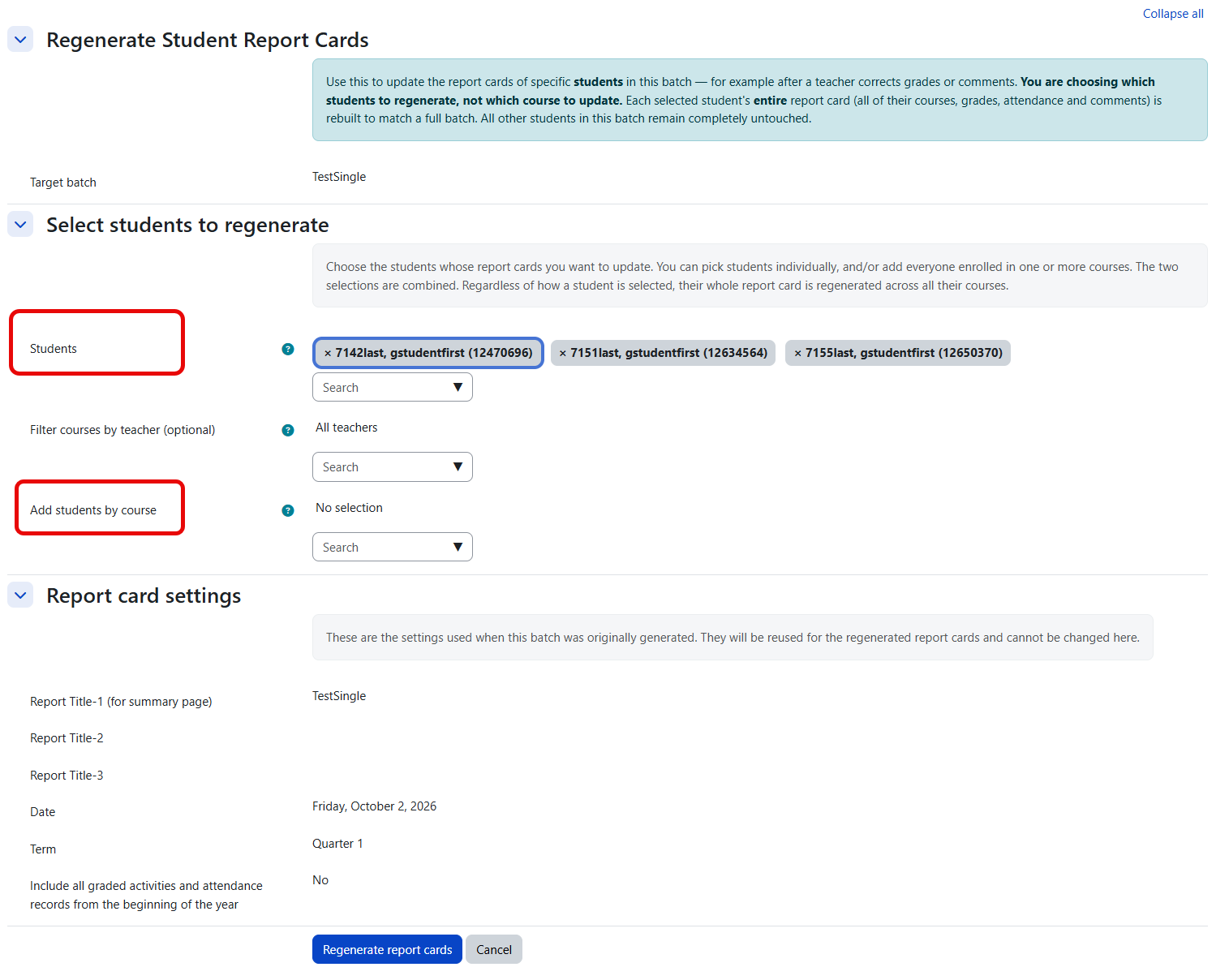
Student selection: Choose students individually, add all active students from one or more courses/sections, or use both options together. The optional teacher filter narrows the course list before you choose courses.
-
What is regenerated: The selected students’ entire report cards are regenerated across all of their courses, including grades, attendance, and comments. Selecting a course is only a way to add students; it does not regenerate only that course.
-
What is not changed: Report cards for students who were not selected remain untouched.
-
Confirmation: Before regeneration starts, Radix shows the number of students whose report cards will be rebuilt.

-
Settings: The original batch settings are reused and shown as read-only. For older batches where the original settings were not saved, the settings remain editable so the regeneration can still run.
-
Date and processing: Regenerated PDFs show the actual regeneration date. The process runs in the background, so larger selections do not need to finish during the browser request.
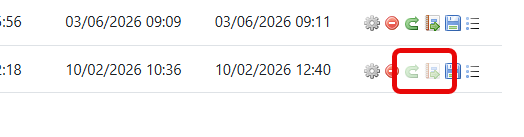
Note: Use the full batch re-generate action when you need to rebuild every PDF in the batch. Use Regenerate Student Report Cards when only specific students need updated PDFs.
Teacher Comments on Report Cards
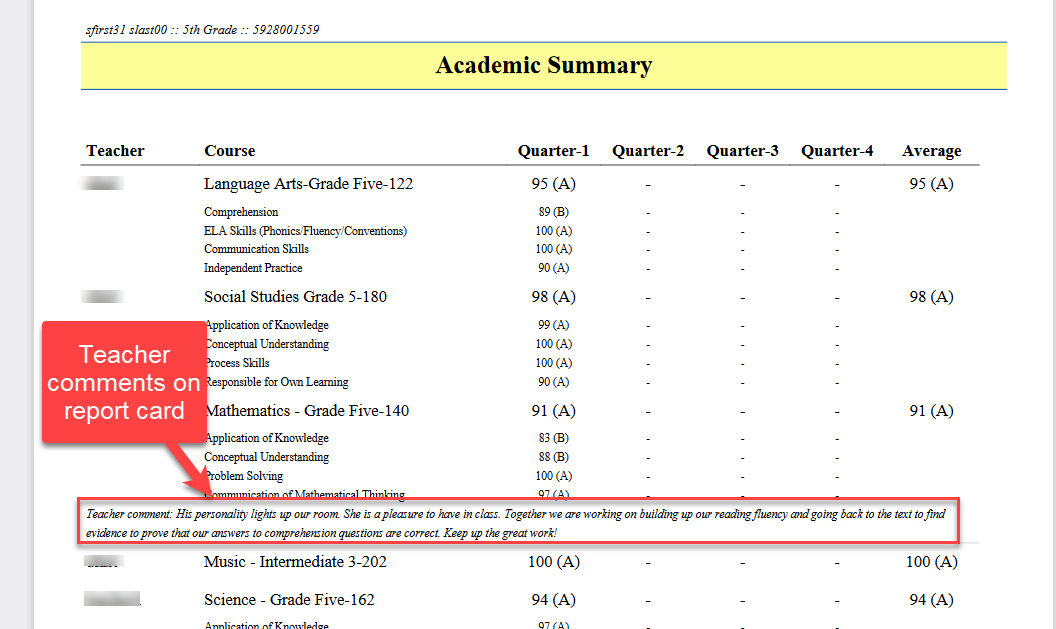
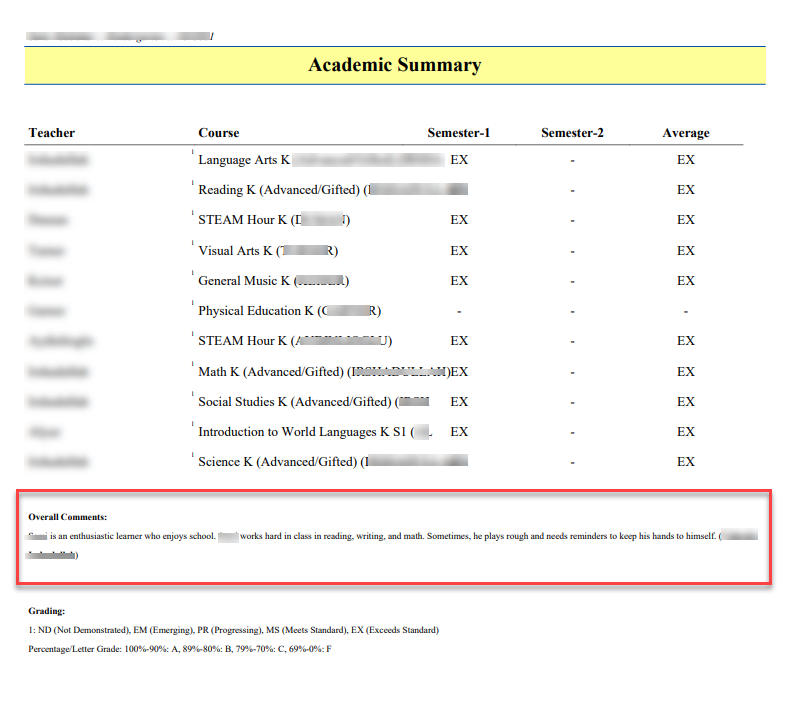
Teachers can provide individualized feedback on students’ performance by adding comments directly to report cards. They can access this feature under School > Report Card > [Report Name]. Teachers can filter students by course, period, or name, and then add comments in the designated text boxes. Comments can be course-specific or overall comments (for homeroom teachers). These comments are automatically saved and can be edited up until the report cards are finalized. Once the report cards are generated, comments are locked and will appear in the final PDF.
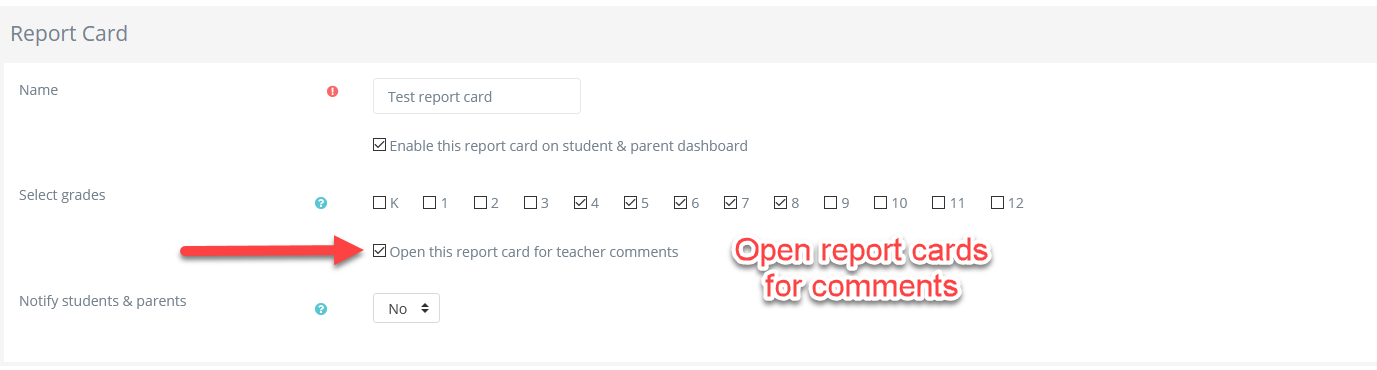
Open report card for teachers to comment |
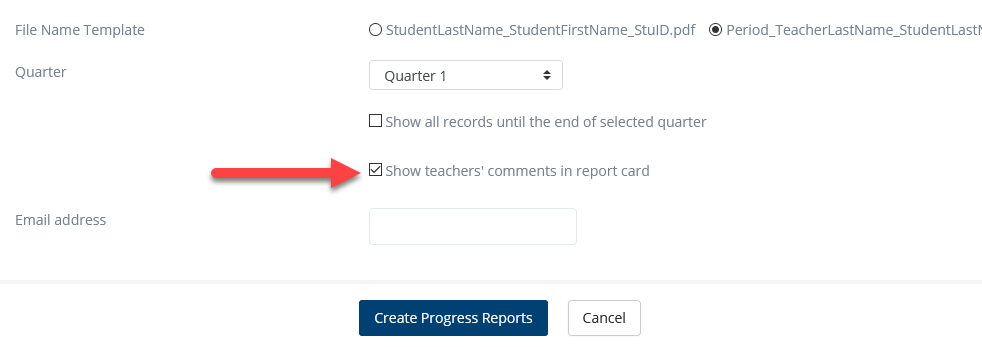
Show report teacher comments on the report card |
-
Comment Visibility: Administrators can choose whether or not to display teacher comments on the final report cards.
-
Overall Comments: Homeroom teachers have the option to add overall comments for their students, which will appear on the summary page.
-
Editing Comments: Comments can be edited until the report cards are finalized and generated. Any changes made after the report generation will not be reflected in the final PDF.
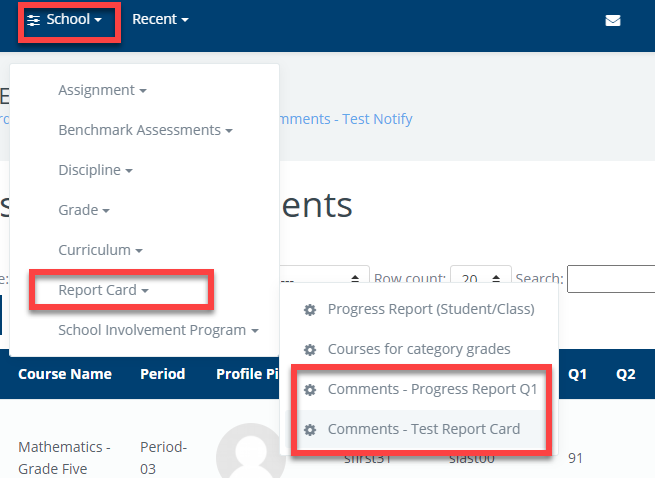
Accessing the report card comment page |
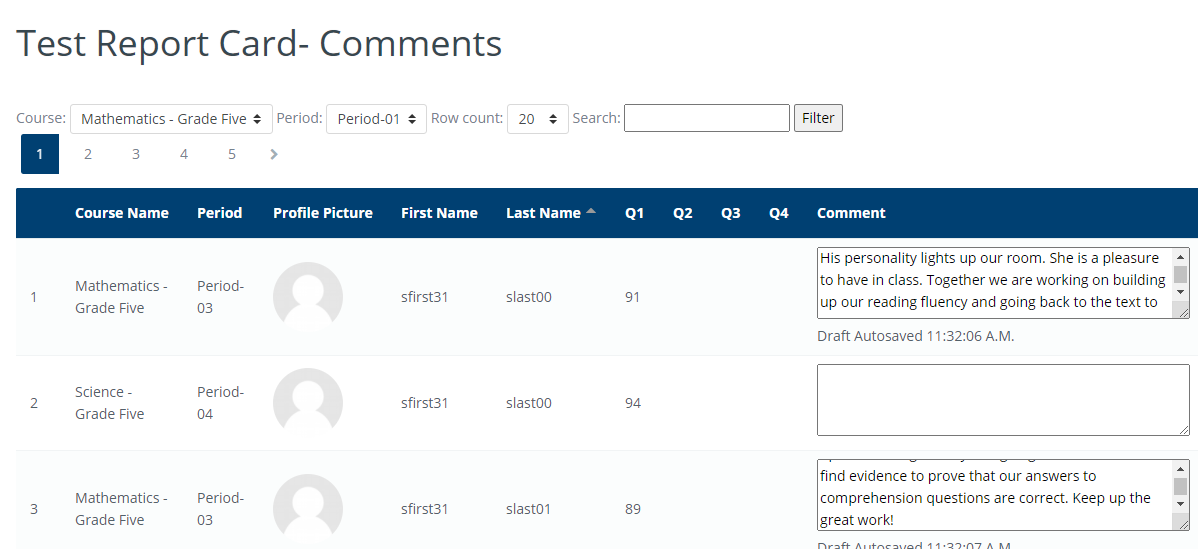
Add report card comments |
Note: From the same menu link, administrators can see the comments teachers add, but they can not add/change any comments.
Predefined report card comments
Administrators can manage a bank of predefined comments from School > Report Card > Report Card Comments. These comments give teachers a consistent set of standard phrases to use when writing report card feedback.
-
When predefined comments are available, teachers can select a comment from the comment combo-box and still add or edit custom text as needed.
-
If no predefined comments have been created, teachers will only see the regular comment text box.
-
Use predefined comments for common feedback statements, while allowing teachers to personalize the final comment before report cards are generated.
Exporting report card comments
Administrators can export teacher report card comments to a CSV file for review, archiving, or auditing. Use the comments export option from the report card comments/report card management area to download the current comment data.
|
|
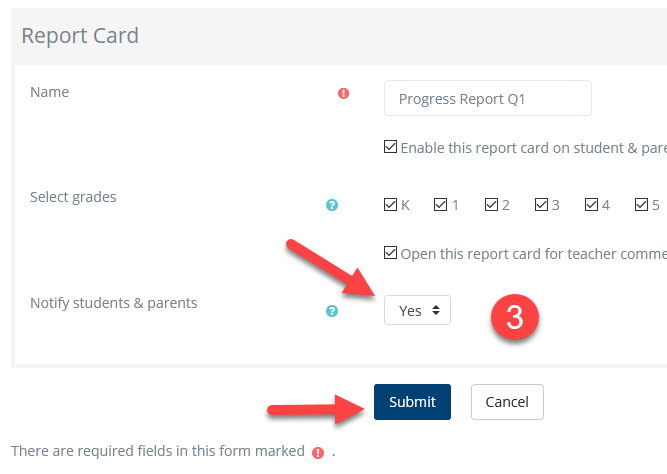
Notifications for Parents and Students
-
Once report cards are generated and enabled for viewing, notifications can be sent to parents and students via the mobile app, browser, or email (depending on user preferences).
-
Ensure the parent role has the required permissions to receive these notifications.
|
|
|
Generating progress reports
Progress reports are instant, unofficial reports that reflect the student’s current grades, attendance, behavior, recognitions, and other enabled report card data at the time the report is generated. They use the same global Report Card Plugin settings described above.
Teachers and admins
-
Teachers and admins can generate current progress reports for students from the available progress report/report card tools in Radix.
-
Admins can print progress reports for individual students or groups of students, depending on the report workflow being used.
-
Teachers can print course or student progress reports for students they teach.
Students and parents
-
Students and parents can generate or view available progress reports from the student or parent dashboard, when the school has enabled access.
-
The report reflects current data at the moment it is generated, so grades or attendance may differ from an official report card generated at the end of a term.
Student and parent dashboard access
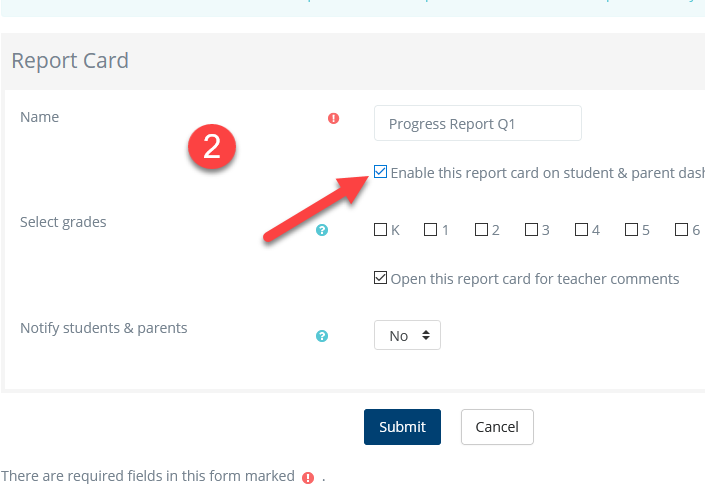
When report cards or external reports are enabled for students and parents, they appear on the student and parent dashboards in the report card/progress report area. Users can open or download the available PDF reports from their dashboard.
-
Only reports that administrators have enabled for student/parent viewing are visible.
-
If notifications are enabled, parents and students can be notified when a new report card or external report is ready.
-
External reports uploaded by admins appear alongside the available report card/progress report items for the student.
Uploading External Reports
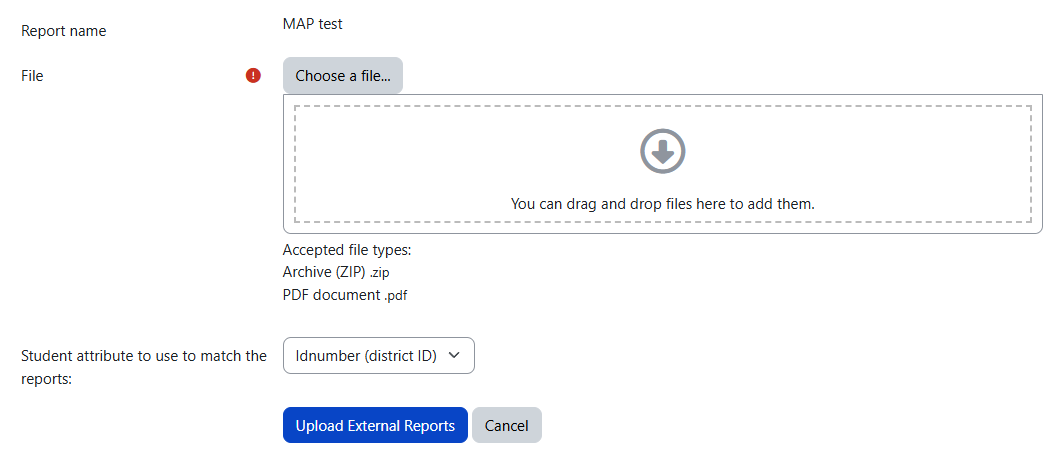
External reports allow administrators to upload pre-existing PDF progress reports from external sources into Radix LMS. Each report must be uniquely named using the student’s ID number (e.g., 1234567.pdf). If you're uploading multiple files, compress them into a zip file for bulk upload.
Student ID / State ID selection: When creating or uploading external reports, admins can choose which student identifier should be used to match uploaded PDFs to students. Use the regular student ID when files are named with the local student ID, or select the State ID option when files are named with the student’s State ID.
Steps:
-
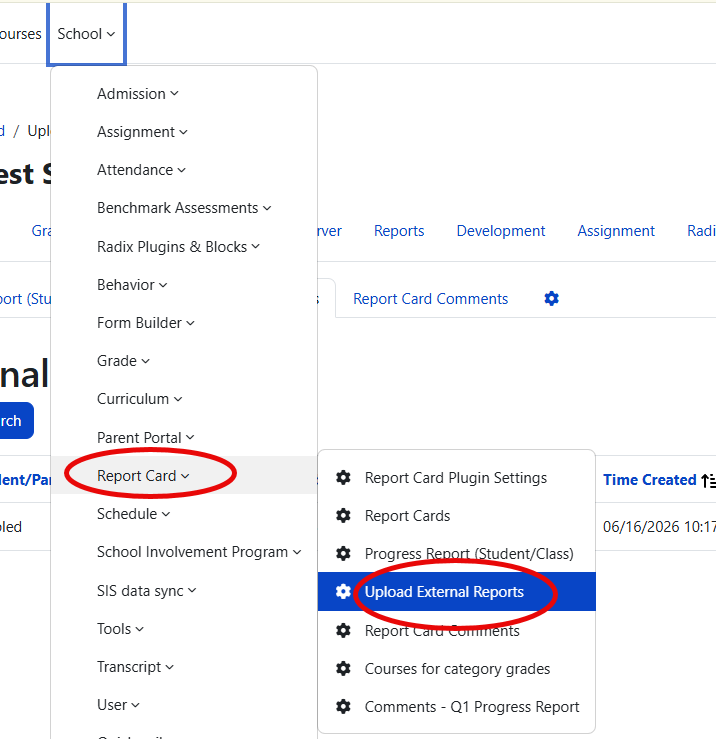
Navigate to School > Report Card > External Reports.
-
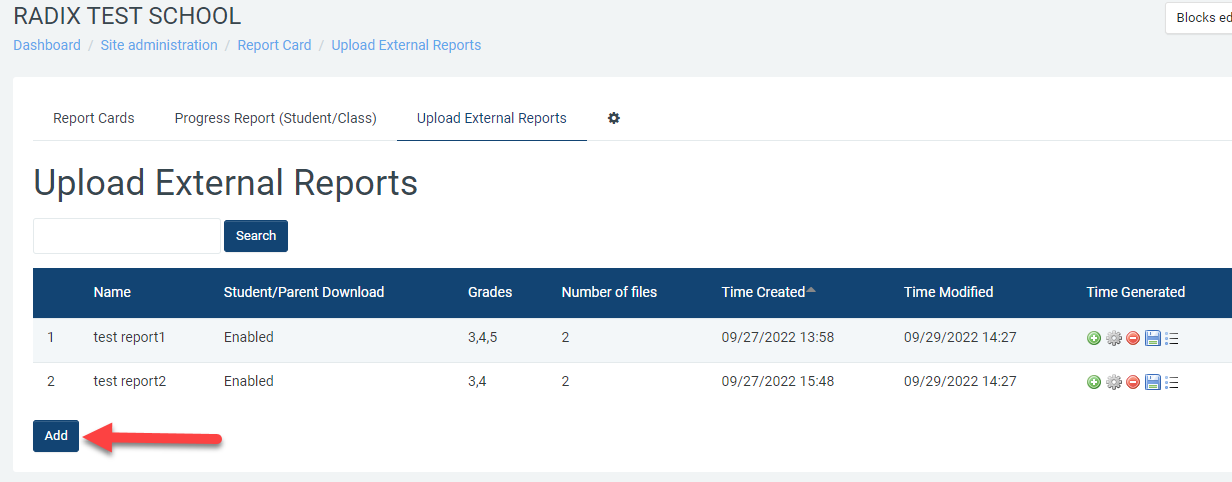
Click “Add” to create a new external report folder, giving it a name that students and parents will see.
-
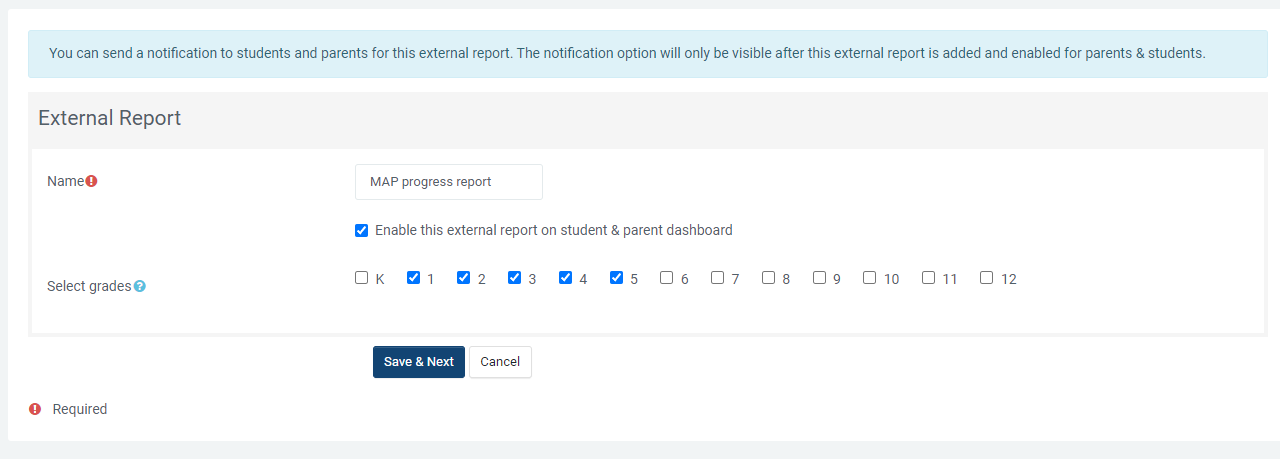
On the next page, name your external report. This will be the name students/parents see on their dashboards. If you want to, enable this report for parents and students and select which grade levels should see this report. After you save and upload the reports, you can come back to this page to send a notification message to the parents and students letting them know that the report is ready for them to view. Click “Save & Next” to go to the upload page.
-
Upload the individual or zip file containing the PDFs. The system will map each file based on the student idnumber (District ID), or State ID.
-
After uploading, you should see an output like below showing the result of upload for each file. From here on, you can go back to the external reports list and see the uploaded pdf files.
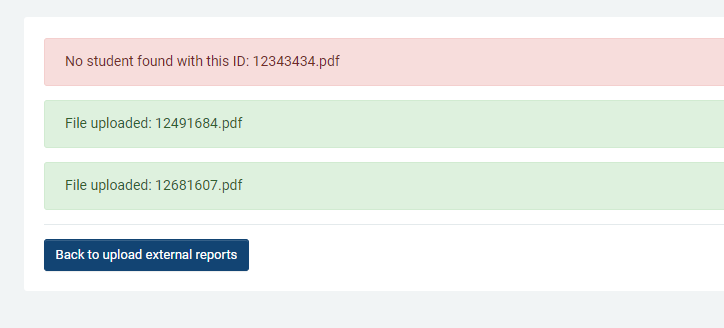
Once the reports are uploaded, you can enable them for students and parents to view and send notifications to inform them of the new reports. Administrators can also download the uploaded PDFs as a zip file for backup or archival purposes.
Action icons:

|
Upload PDF files to an existing report. This operation will overwrite the previously uploaded PDFs for this report. |

|
Edit external report settings such as name, enable for students/parents, notify parents/students. |
|
|
Delete external report and ALL uploaded pdf files. This operation can’t be reversed! |
|
|
Save all of the uploaded PDFs to your computer as a zip file. |
|
|
See the list of the external pdf reports uploaded for each student. You can search by student's first and last name or ID number. |