
Page last reviewed: — For plugin configuration, see Assignment Plugin Settings.
Introduction
Assignment reports provide teachers and administrators with detailed views of gradable activity data across courses, terms, and grading categories. These reports help monitor grading progress, identify gaps in activity creation, and send automated alerts based on thresholds configured in the plugin settings.
Navigation: School → Assignment → Assignment Reports
Report Overview
|
Report |
Audience |
Update Frequency |
Purpose |
|---|---|---|---|
|
Weekly Summary |
Admins |
Real-time |
Shows activity count per week with color-coded sufficiency indicators |
|
Category Summary |
Admins |
Real-time |
Shows activity count per grading category for the selected term |
|
Insufficient Activity |
Admins |
On scheduled alert day |
Lists courses below the minimum activity threshold |
|
Category Report |
Admins |
Real-time |
Shows activity count per category per week at Course, Term, and Child levels |
|
Teacher Assignment Report |
Teachers |
Nightly |
Detailed assignment-level data with grading status, alert filters, and direct grading access |
|
Admin Assignment Report |
Admins |
Nightly |
School-wide version of the Teacher Assignment Report with cross-course search and department filtering |
Assignment Types
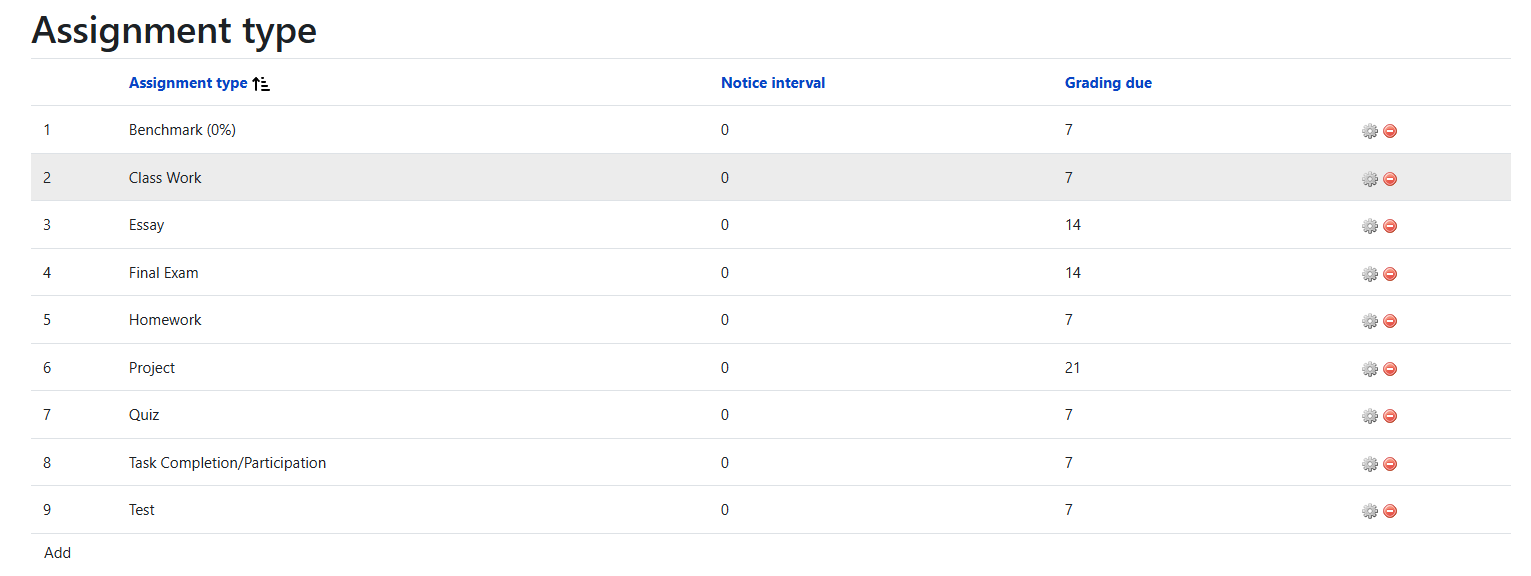
Assignment types determine the categories available when creating an assignment. Each type includes a notice interval (minimum number of days before the assignment's available date) and a grading date (maximum number of days to grade after the due date). These are configured under School → Assignments → Assignment Types.
Weekly Summary
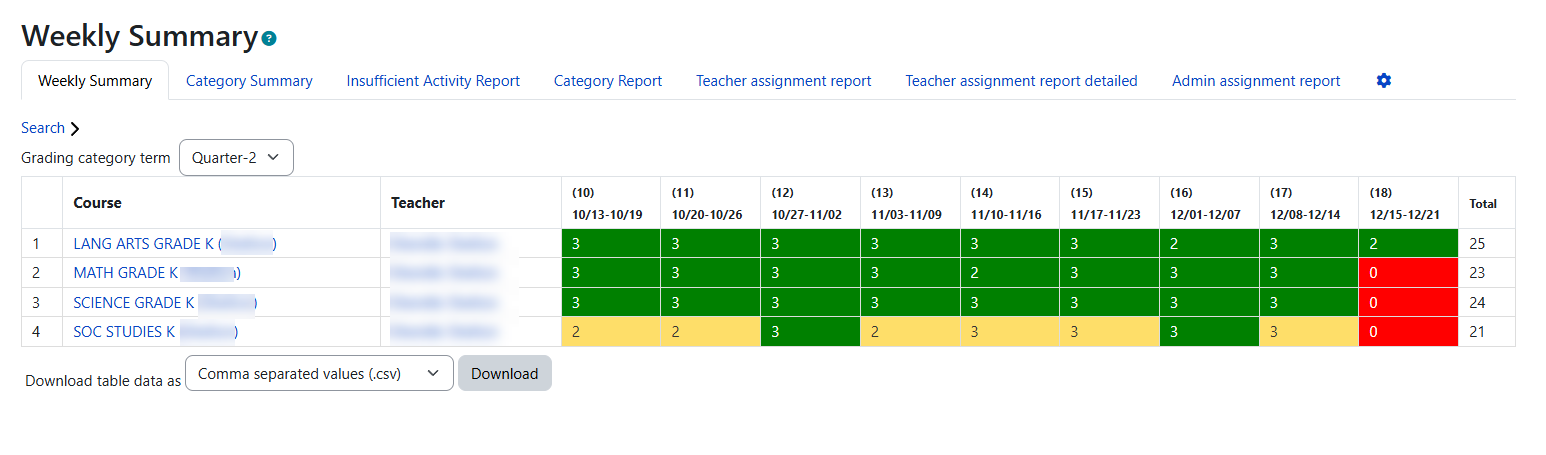
This report shows the number of gradable activities created in each week for every course. Color coding indicates whether courses meet the minimum activity threshold:
|
Color |
Meaning |
|---|---|
|
Green |
The course met the minimum activity threshold for that week |
|
Red |
The course did not meet the minimum activity threshold at the time of the alert |
|
Yellow |
The teacher added activities after the alert was sent, but the week was originally flagged as insufficient |
Key behaviors:
-
Activity counts update in real-time as new assignments are created.
-
Click a course name or teacher name to jump to the Insufficient Activity Report for that course or teacher.
-
If the report does not reflect the correct count, verify that activities are gradable (assignments or SBAs), placed within a dated week (not in the welcome area at the top of the course page), and are not grade items.
Category Summary
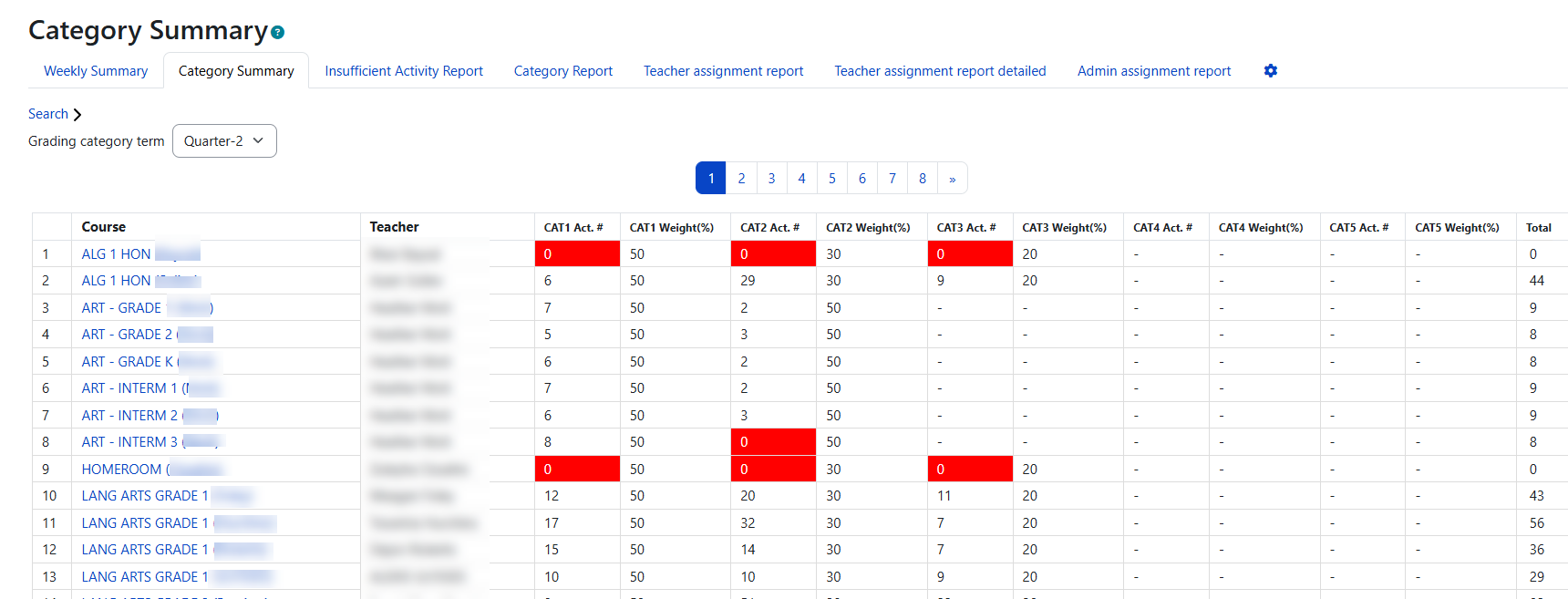
This report shows the number of activities created for each grading category in the selected term. Categories are labeled Cat1 through Cat6, with each showing the number of activities and their combined maximum grade.
Key behaviors:
-
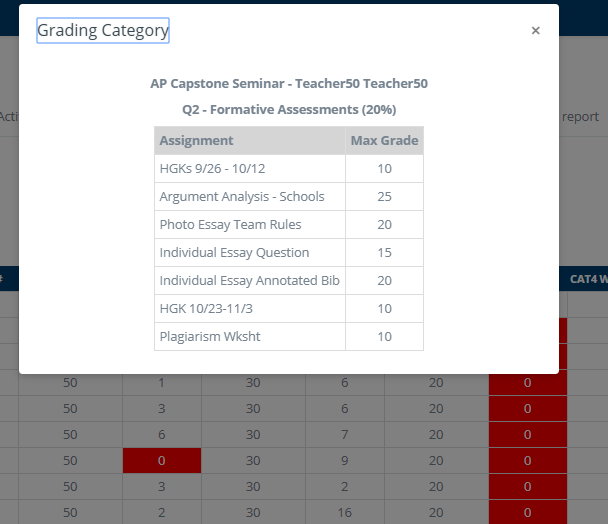
Click any number in the activity columns to see the category name, list of assignments, and their maximum grades in a popup.
-
Click a course name to jump to the Category Report for that course.
-
Use the search function to filter by course or teacher within the selected term.
Important: Activities placed under a parent category such as "Course" or "Term" are not included in this report. Only activities under child-level categories appear.
Insufficient Activity Report & alert
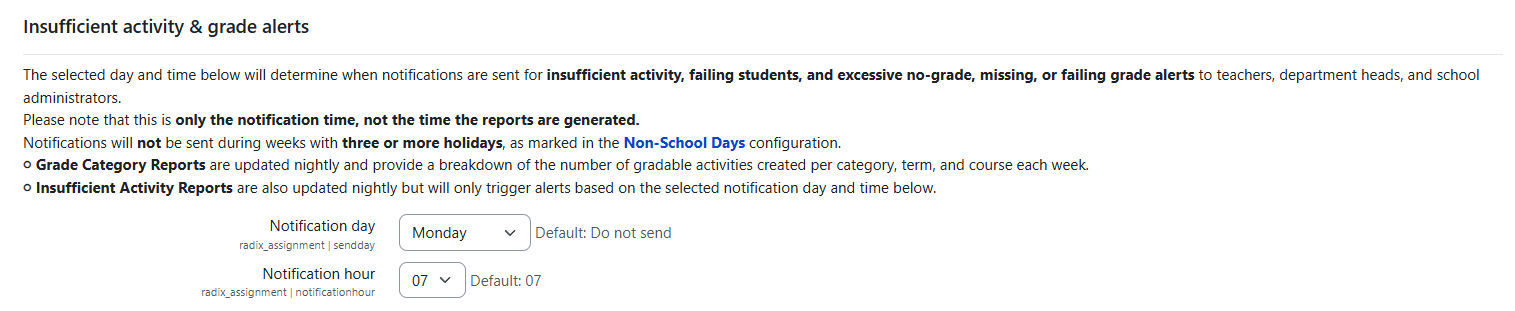
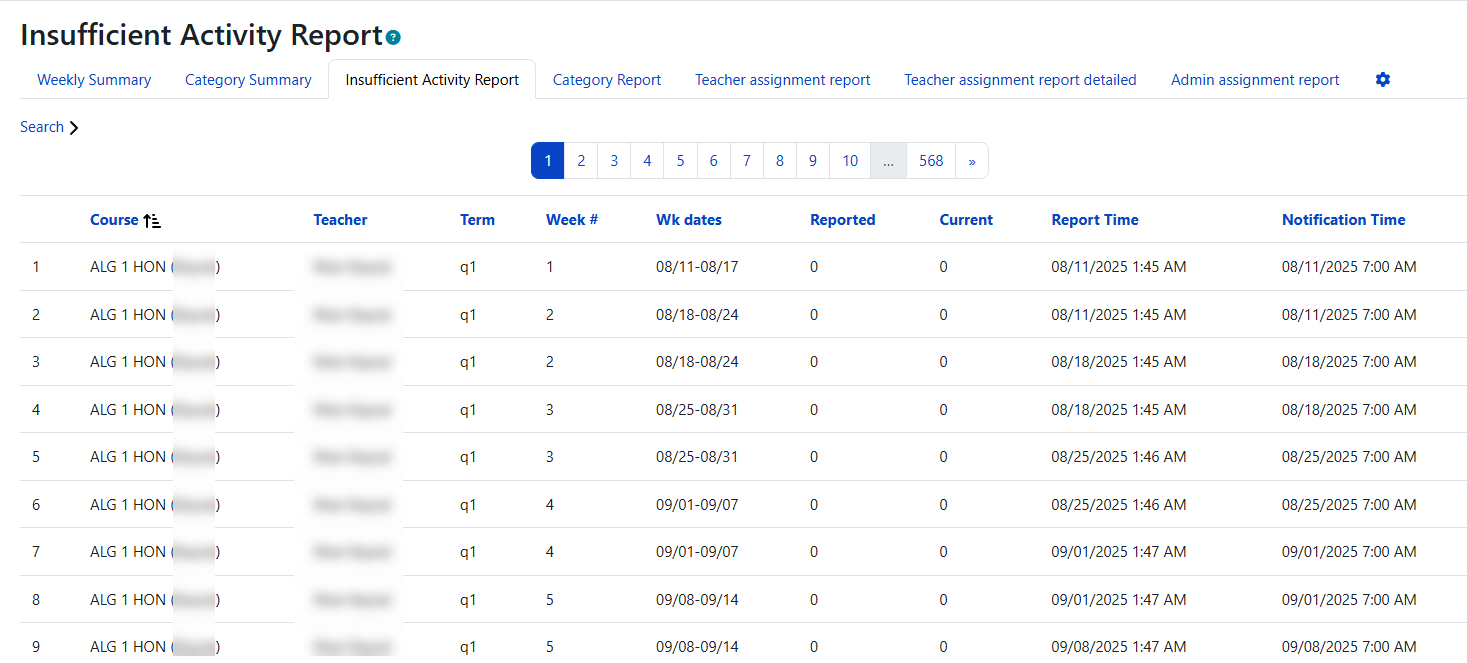
This report lists courses with fewer gradable activities than the minimum threshold configured in the plugin settings. The report is generated and notifications are sent on the alert day and time set by the administrator.
Key columns:
-
Reported — The activity count at the time the report was generated. This number does not change after the report runs.
-
Current — The live activity count, updated in real-time as teachers add new activities.
If the notification day and time have not been configured in the Assignment Plugin Settings, this report will be empty. The default setting is "Do not send".
Category Report
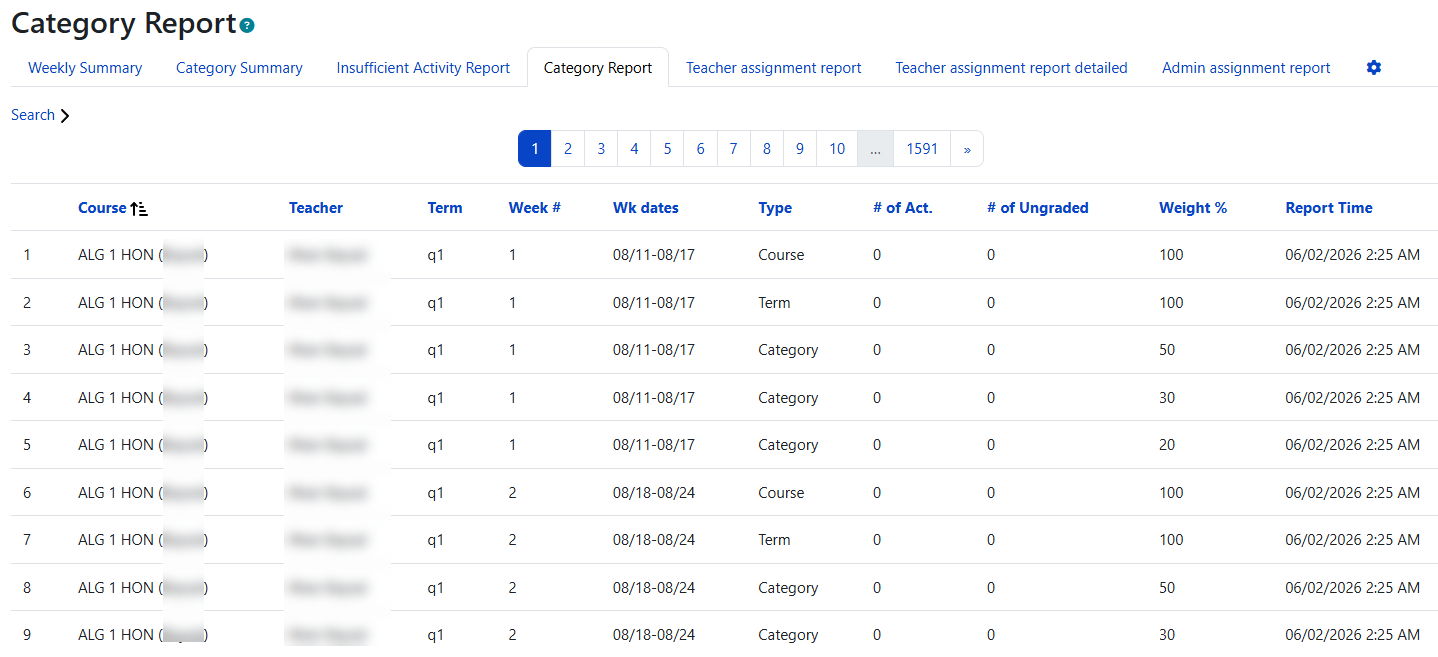
This report shows the number of gradable activities created for each grading category in each week. The data is generated and updated nightly.
Categories are organized into three levels:
-
Course — Total activities across all term and child categories
-
Term — Total activities across all child categories within a term
-
Child — Activities in a specific grading category
Teacher & Admin Assignment Report
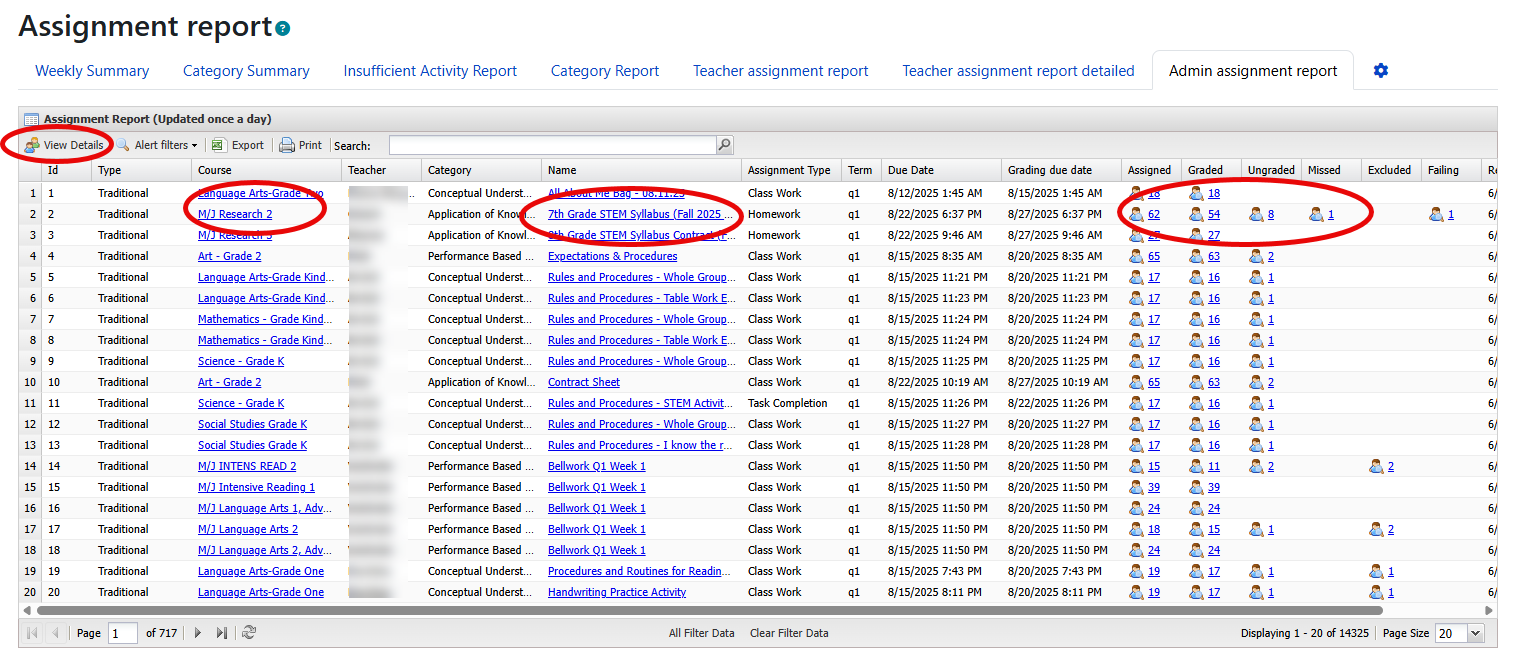
This report provides detailed, assignment-level information including grading status, student counts, and direct links to grading pages.
Key columns include: Course, Assignment Name, Type, Due Date, Total Students, Graded, Ungraded, Missing, Excluded, Failing, No Grade, Average, and Max Grade.
Key actions:
-
Click an assignment name to go directly to the assignment grading page.
-
Click a course name to go to the course page.
-
Click any Missing, Ungraded, or Excluded count to view those students filtered on the grading page and enter grades.
-
Click View Details to see the detailed student list without leaving the report.
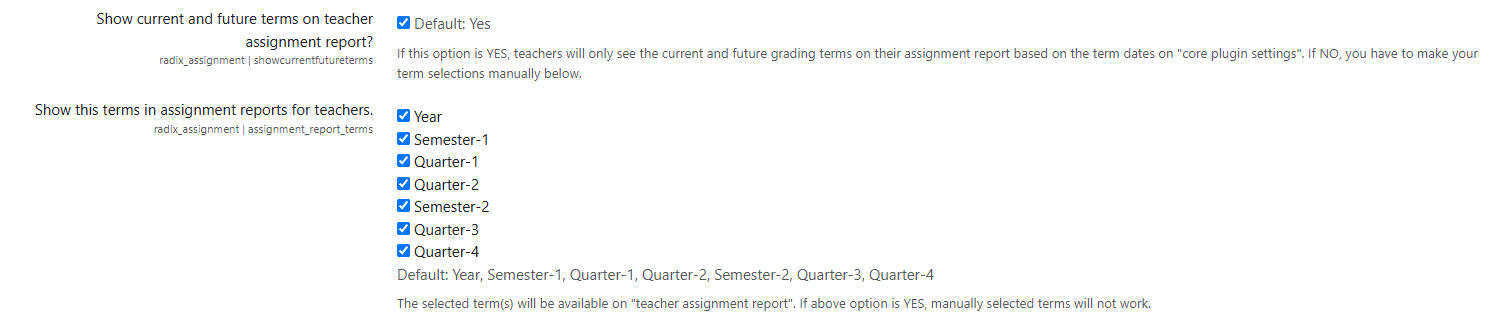
Term display settings: The terms shown on the Teacher Assignment Report are controlled by settings in the Assignment Plugin Settings.
Admin Assignment Report differences:
-
Shows data across all courses in the school (not just the teacher's own courses).
-
Includes a Teacher column to identify the course instructor.
-
Department heads see only courses within their department.
-
Includes a cross-field search to filter across courses, teachers, and assignments simultaneously.
Alert Filters
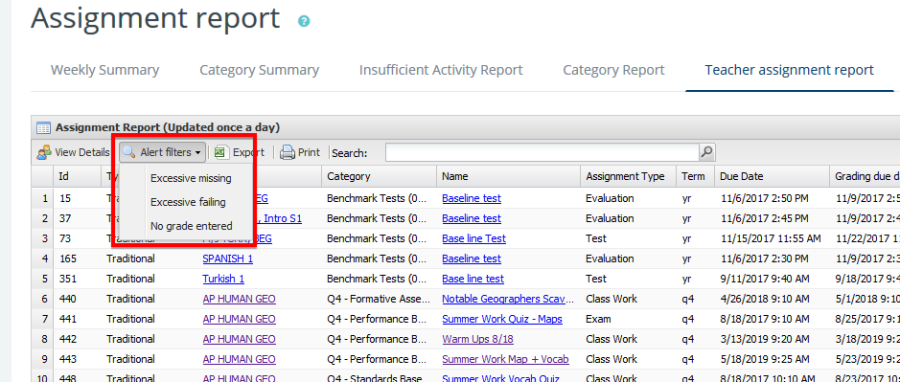
The Teacher and Admin Assignment Reports include an Alert Filters menu with three sub-filters:
|
Filter |
What it shows |
|---|---|
|
Excessive Missing |
Assignments where the percentage of students with missing grades exceeds the configured threshold |
|
Excessive Failing |
Assignments where the percentage of students with failing grades exceeds the configured threshold |
|
Excessive No-Grade |
Assignments where the percentage of students with no grade exceeds the configured threshold |
These thresholds are configured in the Assignment Plugin Settings. The percentages are calculated as: (number of students in the filtered status ÷ total enrolled students) × 100.
Grading Page Improvements
Recent updates to the grading page improve the teacher experience:
-
Filter indicator — The funnel icon on the submissions page now displays the active filter text (e.g., "Submitted" or "All Statuses") between the count and the icon. The "Reset table preferences" button has been renamed to "Reset sorting preferences".
-
Direct Grade icon — When the 3-dot action menu contains only "Grade", it is replaced with a direct grade icon with a "Grade" tooltip, eliminating an unnecessary menu click.
-
Shortened submission previews — Online text submissions show only a few words after the word count. File submissions display the date and time below the filename instead of inline.
-
Horizontal scroll fix — The quick grading page now has a proper horizontal scrollbar. Pop-up windows no longer go under the block drawer.
Alert Notifications
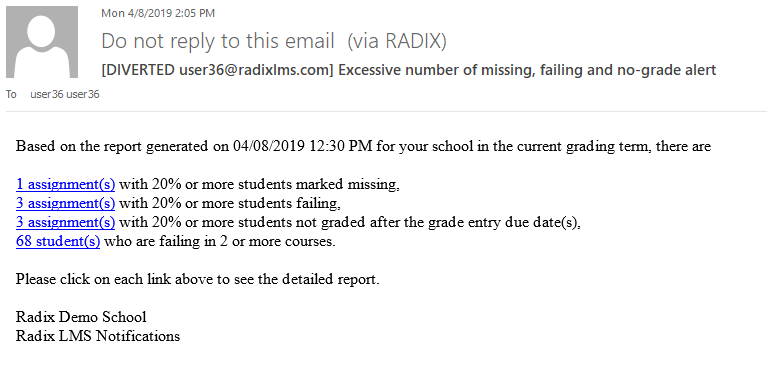
Automated alert emails are sent weekly to school staff based on the thresholds configured in the plugin settings.
Alert types:
-
Excessive Missing Assignments — Sent when a course exceeds the missing grade threshold percentage.
-
Excessive Failing Grades — Sent when a course exceeds the failing grade threshold percentage.
-
Excessive No-Grade Assignments — Sent when a course exceeds the no-grade threshold percentage.
Recipients and scope:
|
Role |
Scope |
|---|---|
|
Principal / AP |
Receives alerts for all courses across the school |
|
Department Head |
Receives alerts for courses within their department only |
|
Team Leader |
Receives alerts for courses within their team |
|
Teacher |
Receives alerts for their own courses only |
The alert email includes hyperlinks to the specific report filters. These filters are located on the Teacher/Admin Assignment Report under the Alert Filters menu.
Failing Student Alerts
Failing student data is accessible through the GPA Report (School → Grade → GPA/Average Report). The GPA Report includes a column for each grading term showing the number of courses each student is failing. Click a student's name to view their detailed course grades.
Tips and Troubleshooting
|
Issue |
Solution |
|---|---|
|
Weekly Summary shows wrong activity count |
Verify activities are gradable (assignments or SBAs), placed within a dated week, and not grade items or in the welcome area |
|
Insufficient Activity Report is empty |
Configure the notification day and time in Assignment Plugin Settings — the default is "Do not send" |
|
Category Summary does not show all activities |
Activities under parent categories (Course or Term level) are excluded — move them to child categories |
|
Alert emails are not being sent |
Check that threshold percentages are configured and the alert schedule day and time are set in plugin settings |
|
Teacher cannot see certain terms on the assignment report |
Adjust the term display settings in Assignment Plugin Settings |
|
Red weeks persist after teacher added activities |
Red indicates the count at alert time. If activities were added afterward, the week turns yellow, not green |