
This page explains the four reporting and monitoring tools available in the Attendance module. Use these views to review attendance trends, inspect daily entries, identify missing submissions, and update individual student records when corrections are needed.
Tip: Use Attendance Setup & Configuration for attendance setup, status codes, SIS sync, and administrative configuration. Use Attendance Alerts for automated alert workflows.
Available report views
Attendance reporting is split into two report views and two monitoring views. Each serves a different purpose, so users should choose the tool that matches the question they are trying to answer.
|
View |
Best used for |
What it shows |
Typical audience |
|---|---|---|---|
|
Cumulative Report |
Reviewing attendance totals across a date range |
Counts by student, course, period, and attendance code |
Attendance staff, school administrators |
|
Daily Report |
Reviewing attendance by day |
One row per student per day with period-by-period codes |
Attendance staff, school administrators |
|
Class Monitor |
Checking whether teachers have completed attendance |
Teacher-by-period status grid for a selected date |
Attendance staff, front office staff |
|
Student Monitor |
Reviewing or correcting one student's attendance across periods |
Student-by-period grid with inline editing |
Attendance staff, authorized administrators |
Cumulative Attendance Report
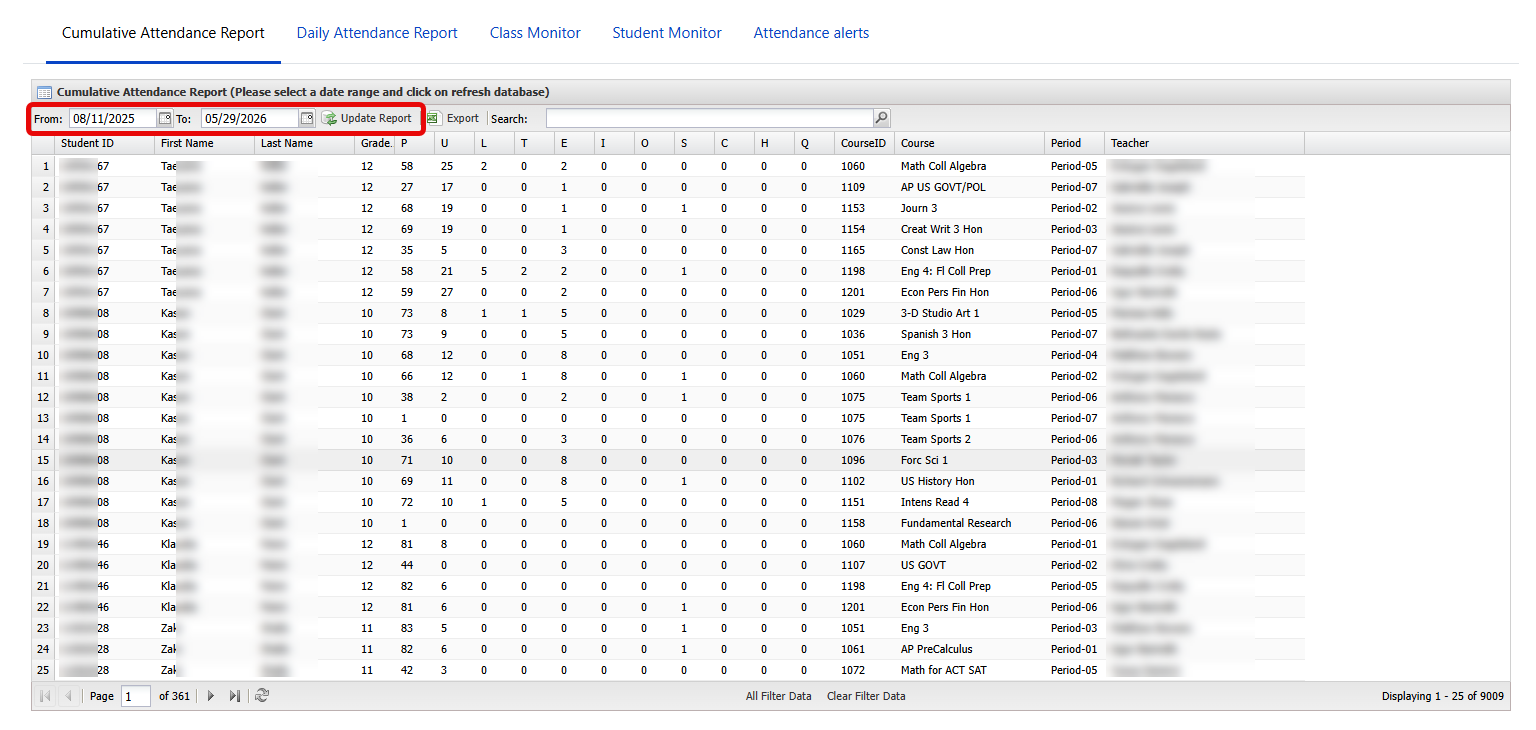
The cumulative report summarizes attendance across a selected date range. It is best suited for answering questions such as which students have the highest number of absences, how many tardies occurred in a specific course, or how attendance totals differ by period.
By default, the report opens with a rolling 30-day date range. Users can change the From and To dates and click Update Report to refresh the data.
What the report includes
-
Student ID, first name, last name, and grade
-
Course ID, course name, teacher, and period
-
One column for each attendance code in the default status set
-
Counts for each attendance code within the selected date range
The report uses the default attendance status set, not a fixed hard-coded list. If your school changes the default codes, the cumulative report columns change with them.
Filters and search
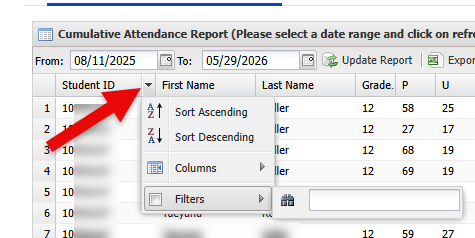
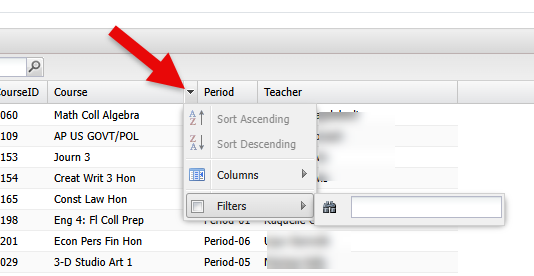
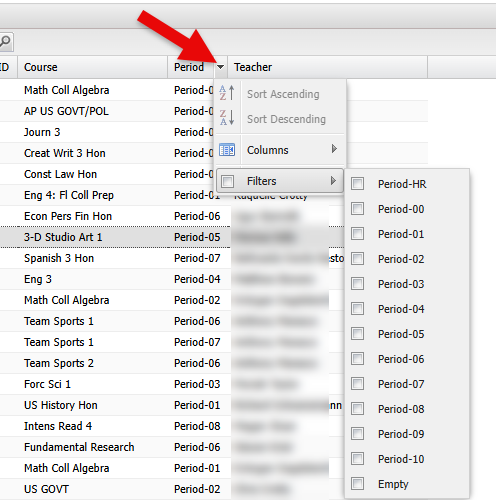
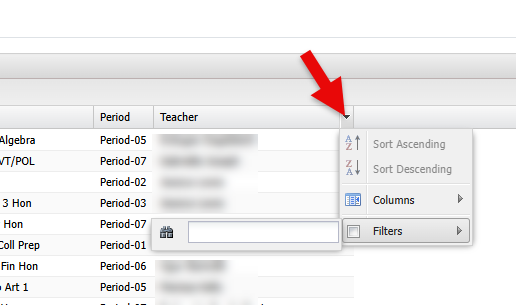
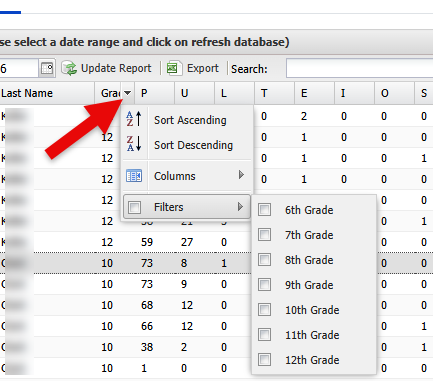
The cumulative report supports grid filtering and free-text search. Common filter options include:
-
Grade level
-
Period, including HR and 00
-
Student ID
-
Student first or last name
-
Course
-
Teacher
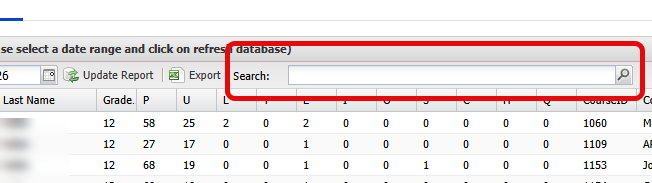
The search box can be used to quickly locate records by student name, teacher, course, or period.
|
|
|
|
|
|
Export
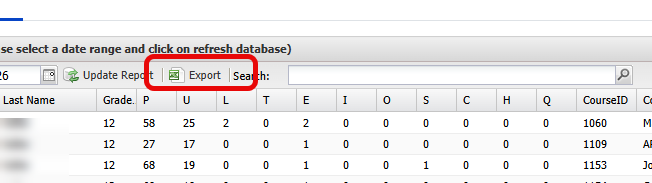
Use the Export button to download the filtered results to CSV. The export respects the current date range, search terms, and filters.
If you open the cumulative report from a student link elsewhere in the system, the page can load with that student's ID pre-filtered.
Daily Attendance Report
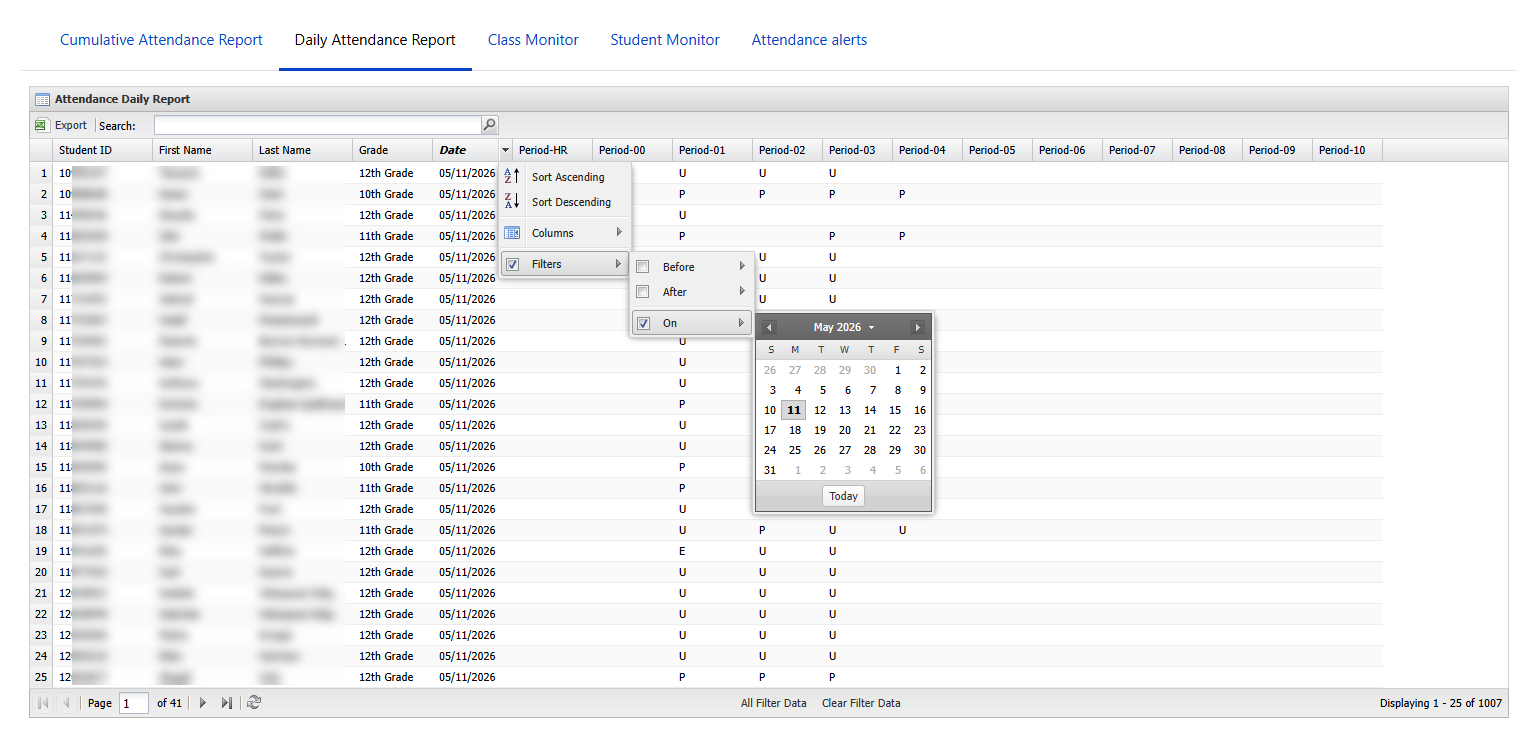
The daily report provides a day-by-day view of attendance history. Each row represents one student on one date, with separate columns for each period.
What the report includes
-
Student ID, first name, last name, and grade
-
Date
-
Attendance code columns for HR, 00, and periods 01 through 10
-
Hidden audit columns for when attendance was last taken or edited and who entered it
The visible period columns show the attendance code recorded for each period on that day. This makes the daily report useful for verifying exactly what was entered, rather than reviewing totals.
Filters and search
The daily report supports filters on the grid itself. Common filters include:
-
Date
-
Grade level
-
Student ID
-
Student first or last name
-
Individual period columns
The search box supports quick student lookups by name.
Export
Use the Export button to download the current results to CSV. Exported files include the daily period values and audit columns.
The daily report includes HR and 00 periods in both the on-screen grid and export output.
Class Monitor
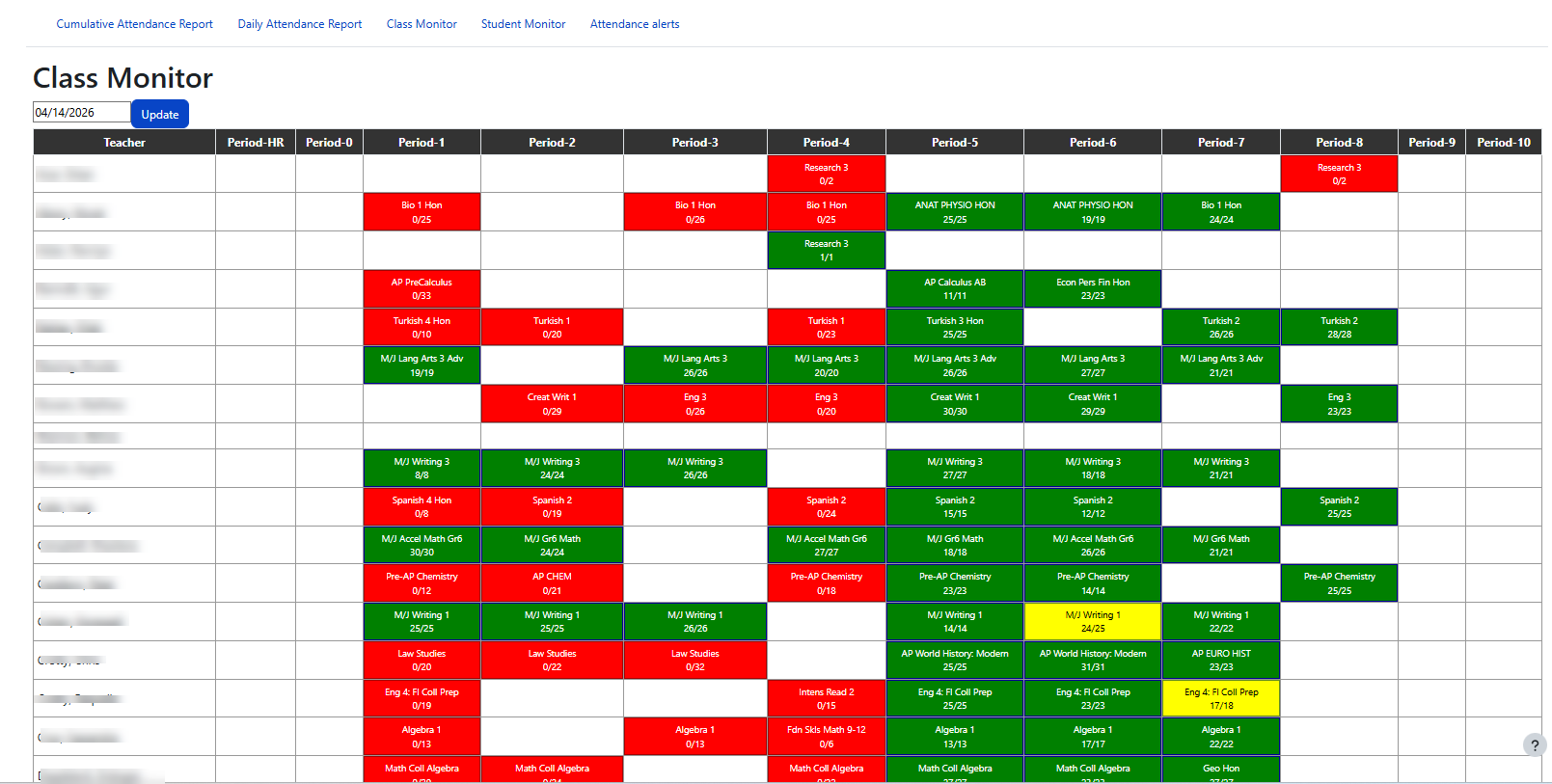
The class monitor is designed for operational use during the school day. It gives staff a quick way to see which teachers have completed attendance for each period on a selected date.
How it is organized
The monitor displays one row per teacher and one column per period. Each cell can contain one or more classes taught by that teacher in that period.
Each class entry shows:
-
The course name
-
A completion ratio in the format
taken/all
Status display
The class monitor uses color code styling to show whether attendance is complete:
-
Green (Fully Taken) — all expected student entries are complete
-
Yellow (Partially taken) — some attendance has been entered, but not all
-
Red (Not taken) — no attendance has been entered for that class and period
Users can change the date at the top of the page and click Update to reload the monitor.
This is the fastest view for identifying teachers or classes that still need attendance follow-up on a specific day.
Student Monitor
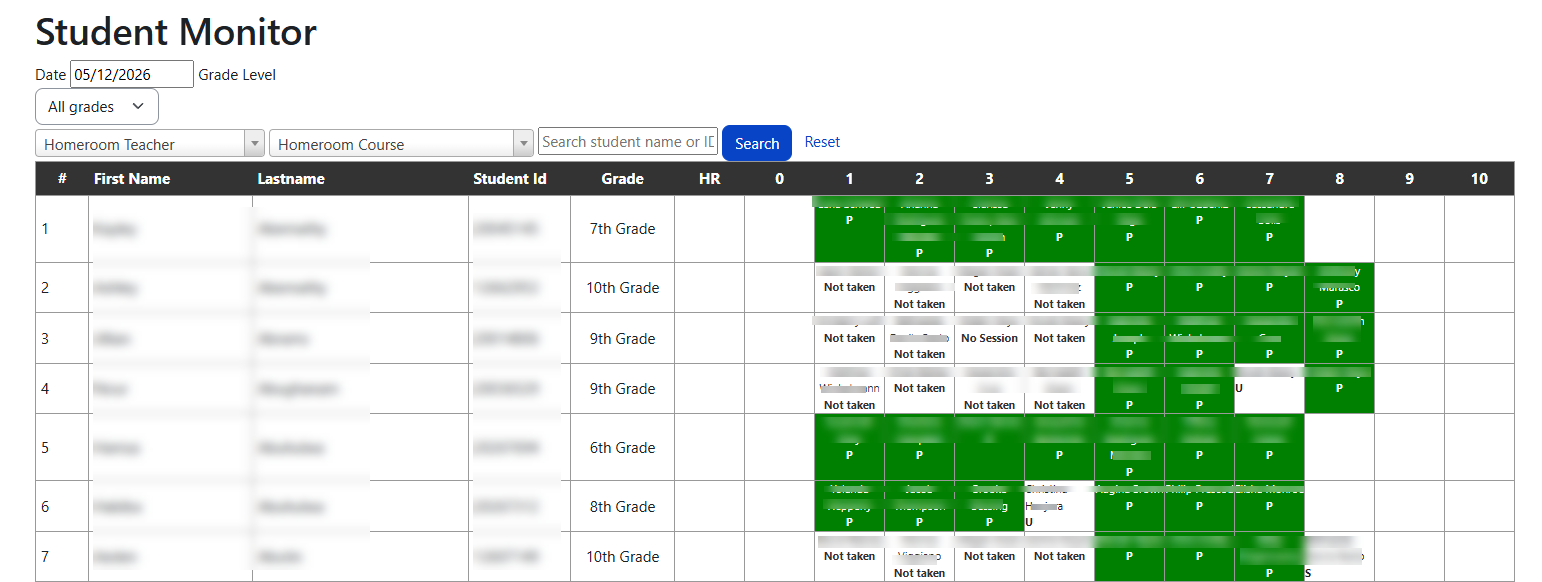
The student monitor shows a student-by-period attendance grid for a selected date and also supports direct edits. It is useful when office staff need to review one student's schedule for the day, confirm which class is affected, or make a correction after attendance has already been submitted.
Available filters
The student monitor supports several filters above the table:
-
Date
-
Grade level
-
Homeroom teacher
-
Homeroom course
-
Search by student name or ID
If no filters are applied, the page can display the active student list for the selected date. Filters are helpful for narrowing the results to a smaller group.
What each cell shows
Each period cell includes the teacher name and the attendance status for that student in that period. The grid supports HR, 00, and periods 01 through 10.
You may see different states in a cell:
-
An attendance code — attendance has been recorded
-
Not taken — a valid session exists, but no attendance has been submitted yet
-
No Session — the student has a scheduled class, but no attendance session exists for that date and period
If a student is no longer enrolled in a class but an attendance log already exists for that course, the monitor can still display the historical record and identify that the student is no longer enrolled in that class.
Inline editing
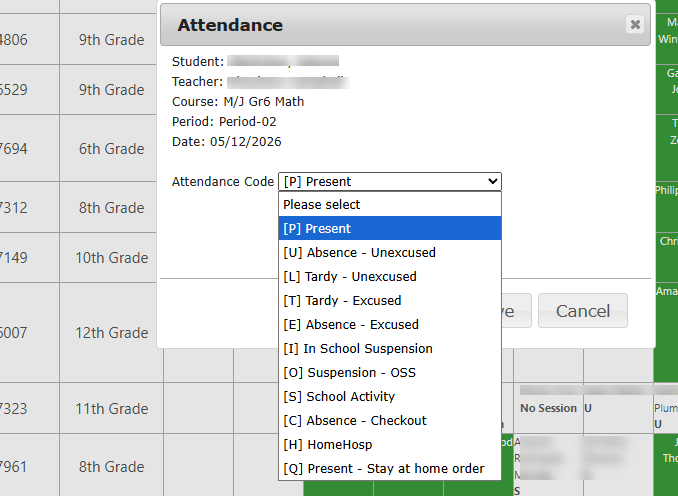
Clicking a cell opens an attendance dialog with contextual details such as student name, teacher, course, period, and date. The drop-down list of attendance codes is populated from the current visible default status set.
When a user saves a change from the Student Monitor, the system updates the attendance log and also updates the daily attendance reporting table used by the Daily Report.
Use with care: Because the Student Monitor can create or update attendance records directly, it should be limited to staff who are responsible for attendance corrections.
Exports and data behavior
|
Area |
Behavior |
|---|---|
|
Cumulative Report |
Exports the filtered results for the selected date range, including dynamic attendance-code columns |
|
Daily Report |
Exports the current filtered grid, including period values and audit metadata |
|
Status codes |
Reports reflect the active default attendance codes configured in the system |
|
Periods |
Reports and monitors support HR, 00, and standard numbered periods where attendance sessions exist |
Access and permissions
All four views are accessed from the Attendance area in the School admin menu. Access is controlled by separate permissions, so a user may see some tabs but not others.
|
View |
Permission |
What the permission allows |
|---|---|---|
|
Cumulative Report |
|
Open and export the cumulative attendance report |
|
Daily Report |
|
Open and export the daily attendance report |
|
Class Monitor |
|
View the class monitor by teacher and period |
|
Student Monitor |
|
View the student monitor and update attendance from the grid |
Important: The Student Monitor is not just a view-only report. Users with access can update attendance directly from the monitor, so this permission should be assigned carefully.