
This page explains the optional parent-facing information update workflow in Radix LMS, including when to use it, where parents access it, how the update window works, and which fields can be exposed for editing.
Important: This feature is intended for schools that do not sync parent and student information from an external SIS. If your school imports parent or student demographic data from an SIS, parent-submitted changes in Radix LMS may be overwritten by the next sync. In that case, families should update information through the SIS-managed process instead.
Best practice: Enable this feature only for schools that manage family contact and student profile updates directly in Radix LMS, typically during a defined back-to-school verification window.
What this feature does
The Student & Parent Information Update feature allows parents to review and update selected student and family information from the parent dashboard during a configured annual time window.
Administrators control which sections are editable, when the update window opens, and how long it remains available. Parents can submit updates more than once while the window is active.
Where parents access it
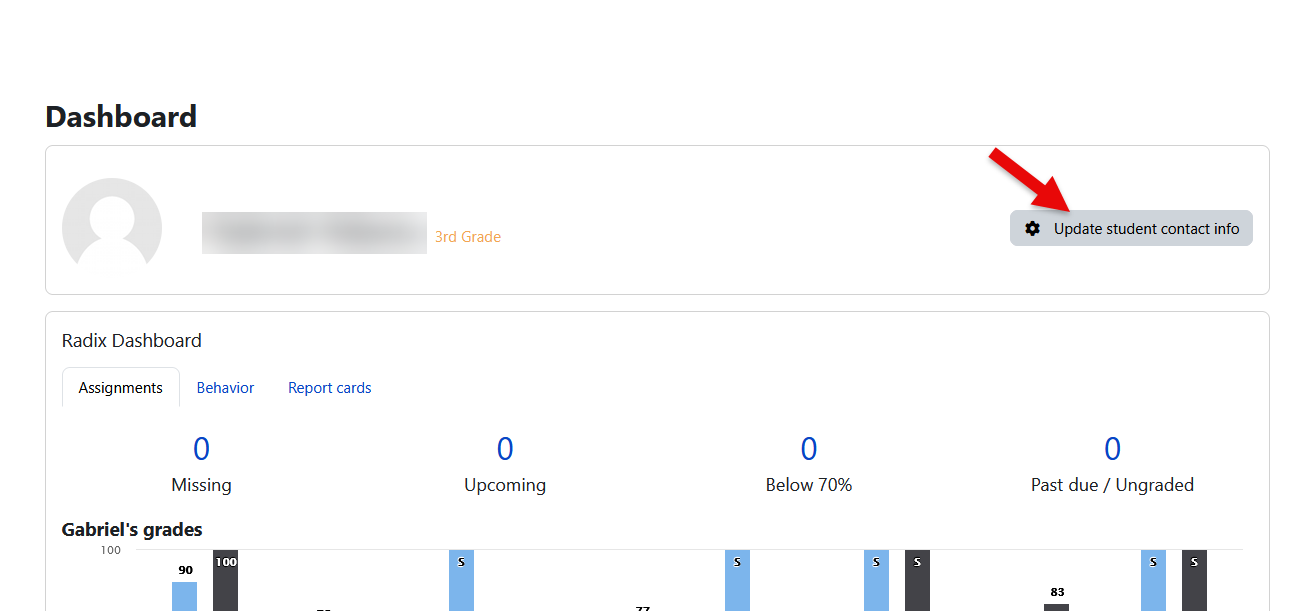
When the feature is active, parents see an Update student contact info action in the student information area of the parent dashboard, next to the student summary details such as name, photo, and grade.
Selecting that action opens the student profile update page for the selected student.
-
Parent dashboard path: Parent Dashboard → selected student → Update student contact info
-
Underlying page:
/radix/portal/student_profile.php?id={student_id}
If the update window is not active, or if no editable sections have been configured, the update link does not appear.
Who should use this feature
|
School scenario |
Recommendation |
|---|---|
|
School manages parent and student contact information directly in Radix LMS |
Use this feature to collect annual updates from families. |
|
School syncs parent or student information from an SIS |
Do not use this feature for ongoing data maintenance, because SIS imports may overwrite submitted changes. |
This feature is especially useful for annual verification workflows such as beginning-of-year contact review, emergency contact refresh, health information confirmation, or media permission review.
How the update window works
The update link is controlled by settings in Site Administration → Parent Portal → Portal Plugin Settings.
|
Setting |
Description |
|---|---|
|
Info update start date |
The month and day when the annual update window opens for parents. |
|
Info update duration |
How long the update window remains open after the start date. The default is 7 days. |
|
Updatable student fields |
Determines which sections appear on the update form. |
The configured start date repeats each year using the current calendar year. If the start date or duration is not configured, the update link will not be shown to parents.
Example: If the start date is set to and the duration is 7 days, parents can submit updates from through .
What parents can update
Administrators choose the editable sections using the Updatable student fields setting. Only selected sections are shown on the parent form.
|
Section |
Typical data included |
|---|---|
|
Student Info |
Birthplace, Pre-K history, home address, mailing address, former school, residence details |
|
Student Medical |
Physician details, insurance, allergies, medical concerns, asthma-related information, medication needs |
|
Parent 1 Contact Info |
Relation, name, email, phone numbers, address, employer, work information, lives-with-student flag |
|
Parent 2 Contact Info |
Same general contact fields as Parent 1 |
|
Authorized Contacts |
Additional pickup contacts, relation, phone, and pickup authorization |
|
Sibling Info |
Sibling names, grade levels, and school information |
|
Media Participation |
Media participation permission setting |
Note: If no sections are selected in Updatable student fields, the update option will not be shown, even during the active date window.
Parent experience
During the active window, parents can open the form, review the available sections, and submit updates for the selected student.
After a successful submission, Radix LMS displays a confirmation message indicating that the information was submitted successfully and may still be changed until the end of the update window.
Parents can return and resubmit updates multiple times while the window remains open.
Data behavior
Submitted changes are saved directly in the Radix student information record used by the portal workflow.
Because updates are stored in Radix LMS, schools should align this feature with their broader data ownership model before enabling it. If another system is considered the authoritative source for demographic or contact information, that system should remain the update point for families.
Administrative guidance
-
Use this feature for annual verification campaigns, not as a substitute for SIS-driven data governance.
-
Clearly communicate to families when the update window opens and closes.
-
Enable only the sections the school is prepared to review and maintain.
-
Test the parent experience with a sample account before opening the window to all families.
Troubleshooting
|
Issue |
Likely cause |
What to check |
|---|---|---|
|
Parents do not see the update link |
The date window is inactive or no fields are enabled |
Verify the start date, duration, and selected updatable sections |
|
Parents can open the page but do not see expected sections |
Those sections were not selected in settings |
Review the Updatable student fields configuration |
|
Submitted changes do not persist long term |
An SIS sync may be overwriting the data |
Confirm whether student and parent profile data is managed externally |
|
Families are unsure whether they should use the form |
School process is not clearly communicated |
Publish guidance explaining whether Radix LMS or the SIS is the source of truth |