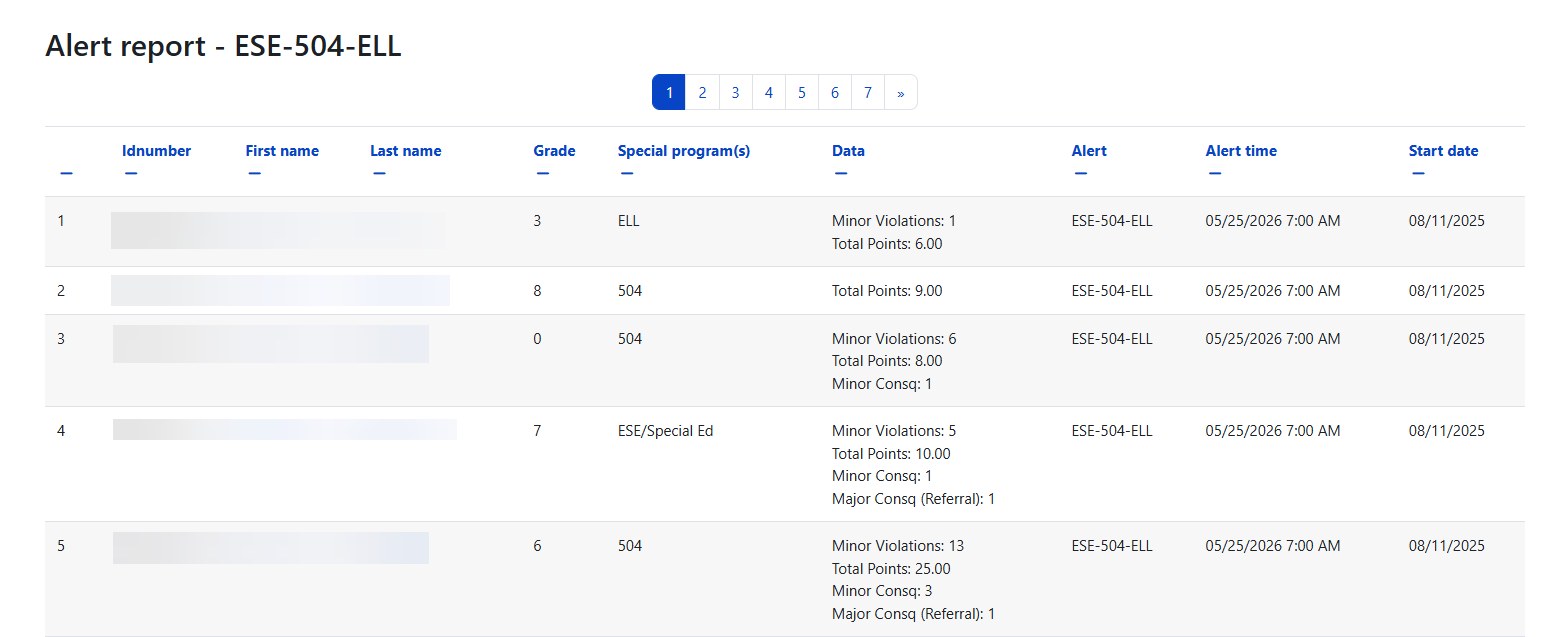
Behavior Alerts allow administrators to set up automated notifications that monitor student behavior patterns. Radix supports two alert types: Special Program Alerts and Repeated Behavior Alerts. Alerts are evaluated by a scheduled task and only run on school days.
Overview
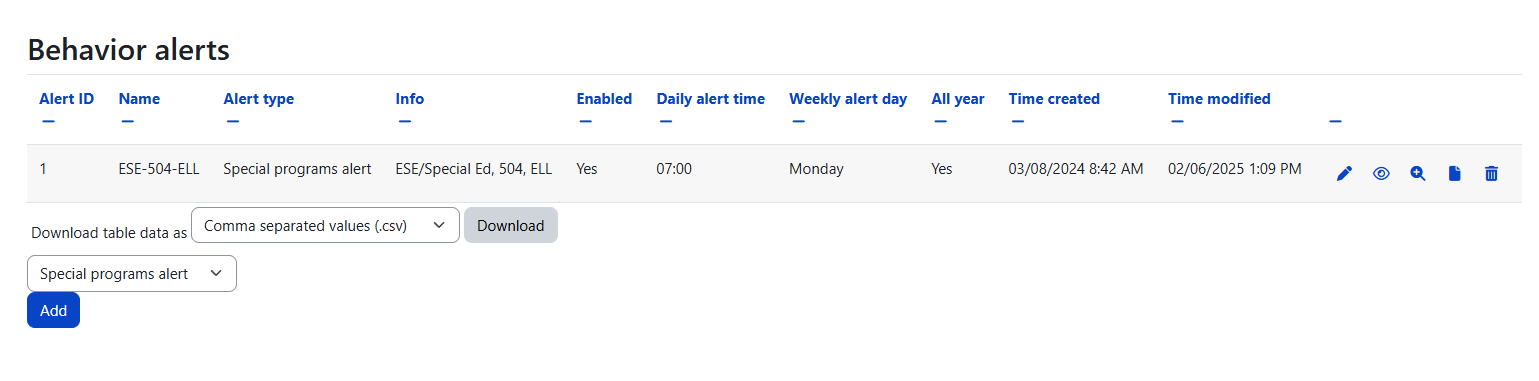
Behavior Alerts are managed under School > Behavior > Alerts. From this page, administrators can create new alerts, view existing alerts, enable or disable them, access alert logs, and delete alerts.
The system requires the capability radix/discipline:managealerts to access the alerts management page.
Alert Types at a Glance
|
Feature |
Special Program Alert |
Repeated Behavior Alert |
|---|---|---|
|
Purpose |
Notify when students in special programs (ESE, 504, Gifted, ELL) receive behavior entries |
Notify when students accumulate behavior entries beyond a defined threshold |
|
What It Monitors |
Minor Violations, Minor Consequences, Major Consequences, and Total Points for program students |
Configurable: Minor Violations, Minor Consequences, and/or Major Consequences |
|
Trigger |
Any qualifying behavior activity for a student in a selected program |
Entry count exceeds the configured alert level within the date range |
|
Programs Filter |
Yes — select from ESE, 504, Gifted, ELL |
No |
|
Alert Levels (Thresholds) |
No — reports all activity |
Yes — define numeric levels that create threshold brackets |
|
No Activity Notification |
Sends a "no behavior log" message |
Sends a "no repeated behavior log" message |
Alerts List
The main alerts page displays all configured alerts in a sortable, downloadable table with the following columns:
|
Column |
Description |
|---|---|
|
Alert ID |
Unique identifier for the alert |
|
Name |
The name assigned to the alert |
|
Alert Type |
Special Program or Repeated Behavior |
|
Info |
Summary of monitored items (programs or behavior categories selected) |
|
Enabled |
Whether the alert is currently active (Yes/No) |
|
Daily Alert Hour |
The hour of day when the alert evaluates and sends |
|
Weekly Alert Day |
The day of the week for weekly alerts (blank for daily) |
|
All Year |
Whether the alert counts from the beginning of the school year or the current term only |
|
Created |
When the alert was first created |
|
Modified |
When the alert was last modified |
|
Actions |
Edit, Enable/Disable, Alert Logs, Delete |
The table supports sorting by columns, pagination, and CSV download.
Creating an Alert
-
Navigate to School > Behavior > Alerts
-
Select the alert type from the dropdown: Special Program or Repeated Behavior
-
Click Add
-
Fill in the alert form fields described below
-
Click Save changes
Common Fields (Both Alert Types)
|
Field |
Description |
Required |
|---|---|---|
|
Alert Title |
A descriptive name for the alert (e.g., "Daily ESE Behavior Alert") |
Yes |
|
Recipients |
Select from users who have the viewalertreport and viewstudentreport capabilities. Multiple recipients can be selected. |
Yes |
|
Additional Emails |
Comma-separated email addresses for recipients outside of Radix. Invalid emails are automatically removed. |
No |
|
Starting From Beginning of Year |
Yes = count entries from the start of the school year. No = count from the start of the current term only. |
Yes |
|
Daily Alert Hour |
The hour of day (in 24-hour format) when the alert should run and send notifications |
Yes |
|
Weekly Alert Day |
Select a day of the week. If set, the alert only runs on that day. Leave as "Daily" for every school day. |
No |
|
Notification Subject |
The email subject line. Supports placeholders (see below). |
Yes |
|
Notification Body |
The email body text. Supports placeholders and will be converted to HTML for delivery. |
Yes |
|
Enabled |
Yes = alert is active and will run on schedule. No = alert is saved but will not run. |
Yes |
Special Program Alerts
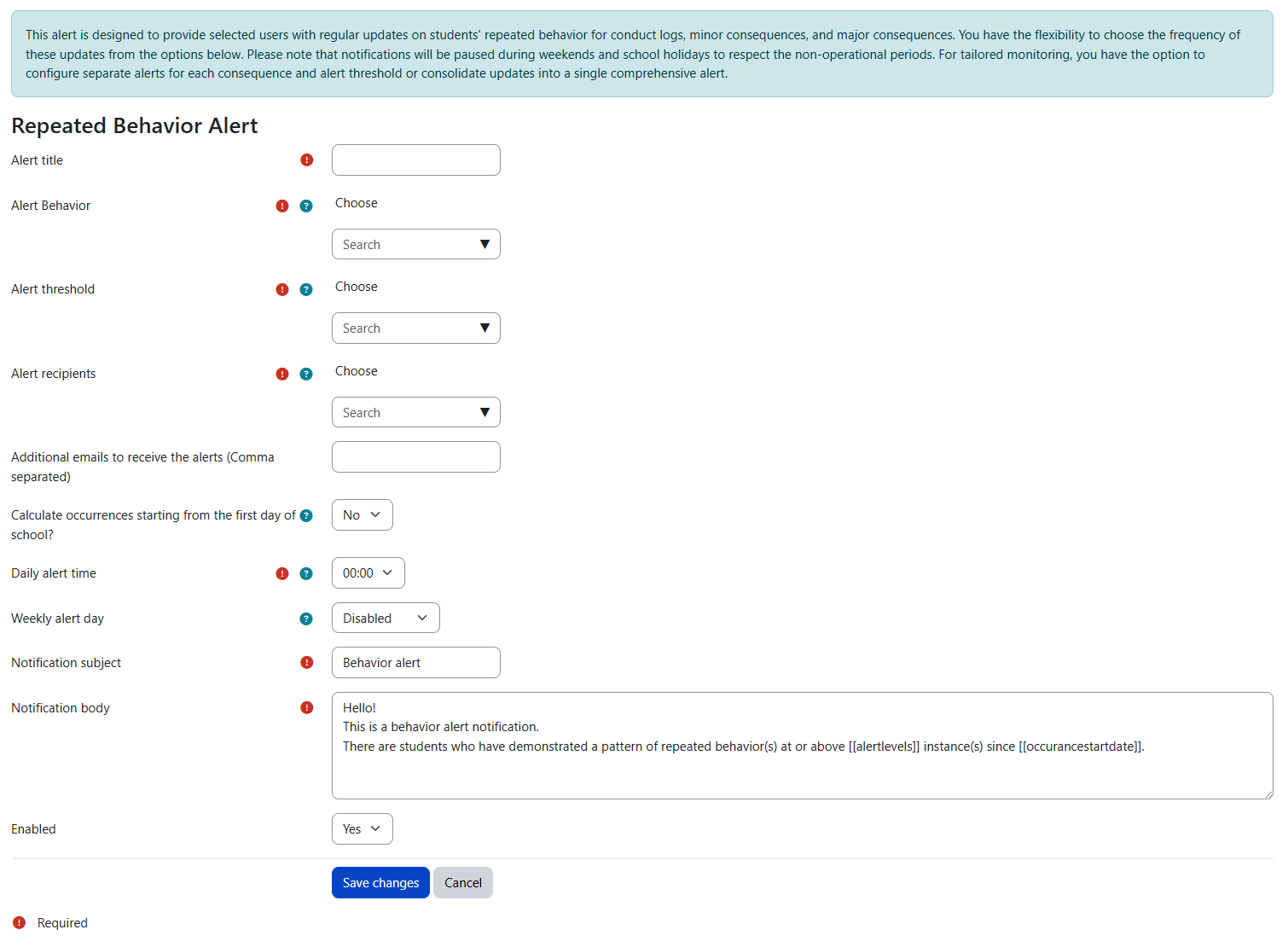
Special Program Alerts monitor students enrolled in special programs (ESE, 504, Gifted, ELL) and send notifications whenever those students have any behavior activity within the configured date range.
How It Works
-
At the scheduled time, the system checks if today is a school day. If not, the alert is skipped.
-
The system identifies all active, non-suspended students enrolled in the selected special programs by checking the student info fields: ese_specialed, fivezerofour, gifted, and ell_lep.
-
For each qualifying student, it counts: Minor Violations (behavior entries excluding recognitions), Total Points (unresolved entry points + resolution points), Minor Consequences (resolutions not linked to a referral), and Major Consequences (accepted referrals).
-
If a student has any activity (the sum of all counts is greater than zero), they are included in the alert.
-
The notification is sent to all configured recipients with a link to the detailed Alert Report.
-
If no students have any activity, a "no behavior log" message is sent instead.
Type-Specific Field
|
Field |
Description |
|---|---|
|
Programs to Include |
Select one or more: ESE, 504, Gifted, ELL. Students in ANY of the selected programs who have behavior activity will be included. |
Notification Placeholders
|
Placeholder |
Replaced With |
|---|---|
|
[[alertname]] |
The name of the alert |
|
[[notificationdatetime]] |
The current date and time when the notification is sent |
|
[[reportdatetime]] |
The date and time the alert log was created |
|
[[numberofstudents]] |
Total number of students included in this alert run |
|
[[selectedprograms]] |
Comma-separated list of the selected programs (e.g., "ESE, 504") |
|
[[occurancestartdate]] |
The start date of the counting period (beginning of year or current term) |
Repeated Behavior Alerts
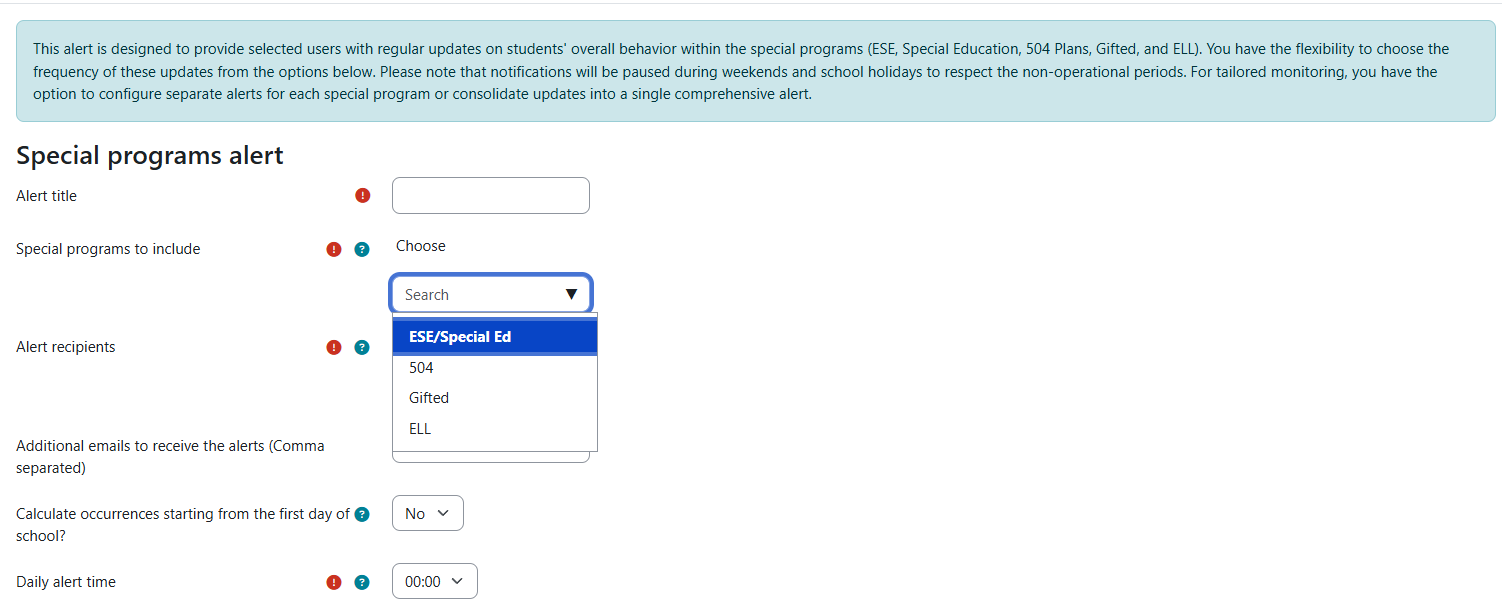
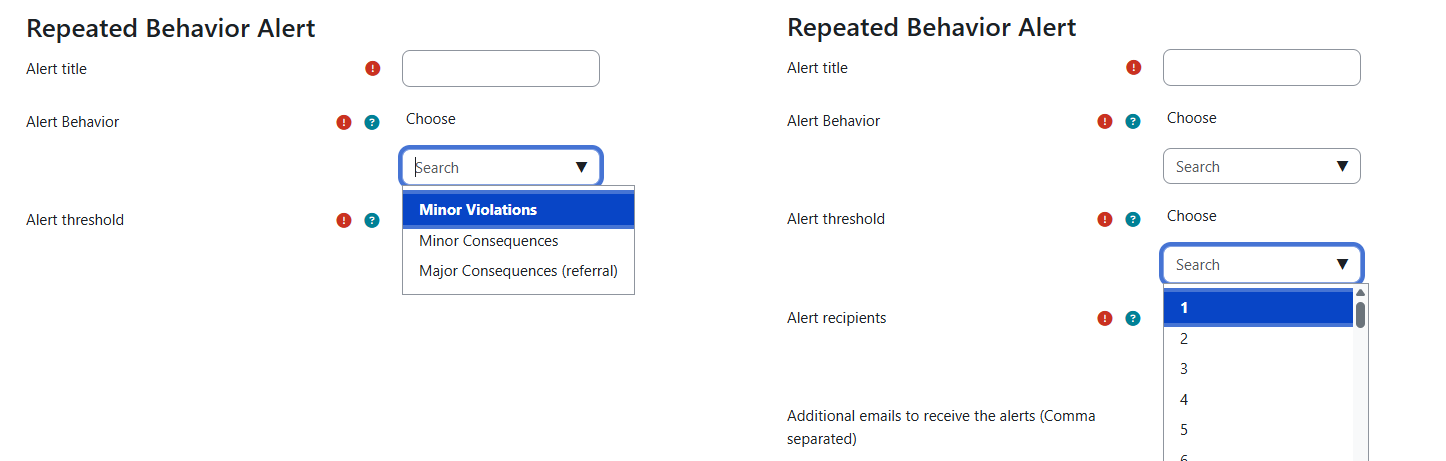
Repeated Behavior Alerts monitor accumulation of behavior entries and notify administrators when students exceed defined thresholds. This helps identify students who may need early intervention.
How It Works
-
At the scheduled time, the system checks if today is a school day. If not, the alert is skipped.
-
The system counts each student's behavior entries from the configured start date, separately for each selected behavior category.
-
It compares each student's count against the configured alert levels (thresholds).
-
Alert levels create threshold brackets. For example, if you set alert levels 3, 5, and 10, the system creates brackets: 3-4, 5-9, and 10+. A student is only alerted once per bracket — if they were already reported at level 3, they will not be alerted again until they reach level 5.
-
This deduplication works by checking the alert data log: if a student was already logged for a specific threshold level for this alert within the same start date period, they are not reported again.
-
The notification includes an auto-appended summary showing the number of students at or above the minimum threshold for each behavior category.
-
If no students exceed any threshold, a "no repeated behavior log" message is sent instead.
Type-Specific Fields
|
Field |
Description |
|---|---|
|
Behavior Categories |
Select one or more: Minor Violations (behavior entries excluding recognitions), Minor Consequences (behavior resolutions), Major Consequences (referrals). Each category is counted independently. |
|
Alert Levels |
Select one or more numeric levels (1-99). These create threshold brackets that determine when alerts fire. For example, selecting levels 3 and 5 creates brackets: 3-4 entries and 5+ entries. |
Understanding Alert Level Brackets
Alert levels are not simple thresholds — they create brackets. The system tracks which bracket a student has already been alerted for, so notifications are sent only once per bracket per student. This prevents alert fatigue while ensuring escalation is captured.
Example: You set alert levels to 3, 5, and 10.
|
Student Entry Count |
Bracket |
Alert Sent? |
|---|---|---|
|
1-2 entries |
Below minimum |
No |
|
3-4 entries |
Level 3 bracket |
Yes (first time only) |
|
5-9 entries |
Level 5 bracket |
Yes (first time only) |
|
10+ entries |
Level 10 bracket |
Yes (first time only) |
A student who reaches 4 entries triggers the Level 3 bracket alert. When they later reach 6 entries, they trigger the Level 5 bracket alert. They will not be re-alerted at Level 3.
Auto-Appended Summary
Each Repeated Behavior notification automatically appends a summary to the notification body in this format:
"Minor Violations: X student(s) at or above Y occurrences.
Minor Consequences: X student(s) at or above Y occurrences."
(One line per selected behavior category)
Notification Placeholders
|
Placeholder |
Replaced With |
|---|---|
|
[[alertname]] |
The name of the alert |
|
[[notificationdatetime]] |
The current date and time when the notification is sent |
|
[[reportdatetime]] |
The date and time the alert log was created |
|
[[selectedbehaviors]] |
Comma-separated list of selected behavior categories |
|
[[occurancestartdate]] |
The start date of the counting period |
|
[[alertlevels]] |
Comma-separated list of the configured alert levels (e.g., "3, 5, 10") |
Alert Scheduling
Alerts are processed by the scheduled task 'Send Discipline Alert' which runs via Moodle's cron system.
The scheduling logic works as follows:
-
School Day Check: The task first checks if today is a school day using the Holiday Calendar. If it is not a school day (weekend, holiday, etc.), all alerts are skipped.
-
Weekly Day Check: If the alert has a specific weekly day configured, it only runs on that day.
-
Hour Check: The alert checks if the current hour matches or has passed the configured Daily Alert Hour, and if it hasn't already run today. This ensures alerts run once per scheduled cycle even if cron runs multiple times per hour.
-
All enabled alerts are evaluated sequentially.
Alerts depend on Moodle's cron job running regularly. If cron is delayed or stopped, alerts will be delayed. Check Site Administration > Server > Scheduled Tasks to verify the 'Send Discipline Alert' task is running properly.
Managing Alerts
Enabling and Disabling
Use the Enable/Disable action on the alerts list to toggle an alert's status without deleting it. Disabled alerts retain all their configuration and history. Use this to:
-
Temporarily pause alerts during school breaks
-
Test alert configurations before going live
-
Seasonally activate/deactivate specific alerts
Editing an Alert
Click Edit on any alert to modify its settings. All fields can be updated. Changes take effect on the next scheduled run.
Deleting an Alert
Deleting an alert permanently removes the alert and ALL associated log history and student data. If you may need the alert again, disable it instead.
When an alert is deleted, the system removes: the alert configuration, all alert log entries, and all student-level alert data records.
Alert Logs
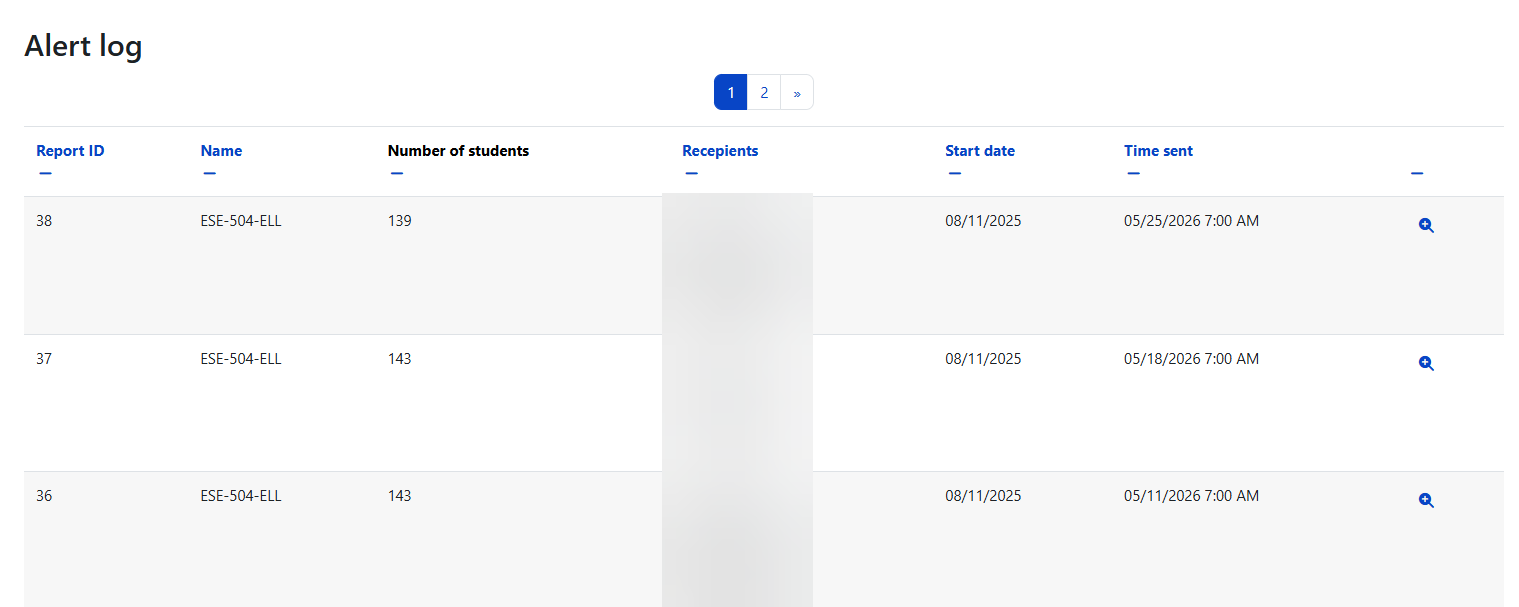
Navigate to the Alert Logs by clicking the log icon on any alert in the alerts list. The Alert Log shows a history of every time the alert was evaluated and sent.
Required capability: radix/discipline:viewalertlogs
Log Table Columns
|
Column |
Description |
|---|---|
|
Report ID |
Unique ID for this log entry — click to view the detailed student report |
|
Name |
The alert name |
|
Number of Students |
How many students were included in this alert run |
|
Recipients |
Who received the notification |
|
Start Date |
The beginning of the counting period used for this run |
|
Time Sent |
When the notification was sent |
|
Actions |
View detailed report |
The table supports sorting, pagination, and CSV download.
Alert Report
Click on a Report ID in the Alert Logs to see the detailed student-level report for that alert run.
Required capability: radix/discipline:viewalertreport
Report Table Columns
|
Column |
Description |
|---|---|
|
Row # |
Row number |
|
ID Number |
Student's ID number |
|
First Name |
Student's first name |
|
Last Name |
Student's last name |
|
Grade |
Student's grade level |
|
Special Programs |
Programs the student is enrolled in |
|
Log Data |
Behavior data that triggered the alert. For Special Program alerts: shows minor violations count, total points, minor consequences, and major consequences. For Repeated Behavior alerts: shows entry count per behavior category and the threshold bracket reached. |
|
Alert |
The alert name |
|
Alert Time |
When the alert was sent |
|
Start Date |
Beginning of the counting period |
The table supports sorting, pagination, and CSV download.