
Overview
This guide covers how teachers and administrators create behavior entries for students — both for discipline and positive recognition — and how to use the Parent Contact Log to document communications with parents and guardians.
|
Feature |
Purpose |
Who Uses It |
|---|---|---|
|
Behavior Entries |
Record student behavior incidents and positive recognition |
Teachers, Administrators |
|
Bulk Recognition |
Recognize multiple students at once for positive behavior |
Teachers |
|
Parent Contact Log |
Document phone calls, meetings, and communications with parents/guardians |
Teachers, Administrators |
Creating a Behavior Entry
To create a new behavior entry, navigate to Behavior > Behavior Entries and click the Add button.
Behavior entry form fields
|
Field |
Required |
Description |
|---|---|---|
|
Date/Time |
Yes |
The date and time of the incident. Defaults to the current date and time. |
|
Student |
Yes |
Select the student from the dropdown. If the student is enrolled in a special program (ESE, 504, Gifted, ELL), a warning banner will appear at the bottom of the form. You may select multiple students in this field. |
|
Behavior Category |
Yes |
Select the behavior category. Categories control which behavior types, steps, and locations are available. Categories flagged as Recognition (positive behavior) will switch the form to positive behavior mode. |
|
Behavior Type |
Yes |
If used at your school, select the behavior type. The list is filtered based on the selected category. |
|
Behavior Step |
Yes |
Select the behavior step. Each step has a point value (ISS Point or Teacher Point depending on category permissions). Points are used by behavior outcomes to determine consequences. |
|
Location |
Yes |
Select where the behavior occurred. The list is filtered based on the selected category and whether the entry is ISS or teacher-level. |
|
Disruptions |
No |
If asked, select one or more disruptions. Each disruption adds its own point value to the entry total. Disruptions are linked to behavior steps. |
|
Comment |
No |
Free-text field to describe the incident or recognition in detail for parents and students. |
|
Interventions |
No |
If asked, document any interventions attempted before or during the incident. |
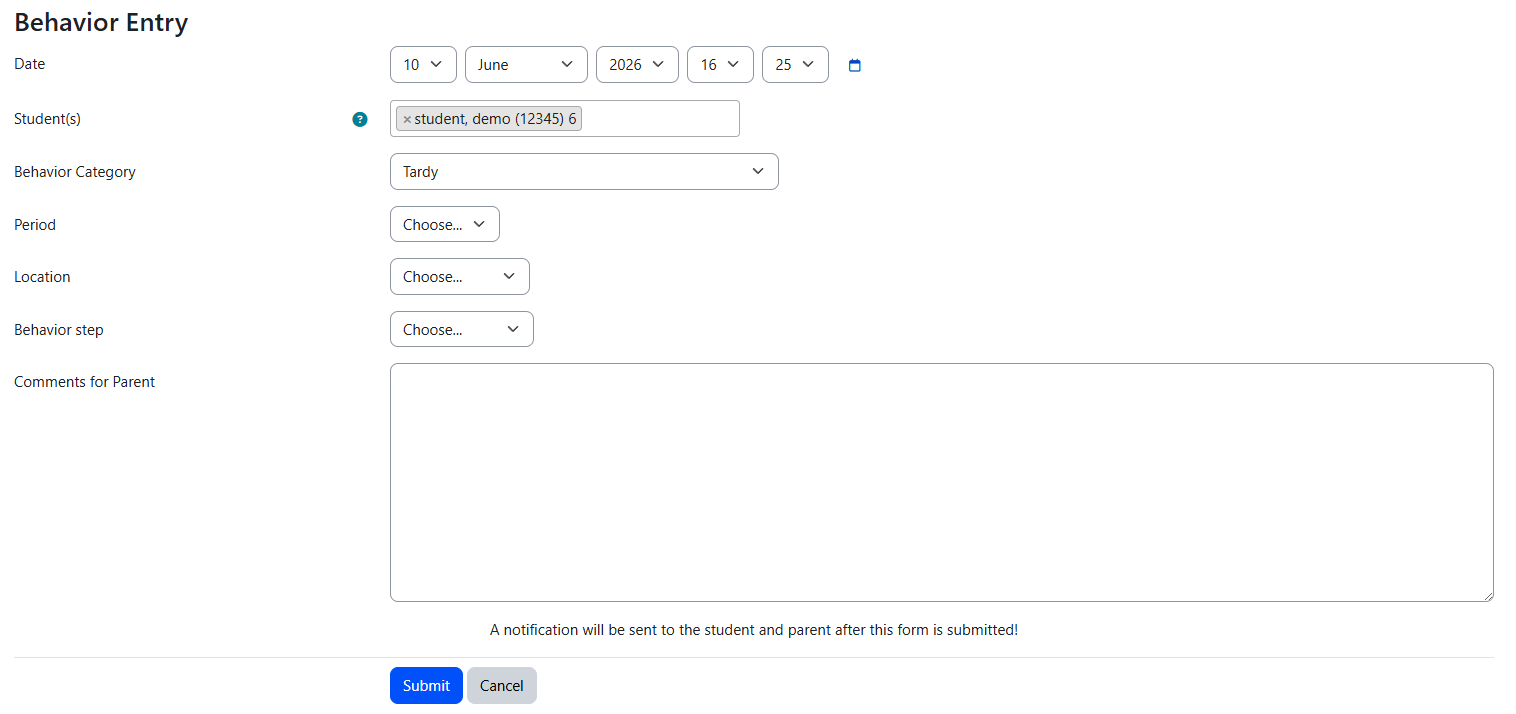
Special Program Warning: When a student enrolled in a special program (ESE, 504, Gifted, or ELL) is selected, the system displays a warning banner on the form. This reminds staff to consider whether the behavior may be related to the student's specialty or program accommodations before proceeding.
Points and scoring
Each behavior entry may carry points based on how your school’s behavior system is configured. Here is what teachers need to know:
-
The Behavior Step you select may have a point value assigned to it. Some steps, such as “Verbal Warning,” may carry zero points and serve as a warning only.
-
Intervention steps you add to the entry may carry additional points.
-
Some entries may not carry any points at all. These are still saved in the system and may be tracked as warnings.
-
Your administrator determines how points are configured. If you are unsure how points work at your school, check with your administrator.
You do not need to calculate points manually. The system automatically assigns the correct point value based on the step and disruptions you select.
Notifications
When notifications are enabled in Behavior Plugin Settings, submitting a behavior entry can trigger automatic notifications to parents and/or students. A notification warning is displayed above the submit button to remind staff that submitting this entry will send a notification.
Behavior Entries List
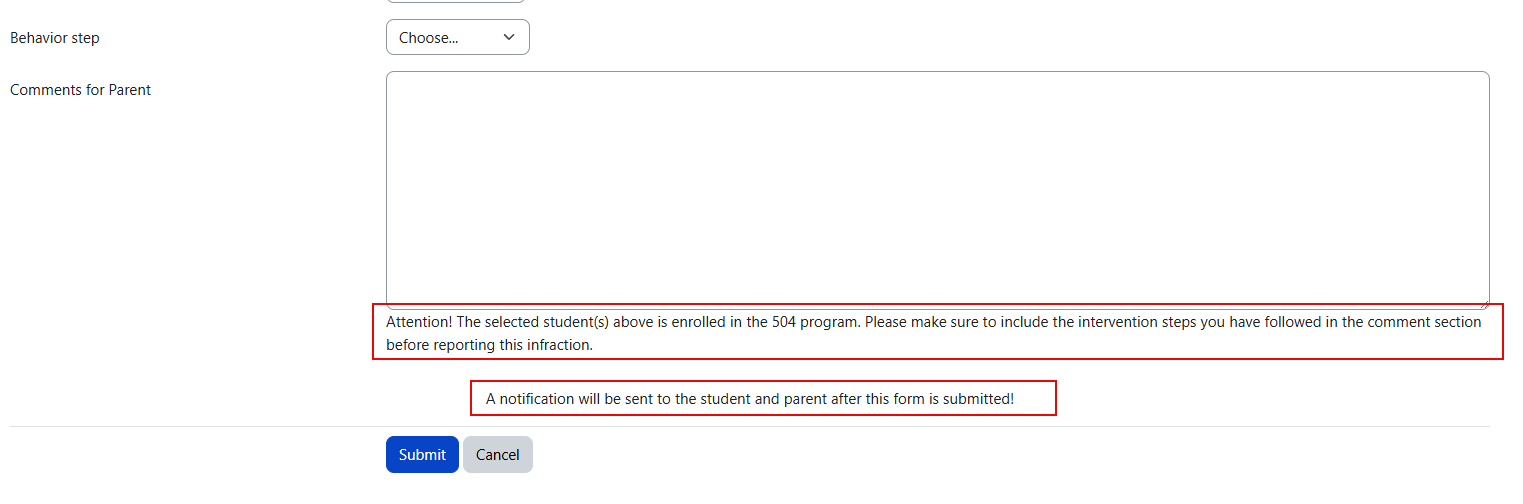
The Behavior Entries list page displays all entries with powerful filtering and management tools.
List page features
|
Feature |
Description |
|---|---|
|
Search and filter |
Filter entries by student, category, type, step, location, date range, and more. Filters are persistent across sessions. |
|
Sorting |
Click column headers to sort by any field. |
|
Export |
Export the filtered list to XLS or CSV format for reporting. |
|
Edit / Delete |
Click the edit or delete icon on any entry to modify or remove it (permissions required). |
|
Admin Decision column |
When enabled in plugin settings, a column showing the administrative decision assigned to each entry is visible. This helps administrators track which entries have been resolved. |
|
Color coding |
Entries may be color-coded based on their status or category for quick visual identification. |
Bulk Recognition
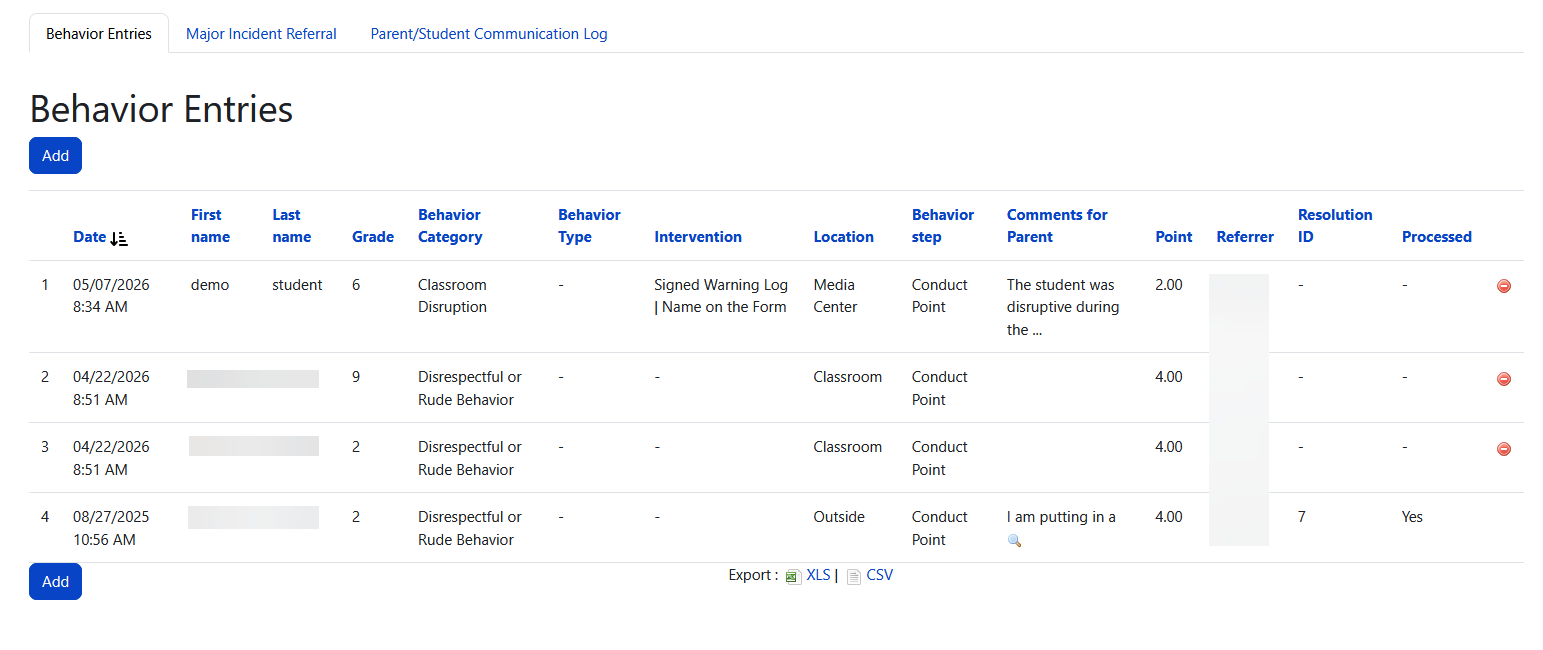
The Bulk Recognition feature allows teachers to recognize multiple students at once for positive behavior. This is useful for rewarding an entire class or group for good conduct during a period.
How to use Bulk Recognition
-
Navigate to Behavior > Behavior Entries.
-
Select the Positive Behavior Category (must be a recognition-enabled category).
-
Select the Behavior Type and Step.
-
Select yes for Bulk Recognition/Commendation (This option will only appear if bulk entry is turned on by the admins)
-
Select the class period to recognize
-
Add an optional comment.
-
Submit to create individual behavior entries for each selected student.
Bulk Recognition creates a separate behavior entry for each student. Each entry will appear individually in the Behavior Entries list and in the student's behavior record.
Parent/Student Communication Log
This Log provides a dedicated space for teachers and administrators to document all communications with parents and guardians — phone calls, in-person meetings, emails, and follow-ups. These records serve as important documentation for behavior intervention plans and pre-referral processes.
Creating a log entry
To create a new contact log entry, navigate to Behavior > Parent/Student Communication Log and click the Add button.
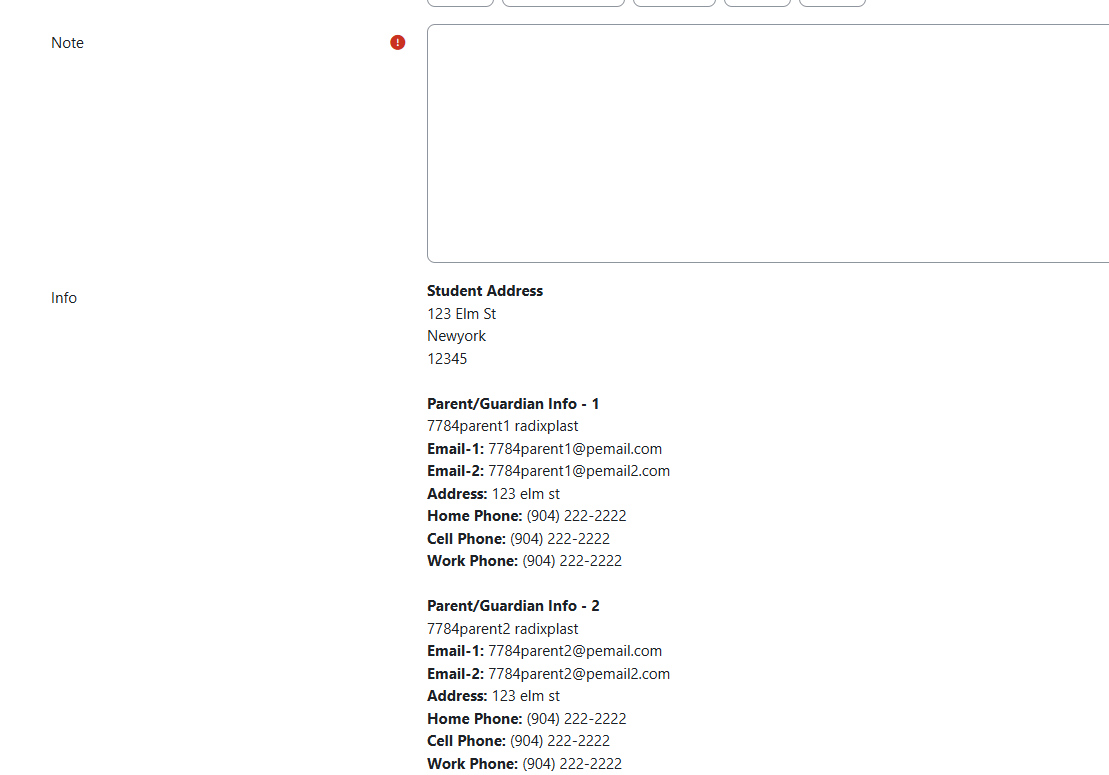
When you select a student, the form automatically displays all parent and guardian contact information on file, including:
-
Parent/Guardian name
-
Phone number(s)
-
Email address
-
Custody status
There is no limit on the number of parent contacts displayed. The system will show all contacts associated with the student's record.
When to use the Parent/Student Communication Log
|
Scenario |
Example |
|---|---|
|
Phone call home |
Documenting a call to discuss repeated tardiness or missing assignments. |
|
Parent meeting |
Recording outcomes of a parent-teacher conference about behavior concerns. |
|
Follow-up communication |
Noting a follow-up call after a behavior resolution was issued. |
|
Pre-referral documentation |
Building a record of parent communication attempts before filing a major referral. |
|
Positive communication |
Documenting a call to share positive behavior or academic progress. |
Contact Log list
The Parent Contact Log list page displays your logged communications, and all communications for the admins. Like the Behavior Entries list, it supports search, filtering, sorting, and export to XLS/CSV.
Tips and Best Practices
Tips for effective behavior documentation:
-
Be specific in comments: Instead of “student was disruptive,” write “student repeatedly talked over the teacher during instruction and refused to stop when redirected.” Specific comments are more useful for parent communications and referrals.
-
Log parent contacts promptly: Document phone calls and meetings as soon as possible while details are fresh.
-
Use recognition regularly: Positive behavior entries are just as important as discipline entries. They build a complete picture of each student's behavior profile.
-
Check special program warnings: Always review the special program warning when it appears. Consider consulting with the student's case manager before assigning consequences.