
This page explains how to use the reporting tools available in the Behavior module to monitor trends, identify students who need support, and drill into individual student history. Use these reports after your behavior forms, discipline matrix, outcomes, administrative decisions, and entry processing workflows are already configured.
Report options
|
Report |
Best used for |
Typical users |
Access path |
|---|---|---|---|
|
Behavior Overview Report |
Finding patterns across students, grades, site groups, and date ranges |
Deans, assistant principals, behavior coordinators, student services leaders |
School → Behavior → Behavior Overview Report |
|
Student Behavior Report |
Reviewing one student's detailed behavior history including entries, rewards, referrals, and resolutions |
Administrators, counselors, intervention teams |
Accessed from the Behavior Overview Report via the Action column |
Behavior Overview Report
Navigation: School → Behavior → Behavior Overview Report
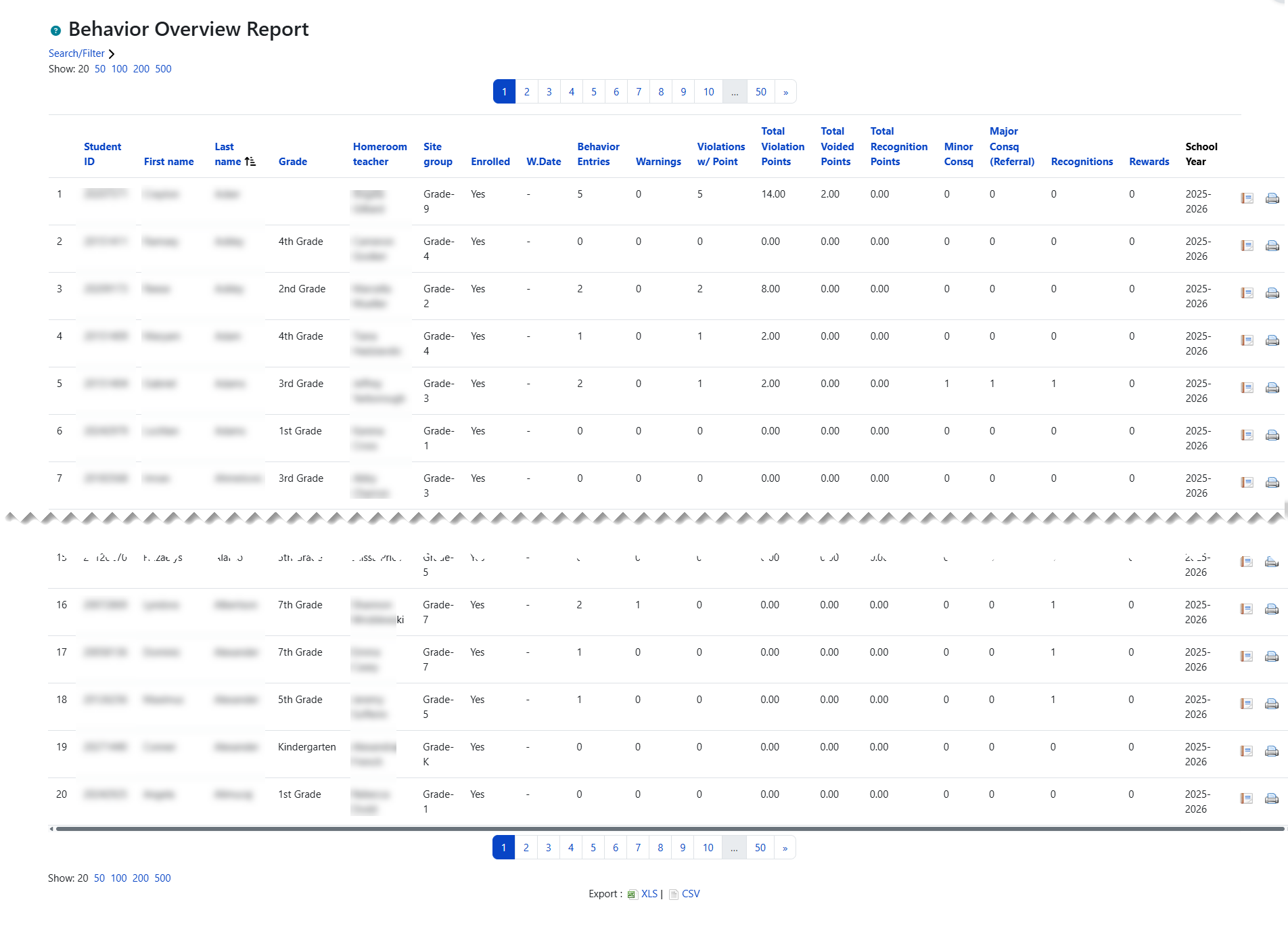
The overview report gives administrators a sortable, filterable summary of student behavior activity. It is useful for identifying students with repeated incidents, reviewing point totals, monitoring consequences and rewards, and checking whether trends are concentrated by grade, teacher grouping, or site group.
What this report helps you do
-
Find students with high behavior entry counts or point totals
-
Compare minor consequences, major consequences, recognitions, and rewards
-
Review activity by grade, homeroom teacher, and site group
-
Focus on active or withdrawn students depending on the situation
-
Open a student-level report directly from the Action column
Report columns
|
Column |
What it shows |
Why it matters |
|---|---|---|
|
Row count |
Sequential row number |
Helps with quick reference during discussion or export review |
|
Student ID |
Student ID number |
Useful when matching records with SIS data or support lists |
|
First Name |
Student first name |
Basic identification |
|
Last Name |
Student last name |
Basic identification and sorting |
|
Grade |
Current grade level |
Supports trend review by grade |
|
Homeroom Teacher |
Student's homeroom assignment |
Helps identify classroom or team patterns |
|
Site Group |
Student's site group |
Useful for campuses or programs using grouping structures |
|
Enrolled |
Active or withdrawn status |
Helps avoid mixing current students with historical records unless intended |
|
Withdrawal Date |
Student leave date when applicable |
Adds context when reviewing prior behavior totals |
|
Behavior Entries |
Total number of behavior entries |
Quick measure of overall behavior volume |
|
Warnings |
Entries with zero points, excluding recognitions |
Shows students receiving repeated low-level interventions before point escalation |
|
Entries with Points |
Entries where the point value is not zero |
Separates documented incidents from point-bearing incidents |
|
Total Points |
Sum of all behavior points |
Useful for identifying students nearing or exceeding thresholds |
|
Total Voided Points |
Sum of points from voided entries |
Important when reviewing why visible totals may differ from active discipline processing |
|
Total Recognition Points |
Sum of recognition points |
Helps balance intervention review with positive behavior data |
|
Minor Consequences |
Count of non-reward resolutions |
Shows how often behavior entries led to minor administrative action |
|
Major Consequences |
Count of accepted referrals |
Highlights students with escalated incidents |
|
Recognitions |
Count of recognition entries |
Useful for PBIS or positive behavior monitoring |
|
Rewards |
Count of reward-type resolutions |
Shows formal reward outcomes tied to behavior processing |
|
School Year |
Current school year |
Confirms reporting context |
|
Action |
Two icons: 📑 View (opens student report) and 🖨️ Print (opens in new tab for printing) |
Provides direct drill-down for follow-up review |
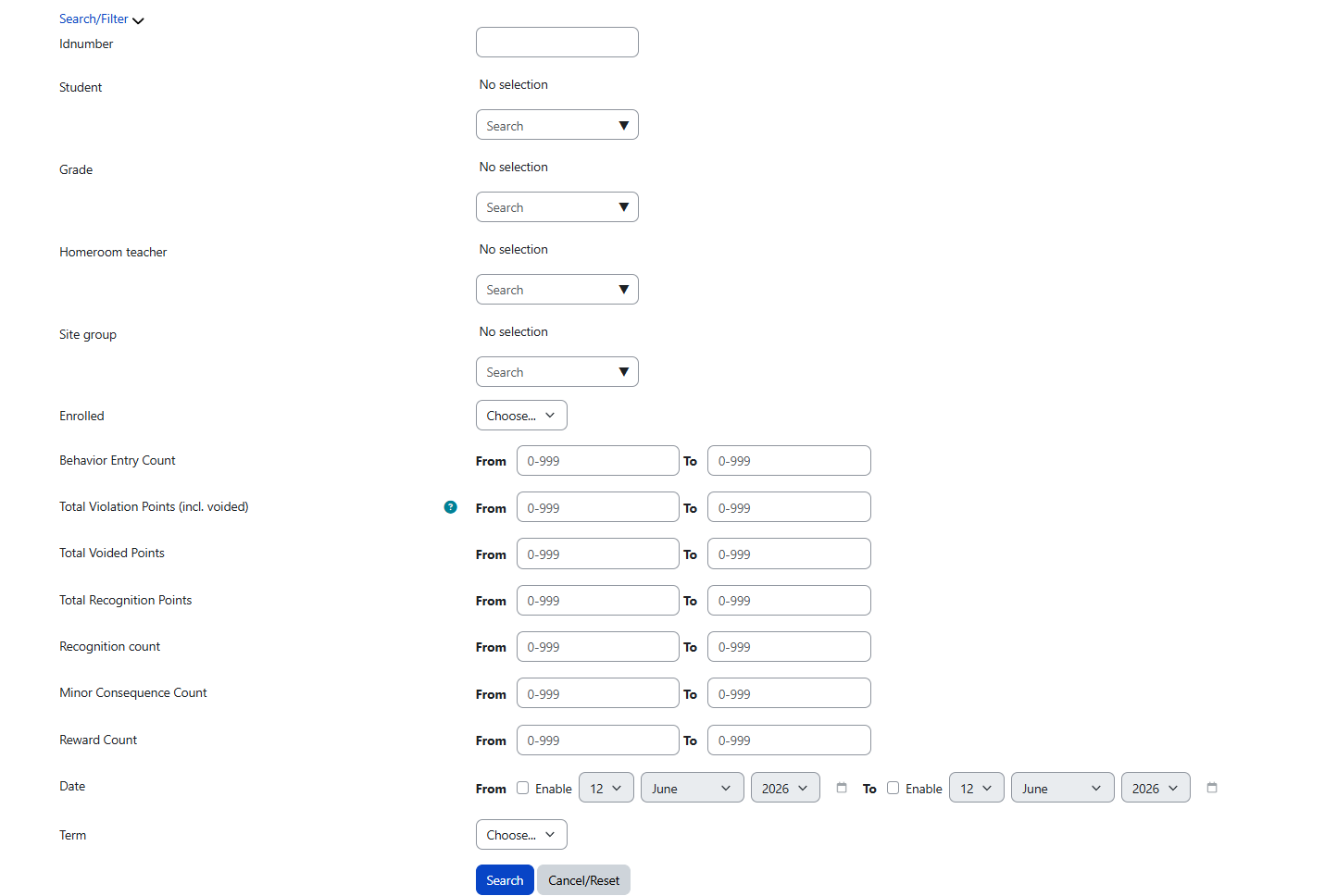
Filters
The filter panel is collapsible and automatically expands when any filter is active. Filter choices are saved per user, which means the report tends to reopen with your last-used settings.
The filters below are listed in the order they appear on the form:
|
Filter |
Type |
Guidance |
|---|---|---|
|
Student ID
|
Text |
Best for searching a known student quickly |
|
Student |
Autocomplete |
Useful when you know the student name but not the ID number |
|
Grade |
Multi-select |
Use for grade-level trend review |
|
Homeroom Teacher |
Multi-select |
Useful for classroom, team, or teacher-level comparisons |
|
Site Group |
Multi-select |
Helpful when site groups represent academies, houses, or programs |
|
Enrolled |
Yes / No / All |
Use this to focus on current students or include withdrawn students for historical analysis |
|
Behavior Entries Count From / To |
Numeric range |
Helps find students with repeated incidents |
|
Total Points From / To |
Numeric range |
Useful for threshold review and intervention planning |
|
Total Voided Points From / To |
Numeric range |
Helpful when auditing entries that were later voided |
|
Total Recognition Points From / To |
Numeric range |
Useful for positive behavior recognition review |
|
Recognition Count From / To |
Numeric range |
Find students receiving frequent recognitions |
|
Minor Consequences From / To |
Numeric range |
Useful for identifying repeated minor behavior patterns |
|
Rewards From / To |
Numeric range |
Shows students with formal reward outcomes |
|
Date From / Date To |
Date range |
Use for custom reporting windows when term-based review is not required |
|
Term |
Select |
Shows either Q1–Q4 or S1–S2 depending on your school's term configuration (quarter vs. semester). This overrides the custom date range when selected. |
Practical tip: Start with broad filters, then narrow by grade, teacher, or point range. This usually makes patterns easier to spot than starting with too many filters at once.
Term filter behavior: If you select a term, the system uses that term's date window instead of any custom date range you entered. The available terms (Q1–Q4 or S1–S2) depend on your school's term configuration setting. This is useful for quarter and semester reviews, but it can confuse users who forget a term is still selected.
Sorting, exports, and usability features
-
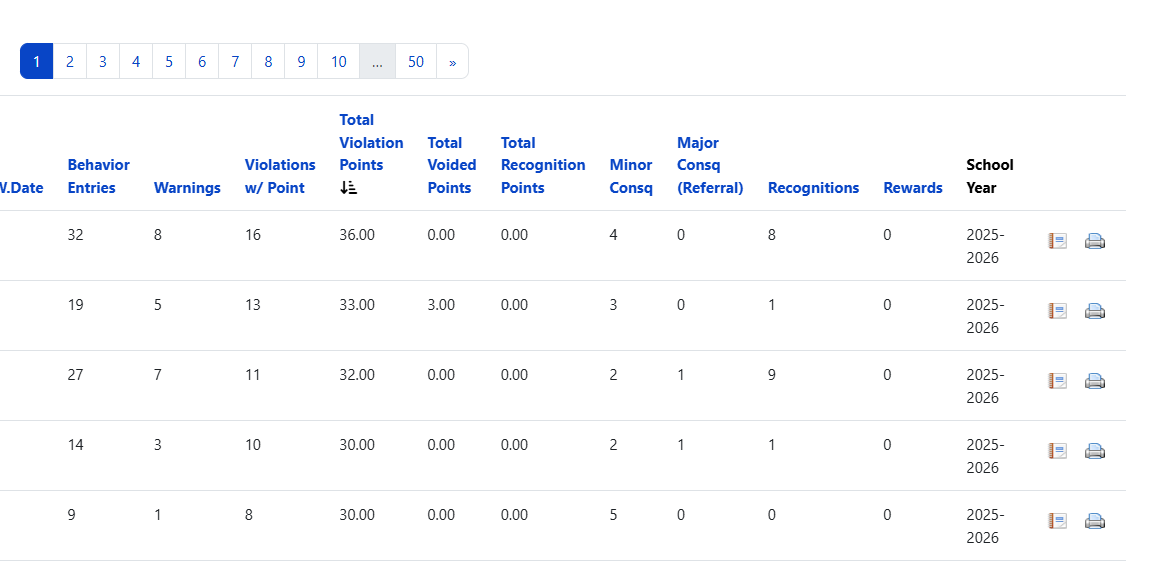
All report columns are sortable except Row Count, School Year, and Action.
-
Export options include XLS and CSV. Exports exclude the Row Count and Action columns. The "Student ID" column header is renamed to "studentid" in exports.
-
The report supports pagination and per-page display controls.
-
Filter selections are saved by user, which is helpful for recurring meetings or review routines.
Recommended workflow
-
Open the overview report and clear any outdated saved filters if results look unexpected.
-
Select either a term or a custom date range.
-
Narrow by grade, homeroom teacher, site group, or enrolled status as needed.
-
Sort by behavior entries, total points, minor consequences, or major consequences.
-
Use exports for leadership review, intervention meetings, or documentation.
-
Open the student-level report from the Action column for individual follow-up.
Student Behavior Report
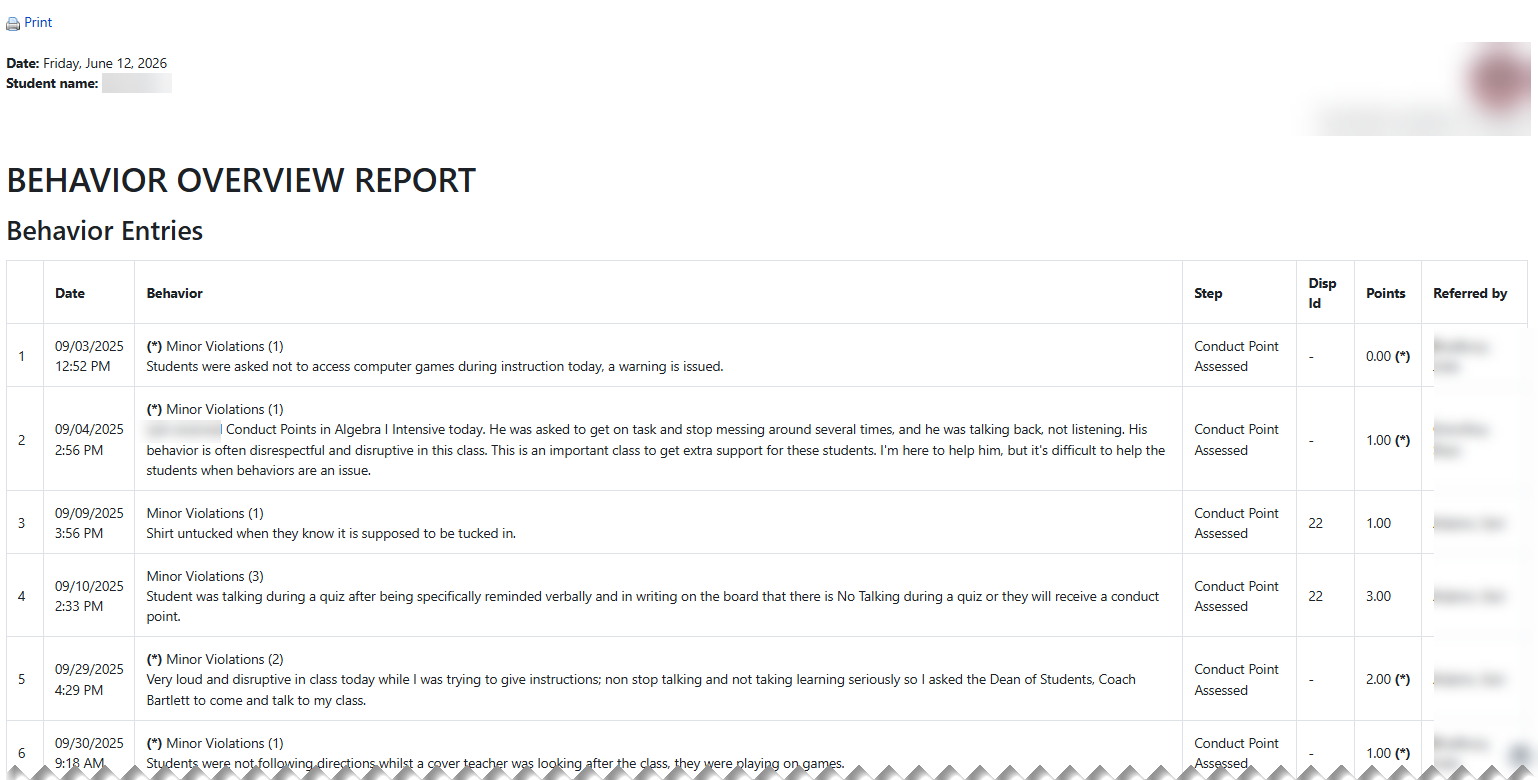
The student behavior report is accessed from the Action column in the Behavior Overview Report. It provides a complete view of one student's behavior history, organized into four sections.
Report header: The report displays today's date and the student's name on the left, with the school logo and school name on the right.
Section 1: Behavior Entries
This section lists all behavior entries recorded for the student.
|
Column |
What it shows |
|---|---|
|
# |
Row number |
|
Date |
Date the entry was created |
|
Behavior |
Behavior category name |
|
Step |
Behavior step (intervention/disruption level) |
|
Disp Id |
Disposition ID — links the entry to its resolution or referral |
|
Points |
Point value assigned to this entry |
|
Referred by |
Name of the person who created the entry |
Voided entries: Whether voided entries appear in this section depends on the Show Voided Entries setting in Behavior Plugin Settings. When enabled, voided entries are included in the list. When disabled, they are hidden from view.
A note may appear at the bottom of this section indicating entries that were not used in processing (e.g., entries that were reset or never included in a run period).
Section 2: Rewards
This section lists all reward outcomes the student has received.
|
Column |
What it shows |
|---|---|
|
# |
Row number |
|
Date |
Date the reward was processed |
|
Reward |
Reward name |
|
Points |
Recognition points associated with the reward |
Section 3: Major Violations (Referrals)
This section lists all accepted referrals for the student.
|
Column |
What it shows |
|---|---|
|
# |
Row number |
|
Date |
Date and time the referral was created |
|
Behavior |
Offense description and incident detail |
|
Step |
Referral step |
|
Consequence |
Administrative decision assigned to the referral |
|
Scheduled Day |
Number of days scheduled |
|
Scheduled Hour |
Number of hours scheduled |
|
Serve Date |
Date the consequence was served |
Section 4: Minor Consequences Assigned/Served (Resolutions)
This section lists all resolution outcomes for the student.
|
Column |
What it shows |
|---|---|
|
# |
Row number |
|
Date |
Run period end date |
|
Behavior |
Administrative decision and comment |
|
Point |
Total points for this resolution |
|
Served |
Whether the consequence has been served (Yes/No) |
|
Scheduled Day |
Number of days scheduled |
|
Scheduled Hour |
Number of hours scheduled |
|
Serve Date |
Date the consequence was served |
Navigation and printing
-
Print button is available on both the view and print layouts
-
Go Back button returns you to the Behavior Overview Report
-
The print layout opens in a new tab with a clean format suitable for printing or saving as PDF
How to use it
-
Review one student's complete behavior history across all four sections before making support, intervention, or communication decisions
-
Use it during parent meetings, student support meetings, or administrative review
-
Cross-check the student's behavior entries, points, and outcomes against what you saw in the overview report
-
Print or save as PDF for documentation in student files
Drill-down workflow: The overview report helps you find who needs attention. The student report helps you understand that student's individual history in detail.
Recommended workflow
-
Identify a student from the Behavior Overview Report.
-
Click the view icon (📑 ) in the Action column to open the student report.
-
Review all four sections — behavior entries, rewards, major violations, and minor consequences.
-
Use the print icon (🖨️ ) or print button if you need a copy for a meeting or student file.
-
Click Go Back to return to the list and continue reviewing other students.
Best practices
-
Use term-based filters for formal quarter or semester reviews.
-
Use custom dates for intervention cycles, MTSS review windows, or post-incident follow-up.
-
Check enrolled status before using exported lists in active intervention planning.
-
Review voided points when totals seem higher than expected — check the Show Voided Entries setting if the student report seems incomplete.
-
Use the student drill-down view before contacting families or planning consequences so your decisions are based on the full record.