
A Major Incident Referral is a formal report of a serious behavior incident that requires administrative review and action. Unlike daily behavior entries, which are typically managed by teachers, referrals follow a multi-step workflow: a teacher or staff member reports the incident, an administrator accepts and processes it, and the system can notify parents and students through configurable letter templates.
Referrals use setup data configured in Behavior Forms Setup — specifically Major Offenses, Contexts, Expectations Violated, and Motivations — along with the Discipline Matrix & Major Offenses for consequence guidance and Administrative Decisions & Letter Templates for processing and communication.
Overview
|
Component |
Purpose |
Who uses it |
|---|---|---|
|
Major Incident Referral form |
Documents the incident from the teacher or staff member's perspective |
Teachers, staff |
|
Referral Actions list |
Shows all referrals with filters, search, and export for administrative review |
Admins, deans |
|
Referral processing |
Accepts, processes, or returns a referral with admin decision, scheduling, and notifications |
Admins, deans |
|
Referral notifications |
Sends letters and emails to parents and students after processing, and alerts admins when new referrals are reported |
System and admins |
Referral Workflow
The referral process involves two separate entry points and a multi-step workflow between teachers and administrators.
Two Entry Points
Teachers and staff report incidents from School → Behavior → Major Incident Referral. This is the reporting-only form.
Administrators and deans manage referrals from School → Behavior → Referral Actions. This is where referrals are accepted, processed, returned, or where admins can create their own fresh referral.
The workflow follows these stages:
-
Reported — A teacher or staff member creates a referral via School → Behavior → Major Incident Referral. The referral is saved with status Reported. An email notification is sent to the AP of Behavior and Dean roles (plus any additional configured recipients).
-
Accepted — An administrator opens the referral from School → Behavior → Referral Actions, reviews the details, changes the status to Accepted, and saves. This step populates the prior step count for the selected offense so the administrator can reference the Discipline Matrix.
-
Processed — The administrator reopens the accepted referral. The full processing fields now appear. The administrator assigns an Administrative Decision, completes scheduling, adds comments, attaches files, and selects notification options. Saving with status Processed finalizes the referral.
-
Notified — The system sends notifications to parents and/or students based on plugin settings and the selected letter template. Notifications are processed by a scheduled task.
Returned: If a referral needs more information or correction, an administrator can change the status to Returned instead of processing it. The original reporter receives a notification with the return reason. The teacher can then revise and re-report the referral.
Creating a Referral (Teacher/Staff)
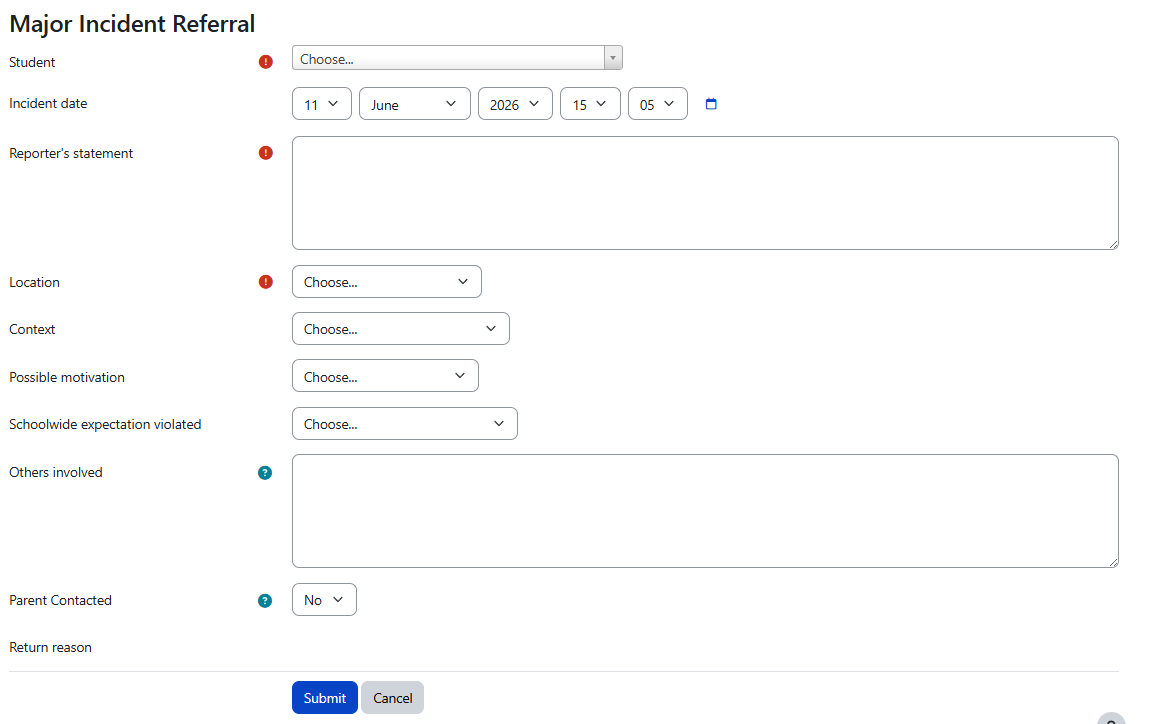
Teachers and staff report major incidents from School → Behavior → Major Incident Referral. This form captures the incident details from the reporter's perspective. It does NOT include admin processing fields.
|
Field |
Required |
Description |
|---|---|---|
|
Student |
Yes |
Select the student involved in the incident. |
|
Incident Date |
Yes |
The date the incident occurred. |
|
Major Offense |
Yes |
Select from the configured list of Major Offenses. This links the referral to the Discipline Matrix for consequence guidance. |
|
Context |
No |
Select the situational context of the incident. Configured in Behavior Forms Setup. |
|
Expectations Violated |
No |
Select the school-wide expectations connected to the incident. Use these consistently for cleaner reporting. |
|
Motivations |
No |
Select the perceived motivation behind the behavior. Helps with reporting and intervention planning. |
|
Others Involved |
No |
Document other students or individuals involved in the incident. |
|
Reporter's Statement |
Yes |
The reporting staff member's detailed account of the incident. Focus on factual information and observable behavior. This field is visible on the referral list and included in CSV exports. |
|
Location |
No |
Where the incident occurred. |
|
Teacher Parent Contacted |
No |
Whether the teacher contacted the parent before or during the reporting process. |
Return Reason is a read-only field that appears on the teacher form only when a referral has been returned by an administrator. It displays the reason the admin provided for returning the referral.
Special Program Warning
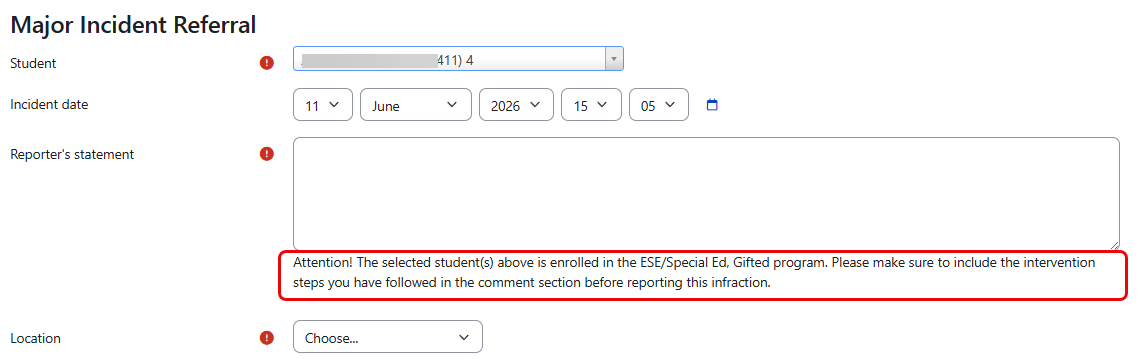
If the selected student is enrolled in a special program such as ESE/Special Ed, ELL, 504, or Gifted, a warning message appears below the Reporter's Statement field. This reminder prompts staff to document intervention steps before reporting the infraction.
The warning text is configurable in Behavior Plugin Settings. The special program indicator must also be enabled under the Radix User settings for this warning to appear.
Referral Statuses
|
Status |
Code |
What it means |
Who sets it |
|---|---|---|---|
|
None |
0 |
Default or unset status. |
System |
|
Reported |
1 |
The referral has been submitted by a teacher or staff member and is awaiting admin review. |
Teacher or staff member |
|
Returned |
2 |
The referral has been sent back to the reporter for revision or more information. The return reason is provided. |
Administrator |
|
Accepted |
3 |
An administrator has reviewed and accepted the referral. The prior step count is now populated. |
Administrator |
|
Deleted |
4 |
The referral has been deleted. |
Administrator |
|
Resolution Entry |
5 |
The referral was created from a behavior resolution (disposition) entry rather than directly reported. |
System |
Referral List
The referral list page under School → Behavior → Referral Actions gives administrators a central place to review and manage all referrals.
|
Feature |
Description |
|---|---|
|
Filters |
Filter by grade level, status, date range, and other criteria. Filters are persistent and remain active until cleared. |
|
Columns |
Shows student, grade, offense, incident detail, referrer's statement, status, date, admin decision, and other referral data. |
|
Search |
Search by student, offense, or other referral details. |
|
Export |
Download the current filtered list as CSV or XLS. |
|
Sorting |
Sort by visible columns to review records more efficiently. |
|
Behavior entries link |
For referrals created from accumulated minor infractions, an action icon links to the related behavior entries for that run period. |
|
Add button |
Administrators can create a fresh referral directly from this page without going through the teacher reporting form. |
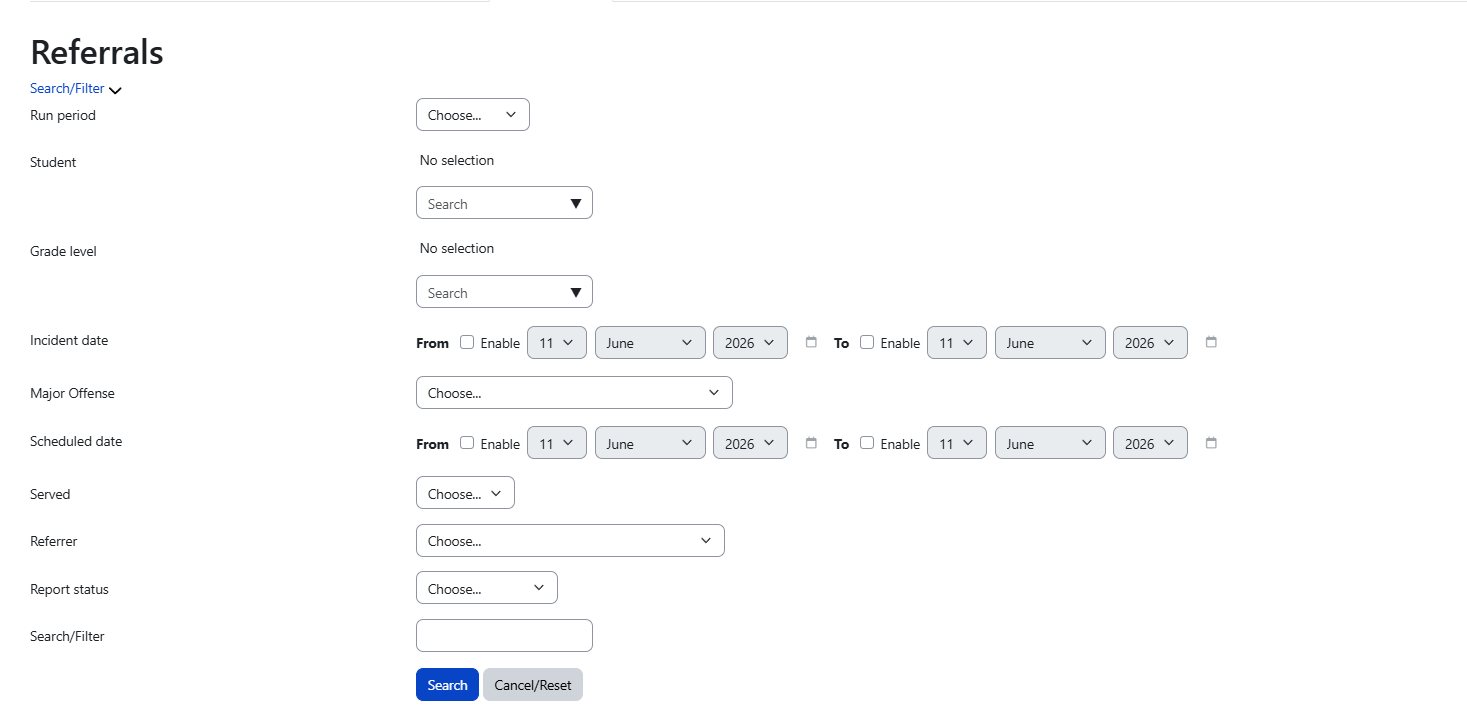
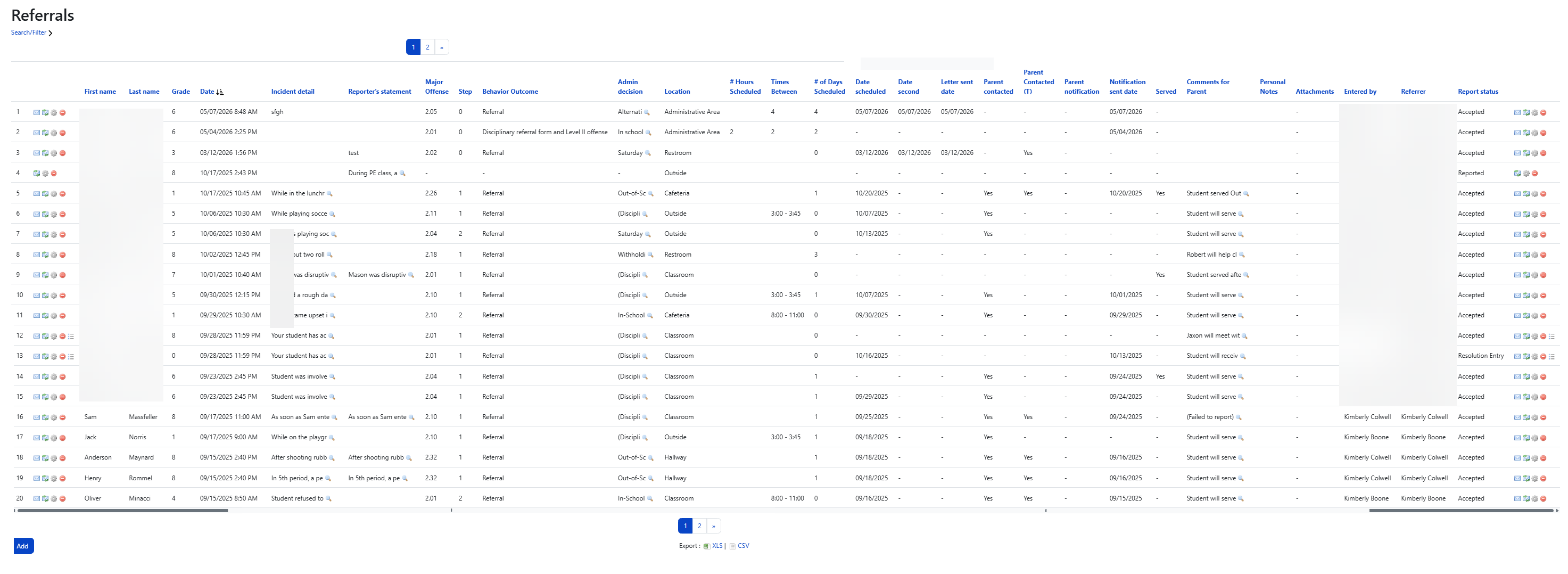
If expected referrals are not appearing, check whether an old filter is still active. Referral filters are persistent and remain applied until manually cleared.
Accepting a Referral
Before an administrator can process a referral, it must first be accepted. This is a required intermediate step.
-
Open the referral from School → Behavior → Referral Actions.
-
Review the teacher's report, including the reporter's statement and incident details.
-
Change the status to Accepted.
-
Save the referral.
When a referral is accepted, the system automatically populates the prior step count for the selected offense. This shows how many previous incidents the student has had for this offense, allowing the administrator to reference the Discipline Matrix for the correct consequence level.
To return a referral instead of accepting it, change the status to Returned and provide a return reason. The original reporter will receive a notification.
Processing an accepted Referral
After a referral has been accepted and saved, the administrator reopens it to access the full processing fields. These fields are only available after acceptance.
|
Field |
Required |
Description |
|---|---|---|
|
Offense |
Yes |
The major offense (carried over from the teacher's report, can be modified by admin). |
|
Incident Detail |
No |
Additional details about the incident (can supplement or update the teacher's report). |
|
Prior Step Count |
Auto |
Automatically populated after acceptance. Displays the student's prior incident count for this offense. Used to reference the Discipline Matrix. |
|
Current Step |
No |
The current consequence step based on the Discipline Matrix and prior step count. |
|
Consequence |
No |
The consequence from the Discipline Matrix (Major Offenses only). Guides the admin decision selection. |
|
Administrative Decision |
Yes |
Select from the configured admin decisions. Filtered by consequence when applicable. Links to the letter template for notifications. |
|
Date Scheduled |
No |
The date the consequence is scheduled to begin. |
|
Second Date |
No |
End date for multi-day consequences (e.g., suspension start and end). |
|
Date Letter Sent |
No |
The date the notification letter was sent. |
|
Times Between |
No |
The time range for serving the consequence (e.g., 8:00 AM – 3:00 PM). |
|
Scheduled Day |
No |
Number of days scheduled for the consequence. |
|
Scheduled Hour |
No |
Number of hours scheduled for the consequence. |
|
Comment |
No |
Administrator notes about the decision, context, or follow-up. Visible in reports. |
|
Private Comment |
No |
Internal administrator notes. Not included in parent/student notifications. |
|
Attachments |
No |
Supporting documents can be attached during processing. Maximum 50 attachments. Admin use only — not available on the teacher form. |
|
Parent Contacted |
No |
Whether the administrator contacted the parent during processing. |
|
Teacher Parent Contacted After |
No |
Whether the teacher contacted the parent after the referral was processed. |
|
Served |
No |
Indicates whether the consequence has been completed. |
|
Send Notification to Parent |
No |
Controls whether the parent receives the referral notification letter via email. |
|
Parent Emails |
Auto |
Automatically displays registered parent email addresses. Only parents with custody and a registered account are shown. |
|
Send Notification to Student |
No |
Controls whether the student receives a notification. |
|
Send Message to Student |
No |
Optional custom message sent directly to the student. |
|
Referrer |
Auto |
The original teacher or staff member who reported the referral. Auto-populated from the initial report. |
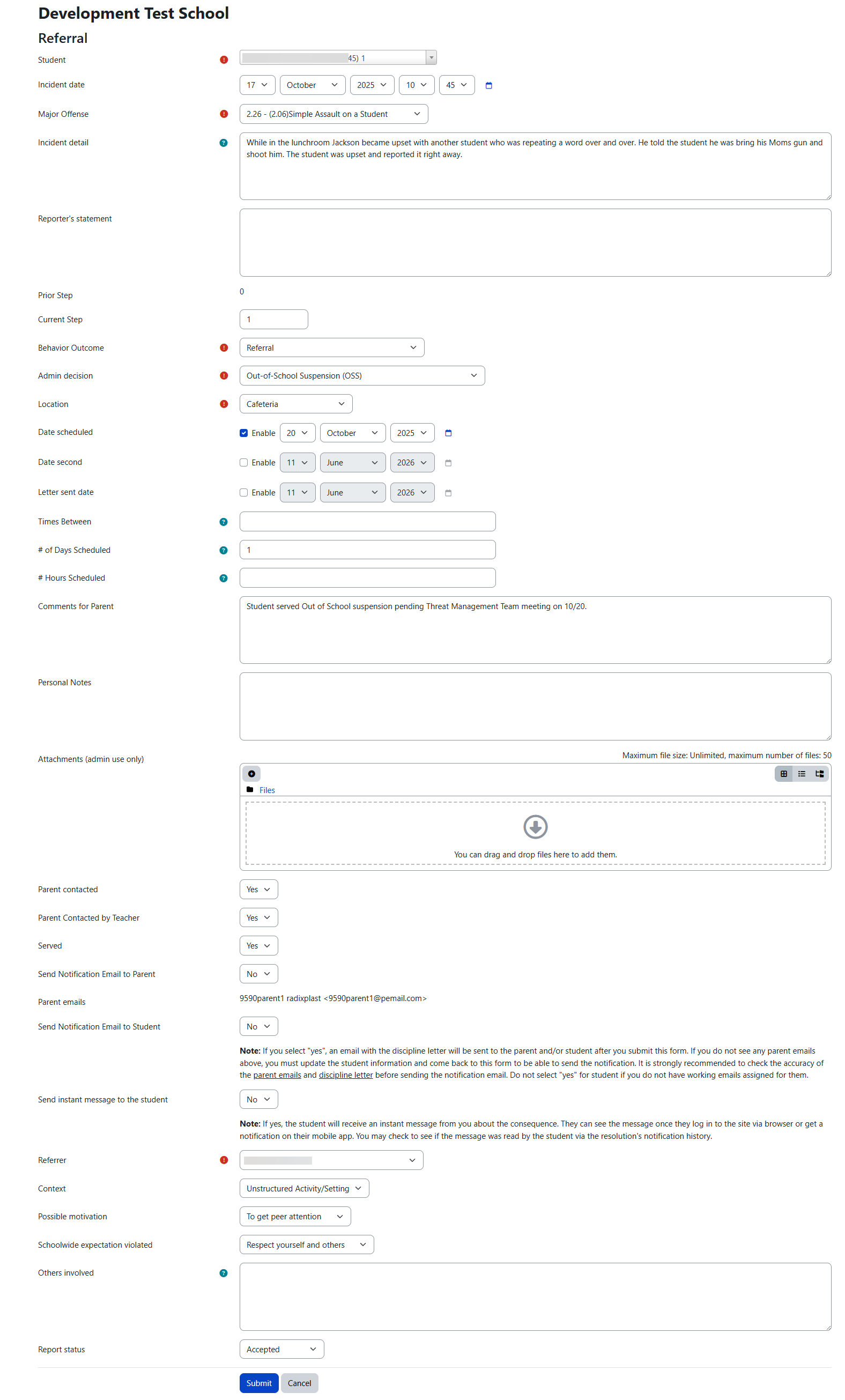
A decision without a valid letter template may still be selectable, but the system will display a warning and no parent or student notifications will be sent for that referral. You can add a letter template via Administrative Decisions & Letter Templates and revisit the referral.
Notifications
Referral notifications are configured in Behavior Plugin Settings.
|
Notification |
When it is sent |
Configured in |
|---|---|---|
|
Admin notification on report |
Sent when a teacher submits a new Major Incident Referral. By default, this goes to AP of Behavior and Dean roles, with additional recipients configurable. |
Behavior Plugin Settings → Major Incident Referral |
|
Returned referral notification |
Sent when an administrator returns a referral to the original reporter. Includes the return reason. |
Behavior Plugin Settings → Returned office referral notification |
|
Parent/Student notification on process |
Sent when a referral is processed using an admin decision with a valid letter template. The notification includes a PDF letter attachment and is processed by a scheduled task. |
Behavior Plugin Settings plus the selected Admin Decision letter template |
Notifications are processed by a scheduled task automatically usually every minute. If a selected admin decision has no valid letter template, that referral is skipped instead of blocking all referral notifications.
Tips and Best Practices
-
Always complete the Discipline Matrix before processing referrals so consequence guidance is available.
-
Use the Reporter's Statement field thoroughly — include factual, observable behavior. This field is visible in the referral list and CSV exports.
-
Remember the two-step admin workflow: Accept first, then process. Processing fields only appear after a referral is accepted and saved.
-
Review returned referral notification wording so teachers understand what needs to be corrected or added.
-
Check admin decision letter templates regularly to make sure notifications work as expected.
-
Review persistent filters first if the referral list does not look correct — old filters may be hiding referrals.
Permissions
|
Capability |
What it controls |
|---|---|
|
reportmajorincident |
Ability for teachers and staff to report major incident referrals via School → Behavior → Major Incident Referral. |
|
managereferral |
Ability for administrators and deans to access, accept, process, and return referrals via School → Behavior → Referral Actions. |
|
managestep |
Access to Major Offenses, Discipline Matrix, and Matrix Columns configuration. |
|
addconductlog |
Ability to create behavior-related entries and referral records where enabled. |
Related Pages
Discipline Matrix & Major Offenses